
• Skip to main content
  • Skip to primary sidebar
  • Deals
  • Features
  • Guides
  • Chromebooks
  • Videos
  • Podcast
  • More +
    • Reviews
    • Unboxing
    • Upcoming Devices
    • Chromebook Plus
    • Chrome
    • ChromeOS
    • Chrome OS Flex
  • Search
  • Sign Up
  • Log In
Chrome Unboxed – The Latest Chrome OS News

Chrome Unboxed - The Latest Chrome OS News

A Space for All Things Chrome, Google, and More!

  • Deals
  • Features
  • Guides
  • Chromebooks
  • Videos
  • Podcast
  • More +
    • Reviews
    • Unboxing
    • Upcoming Devices
    • Chromebook Plus
    • Chrome
    • ChromeOS
    • Chrome OS Flex
  • Search
  • Sign Up
  • Log In

How to use the awesome, new Data Extraction Smart Canvas feature in Google Sheets

June 8, 2023 By Michael Perrigo View Comments

Support our independent tech coverage. Chrome Unboxed is written by real people, for real people—not search algorithms. Join Chrome Unboxed Plus for just $2 a month to get an ad-free experience, access to our private Discord, and more. Learn more about membership here.
START FREE TRIAL (MONTHLY)START FREE TRIAL (ANNUAL)

There’s a ton to explore in the revamped Google Workspace apps. By adding dynamic and interactive Smart Canvas elements, Google is essentially rewriting Docs, Sheets, Slides, Gmail and more at their very core. Seriously, if you’re not using these features yet, you’re missing out big time.

While not yet available to everyone, a new ‘Data Extraction’ feature will certainly come as a welcome addition if you are just getting accustomed to inject file smart chips into your spreadsheets across your organization.

Xremove ads

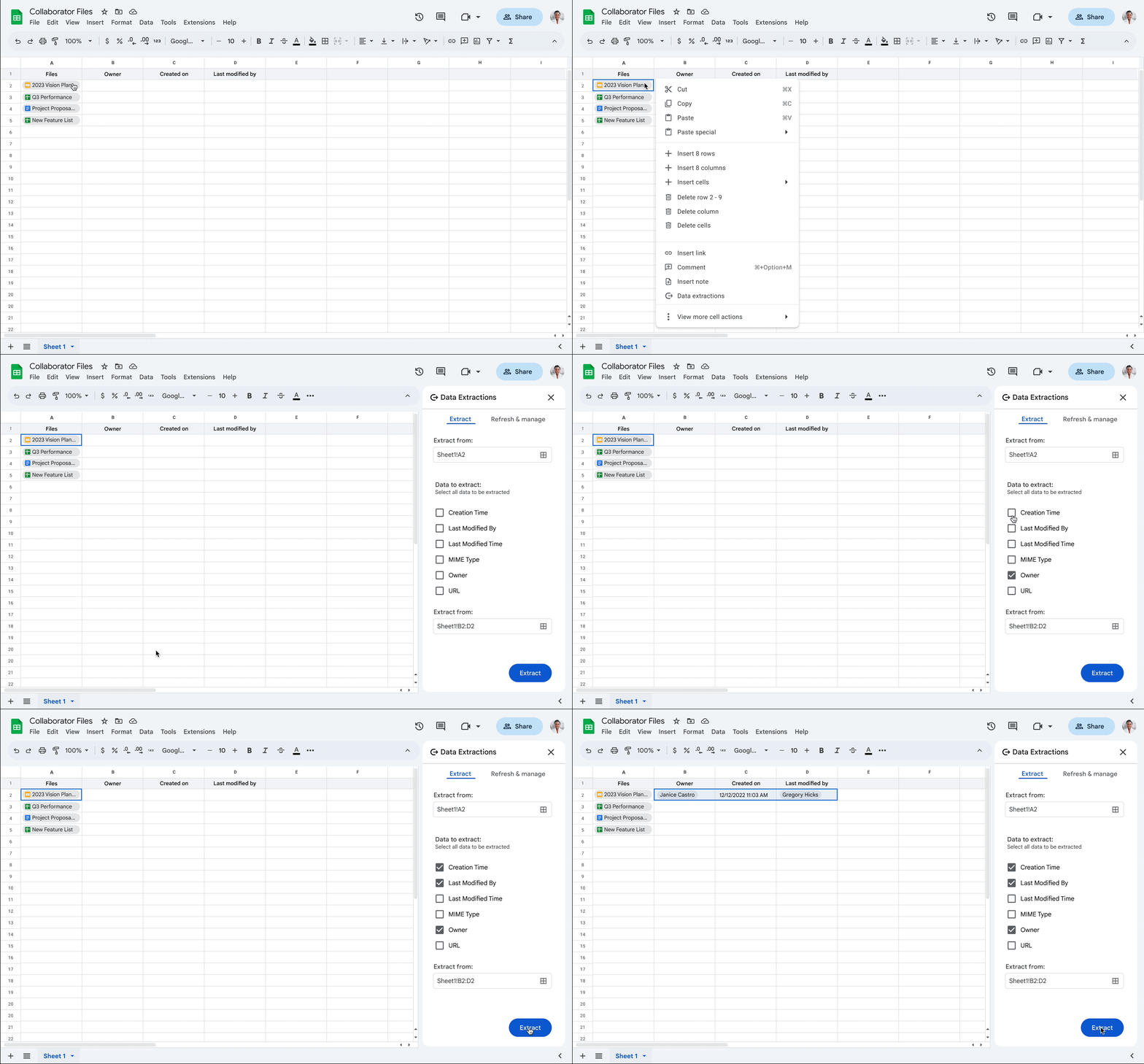
By clicking or right-clicking on a file smart chip in a Sheet cell, you can select the new ‘Data extractions’ option to open up the side panel and begin well, extracting data from the source document for use directly in the active Sheet.
Google Workspace Blog

Depending on what kind of information is available in the Doc, Slide, or linked Sheet, you will see relevant options in the side panel as “data to extract”. By checking a few boxes and clicking the blue ‘Extract’ button, you yank a copy of the information directly from the file in question and drop it into your workspace!

Featured Videos

Xremove ads

So, what would you use this for, exactly? Well, the possibilities are truly endless, and users will very likely think of their own use cases as they begin to integrate these tools into their workflow and team culture. However, if you need to interact with invoices or contracts you’ve linked in a column or row in order to quickly grab the information of the recipient like their name or address, for example, you won’t need to leave your active Sheet to do so.

This means no more tab clusters in Chrome as you juggle multiple files just to copy and paste bits of information! I can honestly see this coming in handy, and I do have several ideas for how to use this in a more creative capacity, but I’ll save that for another day.

If you’ve already gained access to this and are using it in any specific way, please let others known in the comments section! I’d also be interested in reading all about your implementation. Until this rolls out to everyone though, it’s a nice feature to gawk at since it’s so clever and powerful.

Xremove ads

SUBSCRIBE TO UPSTREAM

Get Chrome Unboxed delivered straight to your inbox

Upstream is our flagship, curated newsletter with the top stories, most click-worthy deals, giveaways, and trending articles from Chrome Unboxed sent directly to your inbox a few times a week. Join 31,000+ subscribers.

SUBSCRIBE HERE!

Filed Under: Guides and How-To's, New & Upcoming Features, Workspace

About Michael Perrigo

Known as "Google Mike" to his customers, Michael worked at Best Buy as a Chromebook Expert who dedicated his time to understanding the user experience from a regular Chromebook owner's perspective. Having spent nearly 20 years meeting you face-to-face, he strives to help you understand your technology through carefully crafted guides and coverage, relentlessly seeking out the spark in what's new and exciting about ChromeOS.

Primary Sidebar

Xremove ads

Deals

Pixel Buds Pro 2 running

I still love the Pixel Buds Pro 2 and they are $60 off right now

By Joseph Humphrey
March 13, 2026

The Lenovo Chromebook Slim 3 is the one to get, starting at just $139 right now

By Robby Payne
March 6, 2026

The best Chromebook deals today

By Robby Payne
March 6, 2026

The fantastic $599 deal on the Samsung Galaxy Chromebook Plus has returned

By Robby Payne
February 25, 2026

There are some great Pixel 10a pre-order offers right now: Here are my 2 favorite deals

By Joseph Humphrey
February 25, 2026

More Deals

Xremove ads

Reviews

Acer Chromebook Plus Spin 514 Review: Kompanio Ultra power in a convertible

By Robby Payne
December 24, 2025

My review after 6 weeks with the Lenovo Chromebook Plus 14 [VIDEO]

By Robby Payne
August 11, 2025

One week with the best small Android tablet you can buy, and I’m sold

By Robby Payne
May 9, 2025

Best Chromebooks of 2024 [VIDEO]

By Robby Payne
November 28, 2024

Samsung Galaxy Chromebook Plus Review: Samsung is back! [VIDEO]

By Robby Payne
October 28, 2024

More Reviews

Xremove ads

Guides

This Chromebook trackpad shortcut is definitely not new, but is blowing my mind

By Robby Payne
March 11, 2024

How to reduce broadcast delay on YouTube TV to stop live spoilers

By Robby Payne
December 8, 2023

Windows PC keyboard and Chromebook

How to use a Windows keyboard with a Chromebook

By Joseph Humphrey
December 8, 2023

How reset and revert your Chromebook to the previous version of Chrome OS

By Robby Payne
November 29, 2023

My Chromebook Plus features disappeared: here’s how I fixed it

By Robby Payne
November 24, 2023

More Guides

TWITTER · FACEBOOK · INSTAGRAM · YOUTUBE · EMAIL · ABOUT

Copyright © 2026 · Chrome Unboxed · Chrome is a registered trademark of Google Inc.
We are participants in various affiliate advertising programs designed to provide a means for us to earn fees by linking to affiliated sites.

PRIVACY POLICY