


Support our independent tech coverage. Chrome Unboxed is written by real people, for real people—not search algorithms. Join Chrome Unboxed Plus for just $2 a month to get an ad-free experience, access to our private Discord, and more. Learn more about membership here.
START FREE TRIAL (MONTHLY)START FREE TRIAL (ANNUAL)
Google Assistant has a neat little feature that I feel often goes overlooked – at least in my circles. Everytime I tell a friend or a family member that they can automate bells that announce upcoming activities on their Home devices, they look at me with a blank face. This mostly has to do with the fact that I’m the geek and they’re generally not, but still.
Google’s Family Bell feature is great, and today, I’m going to teach you how to set it up and use it to keep your family on track throughout the day. Some examples of useful bells to have trigger on your Nest Hub or Nest Mini, for example, include one that reminds you to take a break from your screens and spend some time together as a family (this is my favorite one!), one that announces bed time or pre-bedtime routines, daily clean up sessions, and even one that reminds you to read a book so you can cross titles off of your TBR (To Be Read) list this summer.
How to set up Assistant Family Bell
In order to access the Family Bell feature, simply tap the Assistant button on your phone and say “Create a Family Bell”. You will immediately be taken to the proper section where you will see the screen and suggestions below. Simply tap the blue “+ Add a bell” button at the top of this screen to expand out your options.
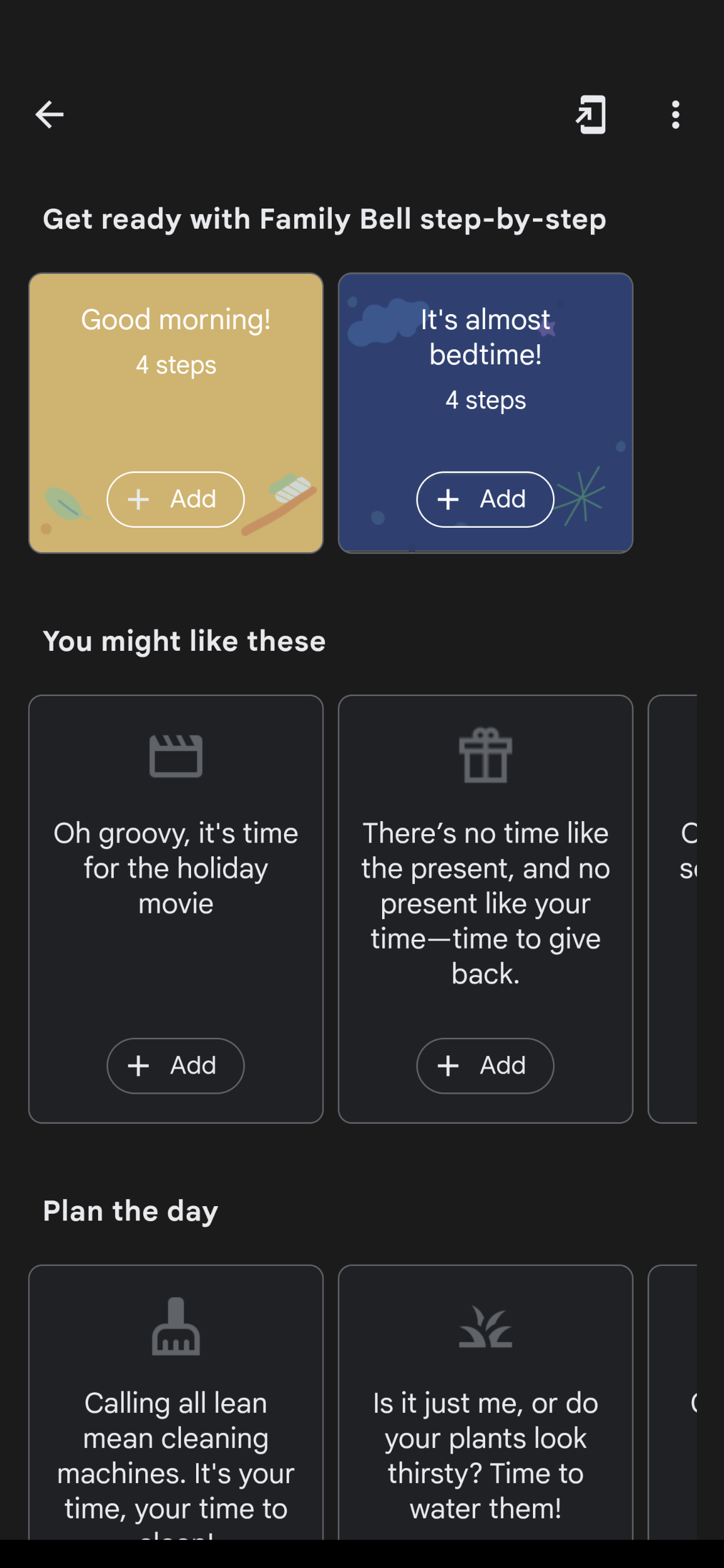
Here’s a list of suggested Family Bells
- Good Morning!
- It’s Almost Bedtime!
- Oh, groovy, it’s time for the holiday movie
- There’s no time like the present, and no present like your time-time to give back.
- On your mark, get set, start your day!
- I now declare it’s breakfast time
- Crunch, crunch, it’s time for lunch
- Hear ye! Hear ye! The time for napping begins now
- It’s a perfect day to go out and play
- Get to that dinner table. It’s time to eat!
- Hear that chime? That means it’s family time!
- Time for bed. Nighty night night night night. Goodnight.
- Calling all lean mean cleaning machines. It’s your time, your time to clean!
- Is it just me, or do your plants look thirsty? Time to water them!
- Calling all secret agents. Your mission is to complete your chores
- Calling all computers. It’s time for class!
- Let’s hit the books. It’s study time
- Get ready to read. It’s book time!
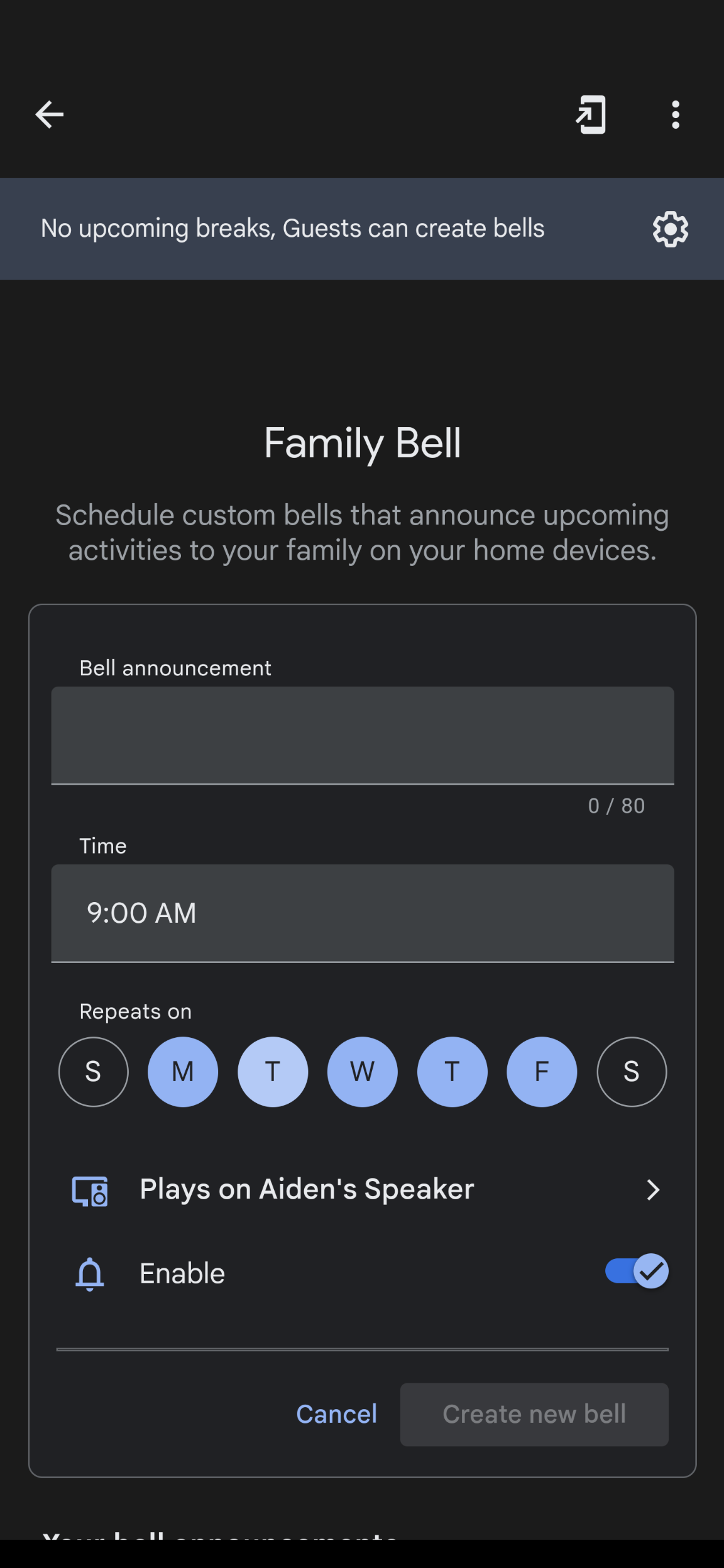
Type the name of your Bell into the “Bell announcement” text field and choose a “Time” in the next box. Tapping the time will launch Google’s signature clock selector. First, tap the hour, and then tap the minutes. Don’t forget to choose AM or PM so your bell doesn’t go off in the middle of the night on accident!
Did you know that your Family Bell can repeat at a specific time or on a specific day of the week? You can actually choose several days. Tap the “Repeats on” section bubbles to choose whatever suits you best. Then, be certain to change which device this Bell will sound off on when the time comes by tapping the “Plays on…” section just below the date. A list of your smart home screens and speakers will populate. I’ve gone ahead in the example above and chose my son’s Nest Mini.
Pro Tip: You can temporarily pause bells while your family is in a different rhythm. You can also allow or prevent guests from creating bells with their voice from your home devices.
Lastly, choose whether the Bell is enabled or disabled with the toggle that appears just below that. Then, tap the blue “Create new bell” button to finalize everything. That’s it! Once the specified time and date occurs, your Family Bell will make a cute noise and speak the text you told Assistant in the “Bell announcement” section (effectively the title).
Don’t be afraid of turning bells on and off to give you and your family a break sometimes. I’ve found that within my own home, Family Bell has been more of a guideline or a tool to help us form better family-oriented habits than it has been a hard and fast thing. I currently have a bell to teach my son to clean his room each day (fat chance that’s going to happen), one for taking out the trash on the weekends when the schedule for pickup is different, and one for family time as I previously mentioned.
I just want the steps!
1. Tell Google Assistant “Hey Google, create a Family Bell“
2. Tap the blue “+ Add a bell” button
3. Enter a “Bell announcement” title
4. Choose a time the bell will sound off
5. Select which days of the week you want it to activate
6. Make sure it will announce your bell on the correct device
7. Tap the blue “Create new bell” button
8. Toggle your bells on or off at will
9. Tap the cogwheel at the top of the Family Bell section to pause your bells for a break
10. Use the cogwheel icon at the top of the screen to allow or disallow guests from creating bells with their voice!
I’ve also found that these bells keep my Google Assistant Reminders from being cluttered with recurring habitual items. Let me know down below whether you and your family are utilizing Google Assistant’s Family Bell feature and what it’s come in handy for!
SUBSCRIBE TO UPSTREAM
Get Chrome Unboxed delivered straight to your inbox
Upstream is our flagship, curated newsletter with the top stories, most click-worthy deals, giveaways, and trending articles from Chrome Unboxed sent directly to your inbox a few times a week. Join 31,000+ subscribers.

