
• Skip to main content
  • Skip to primary sidebar
  • Deals
  • Features
  • Guides
  • Chromebooks
  • Videos
  • Podcast
  • More +
    • Reviews
    • Unboxing
    • Upcoming Devices
    • Chromebook Plus
    • Chrome
    • ChromeOS
    • Chrome OS Flex
  • Search
  • Sign Up
  • Log In
Chrome Unboxed – The Latest Chrome OS News

Chrome Unboxed - The Latest Chrome OS News

A Space for All Things Chrome, Google, and More!

  • Deals
  • Features
  • Guides
  • Chromebooks
  • Videos
  • Podcast
  • More +
    • Reviews
    • Unboxing
    • Upcoming Devices
    • Chromebook Plus
    • Chrome
    • ChromeOS
    • Chrome OS Flex
  • Search
  • Sign Up
  • Log In

How to use “Do Not Disturb” in Google Chat to mute notifications

June 13, 2022 By Johanna Romero View Comments

Support our independent tech coverage. Chrome Unboxed is written by real people, for real people—not search algorithms. Join Chrome Unboxed Plus for just $2 a month to get an ad-free experience, access to our private Discord, and more. Learn more about membership here.
START FREE TRIAL (MONTHLY)START FREE TRIAL (ANNUAL)

It’s happened to the best of us. You are in the middle of presenting a deck to your team when suddenly, a chat message pops up, interrupting your flow and possibly revealing info you did not want to be displayed to all. Fortunately, there is a way to set up “Do Not Disturb” in Google Chat so you can mute those unwanted notifications.

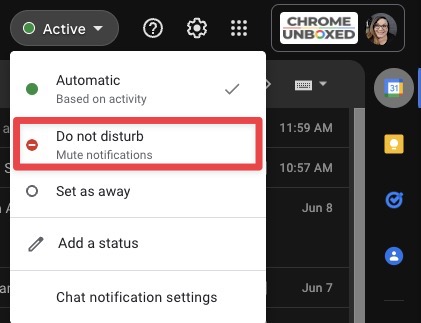
To temporarily mute chat notifications on all your devices, open Google Chat or Gmail on your desktop browser. Note: You can also do this from the Google Chat application on Android and iOS. On the top right, click the down arrow next to your status indicator and choose “Do not disturb” from the dropdown.
Xremove ads

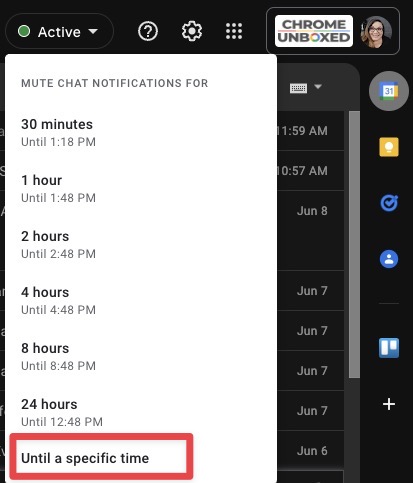
Once you have made your selection, you will be asked how long you want to mute your chat notifications, and you are given some preset options such as 30 minutes, one hour, etc. If you want to specify a certain amount of time you prefer to be undisturbed, select “Until a specific time.” Next, you will see a popup with a calendar where you can select the date and time you would like your notifications to resume.

I just want the steps!
    ​
  1. Open Google Chat or Gmail
  2. On the top right, click the down arrow next to your status indicator.
  3. Choose “Do not disturb” from the dropdown.
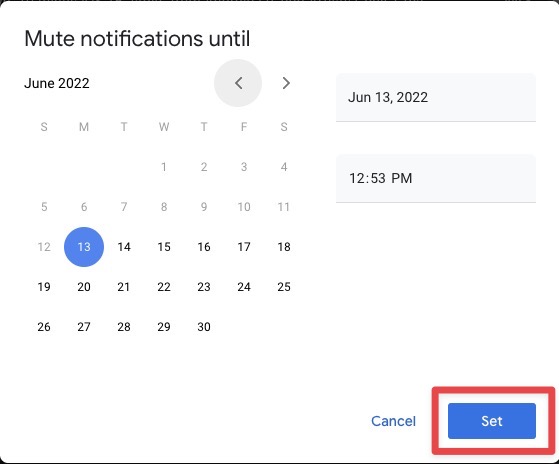
  4. Choose from a preset amount of time or select “Until a specific time” then select the exact time/day you want notifications to resume.
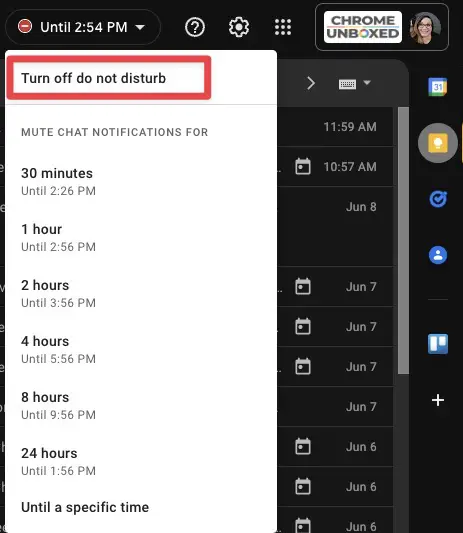
Once the selected time has elapsed, your chat status will return to “Automatic,” which is based on your activity. If you want to turn “Do Not Disturb” off before the selected time, follow the same steps above, then select “Turn off do not disturb” when asked how long you want to mute notifications.

Featured Videos

Xremove ads

SUBSCRIBE TO UPSTREAM

Get Chrome Unboxed delivered straight to your inbox

Upstream is our flagship, curated newsletter with the top stories, most click-worthy deals, giveaways, and trending articles from Chrome Unboxed sent directly to your inbox a few times a week. Join 31,000+ subscribers.

SUBSCRIBE HERE!

Filed Under: Apps, Guides and How-To's, Workspace Tagged With: do not disturb, google chat, how to, notifications

Primary Sidebar

Googlebook

How many years of updates Googlebook gets could make or break it on Day One

By Robby Payne
September 8, 2026

Your Android phone might soon double as a wireless mouse for Googlebook

By Robby Payne
September 5, 2026

Google’s John Solomon explains why Googlebook is Google’s next Chromebook moment

By Robby Payne
September 4, 2026

Googlebook is designed for AI, but that’s not why I’m excited for it

By Robby Payne
September 3, 2026

Leaked Googlebook ‘Look up’ app appears on the Play Store ahead of launch

By Robby Payne
September 2, 2026

More Googlebook

Xremove ads

Deals

The best Chromebook deals today

By Robby Payne
September 2, 2026

The best Chromebook ever made is $350 off at Best Buy right now

By Robby Payne
August 21, 2026

The excellent, powerful Acer Chromebook Plus Spin 514 is $150 off right now

By Robby Payne
August 12, 2026

Acer’s new Chromebook 315 is wildly affordable and points to the real future of Chromebooks

By Robby Payne
August 11, 2026

You can score the massively upgraded ASUS CX54 Chromebook Plus for just $599 right now

By Joseph Humphrey
July 28, 2026

More Deals

Xremove ads

Reviews

Acer Chromebook Plus Spin 514 Review: the best convertible you can buy [VIDEO]

By Robby Payne
July 1, 2026

Lenovo Chromebook Plus 2-in-1 Review: pretty great in a vacuum

By Robby Payne
April 23, 2026

My review after 6 weeks with the Lenovo Chromebook Plus 14 [VIDEO]

By Robby Payne
August 11, 2025

One week with the best small Android tablet you can buy, and I’m sold

By Robby Payne
May 9, 2025

Best Chromebooks of 2024 [VIDEO]

By Robby Payne
November 28, 2024

More Reviews

Xremove ads

TWITTER · FACEBOOK · INSTAGRAM · YOUTUBE · EMAIL · ABOUT

Copyright © 2026 · Chrome Unboxed · Chrome is a registered trademark of Google Inc.
We are participants in various affiliate advertising programs designed to provide a means for us to earn fees by linking to affiliated sites.

PRIVACY POLICY