

Support our independent tech coverage. Chrome Unboxed is written by real people, for real people—not search algorithms. Join Chrome Unboxed Plus for just $2 a month to get an ad-free experience, access to our private Discord, and more. Learn more about membership here.
START FREE TRIAL (MONTHLY)START FREE TRIAL (ANNUAL)
Linux on Chrome OS has come a long way since we first discovered the project that would bring containers to Chromebooks nearly four years ago. In that time, Google has brought a stable method to deliver a plethora of Linux applications to the Chrome operating system without the need for hacky workarounds that compromise the integrity and security of the platform. Crostini, a.k.a. Linux apps on Chrome OS, isn’t perfect and there are still some pieces missing to make the experience 100% viable but there’s no question that it has added to the overall value of the Chrome OS ecosystem. I personally believe that the Chrome OS team has stumbled upon what could be the future of computing that could leverage containers and Plugin VMs to give users access to any software they need all through the portal that is Chrome OS.
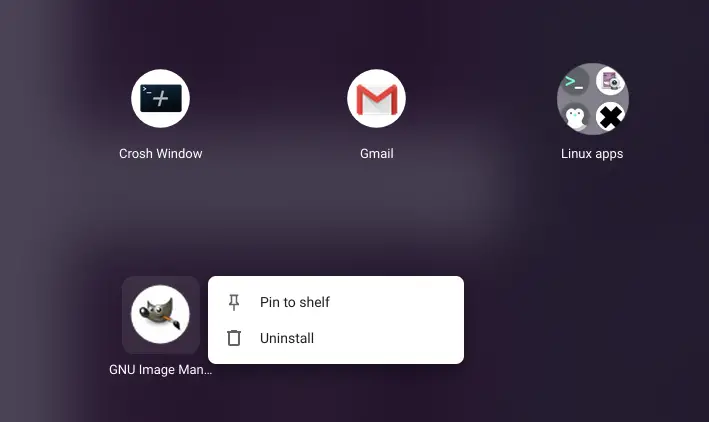
All that aside, we started the Command Line series to help you get the most out of Linux on your Chromebook. While we have covered various methods with which you can install Linux applications, today, we’re going to take a look at how you can remove a Linux package. How you uninstall a Linux app can vary depending on the specific application. Thankfully, many of the packages you install on your Chromebook will place a desktop icon in your Linux folder that can be found in your app launcher. The quickest way to remove one of these applications is to simply right-click on the icon and select “uninstall.” Linux will now run the uninstall process in the background and there is no need to even open the terminal.
If you have installed a Linux application that didn’t automatically add a desktop icon, we can quickly remove that package from the command line. This method is quite simple and there are some specific tweaks you can use that will ensure the process doesn’t leave any unwanted files or data on your drive. For this example, we will use the popular image editor GIMP. This package is available in the Debian 10 repository and it can be installed using the following command.
sudo apt install gimpOnce installed, you should see the desktop icon for GIMP in your Linux apps folder via the Chrome OS app launcher. Let’s say you wanted to uninstall this package from the terminal but you aren’t 100-percent sure of the exact name of the package. No worries. First, we’ll look at how to identify the application you wish to remove and then, the various methods by which you can remove it. To find a list of all packages installed in the Linux container, run the following command in your Linux terminal.
dpkg --list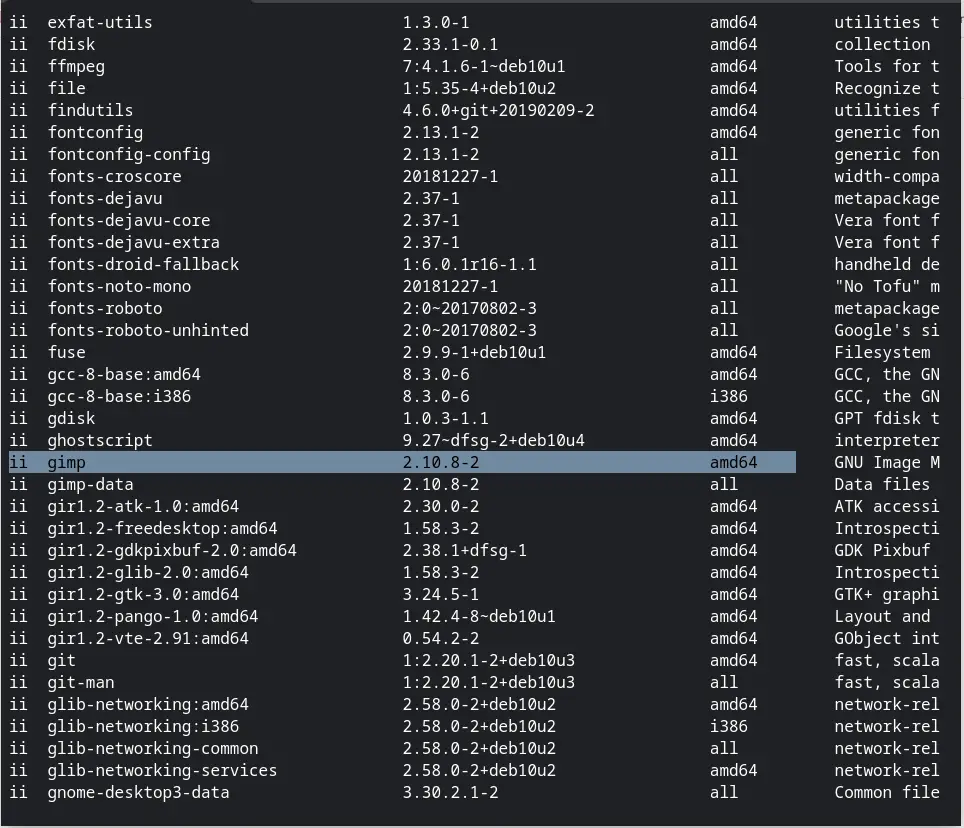
This will list all of your installed packages and the printout will pause at the end of the first row of visible commands. Hitting enter will allow you to move down the list one-by-one or you can use the spacebar and move a page at a time. Move down the page until you find the package you want to remove and confirm the name of the package. In our example, the package is simply gimp. Now that you have the exact package name, press Ctrl+C to return to the command prompt. Now we can begin the removal process of the package. If you want to remove the package and any configuration files that came with it, you will use the purge and remove commands. In your terminal, type the following command and hit enter. When prompted, hit enter or press “Y” and hit enter. I have found that the terminal will sometimes abort the process if the “Y” isn’t capitalized. If that happens, just try again with an uppercase “Y”.
sudo apt-get --purge remove gimpIf you plan on reinstalling the package and want to keep the configuration files, just omit the purge command and run sudo apt-get remove gimp. Depending on the package you are removing, you may have other files installed that were dependencies and may no longer be needed. Some examples are things such as font files used by GIMP. Linux can automatically remove these files if they are no longer needed by any other packages. To remove any dependencies, run the following command in the terminal.
sudo apt-get autoremoveYou can actually perform all of these functions in one fell swoop if you want to remove the package, config files, and dependencies all at once. To do this, we will combine the purge and the auto-remove commands with the package name. For gimp, this command will look like this:
sudo apt-get purge --auto-remove gimpLast but not least, we want to remove the package file used for installing GIMP or any other applications. These are saved in an archive file and no longer needed once a package is installed and/or removed. Keep in mind, you will need to download these files again should you decide to install GIMP or another package but that’s as easy as 1-2-3. To remove the archived files, use the clean command in the terminal thusly. You won’t see any output with this command.
sudo apt-get cleanI hope this helps bolster your confidence in using Linux on your Chromebook. There are a lot of great tools to be found in Debian and the container tech that Chrome OS uses to deliver Linux applications is continuing to evolve every day. As Google finds more and more use-cases for this delivery method, Chromebooks are quickly becoming the Swiss Army Knife of computing and we’re excited to see what’s next. Stay tuned for the next Command Line article and make sure to sign up for our newsletter so you don’t miss the latest from the world of Chrome OS.
SUBSCRIBE TO UPSTREAM
Get Chrome Unboxed delivered straight to your inbox
Upstream is our flagship, curated newsletter with the top stories, most click-worthy deals, giveaways, and trending articles from Chrome Unboxed sent directly to your inbox a few times a week. Join 31,000+ subscribers.

