


Support our independent tech coverage. Chrome Unboxed is written by real people, for real people—not search algorithms. Join Chrome Unboxed Plus for just $2 a month to get an ad-free experience, access to our private Discord, and more. Learn more about membership here.
START FREE TRIAL (MONTHLY)START FREE TRIAL (ANNUAL)
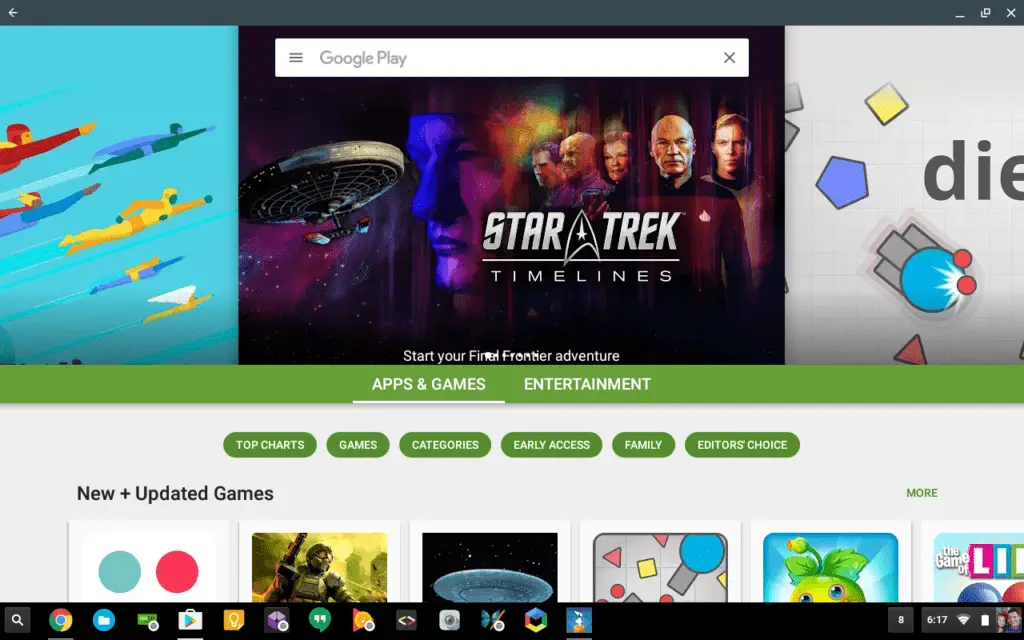 Now that Android Apps are available on a handful of Chromebooks running Chrome OS 53 (the ASUS Chromebook Flip, Acer Chromebook R11, and the 2015 Chromebook Pixel), users like myself have already run into some issues with apps that show up in the Play Store as “not compatible with your device.”
For instance, Google’s new Duo app, when searched for on the ASUS Chromebook Flip, shows up with this exact message. Granted, Duo isn’t really meant for desktop use (crossing my fingers that may change down the road, but I digress…), but it’s a quick example of an app that isn’t yet ready to install on Chrome OS.
But that shouldn’t stop us now, should it?
While there are clear warnings that need to be considered with this method, this is a relatively simple way to get apps sideloaded onto your Chromebook. Keep in mind that apps downloaded and installed from places other than the Play Store come with the risk of malware, so be careful where you look for APKs (app files for Android). You have been warned.
Anyway, on to the method.
First and foremost, you need a Chromebook that has the Play Store enabled already. I know that seems obvious, but we want to cover all the bases.
Second, you need that Chromebook to be in Developer mode. This is different from the Dev or Beta Channel of Chrome OS. This is actually a process you need to go through. I’ve covered it right at the top of my Ubuntu Installation Video I’ve embedded below. Simply skip to 1:30 to watch. Keep in mind, this will wipe your device, so make sure your things are backed up.
For most Chromebooks, you simply hold ESC + REFRESH and hit the Power button. After a reboot, the screen comes up with a prompt to insert recover media. Hit CTRL+D. You’ll then be asked to turn off OS verification by pressing Enter. Do that. You’ll then be met with a screen that tells you OS Verification is now off. Hit CTRL+D again. Then you will see a screen telling you that your device is now being transitioned into developer mode.
Grab a snack. It takes a minute.
Once this is done, you will have a fresh, new install of Chrome OS, so you’ll need to get signed in and set up again. You shouldn’t have to re-enable the Play Store, but if you do, check out this article on getting that up and running.
Now that you are done, you need to simply go to the Play Store and download a file manager. Some file managers work and some don’t for this, so your mileage may vary. The one I found that works well for this is FX Explorer. As I said, you favorite might work and it might not.
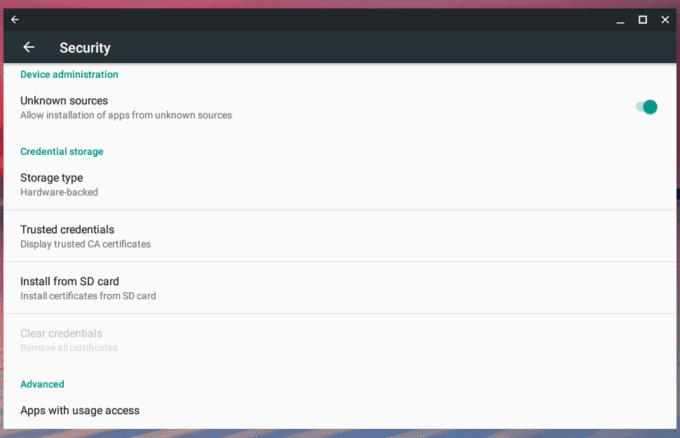
Now, simply find the APK of the app you would like to install. Navigate to it from the file manager you downloaded and double-click it. It should be in the ‘Downloads’ folder. You will now be prompted to allow unknown sources to be installed. Click the slider to enable this and proceed with the install process. See the screen grab below.
That’s it. Now your app is installed and ready to use!
Keep in mind, many apps are marked as not being ready to install because they…aren’t ready. You will likely encounter bugs with this, but it is great to know that it is possible. Down the road this method could prove invaluable. One other note: the security settings are accessible if you go to settings -> Android Apps -> App Settings -> Security. If you’d like to disable this in the future, that’s where you need to head to.
Good luck!

