


Support our independent tech coverage. Chrome Unboxed is written by real people, for real people—not search algorithms. Join Chrome Unboxed Plus for just $2 a month to get an ad-free experience, access to our private Discord, and more. Learn more about membership here.
START FREE TRIAL (MONTHLY)START FREE TRIAL (ANNUAL)
Just last month, Google made it possible to directly share YouTube links with your child’s supervised account on Family Link via the Android share sheet. This came almost exactly a year after it rolled out the new YouTube supervised experience in beta. Any child who grew up into a teen or tween was able to start using something more akin to the full-fledged YouTube experience on their devices, while remaining supervised and safe.
What’s weird is that I have yet to see anyone in my circles utilizing this approach for their kids, and even fewer people talking about it. For the longest time, I couldn’t even locate the instructions for how to transition an account from the more restrictive ‘Kids’ mode to the more lax ‘Explore’, ‘Explore more’, and ‘Most of YouTube’ modes that had become available. Today, I’m going to walk you through this process step by step so that your no longer and not so little ones can enjoy and explore more educational, entertaining and informational content than they did over the past few years with YouTube Kids!
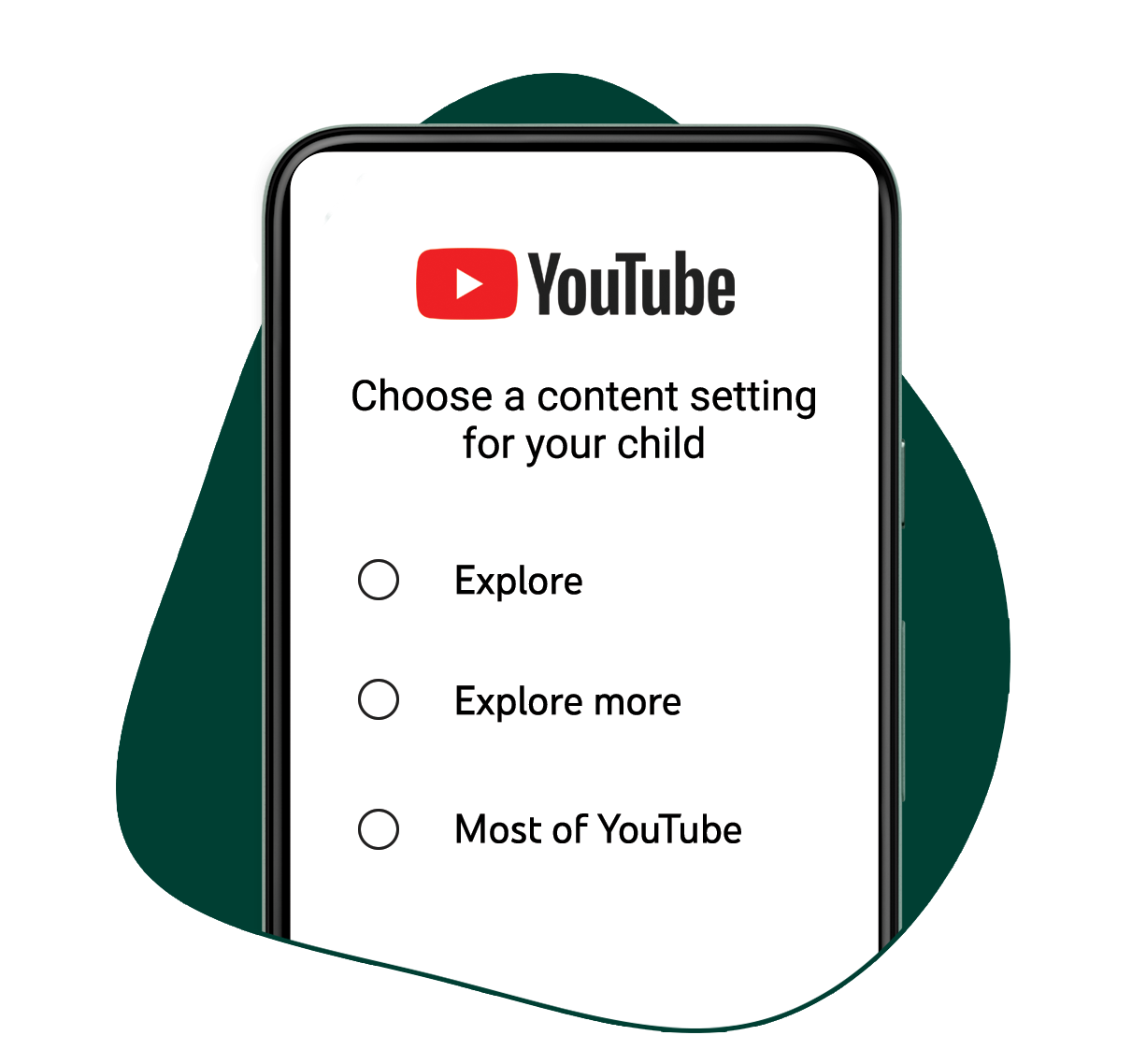
- Explore: For children ready to move on from YouTube Kids and explore content on YouTube, this setting will feature a broad range of videos generally suitable for viewers ages 9+, including vlogs, tutorials, gaming videos, music clips, news, educational content and more.
- Explore More: With content generally suitable for viewers ages 13+, this setting will include an even larger set of videos, and also live streams in the same categories as “Explore.”
- Most of YouTube: This setting will contain almost all videos on YouTube, except for age-restricted content, and it includes sensitive topics that may only be appropriate for older teens.
What are the differences between YouTube Kids and the supervised experience?
Before we get started with the tutorial, there are a few things you ought to know about the new YouTube supervised experience. First and foremost, the bullet points above expound upon what you can do with each of the three included supervised modes for your kid’s account. Anyone coming from YouTube Kids, however, should keep in mind that these new modes you can swap to in order to unlock more content are still considered ‘supervised’.
This means that while you have more freedom, you won’t be able to create or view text posts, comment on videos or live chats, create channels, live streams, public and unlisted playlists, stories, shorts or upload any videos. I know, that’s super-supervised, right? Oh, but wait, there’s more! You also can’t buy channel memberships or creator merchandise, donate to creators, buy movies & TV shows, gift super chats or super stickers, use the YouTube Go, YouTube Studio, YouTube TV or YouTube VR apps, add products, cast to the TV, connect gaming accounts, go incognito, personalize advertisements or enter restricted mode. Whew!
Lastly, while ‘Explore more’, and ‘Most of YouTube’ modes can watch live streams, the entry-level ‘Explore’ mode is unable to do so, especially as the youngest tweens will likely be bumped up to this setting, and live streams are…well, they’re unpredictable, aren’t they?
With all of the negative out of the way, the kiddos can use the YouTube and YouTube Music apps and websites, the YouTube app on certain smart TVs, and even both video and music apps through Assistant-enabled devices in the United States, so there’s still plenty of fun to be had compared to the old, dusty Kids app they’ve been stuck with for years.
Important: Supervised YouTube accounts will see limited paid advertisements, but to better protect children, ads in certain categories are not shown. Anyone with a YouTube Premium family plan can use their supervised account ad-free!
Alright, so how do I move to the new supervised experience?
The process of moving over from YouTube Kids is actually a lot simpler than I thought, and once I found the right documentation, I couldn’t wait to share it with all of you parents who probably heard about this last year and never heard anything else afterward.
Important: Because YouTube can’t block all videos you may not agree with viewing or letting your kids view using their supervised accounts (everyone has a different opinion of what’s acceptable and what isn’t, and filters don’t catch everything), you should still actively curate the content and block and report anything you find troublesome. In other words, you’re still the parent, so don’t rely fully on the technology to catch everything! You can view a guide for families before getting started if you want more information!
If you just want to cut straight to the chase, you can view this handy video or check out the steps just below regarding the setup of the new supervised YouTube experience. For today, we’re going to assume that you’ve already set up a YouTube Kids account for your child and that you have the Family Link app installed on your phone before we continue. If not, you can check out our tutorial or interactive guide for setting up Family Link become coming back!
Cool! Now, make sure that your kid’s YouTube and YouTube music apps are up to date via the Google Play Store. Then, just sign into the YouTube app using your child’s supervised Family Link account. Previously, this was impossible, and parents were redirected to download the YouTube Kids app instead.
Once you’re signed in using their account, tap the profile image at the top right of the screen, go down to ‘Settings’, and then tap ‘Parent Settings’. You’ll then be presented with a choice – you can select either “YouTube Kids” or “YouTube (parent supervised)” as their main experience.
I just want the steps!
1. Create a supervised Family Link account for your child if you haven’t already
2. Make sure all YouTube apps are up to date on their device(s)
3. Sign into their Family Link account on the main YouTube app
4. Tap the profile image at the top right
5. Tap “Settings”
6. Tap “Parent settings”
7. Choose your child’s profile
8. Choose “YouTube (parent supervised)”
9. Choose between the “Explore”, “Explore more”, or “Most of YouTube” content settings
10. Celebrate their graduation!
After you complete these steps, the YouTube app will refresh and all content shown will be appropriately restricted based on the content setting you’ve chosen! This is a fantastic way for young teens or kids mature enough to explore a bit more video content at their age to find new and interesting things to watch. If you have any questions regarding this process or about the new supervised YouTube experience beta, please let me know in the comments!
SUBSCRIBE TO UPSTREAM
Get Chrome Unboxed delivered straight to your inbox
Upstream is our flagship, curated newsletter with the top stories, most click-worthy deals, giveaways, and trending articles from Chrome Unboxed sent directly to your inbox a few times a week. Join 31,000+ subscribers.

