


Support our independent tech coverage. Chrome Unboxed is written by real people, for real people—not search algorithms. Join Chrome Unboxed Plus for just $2 a month to get an ad-free experience, access to our private Discord, and more. Learn more about membership here.
START FREE TRIAL (MONTHLY)START FREE TRIAL (ANNUAL)
As a search engine, Google does a great job of helping with broad web searches – such as when you want to find a business or product online. However, if you are looking for results within a specific website, you will get faster and more accurate results by using the search feature built into that site. But there are cases where you’d want to save time and not have to pull up the website first to get to their search field. For those times, the best tool to use is a site search shortcut.
What is a site search shortcut?
Site search shortcuts are a way to use the address bar (Omnibox) as a search box for a specific site without navigating directly to the site’s URL, similar to how you can use the Omnibox to perform a broad Google search of the web. In this article, I will use our site, Chrome Unboxed, as an example to show how a site search shortcut can be set up.
How to set up a site search shortcut?
To set up a site search shortcut, open up your Chrome browser and click on the 3-dot “More” menu. Next, click on “Settings” to access your browser settings. On the Settings page, you will see several menu options on the left. From those options, select “Search Engine.” Next, you will see a couple of options appear on the right pane. Next, click on “Manage search engine and site search.” From here, scroll down past “keyboard shortcuts” and “search engines” until you arrive at the “Site search” section. To add a new shortcut, click on “Add.”
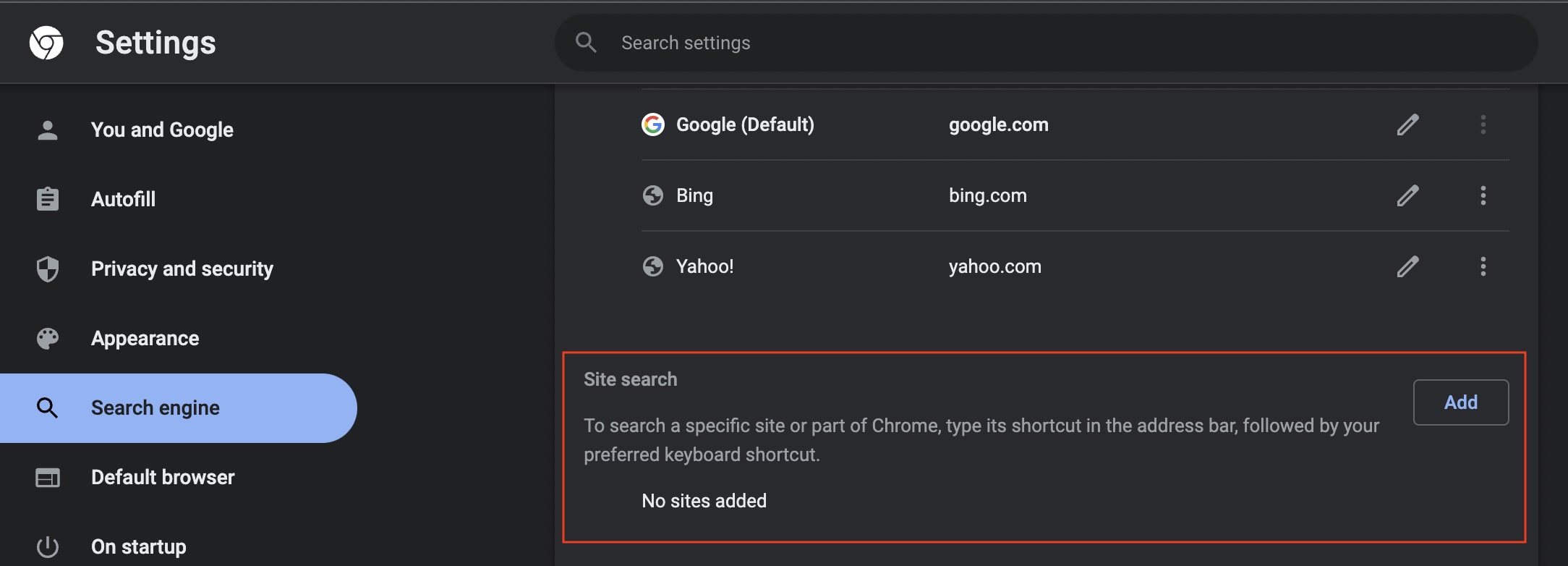
A popup will appear with fields to fill in to set up the site search. You will need to enter the below for each field:
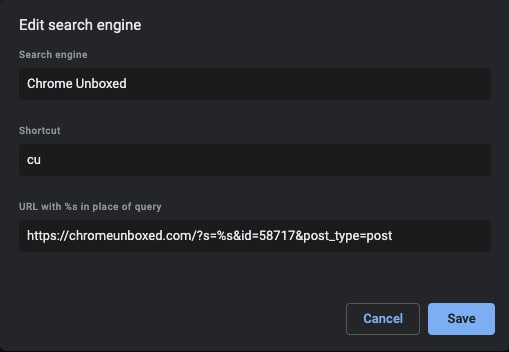
- Search engine: Enter a label or name for the website.
- Shortcut: Enter the text shortcut you want to use for that site’s search. In the case of “Chrome Unboxed,” I will choose the initials “
CU“ - URL with %s in place of query: Enter the URL for the site’s results page, and use “%s” where the query would go. In the case of “Chrome Unboxed,” my query will be “
https://chromeunboxed.com/?s=%s&id=58717&post_type=post“. I will explain in the next section how I arrived at that specific URL.
I just want the steps!
1. Open your Chrome browser.
2. At the top right, click the 3-dot “More” menu, then click on Settings.
3. On the left, click Search engine, then Manage search engines and site search.
4. To the right of “Site search,” click Add.
5. Fill in all the fields for the search engine name, shortcut, and the new query URL.
6. After you fill out the text fields, click Add.
How to find the search query URL
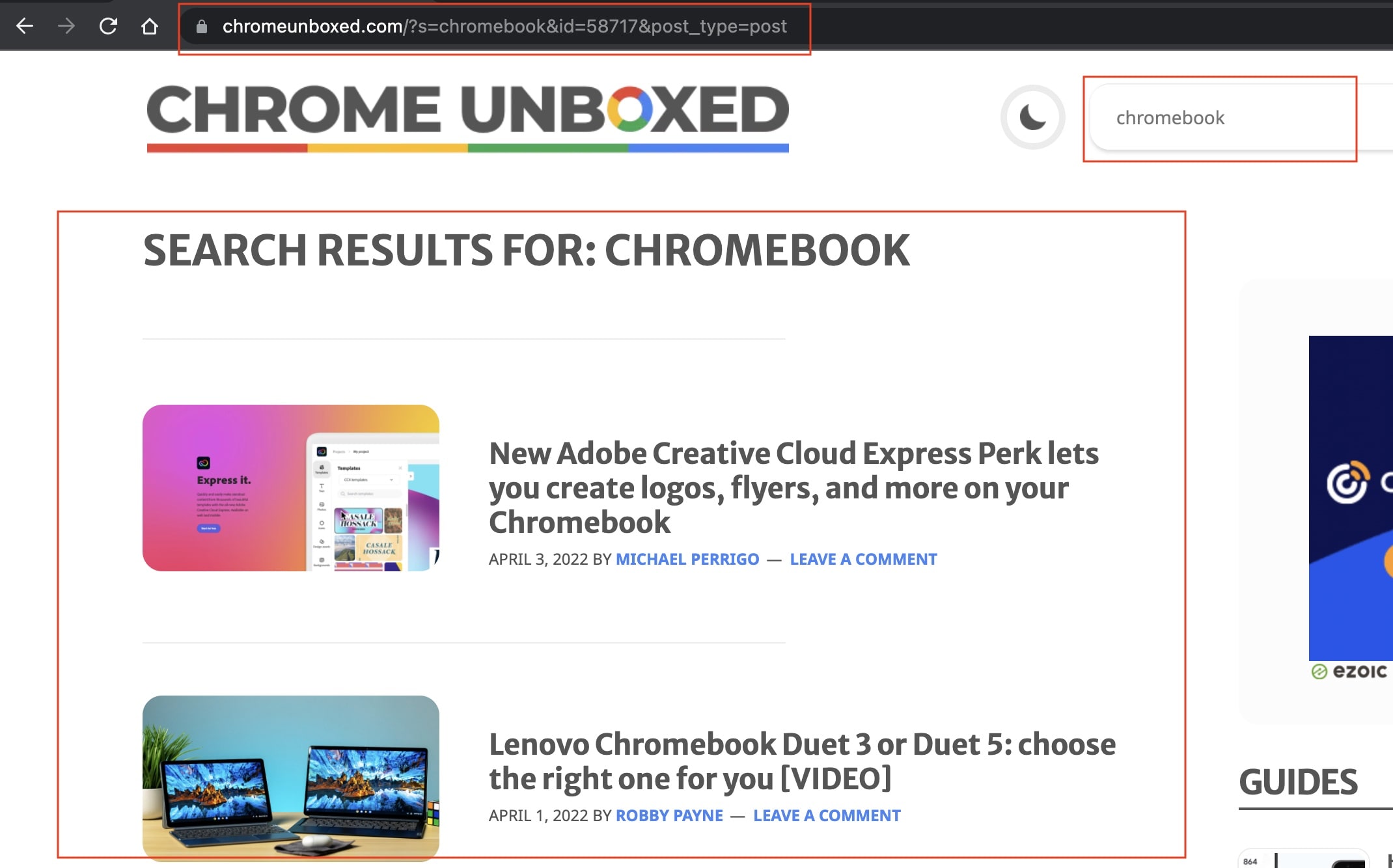
To find the search query URL that you will need to enter in the “URL with %s in place of query” field, first go to the website you want to add a search shortcut. This is a one-time step that will save you time in the future, so bear with me here. Once you are at that site, find the search field within the site and perform a search for any word, such as the word “test.”
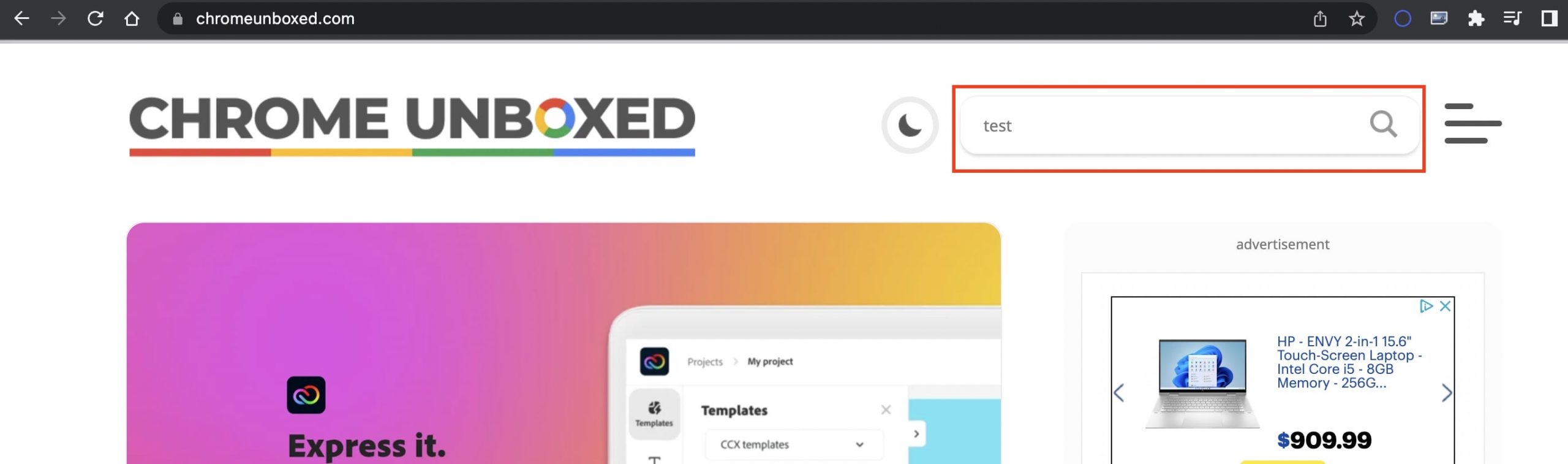
A page will come up with the search results for the term you entered. Copy the URL of this search results page and replace the “test” search term you used with %s as you can see in the below example:


I just want the steps!
1. Go to the website for which you want to add a search shortcut.
2. Find the search field within the site and perform a search for any word.
3. Copy the URL of the search results page and replace the word you used as a search term with
%s.
How to use your new site search shortcut
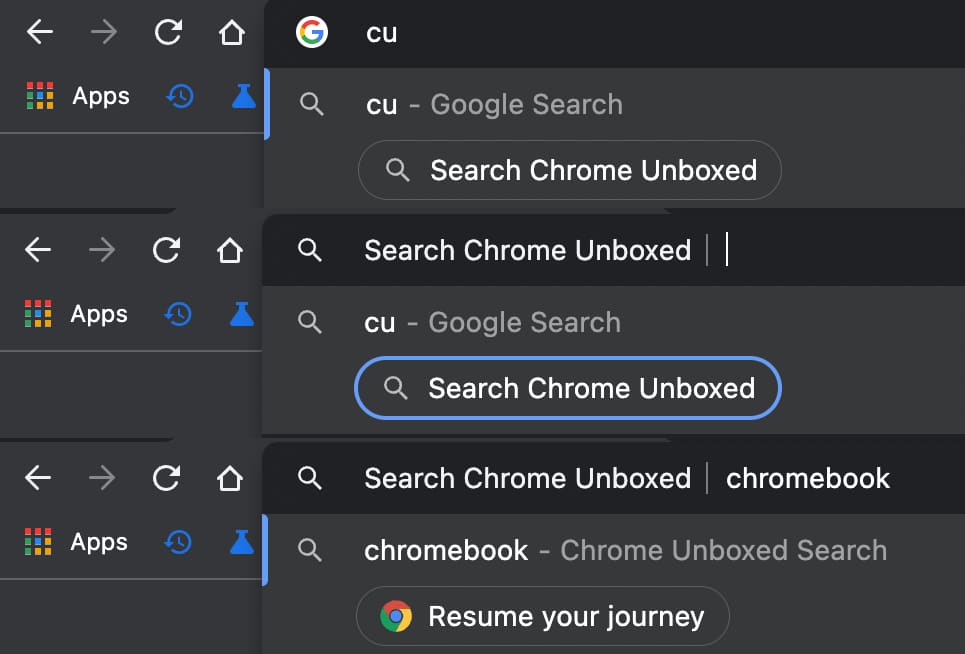
Now that your site search shortcut is set up, you will be able to search it right from your chrome address bar (Omnibox). To do this, open your Chrome browser, and in the address bar, enter the text shortcut you created for the site you want to search, then press Space or Tab. Next, go ahead and enter your search term, then press Enter.
I just want the steps!
1. Open your Chrome browser.
2. In the address bar, enter the text shortcut you created for the site you want to search.
3. Press Space or Tab.
4. Enter your search term, then press Enter.
I use this search method with most sites that I often visit if I want to find something quickly. In my old job, I even used this method to do a quick employee search on the company’s intranet or even to quickly search for specific incidents in the I.T. ticketing system. You can get very creative with this and come up with different ways you can use it daily to save you some time and extra clicks. I know I definitely like to take advantage of time-saver hacks, and this one is a good one to have under your belt.
SUBSCRIBE TO UPSTREAM
Get Chrome Unboxed delivered straight to your inbox
Upstream is our flagship, curated newsletter with the top stories, most click-worthy deals, giveaways, and trending articles from Chrome Unboxed sent directly to your inbox a few times a week. Join 31,000+ subscribers.
