

Support our independent tech coverage. Chrome Unboxed is written by real people, for real people—not search algorithms. Join Chrome Unboxed Plus for just $2 a month to get an ad-free experience, access to our private Discord, and more. Learn more about membership here.
START FREE TRIAL (MONTHLY)START FREE TRIAL (ANNUAL)
Google’s Nest family of doorbells has had package detection functionality since 2019; however, most people who own them have no idea this is even possible. This functionality does vary on the type of camera you have, and it does require that you are subscribed to the Nest Aware plan. Still, you can choose to receive notifications for everything that your camera detects for those who meet the requirements. Here’s how you can set up to get notifications when your packages are delivered to your front door using the Nest Hello Doorbell cam.
Set up an activity zone
The first step toward setting up package detection is to set up an activity zone. Activity zones are hotspots that you can define within the app to give the AI more information on where to look. This is particularly helpful when your camera can see more than your front door.
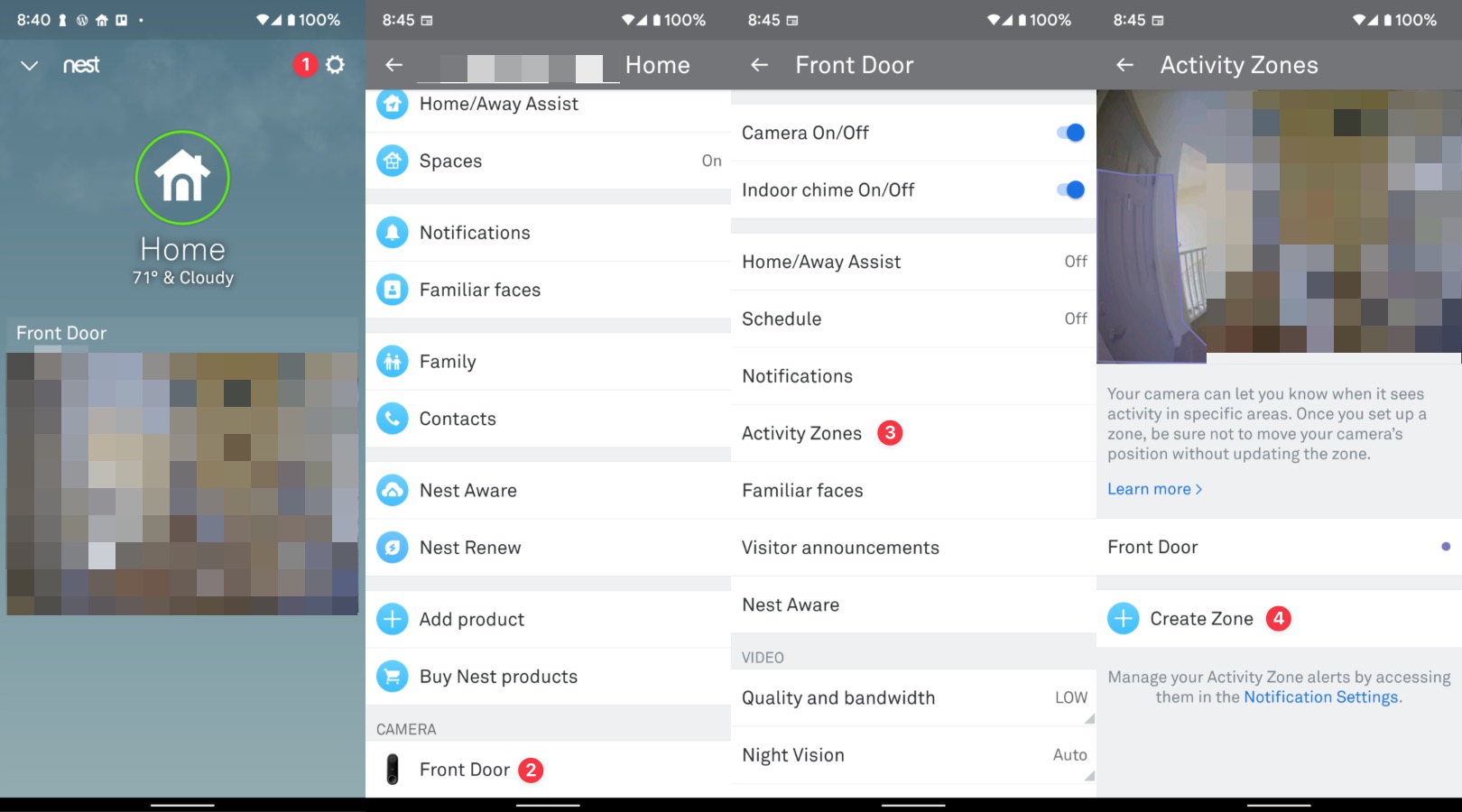
To set up an activity zone for just your front door or the area where your packages are normally dropped off, open your Google Nest app and tap on the “Settings” gear on the top right. Next, scroll down through all the options, then tap on the name of the specific camera you want to set up notifications for. Next, tap on “Activity Zones” and either create a new zone or modify an existing one. The interface to create a new zone allows you to draw around the area you want and move the shape’s points around until you have covered the area you need.
I just want the steps!
1. Open the Google Nest app on your mobile device
2. Tap on the “Settings” gear on the top right
3. Tap on the name of your camera
4. Tap on “Activity Zones”
5. Create or modify an Activity Zone
Set up package notifications for your activity zone
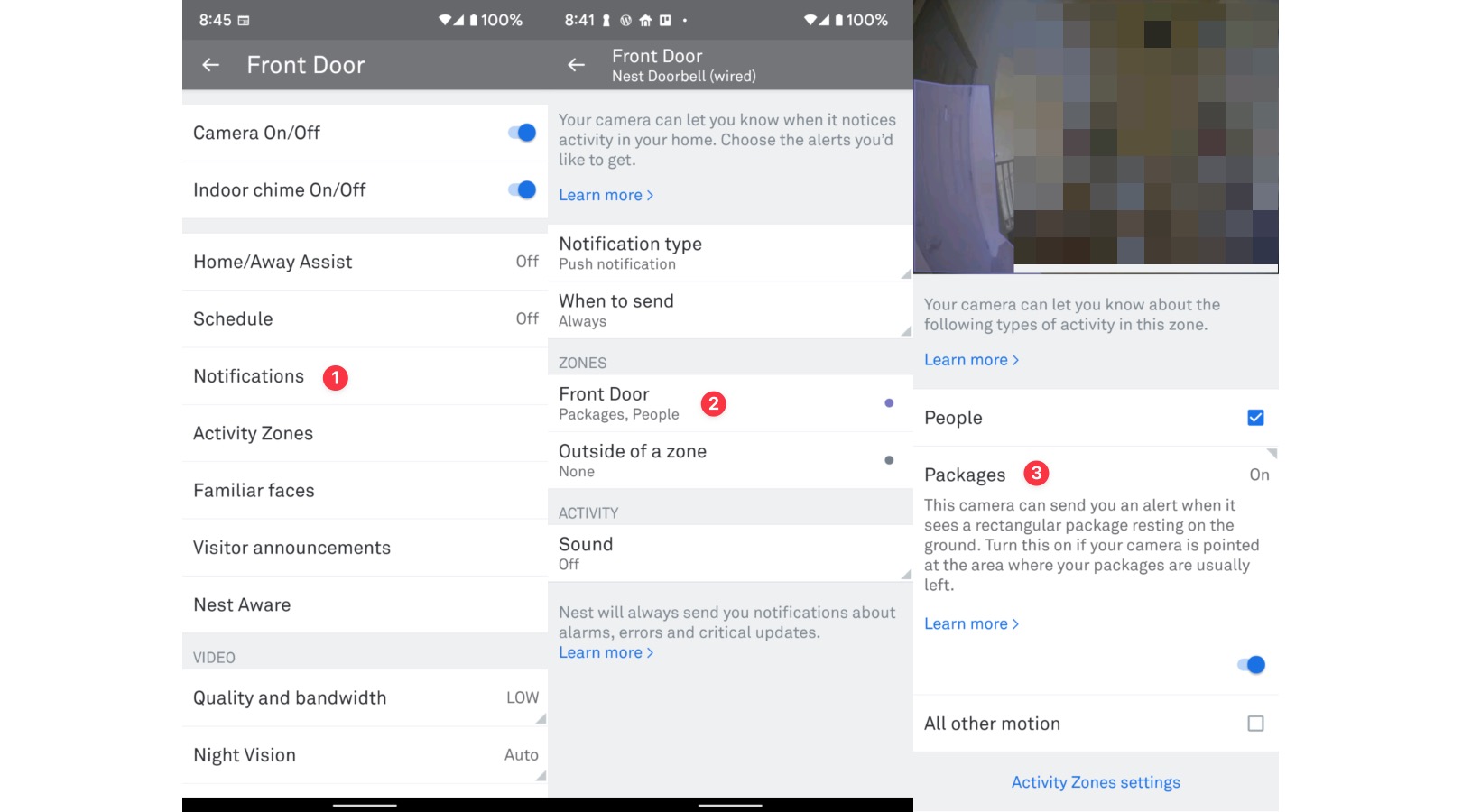
Once you have set up your Activity Zone, it’s time to set up the notifications. Go back to the main menu of the Google Nest app, but this time select “Notifications.” You will see a menu of different notifications you can edit, scroll down to the “Zones” section, find the zone you just specified, and tap on it. You will now see the notifications available for just that specific zone, one of which is called “Packages.” Go ahead and select this option and enable it.
I just want the steps!
1. Go back to the main menu of the Google Nest app
2. Select “Notifications”
3. Scroll down to the “Zones” section and select the zone you just created
4. From the list of notifications available, select “Packages,” then turn it on
That’s it! You will now begin to receive notifications from your camera every time it detects a package dropped off. As Nest’s cameras and doorbells use machine learning to ensure notifications are as accurate as possible. Still, the technology isn’t always perfect, and there is always the chance of it mistaking a flyer for a box, etc. Regardless, this is a very good way to keep track of packages that have been delivered or removed from your doorstep and possibly discourage package thieves.
SUBSCRIBE TO UPSTREAM
Get Chrome Unboxed delivered straight to your inbox
Upstream is our flagship, curated newsletter with the top stories, most click-worthy deals, giveaways, and trending articles from Chrome Unboxed sent directly to your inbox a few times a week. Join 31,000+ subscribers.
