


Support our independent tech coverage. Chrome Unboxed is written by real people, for real people—not search algorithms. Join Chrome Unboxed Plus for just $2 a month to get an ad-free experience, access to our private Discord, and more. Learn more about membership here.
START FREE TRIAL (MONTHLY)START FREE TRIAL (ANNUAL)
Google Pay is more than just a place to store your credit cards and use them in stores by tapping your phone. You can also use the Google Pay app to view offers from local retailers, keep track of your spending, and my personal favorite – to send or request money from your friends and loved ones. Here’s how you do it.
How to send money
To send money, open the Google Pay app, tap on Send or request, and select the person or people you want to send money to. If the person has never used Google Pay or has never signed up within the app, you will receive a warning making you aware of this. Go ahead and tap on Pay.
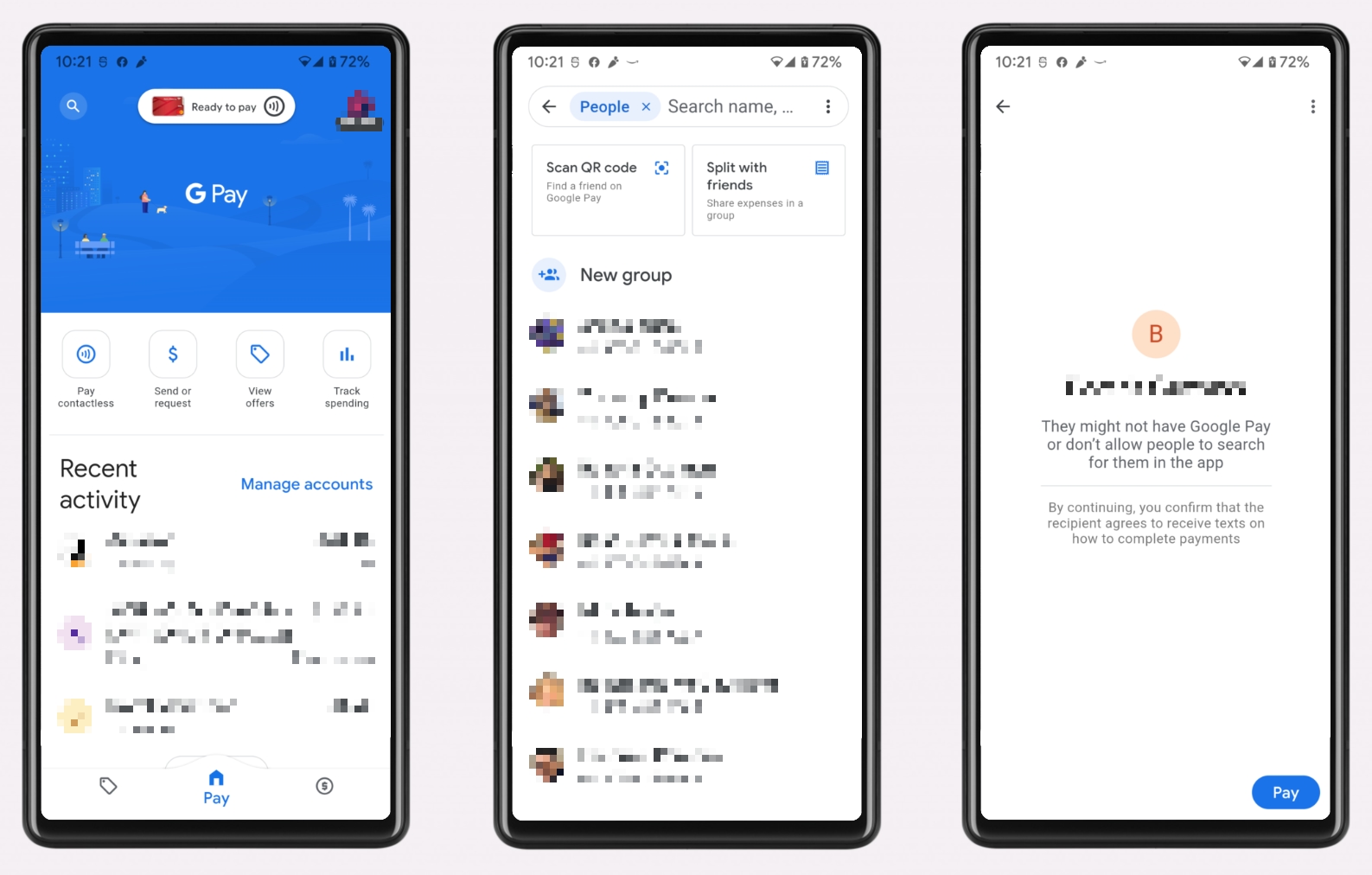
Enter the amount you wish to send. You may optionally enter a note to make this person aware of what the money is for. Tap on the checkmark to continue to the next screen.
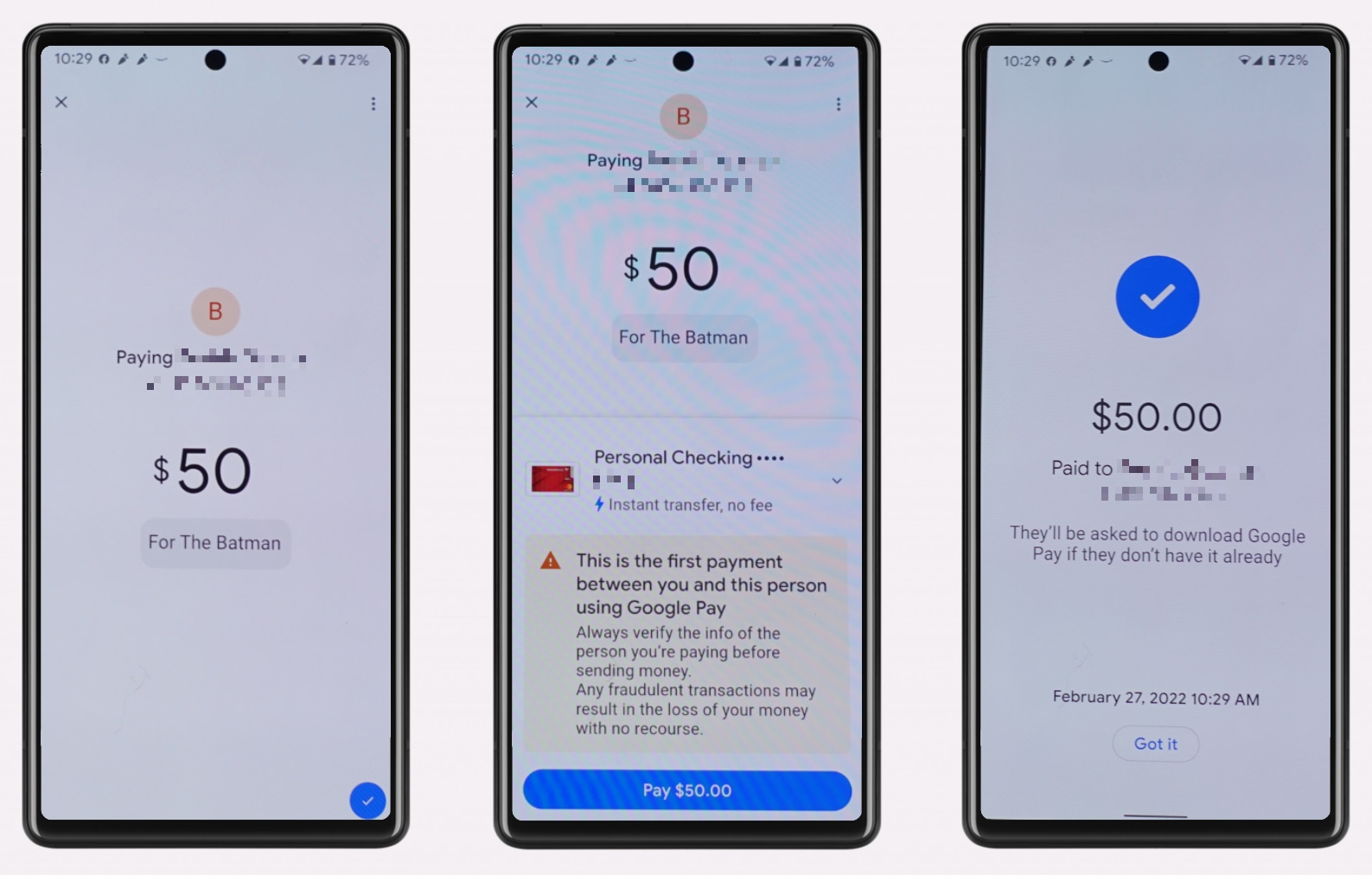
You will then be asked to confirm your payment method. This screen will let you know whether there are any fees associated with this transfer or if this is the first Google Pay transfer between you and the person you are sending money to. Tap on Pay to confirm the amount and proceed with the payment. At this time you will receive a confirmation page letting you know that the payment is en route to the recipient.
I just want the steps!
1. Open the Google Pay app
2. Tap on Send or request
3. Select the person or people you want to send money to
4. Tap on Pay and enter the amount you wish to send, then tap on the checkmark to continue to the next screen
5. Confirm your payment method
6. Tap on Pay
How to request money
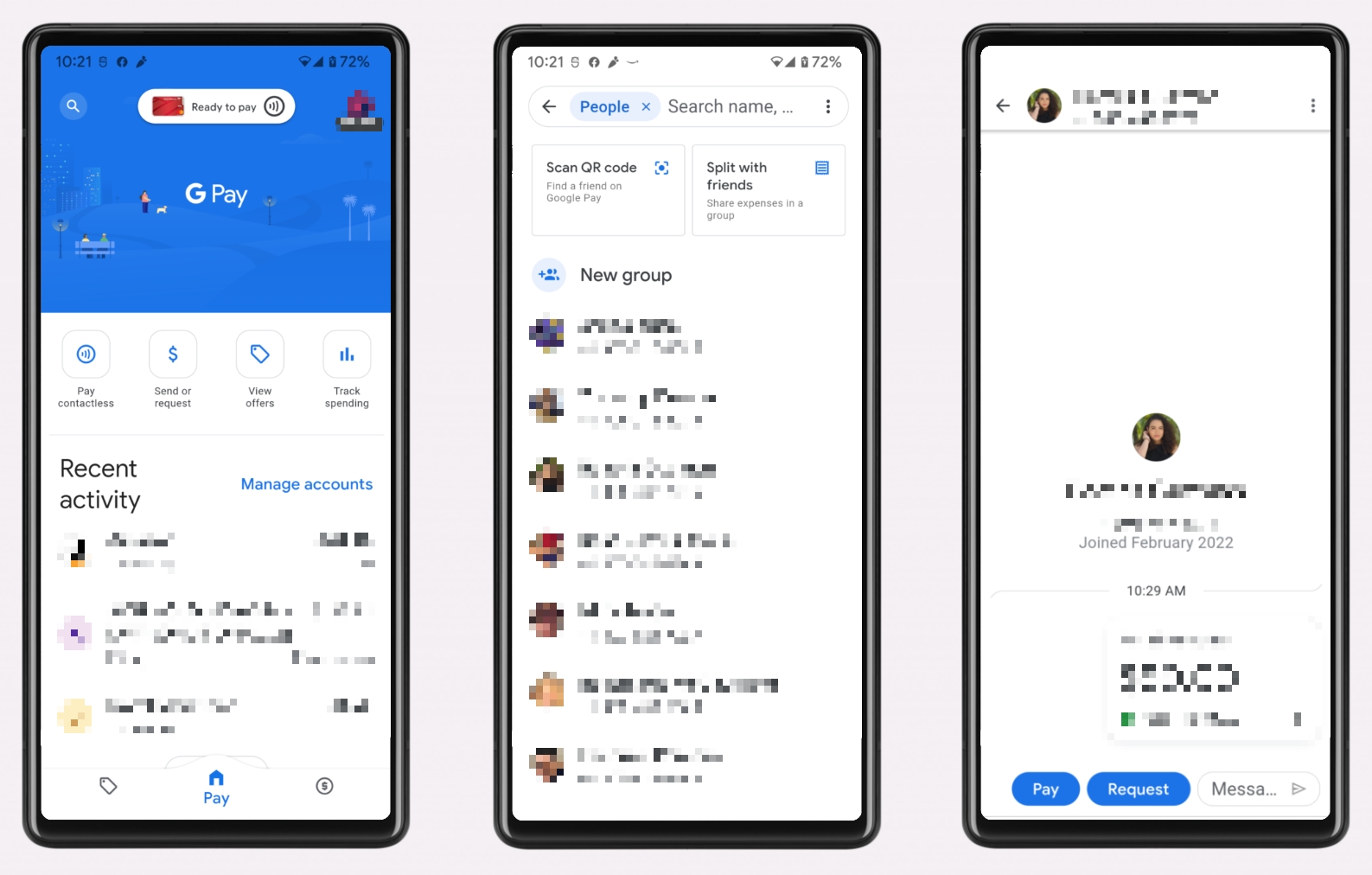
To receive money, open the Google Pay app, tap on Send or request, and select the person or people you want to send money to. Tap on Request.
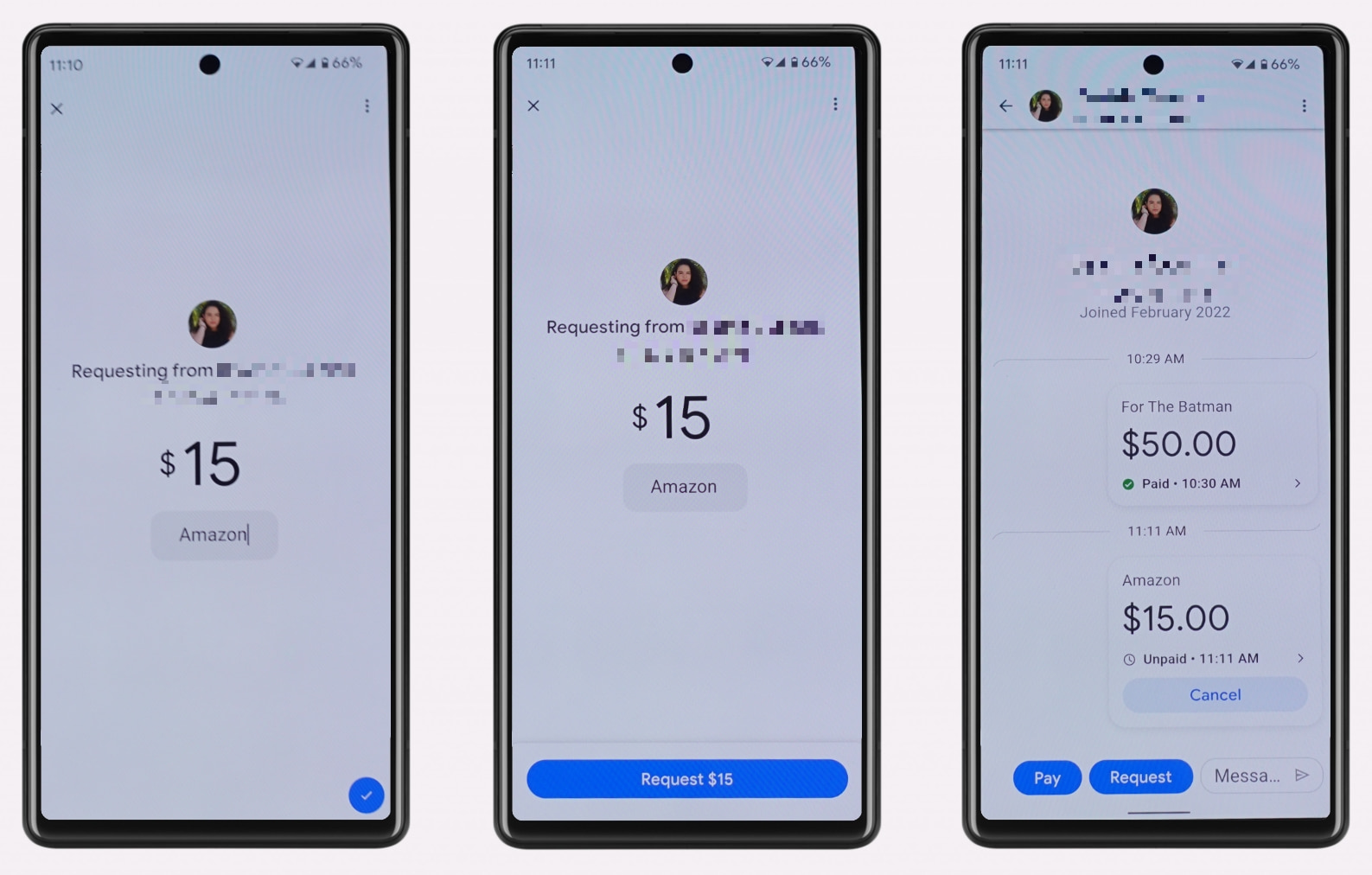
Enter the amount you are requesting. You may optionally enter a note to make this person aware of what the money is for. Tap on the checkmark to continue to the next screen, then tap Request. This will then take you to a confirmation screen showing the status of the payment request and any payment history between you and the contact.
I just want the steps!
1. Open the Google Pay app
2. Tap on Send or request
3. Select the person or people you want to request money from
4. Tap on Request, enter the amount you requesting, then tap on the checkmark
4. Tap again on Request
There are, of course, multiple apps that can accomplish the same thing, such as Cashapp, Venmo, and Zelle among others. The benefit of using Google Pay for sending and receiving money is that, if you already use Google Pay for contactless payments, your cards are already saved and secured in your Google Wallet. This way there won’t be a need for you to share your card information across different mobile payment apps and risk compromising your financial info.
SUBSCRIBE TO UPSTREAM
Get Chrome Unboxed delivered straight to your inbox
Upstream is our flagship, curated newsletter with the top stories, most click-worthy deals, giveaways, and trending articles from Chrome Unboxed sent directly to your inbox a few times a week. Join 31,000+ subscribers.
