


Support our independent tech coverage. Chrome Unboxed is written by real people, for real people—not search algorithms. Join Chrome Unboxed Plus for just $2 a month to get an ad-free experience, access to our private Discord, and more. Learn more about membership here.
START FREE TRIAL (MONTHLY)START FREE TRIAL (ANNUAL)
Chromebooks are becoming more and more common, especially in educational and enterprise settings; yet there are still misconceptions and confusion about their capabilities. I know that many of you who are Chromebook enthusiasts are well aware of all the things you can do on these devices, but there are still many new users out there who are picking up a Chromebook for the first time and have heard they can’t do things like play games or use Microsoft Office. The reality is that Chromebooks are far more flexible and user-friendly than many realize. Installing and running Microsoft Office 365 on your Chromebook is actually a breeze and by following this step-by-step guide, you can be up and running in just a few minutes.
It is true that traditional Windows or Mac software, including desktop versions of Office apps, can’t be directly installed on Chromebooks. But there is another, cloud-based option that provides a simple and fully functional path to using Microsoft Office that looks and feels just like an app that is installed the more traditional way.
You might be tempted to think that since Chromebooks have Android apps, this is the way to get Office 365 on your device; but that is not the case. Although Chromebooks support a vast array of Android apps, the Android versions of Microsoft Office, Outlook, OneNote, and OneDrive are no longer supported. The good news is that this has paved the way for a more efficient and seamless option.
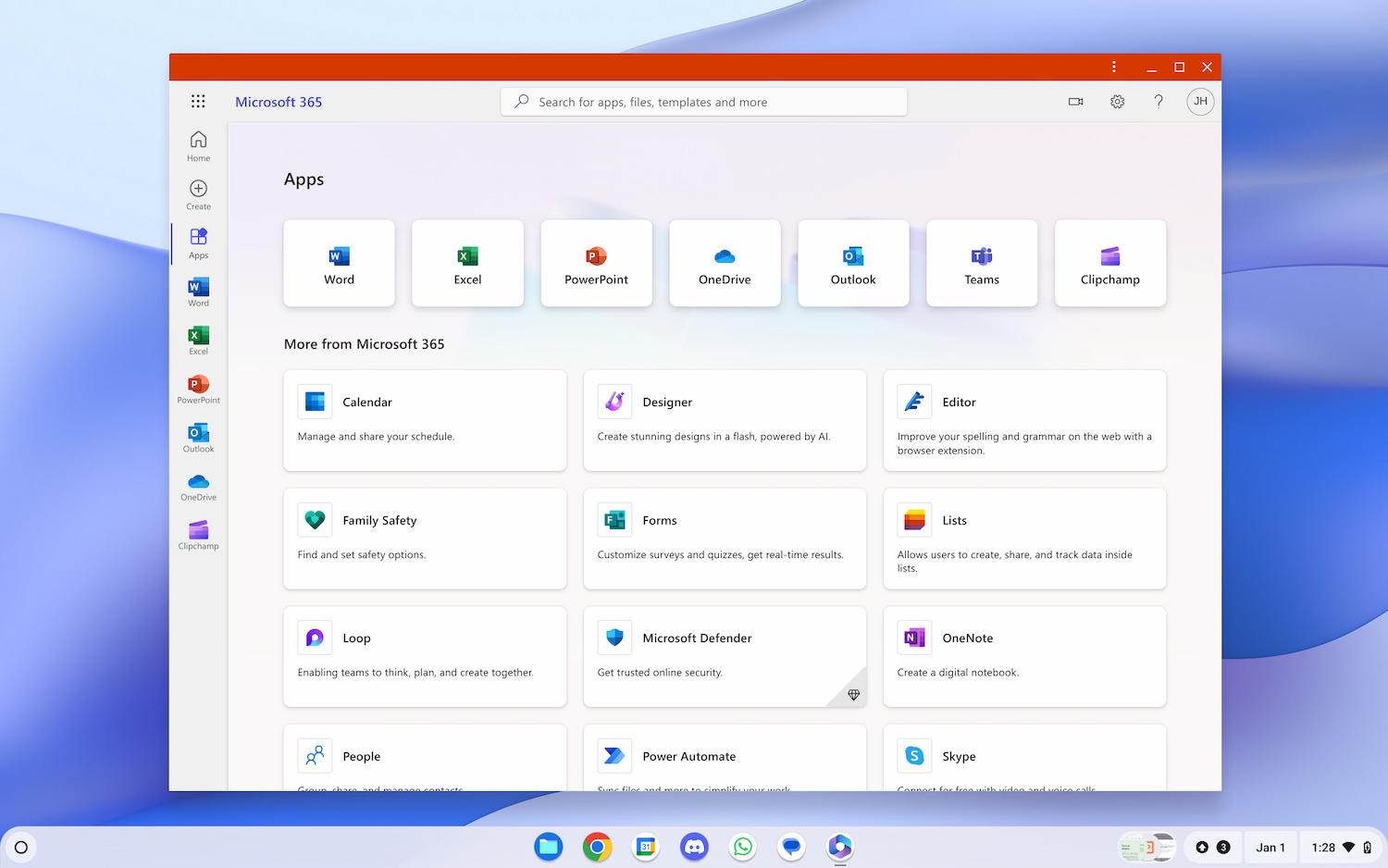
Say hello to Microsoft 365
Enter Progressive Web Apps (PWAs), which are essentially advanced mobile app versions of websites. We are big fans of PWAs because they harness the power of the web and offer a wider reach than any one particular operating system. They boast numerous features such as offline use, the ability to pin to the taskbar, support for push notifications and updates, and access to hardware features. Microsoft Office 365 PWAs like Outlook and OneDrive have become stellar options for Chromebook users and are delivered directly from the web. Here’s a simple guide to installing and using Microsoft Office 365 PWAs on your Chromebook.
How to install Microsoft 365 PWAs on your Chromebook
To get started, open the Chrome browser and navigate to Office.com, the Microsoft Office 365 online landing page. Sign in with your existing Office 365 account, or create a new one using any personal email. Microsoft is now offering a Free tier that gets you cloud storage, and essential apps on the web so you can check that out if you just want to test things out.
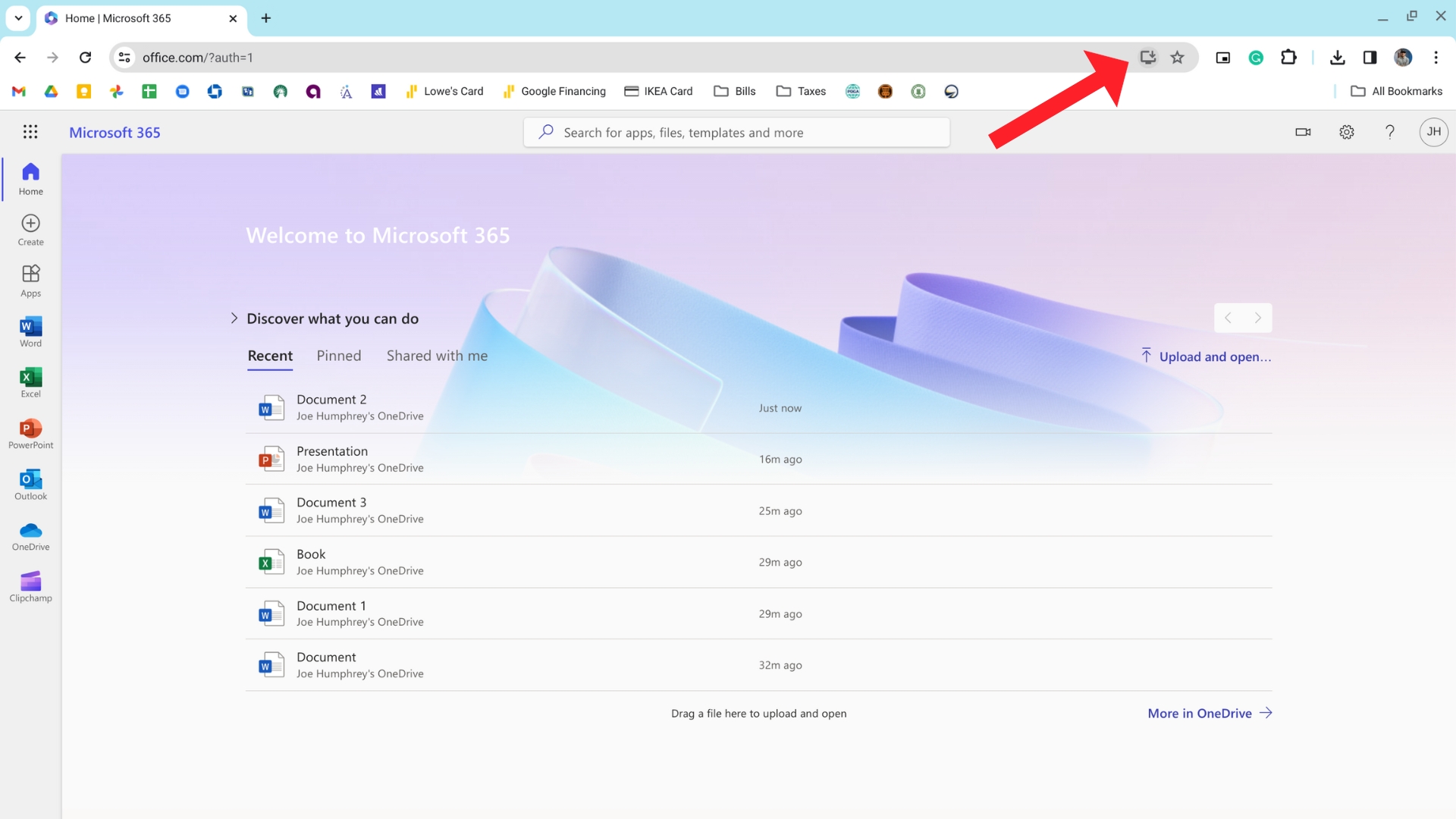
Next, look for the Install icon in the top right of the address bar. Clicking this will prompt you to install the Office 365 PWA. This option also appears when you visit specific apps like Word or Outlook and overall, the installation is swift. A window opens resembling the online version of Office 365 but functions more like the Microsoft Office mobile apps, offering features such as pinning to the taskbar, notifications, offline work, and easy resizing.
Standalone apps like Outlook, OneDrive, or Clipchamp, can be installed as individual PWAs as well by clicking the same Install icon in the address bar. Apps like Word and PowerPoint will open each new project as a new tab in the browser so these will not include the Install icon. You can easily find these recent projects in the Microsoft 365 app under the recently opened tab in that particular app or change the saved location in OneDrive for easy access later by clicking the file name in the top left.
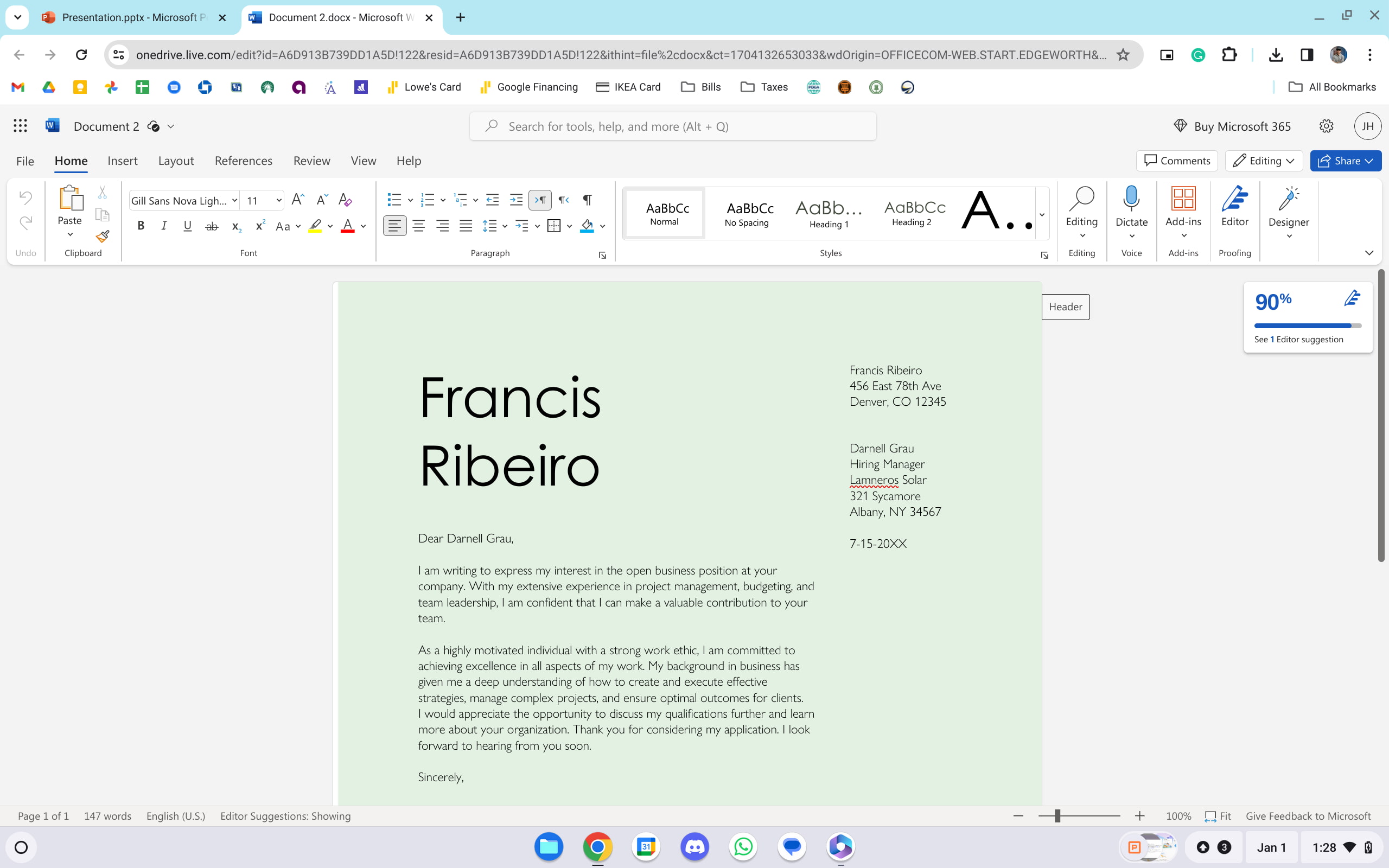
Get to work on your Chromebook
Just like that, you are ready to start using Microsoft Office 365 on your Chromebook. Through these PWAs, Microsoft is able to offer a user experience similar to installed software, blending the convenience of web versions with the functionality of mobile apps. Although Microsoft is testing a new Windows App that will allow you to stream Windows Cloud PC and remote desktop services on a range of devices, including Chromebooks, it is still in beta. So, for now, the PWA installation process is the best option for Chromebook users. Luckily the Microsoft Office 365 PWA is fully functional and by following these simple steps, you can easily get to work with apps like Word and Outlook on your Chromebook in no time at all.
SUBSCRIBE TO UPSTREAM
Get Chrome Unboxed delivered straight to your inbox
Upstream is our flagship, curated newsletter with the top stories, most click-worthy deals, giveaways, and trending articles from Chrome Unboxed sent directly to your inbox a few times a week. Join 31,000+ subscribers.

