
• Skip to main content
  • Skip to primary sidebar
  • Deals
  • Features
  • Guides
  • Chromebooks
  • Videos
  • Podcast
  • More +
    • Reviews
    • Unboxing
    • Upcoming Devices
    • Chromebook Plus
    • Chrome
    • ChromeOS
    • Chrome OS Flex
  • Search
  • Sign Up
  • Log In
Chrome Unboxed – The Latest Chrome OS News

Chrome Unboxed - The Latest Chrome OS News

A Space for All Things Chrome, Google, and More!

  • Deals
  • Features
  • Guides
  • Chromebooks
  • Videos
  • Podcast
  • More +
    • Reviews
    • Unboxing
    • Upcoming Devices
    • Chromebook Plus
    • Chrome
    • ChromeOS
    • Chrome OS Flex
  • Search
  • Sign Up
  • Log In

How to identify images in Chrome using Google Lens

March 23, 2022 By Johanna Romero View Comments

Support our independent tech coverage. Chrome Unboxed is written by real people, for real people—not search algorithms. Join Chrome Unboxed Plus for just $2 a month to get an ad-free experience, access to our private Discord, and more. Learn more about membership here.
START FREE TRIAL (MONTHLY)START FREE TRIAL (ANNUAL)

Besides web search, Google Lens may be one of the most helpful products Google has ever released. You can use it to scan and translate text in real-time, copy and paste printed or handwritten text, call a phone number on a street sign, or even identify that shoe you saw someone else wear that you are now interested in purchasing. The more I think about it, the more the possibilities for Google Lens seem endless.

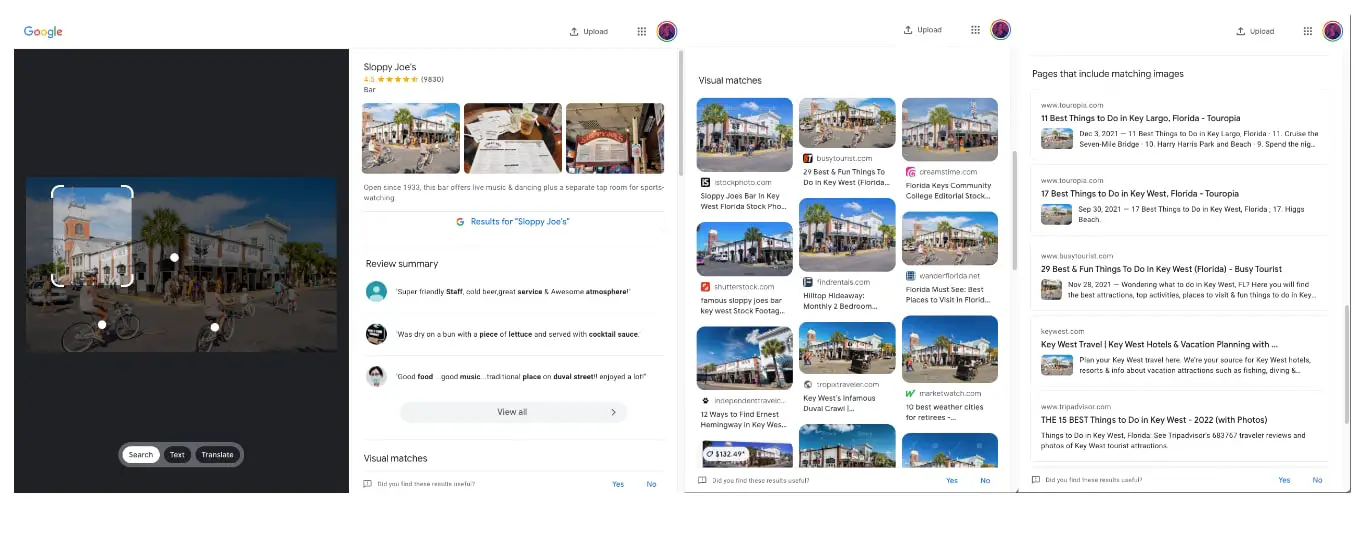
One of the things that Google Lens can do – and do very well – is recognize images from websites and be able to identify their location (provided it’s a landmark or business), provide a link to relevant Google search results, customer reviews (if applicable), visual matches in other web pages, and links that include matching images. Here’s how you do it.

Xremove ads

Search with a picture from a website

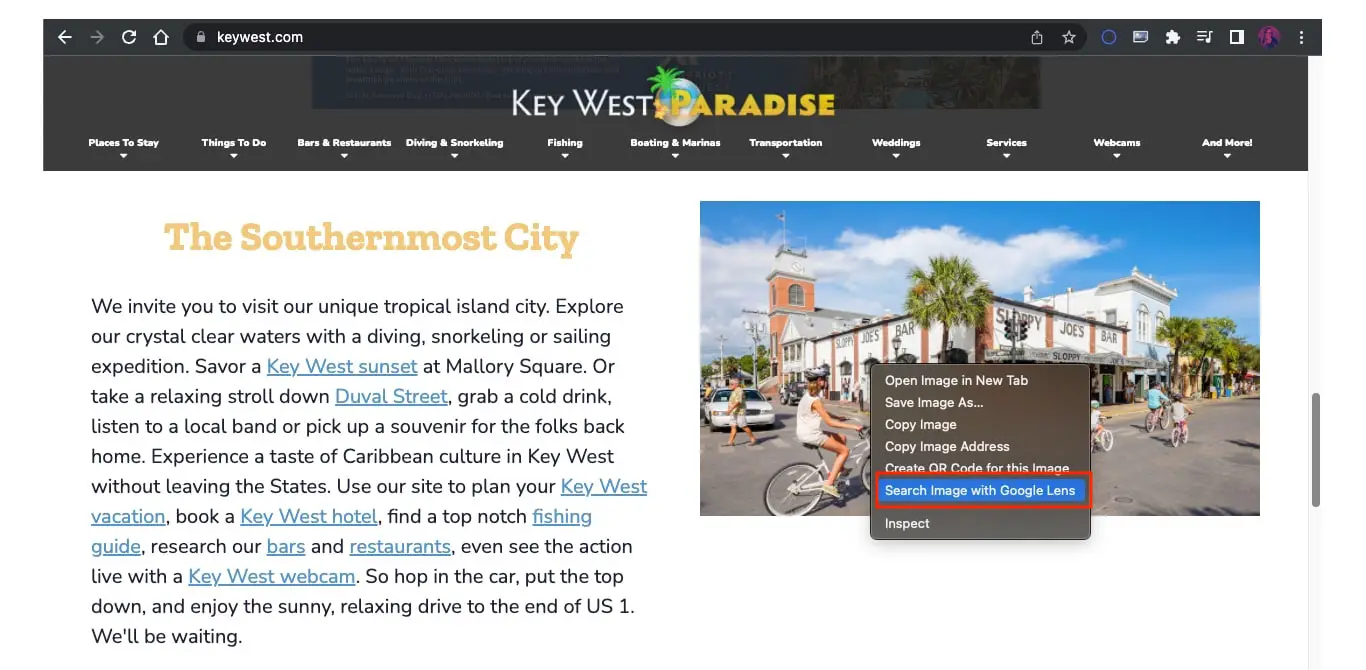
To search with a picture from a website, open your Chrome browser and navigate to the website that contains the photo you want to use. Once you have the image up, right-click on it and select “Search Image with Google Lens.” A new tab will open that will contain the results for that image. If the image results are for an established business, the results will include its ratings and reviews.
I just want the steps!

1. On your computer, open the Chrome browser

2. Go to the website with the picture you want to use

3. Right-click the picture

4. Click Search Google for image. You’ll see your results in a new tab

This feature can be handy if you are doing research online for an upcoming trip, and all you have to go on are images from someone’s website or a screenshot from a video. The possibilities are many when it comes to doing travel research this way. Now all you need is your luggage and book that trip!

Featured Videos

Xremove ads

SUBSCRIBE TO UPSTREAM

Get Chrome Unboxed delivered straight to your inbox

Upstream is our flagship, curated newsletter with the top stories, most click-worthy deals, giveaways, and trending articles from Chrome Unboxed sent directly to your inbox a few times a week. Join 31,000+ subscribers.

SUBSCRIBE HERE!

Filed Under: Apps, Chrome, Guides and How-To's Tagged With: chrome, chrome browser, google lens, how to, image search

Primary Sidebar

Googlebook

Lenovo Googlebook i 15 confirmed via Bluetooth SIG ahead of NYC media event

By Robby Payne
September 10, 2026

HP Googlebook 14c specs confirmed by Energy Star: Snapdragon X Elite and 32GB RAM

By Robby Payne
September 9, 2026

How many years of updates Googlebook gets could make or break it on Day One

By Robby Payne
September 8, 2026

Your Android phone might soon double as a wireless mouse for Googlebook

By Robby Payne
September 5, 2026

Google’s John Solomon explains why Googlebook is Google’s next Chromebook moment

By Robby Payne
September 4, 2026

More Googlebook

Xremove ads

Deals

The best Chromebook deals today

By Robby Payne
September 2, 2026

The best Chromebook ever made is $350 off at Best Buy right now

By Robby Payne
August 21, 2026

The excellent, powerful Acer Chromebook Plus Spin 514 is $150 off right now

By Robby Payne
August 12, 2026

Acer’s new Chromebook 315 is wildly affordable and points to the real future of Chromebooks

By Robby Payne
August 11, 2026

You can score the massively upgraded ASUS CX54 Chromebook Plus for just $599 right now

By Joseph Humphrey
July 28, 2026

More Deals

Xremove ads

Reviews

Acer Chromebook Plus Spin 514 Review: the best convertible you can buy [VIDEO]

By Robby Payne
July 1, 2026

Lenovo Chromebook Plus 2-in-1 Review: pretty great in a vacuum

By Robby Payne
April 23, 2026

My review after 6 weeks with the Lenovo Chromebook Plus 14 [VIDEO]

By Robby Payne
August 11, 2025

One week with the best small Android tablet you can buy, and I’m sold

By Robby Payne
May 9, 2025

Best Chromebooks of 2024 [VIDEO]

By Robby Payne
November 28, 2024

More Reviews

Xremove ads

TWITTER · FACEBOOK · INSTAGRAM · YOUTUBE · EMAIL · ABOUT

Copyright © 2026 · Chrome Unboxed · Chrome is a registered trademark of Google Inc.
We are participants in various affiliate advertising programs designed to provide a means for us to earn fees by linking to affiliated sites.

PRIVACY POLICY