
• Skip to main content
  • Skip to primary sidebar
  • Deals
  • Features
  • Guides
  • Chromebooks
  • Videos
  • Podcast
  • More +
    • Reviews
    • Unboxing
    • Upcoming Devices
    • Chromebook Plus
    • Chrome
    • ChromeOS
    • Chrome OS Flex
  • Search
  • Sign Up
  • Log In
Chrome Unboxed – The Latest Chrome OS News

Chrome Unboxed - The Latest Chrome OS News

A Space for All Things Chrome, Google, and More!

  • Deals
  • Features
  • Guides
  • Chromebooks
  • Videos
  • Podcast
  • More +
    • Reviews
    • Unboxing
    • Upcoming Devices
    • Chromebook Plus
    • Chrome
    • ChromeOS
    • Chrome OS Flex
  • Search
  • Sign Up
  • Log In

How To Get a Cache-Free Refresh On Your Chromebook

January 2, 2017 By Robby Payne View Comments

Support our independent tech coverage. Chrome Unboxed is written by real people, for real people—not search algorithms. Join Chrome Unboxed Plus for just $2 a month to get an ad-free experience, access to our private Discord, and more. Learn more about membership here.
START FREE TRIAL (MONTHLY)START FREE TRIAL (ANNUAL)

Some sites (including ours) leverage browser caching in order to speed up delivery of the site’s assets to your browser. It is effective and goes unnoticed most times.

But there are times you need a fresh reload of a page, and a cached page just won’t do. Here’s how to fix it.

Xremove ads

Real quickly, browser caching is not necessarily a bad thing. It makes the sites you visit regularly load much faster and gives you a better overall experience. But if you run your own website, you know the need to see the most updated version of a page or post you may have just edited.

Or, perhaps you are waiting for a certain news story, article update, new video, sale price on a product…there are all sorts of situations you may find yourself not wanting to load up a page that isn’t perfectly up to date.

Featured Videos

Xremove ads

The Non-Extension Method

There is a way, without plugins, to accomplish this. It isn’t great if you have the need to see a cache-free version of a page with any regularity. If you just need it every once and a while, this will do just fine.
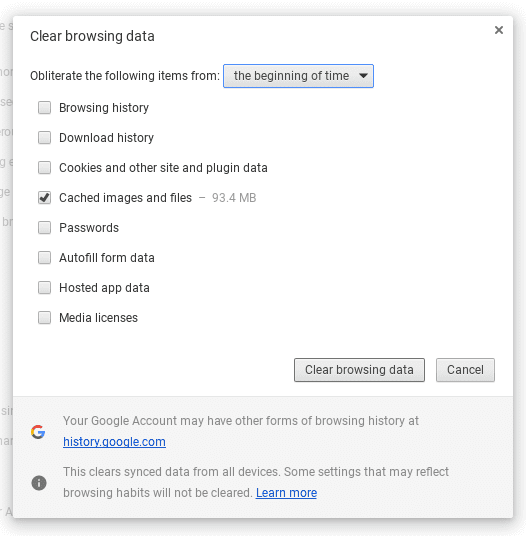
Simply hit CTRL + SHIFT + Backspace and your Clear Browsing Data menu will appear. If you simply unselect everything apart from Cached images and files, select your timeframe from the drop down (I just select ‘the beginning of time’), and hit Clear Browsing Data, you will be good to go. Just return to your browser and hit refresh and you’ll see a non-cached version.

Xremove ads

The Extension Method

For me, I refresh pages with stunning regularity. As a web developer, I’m constantly making tweaks and changes and I want to see them as I change them. Up until recently, a simple refresh worked most times. It seems that either my host or Chrome has become a bit more aggressive, so getting the latest changes to display has become impossible most times.

This caused me to search out an Extension for the solution, and I have one that works perfectly.

It is called Clear Cache. Nothing amazing in the title, but this one is simple and works as expected.

Xremove ads

You can snag it here, and when you have it up and running, a right-click on the icon gives you a path to the settings. In those settings, you can have the page reload right after a cache clearing session and set a keyboard shortcut to fire it.

The keyboard shortcuts actually are set in your extensions menu, reached by going to your 3-dot menu > more tools > extensions. Scroll to the bottom and set a keyboard shortcut for Clear Cache. Mine is CTRL + R and takes the place of the standard shortcut.

Now, every refresh with that shortcut gives me any page, free of cached items.

Xremove ads

The settings are very similar to what you can choose in the first method above, so you don’t have to worry with wiping everything out in your browsing history.

Hope this helps for some of you who’ve been looking for a solution to this very particular issue.

Filed Under: All Stories, Apps, ChromeOS, Guides and How-To's, News

About Robby Payne

As the founder of Chrome Unboxed, Robby has been reviewing Chromebooks for over a decade. His passion for ChromeOS and the devices it runs on drives his relentless pursuit to find the best Chromebooks, best services, and best tips for those looking to adopt ChromeOS and those who've already made the switch.

Primary Sidebar

Xremove ads

Deals

The Acer Chromebook Plus Spin 714 hits a new all-time low at $270 off

By Robby Payne
March 25, 2026

The best Chromebook deals today

By Robby Payne
March 24, 2026

You can score $40 off Google’s battery-powered Nest Doorbell right now

By Joseph Humphrey
March 20, 2026

The touchscreen Lenovo Chromebook Slim 3 is a steal at under $200

By Robby Payne
March 16, 2026

Google TV Streamer and Remote held in front of a wall-mounted TV

The premium Google TV Streamer 4K is back down to $80

By Joseph Humphrey
March 16, 2026

More Deals

Xremove ads

Reviews

Acer Chromebook Plus Spin 514 Review: Kompanio Ultra power in a convertible

By Robby Payne
December 24, 2025

My review after 6 weeks with the Lenovo Chromebook Plus 14 [VIDEO]

By Robby Payne
August 11, 2025

One week with the best small Android tablet you can buy, and I’m sold

By Robby Payne
May 9, 2025

Best Chromebooks of 2024 [VIDEO]

By Robby Payne
November 28, 2024

Samsung Galaxy Chromebook Plus Review: Samsung is back! [VIDEO]

By Robby Payne
October 28, 2024

More Reviews

Xremove ads

Guides

This Chromebook trackpad shortcut is definitely not new, but is blowing my mind

By Robby Payne
March 11, 2024

How to reduce broadcast delay on YouTube TV to stop live spoilers

By Robby Payne
December 8, 2023

Windows PC keyboard and Chromebook

How to use a Windows keyboard with a Chromebook

By Joseph Humphrey
December 8, 2023

How reset and revert your Chromebook to the previous version of Chrome OS

By Robby Payne
November 29, 2023

My Chromebook Plus features disappeared: here’s how I fixed it

By Robby Payne
November 24, 2023

More Guides

TWITTER · FACEBOOK · INSTAGRAM · YOUTUBE · EMAIL · ABOUT

Copyright © 2026 · Chrome Unboxed · Chrome is a registered trademark of Google Inc.
We are participants in various affiliate advertising programs designed to provide a means for us to earn fees by linking to affiliated sites.

PRIVACY POLICY