


Support our independent tech coverage. Chrome Unboxed is written by real people, for real people—not search algorithms. Join Chrome Unboxed Plus for just $2 a month to get an ad-free experience, access to our private Discord, and more. Learn more about membership here.
START FREE TRIAL (MONTHLY)START FREE TRIAL (ANNUAL)
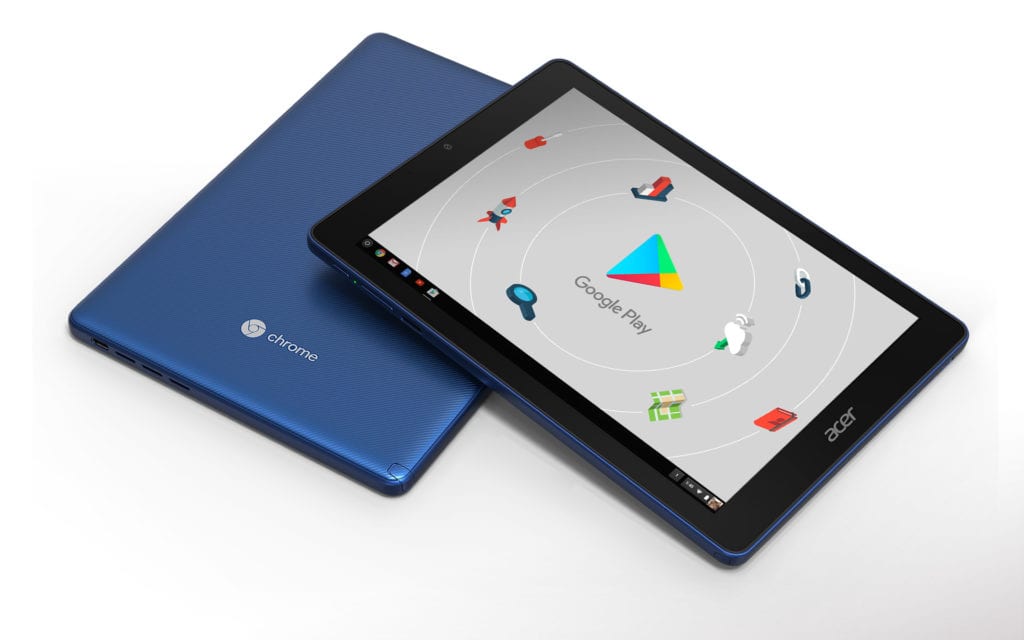 Chromium developers are busy bringing the Crostini Project and Linux apps into the mainstream Chrome OS experience but that will never deter the tinkerers and hackers who like to find themselves outside of norm. Putting your Chromebook in Developer mode opens up doors to a number of features and capabilities and the keepers of Chrome OS agree that users should have to power to access those if they desire.
Chrome OS devices are not general-purpose PCs. We believe you should be able to hack on your own property, but if you do it’s not our fault if something breaks.
Maybe you’re a developer or perhaps you want to install Gallium alongside Chrome OS or, like me, maybe you just like living in the Canary channel and trying out new features before they are available to the general public. Any way you slice it, Developer mode on Chrome OS is a very handy feature that many will continue to use.
With the advent of tablets and detachables, the method for entering Developer mode has received an update due to the fact that these new devices lack a physical or permanently attached keyboard. So, how do you put a Chromebook tablet in Developer mode?
Glad you asked.
First, let’s cover the usual disclaimers. Putting your Chrome device in Developer mode can put your system at risk and we do not recommend doing so unless you are absolutely confident in what you are doing. Once enabled, Developer mode will leave you to your own devices. Meaning, no official support from developers, manufacturers or Google is offered for those who choose to “hack” their operating system. That being said, I do this all the time with practically every device that comes through the office. I have yet to brick a Chromebook. Just know that there’s always a chance.
If you happen to have an Acer Chromebook Tab 10 or the HP Chromebook x2, here are the steps to get your device into Developer mode.
Step 1: Before you lay a finger on your shiny, new tablet, create a restore disk. It only takes a couple of minutes and can save you a world of frustration should something go wrong. You can find the steps to do so on the Google support page here.
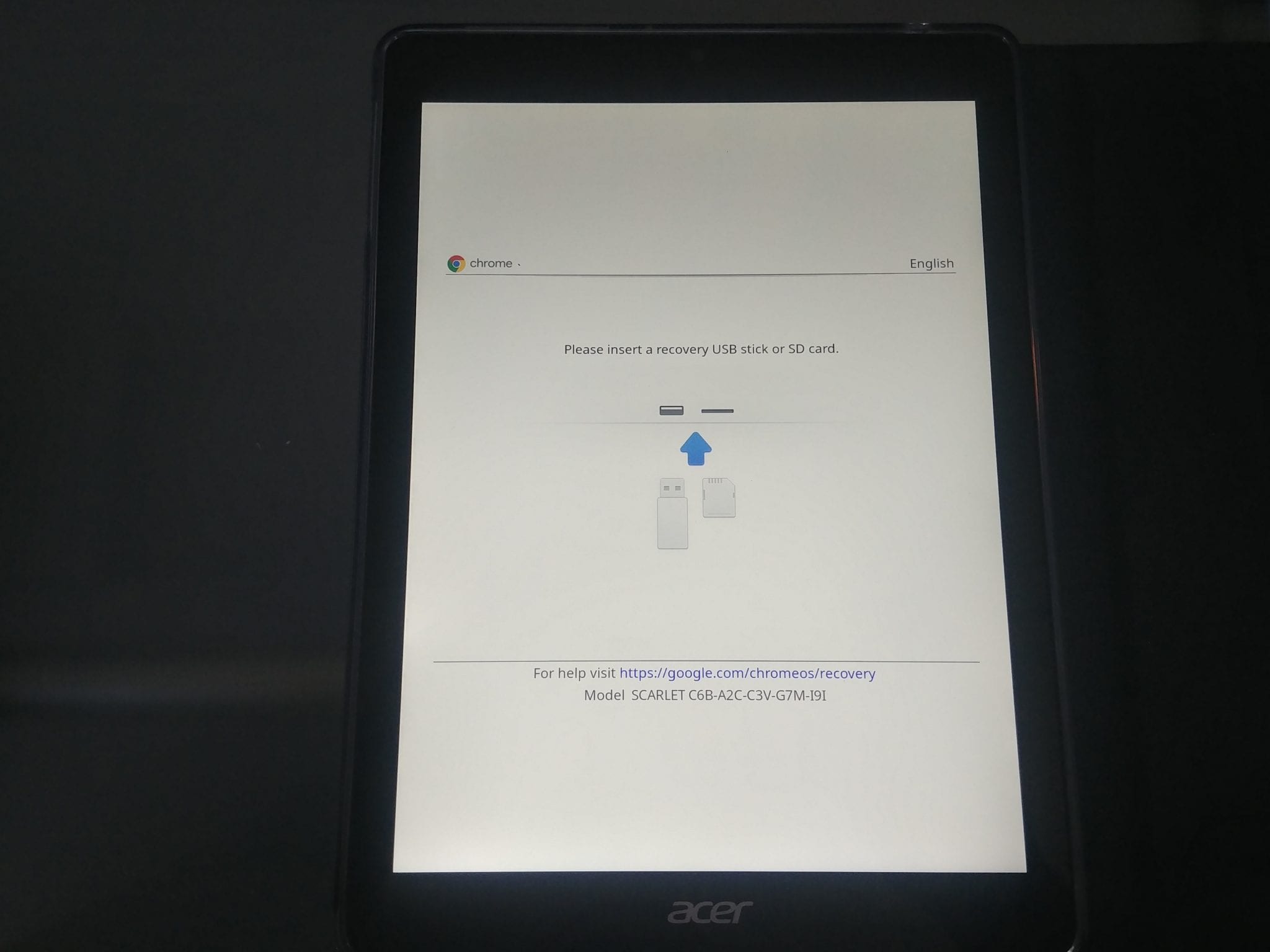
Step 2: Now, you’re ready to fire up Developer mode. On your tablet, press and hold all at the same time, the Volume Up/Volume Down/Power buttons. The official notes say 9 seconds but I’ve found the Acer Tablet only takes about 5. You can do this from a powered on or off state. Once the screen goes black, release the buttons.
You should see the tablet power back on and you’ll be greeted with something that looks like this:
Step 3: Press the Volume Up/Volume Down buttons again and you should see the “Disabling OS verification” screen.
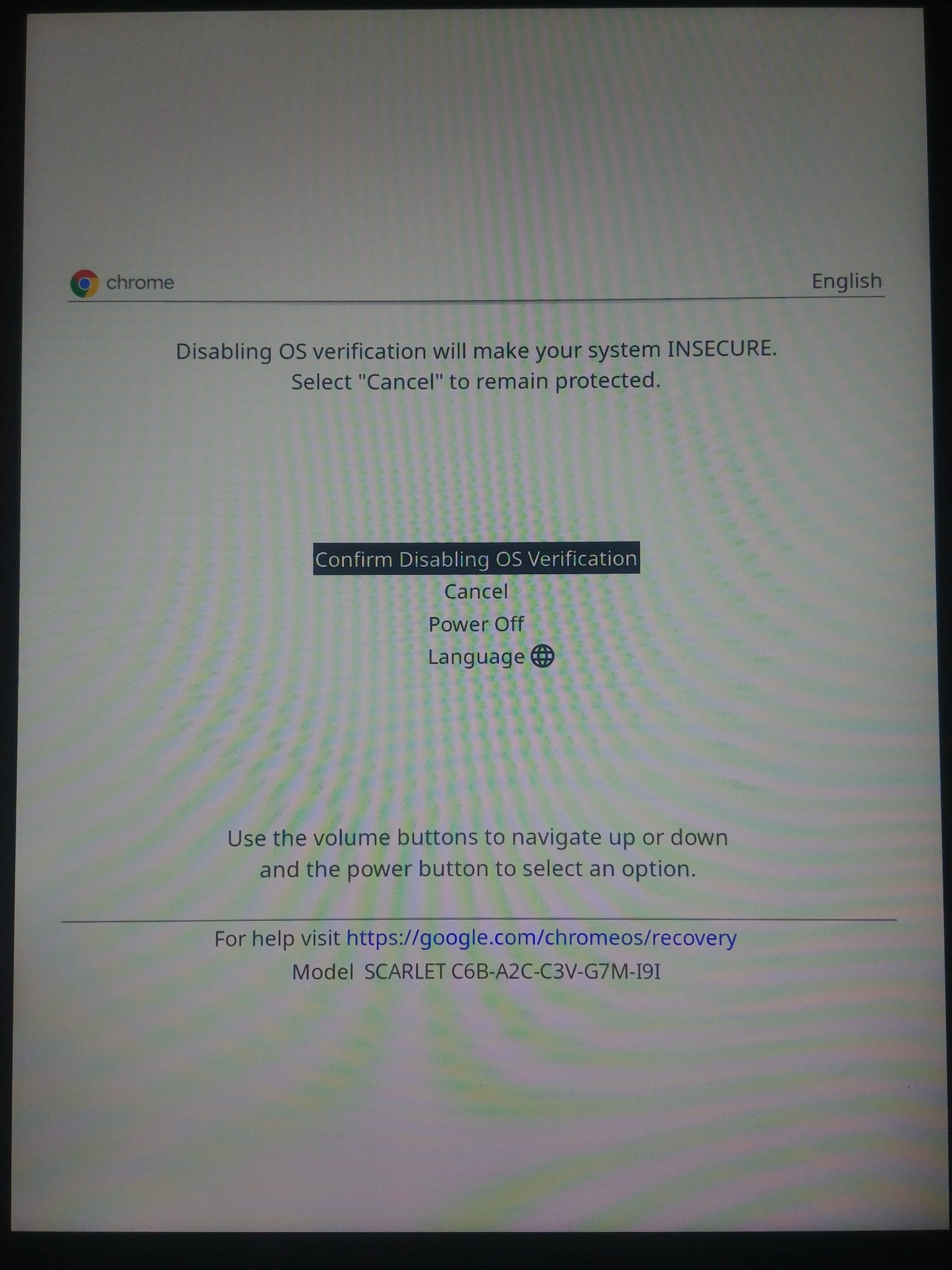
As you can see, you can use the volume keys to navigate the on-screen menu and canceling will return you to the previous screen where you can simply power off the tablet to return to “verified boot” mode. If you continue with the disabling process, you will find a few more options than you may be accustomed to on a traditional Chromebook.
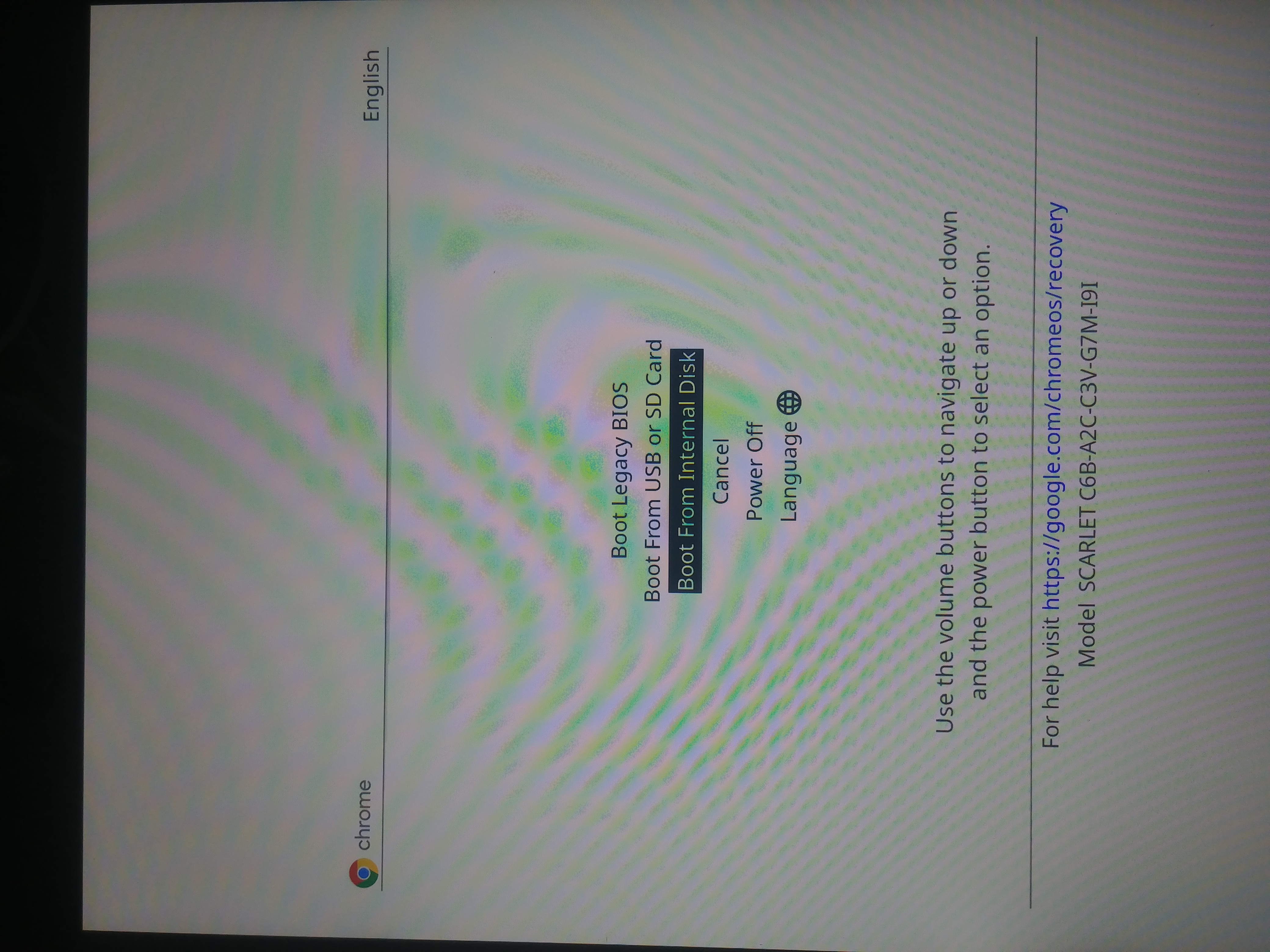
There you go. You now have developer access to your Chromebook tablet. To put things back to normal, just reboot and select “Enable OS verification” from the boot screen using the Volume keys.

