
Support our independent tech coverage. Chrome Unboxed is written by real people, for real people—not search algorithms. Join Chrome Unboxed Plus for just $2 a month to get an ad-free experience, access to our private Discord, and more. Learn more about membership here.
START FREE TRIAL (MONTHLY)START FREE TRIAL (ANNUAL)
Earlier this week, we talked about the frustrating reality that several major Android games (like Call of Duty: Mobile) are currently blocked from installing on Googlebooks via the Play Store. Whether it’s due to missing developer whitelists or overzealous anti-cheat systems, having fan favorite apps unavailable on day one is never fun.
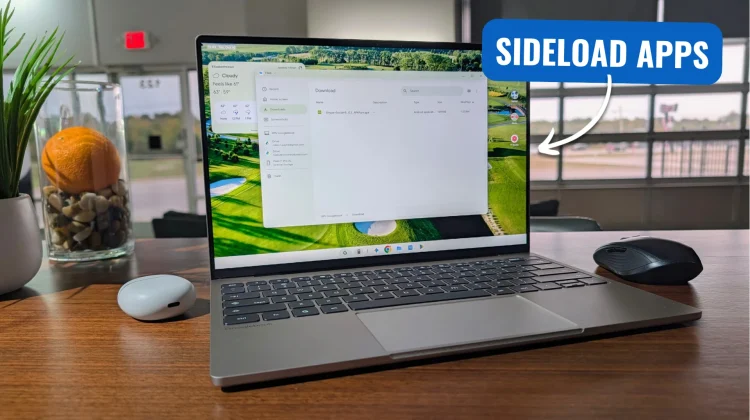
But because Googlebook OS is built on Android 17, we aren’t locked into the walled garden of the Play Store. If an app you need isn’t playing nicely through official channels, you can simply sideload it.
If you spent years using ChromeOS, you might be having flashbacks to the headache of need to activate Developer Mode just to install an APK. Thankfully, for Googlebook users, those days are over. Sideloading on a Googlebook works exactly like it does on a Pixel smartphone out of the box; and it took me just a few minutes to get Call of Duty: Mobile up and running.
The simple sideloading process
Downloading and installing an APK on Googlebook OS is incredibly straightforward. Here is exactly what the flow looks like:
- Download your APK: Navigate to a trusted repository (like APKMirror) in your Chrome browser and download the APK file for the app you want.
- Click to open: Once the download finishes, simply click on the file in the pop-up download toast or in the Files app.
- Allow unknown apps: A Chrome browser pop-up will appear, warning you about installing from unknown sources. Just like on an Android phone, you simply toggle the switch to “Install unknown apps” for Chrome.
- Install and play: The system will process the package, and the app will drop right into your app launcher, ready to use.
Using this exact method, I bypassed the Play Store block, sideloaded Call of Duty: Mobile, and hopped straight into a match without any major hiccups.
A quick word of caution
While having this level of freedom on a desktop operating system is fantastic, it requires a bit of common sense and some caution.
The good news is that Google Play Protect is actively running in the background on Googlebook OS, constantly monitoring installed applications for malicious behavior just like it does on your smartphone. However, you still need to exercise caution. Only sideload APKs from reputable, well-known sources, and avoid downloading random application packages from unverified sites.
Ultimately, I would much rather see developers get their apps properly optimized and whitelisted for the Play Store on Googlebook so no one has to use workarounds. But in these early days of the platform, knowing that a simple, frictionless sideloading option is sitting right there in your browser is a massive win for power users.
SUBSCRIBE TO UPSTREAM
Get Chrome Unboxed delivered straight to your inbox
Upstream is our flagship, curated newsletter with the top stories, most click-worthy deals, giveaways, and trending articles from Chrome Unboxed sent directly to your inbox a few times a week. Join 31,000+ subscribers.

