


Support our independent tech coverage. Chrome Unboxed is written by real people, for real people—not search algorithms. Join Chrome Unboxed Plus for just $2 a month to get an ad-free experience, access to our private Discord, and more. Learn more about membership here.
START FREE TRIAL (MONTHLY)START FREE TRIAL (ANNUAL)
For those who use their Chromebooks as a desktop via a docking station or simply don’t like to risk travelling with a laptop that’s not at 100% battery before they take off, they often leave it plugged in for the entire time they’re using it. Some people even leave their Chromebooks plugged in overnight like they do with their phones. Understandably, it gives them a sense of comfort and assurance. Today, we’ll explore whether or not this is has any adverse affects on your device and give you some tips and tricks for managing the health of your battery.
Batteries have memory too
Way back when, leaving a device plugged into a wall outlet for excessive amounts of time would cause the battery inside it to expand or explode, rendering it useless or even causing harm to those around it. Nowadays, that’s not really an issue thanks to most of our technology utilizing lithium-ion batteries as opposed to alkaline combined with a little something called ‘trickle charging’. The idea is that modern batteries have the ability to stop accepting a charge once they’re full. Because of this, it’s actually safe to leave your Chromebook charging overnight or for the duration of its active daily usage: but that doesn’t mean you ought to. According to Battery University’s analysis on the matter, since I’m not a scientist:
The lithium-ion battery works on ion movement between the positive and negative electrodes. In theory such a mechanism should work forever, but cycling, elevated temperature and aging decrease the performance over time. Manufacturers take a conservative approach and specify the life of Li-ion in most consumer products as being between 300 and 500 discharge/charge cycles.
Battery University
So as you can see, the issue isn’t directly with over-charging your laptop, but rather with the battery temperature remaining elevated due to keeping it plugged in and eroding the ions, directly contributing to the longevity – or lack thereof – of your Chromebook’s battery. In other words, if you want your Chromebook to last for the entirely of its lifespan, it’s recommended that you charge and discharge it appropriately.
So then, when should you charge your Chromebook?
With all of that out of the way, I often have people ask me when they should charge their device or unplug it. What is the best practice to follow after you take your shiny new Chromebook out of its box? Well, I think the best analogy for this situation is that of a plant. If the plant needs water, you should water it. If it’s full of water, you should not water it, right? My thumb is anything but green, but I’m sure doing so probably wouldn’t have any immediate negative effect. Instead, I imagine you would wake up one morning after consistently over-watering it and realize it looks sickly or even that it’s dead. Instead, I recommend charging it until it’s about 80 or 90 percent full and unplugging it when it’s closer to 20 or 10 percent. There’s a lot of battery science and conflicting information out there on the internet regarding best practices here, but I like to keep it simple and unplug it if it’s almost full to prevent myself from overcharging it and plug it in when it’s almost dead so I don’t forget and accidentally let it die. Easy, right?
How to check the health of your battery
There’s actually a little-known, easy way check on how your battery is doing. I’m not talking about the its physical charge – which you can see by looking at the bottom right side of your Chromebook’s shelf – but rather it’s heath. If batteries had a checkups like humans, this would be it. It’s basic, but the concept still applies. Simply open what’s known as the crosh terminal by pressing CTRL+ALT+T on your keyboard while in the Chrome browser and type in battery_test. Hit enter and you will see a percentage. The test won’t work properly if you have your charger plugged in, as you can see from my results below.
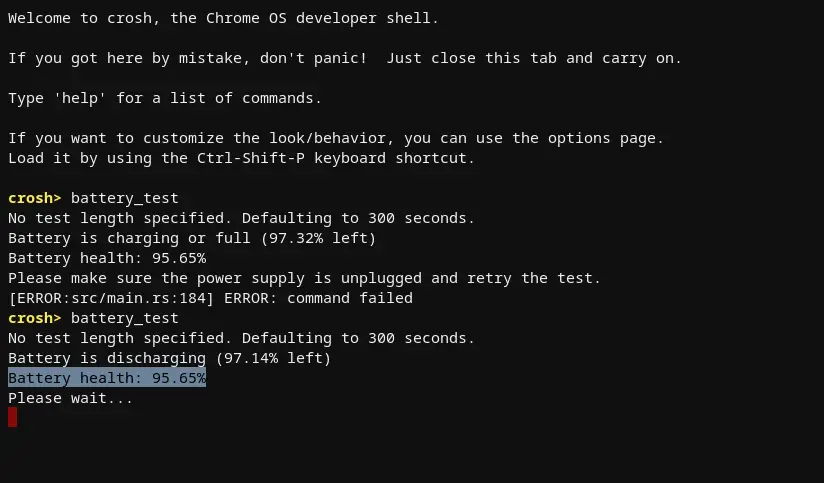
You can also append a time frame in seconds after battery_test to test how quickly your battery is discharging. We’ll go in-depth on battery statistics and pointers in another post some day.
Use smart plugs for clever power management
If you’re staying at home and prefer using a desktop setup, it may be in your best interest to make your next Chrome OS device a Chromebox as opposed to a Chromebook because they are built to accept a constant charge and don’t require constant power management. Otherwise, if you’re like me and prefer to have the desktop setup without sacrificing the portability of your Chromebook, a clever way to manage your battery is to use smart plugs to automate the charging and discharging of your battery.
My docked Pixelbook Go has a Wemo wifi smart plug managing it. A fun little trick is to maintain a schedule in the app for the smart plug of your choosing so that it only distributes power for about an hour around the time when you return home (when you normally plug it in) and for an hour prior to your bed time. This way, you can just leave the power cable plugged in to your Chromebook forever and it won’t destroy the health of your battery!
Shop Belkin Wemo Wifi Smart Plugs
Tips and tricks for plugs and sockets
I’d also recommend you avoid plugging your Chromebook charger in to any faulty outlets. Getting the wiring in your home checked once a year is important and can prevent not only a fried laptop, but also house fires. Another way to prevent your battery from shorting out is to swap out your surge protectors once a year. Before I knew that these power strips could only withstand one lightning strike (one billion joules of energy in a fraction of a second), I basically just kept the same ones for many years. If you don’t, they’re basically just extra plugs that provide no protection whatsoever. You’ll want to buy surge protectors that are rated for at least 600 joules. Yes, I know – it’s insignificant compared to a lightning strike’s power, but we can only do so much to fight the forces of nature. It’s best you turn your Chromebook off or simply use it on battery power unplugged during a storm.
Shop 6 Outlet Surge Protectors on Belkin
Lastly, only use the charger that came with your Chromebook. If you buy a third-party charger on Amazon or some other website, you risk potentially frying your laptop. A lot of these second hand chargers are not regulated and do not have the proper voltage and wattage. Not to mention Chromebooks use much less power than Windows laptops. My best advice is to grab the specific model number of your Chromebook and find a charger that is explicitly stated to work with that model. We’ll provide a full tutorial on this in the near future.
Where to store your Chromebook and where you shouldn’t
I know a lot of people who buy Chromebooks for their work truck or happen to need them for other conditions which expose them to extreme heat or cold. While some Chromebooks are built to take more of a beating, I don’t recommend subjecting them to any more strenuous conditions than they they ought to be. Store your Chromebook in a cool, dry place. Avoid submerging it in water or spilling coffee on the keyboard. Only certain devices are built to withstand a spill, but even then they can only take a few ounces of liquid that is meant to be wiped off immediately.
Environmental conditions, not cycling alone, govern the longevity of lithium-ion batteries. The worst situation is keeping a fully charged battery at elevated temperatures. Battery packs do not die suddenly, but the runtime gradually shortens as the capacity fades.
Battery University
Any of these unsafe conditions may reduce the longevity of your battery or could destroy it immediately. Building new habits can be difficult, but the tips and tricks here will help you get the most out of your Chromebook purchase.
SUBSCRIBE TO UPSTREAM
Get Chrome Unboxed delivered straight to your inbox
Upstream is our flagship, curated newsletter with the top stories, most click-worthy deals, giveaways, and trending articles from Chrome Unboxed sent directly to your inbox a few times a week. Join 31,000+ subscribers.

