


Cue the As Seen On TV infomercial host!
Do you struggle staying on task at work? Are you constantly finding yourself mindlessly scrolling through Facebook when you should be balancing spreadsheets? Are you addicted to Bored Panda? If this sounds familiar, do we have a deal for you.
Support our independent tech coverage. Chrome Unboxed is written by real people, for real people—not search algorithms. Join Chrome Unboxed Plus for just $2 a month to get an ad-free experience, access to our private Discord, and more. Learn more about membership here.
START FREE TRIAL (MONTHLY)START FREE TRIAL (ANNUAL)
Okay, maybe that’s a bit exaggerated and then again, perhaps not so much. While I don’t struggle staying off social media while I’m at work, I am notorious about going down rabbit holes looking for information about the random things that pop into my head throughout the work day. Many of you may find yourself doing the very same and it’s destroying your productivity. Maybe you’ve tried through sheer will power to keep yourself from opening new tabs and leading yourself astray. Whatever the reason, blocking the websites that create stumbling blocks for you is a quick and easy way to create some accountability and hopefully, we’ll all find ourselves at the end of the day feeling a sense of accomplishment for our efforts.
Why block websites?
As I’m sure you can imagine, there are numerous reasons as to why you would want to block websites to prevent browsing. As mentioned above, mindlessly drifting through social media and distraction-style content can be a monumental time vacuum that destroys productivity. That’s but one example, however. For millions that struggle with things such as gambling, adult content, or other internet addictions, blocking websites could be a crucial first step to breaking a habit. For these scenarios, a more aggressive approach such as accountability apps or counseling may be required but sometimes, a little self-inflicted accountability is a good place to start.
Reducing distractions
There are quite a few Chrome Extensions out there that offer up various methods of reducing distractions. Some limit the number of tabs you have open while others force you to take a screen break from time to time. Some, like Todoist, try to keep you on task by creating a visual to-do list right in your browser. Many of these apps are quite useful, serve distinct purposes and have great benefits. That said, what if you could simply block the websites you wish to avoid and give yourself that gentle nudge you need to stay on task or keep from wandering? Well, you can.
BlockSite
BlockSite is a tool designed to keep you focused by allowing you to block websites you’d like to avoid. The freemium Chrome extension does exactly what the name implies… blocks websites. When you sign up for a free account, you gain the ability to block three websites of your choice and any known adult websites are blocked automatically. If you just need a gentle nudge to remind you to stay off of Facebook or keep yourself from wandering around on Amazon, the basic extension will do the trick.
Along with three blocked sites, you get access to Focus Mode which lets you set a timer to keep you focused on your tasks for a given amount of time. You can add specific sites to the Focus Mode timer to keep yourself from straying away while trying to get some work done. There’s even a keyword option that allows you to block any sites/pages with specific words in the URL or title. Very handy if you’re say, addicted to golf and want to avoid researching new golf clubs while you’re at work.
Now, the basic BlockSite extension is great if you have some self-control and just need that reminder to stay focused. If you’re looking for more control and unlimited site blocking, the paid plan for BlockSite is where you should look. If you purchase it annually, BlockSite Unlimited will only run you about $48. If you’re serious about being productive or you’re really trying to kick some form of internet habit, that’s a small price to pay. The hours alone that you could regain are priceless.
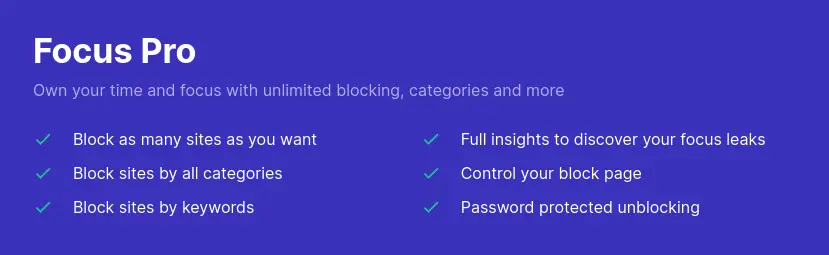
With the premium upgrade, you also get options to block sites by category and a full insight report that tells you where your time is being spent. This can help identify sites that might be taking your time and attention away from what matters. What’s more, the Pro version features password protection to add that extra obstacle for keeping you in your lane or more importantly, out of the wrong lane. Now, having a password that you create may not seem like much of a hurdle but I have a suggestion. If you’re serious about keeping yourself focused, have someone else set up the password for the blocked sites. Then, you have no way to find yourself somewhere you don’t want to or shouldn’t be.
BlockSite will work across all of your devices that use Chrome Desktop and you earn cool little rewards when you use some of the tool’s features. These allow you to unlock discounts and stuff like custom images for your blocked pages. You can try BlockSite for free at the link below.
Blocking sites for the kiddos
If you’re looking to keep your children safe online, look no further than Google’s own Family Link app. For kids under 13, you can have full control of the content they view, apps they install, and even the amount of screen time they get. To restrict sites on Chrome, you simply have to set up a Family Link account and create a Google account for your children. Once that’s done, you can restrict web browsing using the steps below.
- Open the Family Link app
- Select your child.
- Tap Controls
Content restrictions
- Choose the setting that’s right for your family:
- Allow all sites: Your child can visit all sites, except the ones you block.
- Try to block explicit sites: No filter is perfect, but this should help hide sexually explicit and violent sites.
- Only allow approved sites: Your child can visit the sites you allow.
- To manually allow or block certain sites, under Manage sites, tap Approved or Blocked.
- When you allow or block a site, this setting automatically applies no matter what other Chrome browsing settings are enabled for your child.
Alternatively, there are platforms out there like Qustodio that give you robust features and tools to monitor across practically any device your kids may use. This includes Android, iOS, Kindle, Windows and more. You could even set up a BlockSite account and use it for your kids if you wanted. You would just need to set it up with their Gmail account and set a password that would be used with the BlockSite extension on their device. Any way you go, you have a lot of options.
Blocking a website on Chrome Desktop isn’t difficult but the path you take ultimately depends on your reasons and urgency for doing so. If you’re just looking to stay a bit more focused while at work, a simple extension or web app will do the trick. If you seriously need to prevent yourself or a loved one from traipsing around the darker corners of the internet or going on a bank-breaking shopping spree, a paid tool may be necessary.

