
Support our independent tech coverage. Chrome Unboxed is written by real people, for real people—not search algorithms. Join Chrome Unboxed Plus for just $2 a month to get an ad-free experience, access to our private Discord, and more. Learn more about membership here.
START FREE TRIAL (MONTHLY)START FREE TRIAL (ANNUAL)
If you have ever carried your laptop into a conference room, plugged an HDMI or USB-C cable into the big-screen TV, and spent the first three awkward minutes fumbling with display settings, dragging browser windows across screens, and praying a private notification doesn’t pop up in front of everyone, Google just built the exact feature you’ve been waiting for.
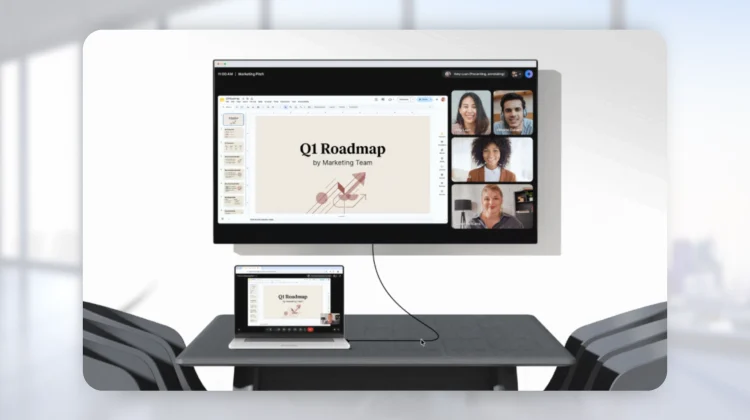
Google Workspace has officially begun rolling out Room Display mode in beta for Google Meet on the web. Designed specifically for “Bring Your Own Device” (BYOD) meeting spaces without dedicated conference hardware kits, this feature automatically splits your meeting interface into two synchronized windows the second you plug your laptop into an external screen.

How Room Display mode splits your meeting under the hood
According to the official Google Workspace Updates announcement, Room Display mode leverages Chromium’s Window Management API to detect external displays and cleanly separate public room visuals from your private controls:
- Automated dual-window handoff: When your laptop is connected to an external display (configured in Extended desktop mode), Google Meet automatically identifies the secondary screen and presents Room Display mode as the primary join option right on the green room screen.
- The Shared View (TV / projector): Your external display gets a clean, edge-to-edge, distraction-free spectator interface. It displays remote participant video tiles and live presentations with zero browser clutter, URL bars, or personal controls, with a one-click button to go full screen.
- The Personal View (laptop controller): Your laptop screen instantly becomes your private mission control. It houses your presentation slides, private speaker notes, audio/video peripheral selectors, participant roster, in-call chat, and your Ask Gemini side panel.
- Built-in privacy shield: Everything on your laptop screen – including other open browser tabs, desktop icons, and OS notifications – remains strictly private. In-person meeting attendees only see the clean Shared View on the wall.
Why this solves a massive BYOD conference room headache
In traditional office setups without thousands of dollars invested in dedicated Google Meet hardware boxes, running hybrid meetings from a laptop has always been a bit clunky. Whether you are on a Chromebook, a MacBook, or a Windows machine, you either had to mirror your display (exposing your entire screen and private notes to the room) or awkwardly drag a detached browser tab over to the TV while looking away from your colleagues.

Testing this in an extended-display setup feels night-and-day better. Because Chromium handles the multi-display windowing automatically, clicking join instantly throws the participant grid onto the external monitor while keeping my presentation controls and speaker notes right in front of the user on their laptop. Being able to access the Ask Gemini panel to pull up real-time Workspace documents during a live meeting without the entire room watching you type is a massive productivity win.

How to try out Room Display mode on your device
Room Display mode works across any modern laptop, including Chromebooks, MacBooks, Windows PCs, and Linux machines running a Chromium-based browser (Google Chrome or Microsoft Edge). It is currently rolling out across all Google Workspace tiers. To use it in your next meeting:
- Connect your laptop to your meeting room display via USB-C or HDMI.
- Ensure your operating system display settings are set to Extended desktop (not mirrored).
- Open Google Meet in Chrome, ensure Window Management permissions are allowed when prompted, and select Room Display mode when joining the call.
SUBSCRIBE TO UPSTREAM
Get Chrome Unboxed delivered straight to your inbox
Upstream is our flagship, curated newsletter with the top stories, most click-worthy deals, giveaways, and trending articles from Chrome Unboxed sent directly to your inbox a few times a week. Join 31,000+ subscribers.

