


Support our independent tech coverage. Chrome Unboxed is written by real people, for real people—not search algorithms. Join Chrome Unboxed Plus for just $2 a month to get an ad-free experience, access to our private Discord, and more. Learn more about membership here.
START FREE TRIAL (MONTHLY)START FREE TRIAL (ANNUAL)
A couple of days ago, Fortnite maker Epic Games announced a pretty substantial facelift that was launching for their flagship game with the latest Season 4 release. Being a game that is as cross-platform as they come (you can play it on Android, PC, XBOX, PlayStation, GeForce NOW, and more), no one has ever really expected Fortnite to be a graphical masterpiece. It simply has to keep things simple to work on so many platforms. Or, at least it did, anyway. With this latest release, Epic has released Fortnite powered by Unreal Engine 5.1, and the visual overhaul is not slight.
Unreal Engine 5 ushers in a generational leap in visual fidelity, bringing an unprecedented level of detail to game worlds like the Battle Royale Island. Next-gen Unreal Engine 5 features such as Nanite, Lumen, Virtual Shadow Maps, and Temporal Super Resolution are now available in Fortnite Battle Royale on PlayStation 5, Xbox Series X|S, PC, and cloud gaming!
via Epic Games
Of course, as soon as I saw cloud gaming included in this latest graphic update, I jumped into a match with GeForce NOW on the Lenovo IdeaPad Gaming Chromebook I’m currently testing. And the results were: meh. Unfortunately, all the upgraded visuals, lighting, and rendering that Epic has unleashed with Unreal Engine 5.1 aren’t in play right out of the box on GeForce NOW. But that doesn’t mean you can’t tweak a few settings to change that.
How to enable Fortnite’s upgraded graphics for GeForce NOW
As I said, when I launched into a match, I wasn’t really that impressed. After all, Fortnite has looked pretty stellar to me on these gaming Chromebooks for a couple months at this point, so I was really looking for something to jump out and make me see the differences Epic has put in place. While I wasn’t seeing them initially, I found a video that highlights some of the settings you need to enable in order to see the visual upgrades available to you. You can check that out here if you’d rather see these settings changed in real time.
First and foremost, you need to launch GeForce NOW and in the upper-left corner, click the menu button, select Settings > In-Game Graphics Settings > toggle switch to ‘on’. This one change will allow you to make the settings adjustments while in the game and is essential to getting your setup ready for the enhanced visuals you are looking for.
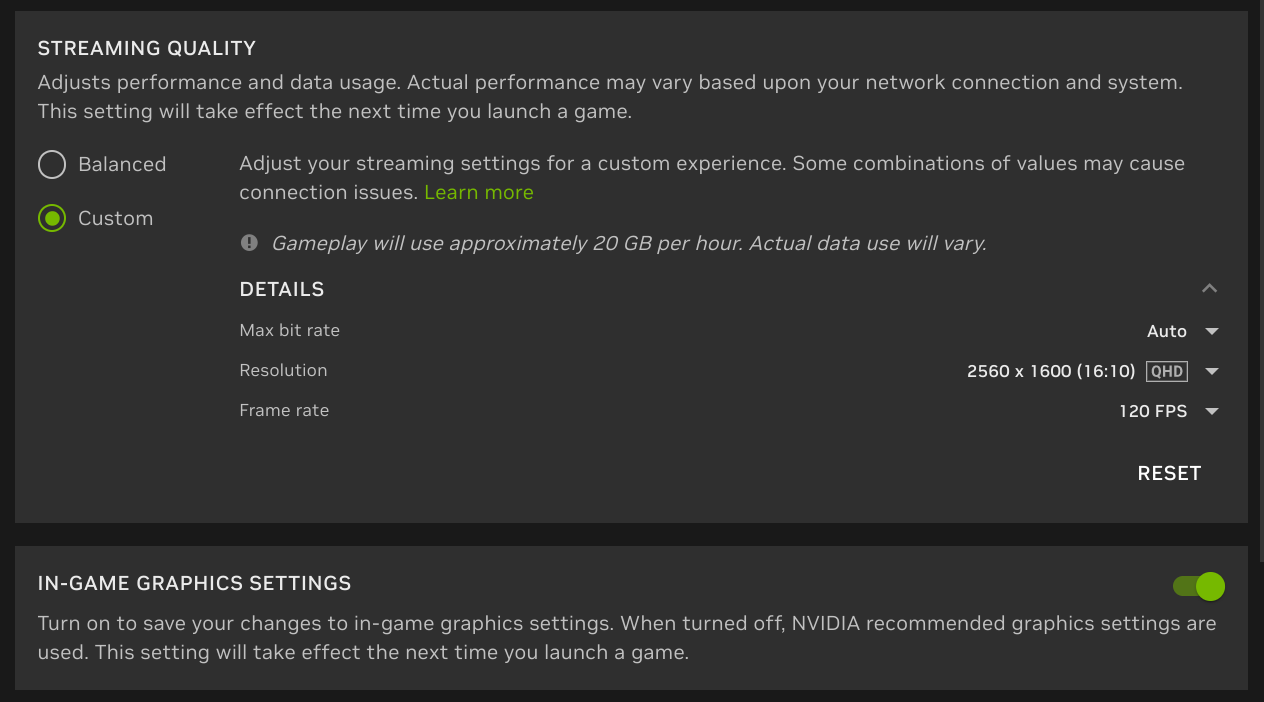
Next, launch Fortnite and immediately head to your in-game settings and change your display settings to match what you see in the image below. After you apply these settings, you’ll be forced to restart the game and this may take you to the desktop for a second. Don’t panic; it should reboot the game with no issues. Truth be told, GeForce NOW hides all this for you if you let them set the graphics levels for you, so once you go down this road, just know you might see a bit more of the cloud desktop than you want.
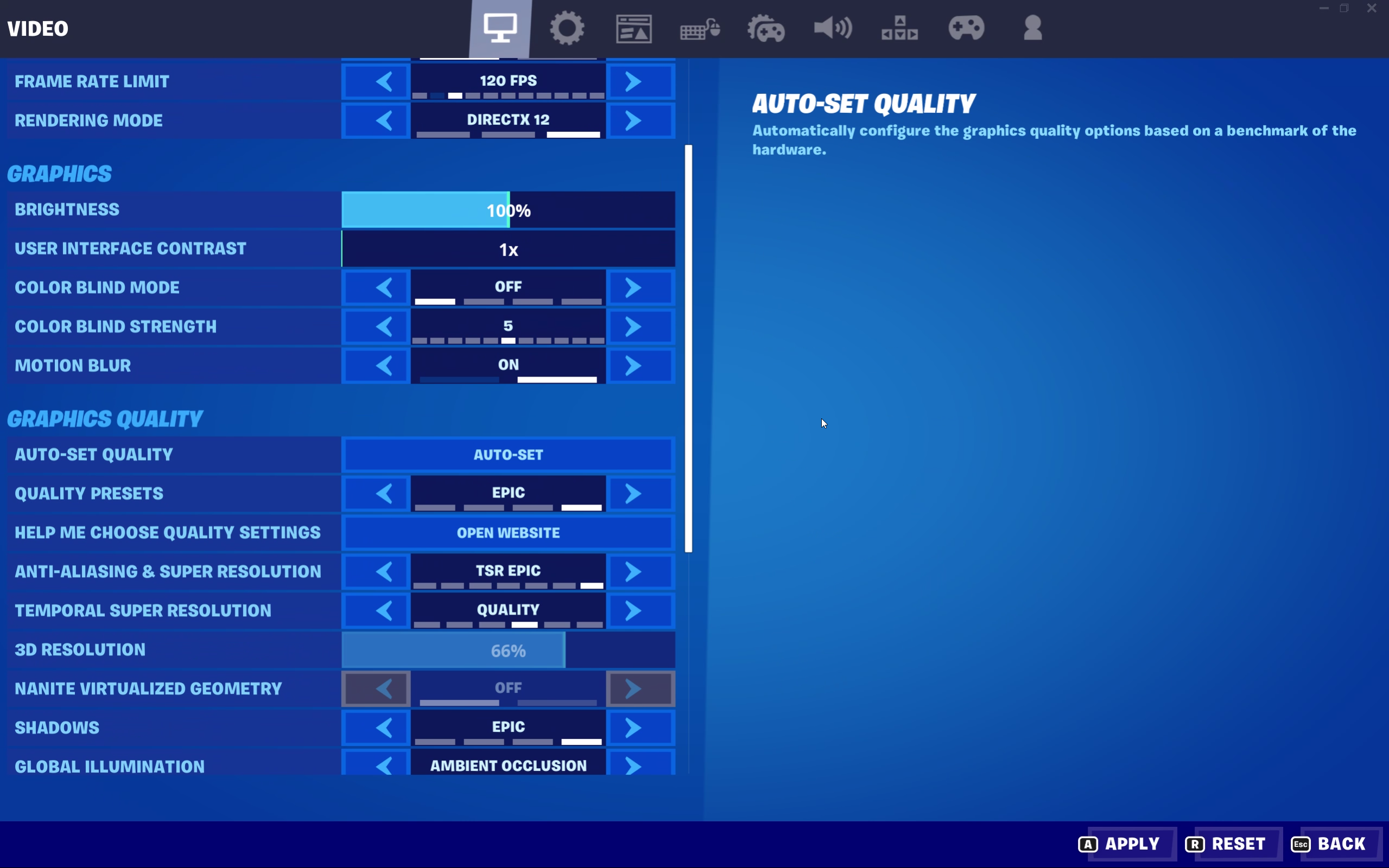
Notably, for this first settings change, you need to set the Rendering Mode to DirectX 12, the Quality Presets to Epic, the Anti-Aliasing & Super Resolution to TSR Epic, and the Temporal Super Resolution to Quality. After this, select Apply and you’ll be prompted to restart Fortnite. Go ahead and do this. It will take a minute, so be patient.
Now, once you are logged back in, you’ll need to make a few more settings adjustments. This time, take note that you’ll want to set Nanite Virtualized Geometry to On, Virtual Shadows, View Distance, Textures, Effects, and Post Processing all to Epic, and Global Illumiation and Reflections both to Lumen Epic. After this, hit Apply and jump into a match. You’ll see the differences.

From lighting to rendering of trees and buildings, this version of Fortnite looks better than ever, and you can enjoy it to its fullest extent with these steps and a gaming Chromebook. To be fair, you don’t need one of these newer devices to take advantage of the new changes, but the 120Hz screens really take all this beauty to the next level. It is quite something to behold. (Also, do note that when you restart Fortnite, you’ll have to do all this again to get the crispy graphics back. Bummer, but hopefully GeForce NOW will simply default to these settings soon.)
And the fact that cloud gaming and Chromebooks built to leverage it can deliver all this graphic goodness simply makes my heart warm. I know cloud gaming isn’t for everyone, but for those of us willing to embrace it, there are huge upsides. I didn’t have to wait for a huge update to try out Fortnite’s new lighting and graphics. I just hopped on GeForce NOW, and I did so with a Chromebook that costs less than $600 most days. It’s all a bit magical sometimes, and being able to play a game that looks this gorgeous while not bogging down my work laptop is part of that magical experience. Hope you get to enjoy it a bit, too.
SUBSCRIBE TO UPSTREAM
Get Chrome Unboxed delivered straight to your inbox
Upstream is our flagship, curated newsletter with the top stories, most click-worthy deals, giveaways, and trending articles from Chrome Unboxed sent directly to your inbox a few times a week. Join 31,000+ subscribers.

