
Support our independent tech coverage. Chrome Unboxed is written by real people, for real people—not search algorithms. Join Chrome Unboxed Plus for just $2 a month to get an ad-free experience, access to our private Discord, and more. Learn more about membership here.
START FREE TRIAL (MONTHLY)START FREE TRIAL (ANNUAL)
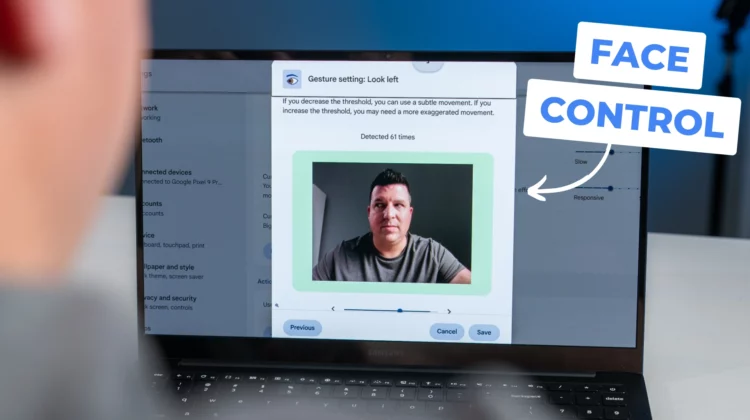
Back in May of 2024, we got a sneak peek at a new feature that has fully arrived in Chrome OS 132 (though it’s been lurking for a few versions of the OS behind some flags). It’s called Face Control, and as the name suggests, it lets you control your Chromebook’s mouse input with your face.
Face Control is remarkably simple to use. In Chrome OS 132, just head to your settings and search for “face control.” Once you’re there, turning it on is a breeze. Early versions of this feature were understandably a bit clunky, with a strange camera overlay showing how it tracked your face. Thankfully, all of that has been cleaned up and the entire interface is now very user-friendly.
Upon enabling Face Control, a small icon appears at the top of the screen, and your camera light turns on. You’ll immediately notice the cursor moving around, mirroring your facial movements. It’s a somewhat surreal experience the first time you try it.
Powerful-yet-simplified settings
The settings offer granular control over how Face Control works. You can adjust the speed separately for both up/down and left/right movements. This is crucial because we don’t move our heads the same way in all directions. Up and down movements are typically smaller, so you’ll likely want to increase the sensitivity in those directions. Left and right movements, like looking over your shoulder, are more frequent and often larger, so a slightly lower sensitivity can be more comfortable. Finding the right balance is key, and the settings make it totally possible to dial in your favorite preferences.
Another important setting is cursor stability, which acts like mouse smoothing. A lower setting makes the cursor highly responsive, mirroring even the slightest movements. A higher setting smooths out the cursor, reducing jitter but introducing a bit of lag. Again, a bit of experimenting with this setting will help you find the setting that is most natural for you. Cursor acceleration is also available, similar to mouse acceleration, and combining all three can really dial in your Face Control sensitivity.
Custom shortcuts
Face Control also offers customizable shortcuts. You can assign different facial movements to specific actions, like left click, right click, pausing/resuming Face Control, or resetting the cursor to the center of the screen. One particularly useful action is assigning a facial movement to a left-click. You can choose from various movements, like raising your eyebrows or shifting your jaw. The interface even provides a handy meter to help you fine-tune the threshold for each movement.
The level of polish in the current iteration of Face Control is pretty astounding. The setup process is intuitive and the responsiveness is impressive. For users who rely on accessibility features, this is a game-changer. And it’s built directly into Chrome OS, no add-ons or downloads required. The progress from the initial versions we saw back in May is remarkable and the addition of the threshold settings makes all the difference in making this feature truly usable and easy to set up for each user.
Big kudos to the Chrome OS team for their work on this. It’s a testament to their commitment to accessibility and adding truly useful features to ChromeOS that can have a massive impact on the way people interact with Chromebooks. Hopefully, this feature will empower lots of people who may have difficulty with traditional input methods, and I truly hope more breakthrough features are just on the horizon.
SUBSCRIBE TO UPSTREAM
Get Chrome Unboxed delivered straight to your inbox
Upstream is our flagship, curated newsletter with the top stories, most click-worthy deals, giveaways, and trending articles from Chrome Unboxed sent directly to your inbox a few times a week. Join 31,000+ subscribers.

