


Support our independent tech coverage. Chrome Unboxed is written by real people, for real people—not search algorithms. Join Chrome Unboxed Plus for just $2 a month to get an ad-free experience, access to our private Discord, and more. Learn more about membership here.
START FREE TRIAL (MONTHLY)START FREE TRIAL (ANNUAL)
As I continue my series about creating games on your Chromebook, we leave Godot behind and move on to something that the younger ChromeOS audience and students can get into. Today, I’m going to show you how to get your children to learn logic and programming in a fun way while creating something playable right through the web browser!
If you’ve never heard of “Scratch” before, it’s the world’s largest coding community for kids. Your little ones can create stories, games, and animations to share with others around the world just by dragging and dropping a few puzzle-piece-looking blocks. Let me explain.
Scratch is designed especially for ages 8 to 16, but is used by people of all ages. Millions of people are creating Scratch projects in a wide variety of settings, including homes, schools, museums, libraries, and community centers.
Who uses Scratch?
Before I do though, I should state that Scratch was created by the Scratch Foundation. It’s a nonprofit organization that wants to help kids around the world express their ideas through coding, learn to innovate, collaborate and learn within a community setting. Over 200 million children have used it to date, but if yours haven’t, don’t worry, we’re about to get into it now!
To get started, all you have to do is visit the Scratch Editor online and go through the Getting Started tutorial. There’s also a Google Play Store app for both standard Scratch and Scratch Jr. – an application for smaller kids to enjoy some of the same benefits of creating with the platform.
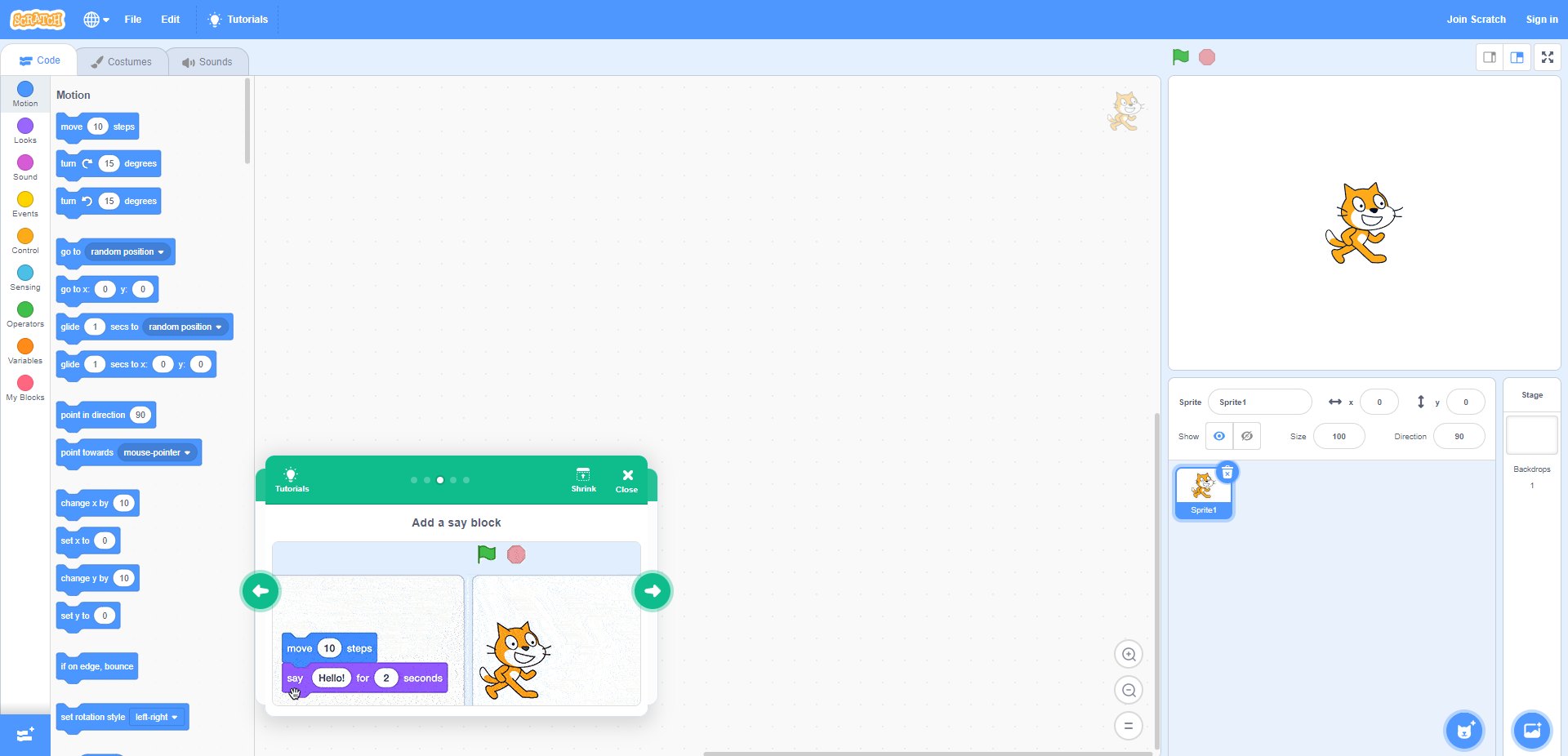
All you have to do once you’re in the editor is take the colored blocks from the left, drag and drop them into the main window, and snap them together. Once you hit the green “Go” flag at the top right, you’ll see the cute cat character start to execute the commands it’s been given. Telling it to move a certain amount of steps, go to a specific x and y coordinate, and more all exist within the blue blocks section called “Motion”.
However, you may have noticed that there are other color tabs on the far left of the screen. Basically, these give you access to plenty of other “logic blocks” that you can snap together like Legos. Below, I’ll give a brief explanation of what each is used for while creating.
- Purple – Looks
- Pink – Sound
- Yellow – Events
- Light Orange – Control
- Light Blue – Sensing
- Green – Operators
- Orange – Variables
- Pink – My Blocks
In addition to this “Code” tab, there exist two other tabs that you can navigate to in the editor. First, there’s a “Costumes” tab, and there, you can change the way your cat looks. Paint clothes on it, add text, shapes, and more, or rearrange its limbs (for extra fun). Over on the “Sounds” tab, you can create audio cues like a cat’s meow that can be executed as logic blocks from the coding tab’s purple sound tab run.
Oh, and you can also change the backdrop of the editor, import your own non-cat sprite character image, create or paint one on the spot, and more. These additional tools are found in the cat and image icons at the bottom right of the editor. Scratch comes in over 70 languages and is completely free to use. With it being available directly as a web application, you can turn it into an icon on your child’s Chromebook so they can practice a bit each day!
I just want the steps!
1. Visit the Scratch Editor through the Chrome browser
2. Select a code block tab on the left using the colored dots
3. Drag and drop logic blocks into the main body of the editor, snapping them together
4. Press the green “Go” flag at the top right of the screen
5. Adjust your code to get the desired result and test again
6. Visit the “Costumes” tab to change how your cat looks
7. Visit the “Sounds” tab to create audio cues you can use while coding
SUBSCRIBE TO UPSTREAM
Get Chrome Unboxed delivered straight to your inbox
Upstream is our flagship, curated newsletter with the top stories, most click-worthy deals, giveaways, and trending articles from Chrome Unboxed sent directly to your inbox a few times a week. Join 31,000+ subscribers.

