


Support our independent tech coverage. Chrome Unboxed is written by real people, for real people—not search algorithms. Join Chrome Unboxed Plus for just $2 a month to get an ad-free experience, access to our private Discord, and more. Learn more about membership here.
START FREE TRIAL (MONTHLY)START FREE TRIAL (ANNUAL)
Generally speaking, the out-of-box experience (OOBE) for Chromebooks has been a solid onboarding walkthrough, helping new and existing Chromebook users alike in finding their way around the most basic parts of the initial setup for a new device. And its utility has grown over the years, going from a simplified Wi-Fi connection helper and account login to being a bit more helpful in the first steps that follow when a Chromebook is removed from the box.
But compared with Android – Pixel phones, specifically – I’ve always wished for a bit more hand-holding in those early stages of the ChromeOS experience. Especially for new users, getting acclimated and having things set up right out of the box immediatlely grounds you in the hardware and software in a way that leaves you far less detached once you actually hit the ground running in the OS. ChromeOS has gotten better at this over the years, but the latest additions to the OOBE in ChromeOS 116 really do a lot to round out the experience.
Common settings with a visual interface
The big change I really want to highlight here is the new settings menu that walks you through options for your trackpad scrolling direction (one of the settings most commonly misunderstood with Chromebooks), your screen scaling (how big things are on the screen), and how you’d prefer to handle light/dark mode for your device. This last setting has been around prior to this change, but bundling it with the other two is a nice touch.
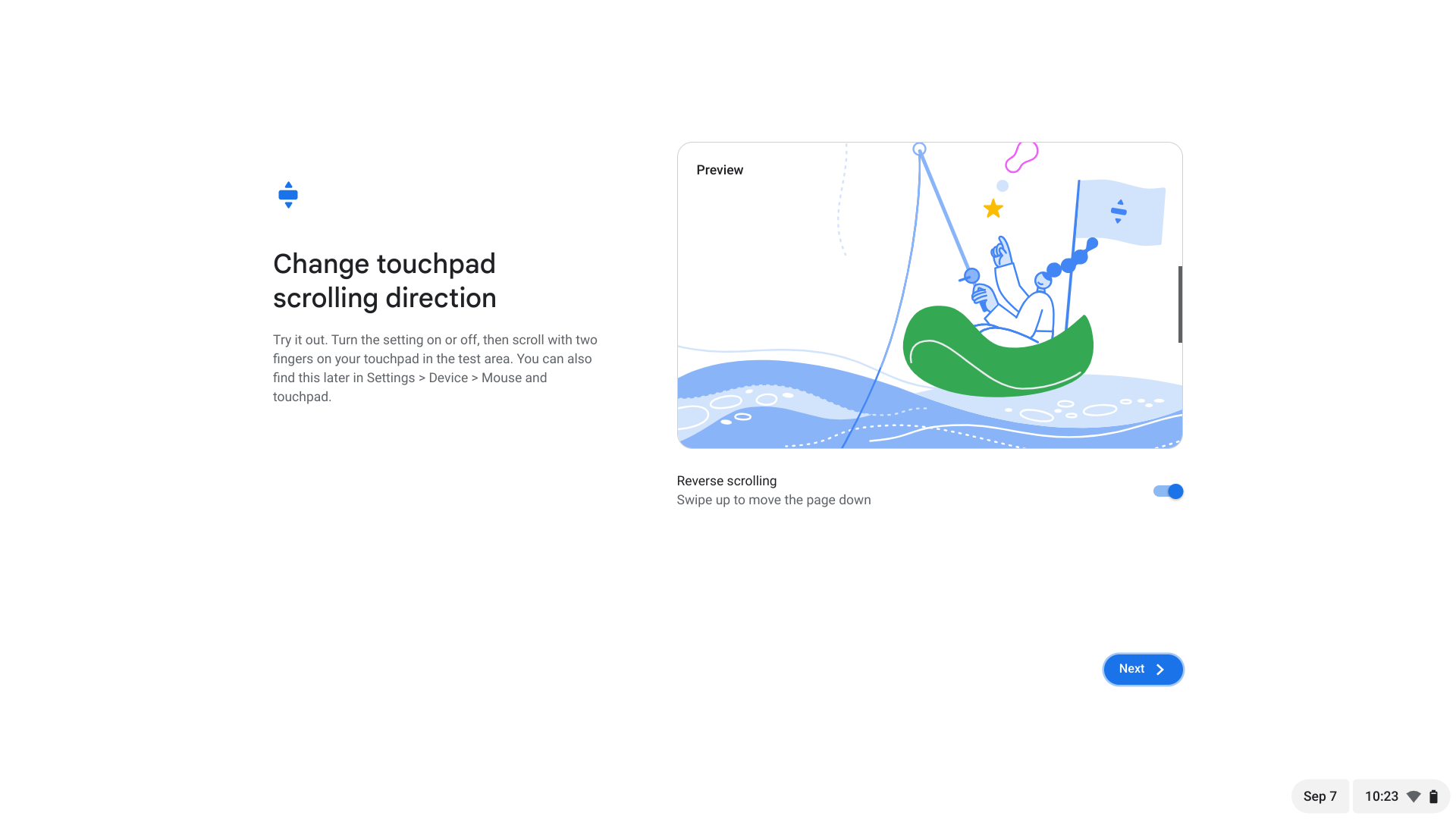
Trackpad scroll direction is the biggest addition, here, and I’m so thankful that right off the bat, users are tasked with making this selection. We can go back and forth all day about which direction is correct (enabling reverse scrolling is the right answer), but having a tool that quickly and simply shows the user – in a visual way – what the difference is makes the choice far more clear. For what its worth, if you don’t use reverse scrolling, consider the way you move you fingers across the screen of your phone and then match that up with how you scroll on a trackpad. Reverse scrolling matches phone/tablet behavior and when you stop to consider it for just a second, makes the most sense, here.

Second up is the option to adjust your screen’s scaling right away. This is a thing that many people don’t initially know how to do and don’t consider, so I’m glad to see it as part of the OOBE experience. Again, ChromeOS gives a very visual explanation of what’s going on, and a new user can get their screen set up the way they want right away instead of messing with it later. It’s a nice touch, and for those interested, you can quickly scale up and down with the CTRL+SHIFT+(+ or -) at any point as well.
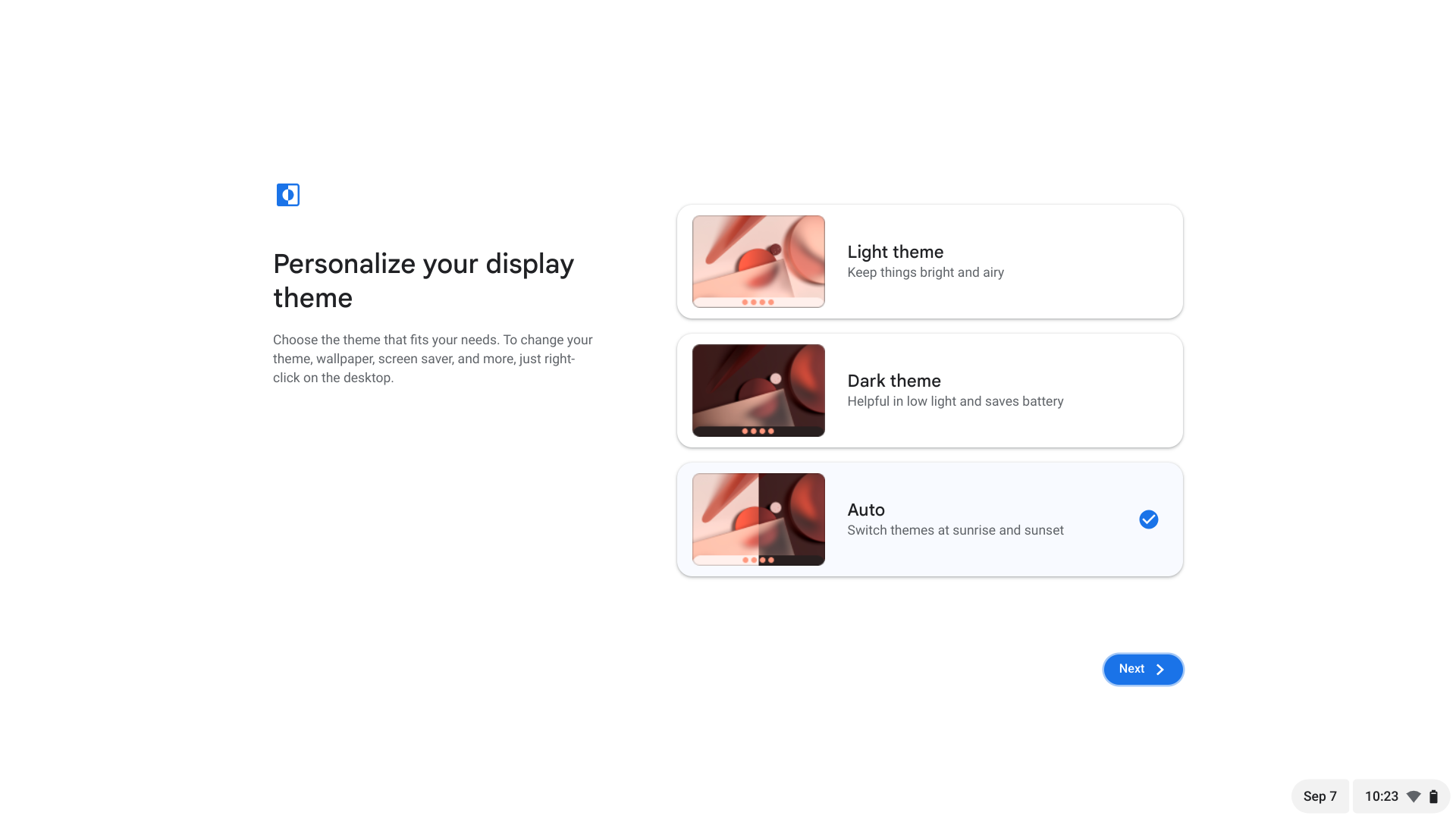
Finally, as I said earlier, the choices for light/dark mode are present as well. I love this being up front because I’d wager there are many people who don’t yet know you can even switch on a Chromebook. For me, the auto setting is best and, just like I have on my phone, the Chromebook will be in light mode when the sun is up and dark mode when it is down. It’s a nice visual touch and again, easy to see, find and understand for the end user.
As more and more people gravitate towards Chromebooks, the OOBE only becomes more important to the overall experience. While I do hope Google adds an advanaced user option down the road to simply skip all this stuff for those of us who’ve used a Chromebook before (after all, all your settings are synced once you log in), I really appreciate the attention to detail for new users. I think we’re in for a larger influx of general consumers in the Chromebook space, and changes like this go a long way in making them feel more comfortable with the switch.
SUBSCRIBE TO UPSTREAM
Get Chrome Unboxed delivered straight to your inbox
Upstream is our flagship, curated newsletter with the top stories, most click-worthy deals, giveaways, and trending articles from Chrome Unboxed sent directly to your inbox a few times a week. Join 31,000+ subscribers.

