

Support our independent tech coverage. Chrome Unboxed is written by real people, for real people—not search algorithms. Join Chrome Unboxed Plus for just $2 a month to get an ad-free experience, access to our private Discord, and more. Learn more about membership here.
START FREE TRIAL (MONTHLY)START FREE TRIAL (ANNUAL)
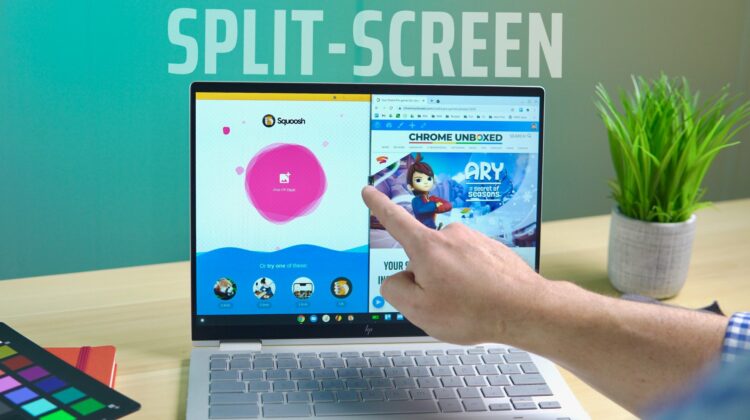
Over the course of the time Chromebooks have been available, they have become very adept at window management. From a useful overview mode to virtual desks to easy window snapping, Chrome OS has quite a few tricks up its sleeve to help you be productive with more than one window at once. Split-screen features have become numerous over that same time, and Chromebooks now have a wide variety of options for seating things side by side. So, with all the features available at your disposal, we wanted to take a few minutes and explain how to fully master split-screen mode on your Chromebook.
Chromebook split-screen in desktop/clamshell mode
There are tons of ways to align your apps or windows side-by-side when in the more-standard clamshell mode. We’ll start with my most-used method: dragging the top bar. If you use your mouse cursor, drag the window you want to align to either side of the screen and release it, you’ll have a perfect 50% window on that side of the screen. Repeat the same for the other window on the other side and you’re good to go.
Addtionally, there are a few shortcuts for this to accomplish the same task with less mouse movement. First up, you can simply long-press the maximize/minimize button next to the close window button up on the top-right of your window/app top bar and you’ll see an arrow appear to both sides. Move your mouse cursor over the side you want to move the window to and just like that, you have a perfect 50% window snapped to one side. This same thing can be done with the keyboard shortcut ALT + [ or ] if you want an even faster method for snapping 50% windows around your desktop.
Once you have your windows side-by-side, there’s another quick trick that has been around for a long, long time and most don’t know it even exists: hover the divider between the split-screen windows and a small box will appear beneath your pointer that will allow you to resize both windows at once. It’s a great trick to have in the back pocket and one I use quite frequently. See the video above for any of these shortcuts in action.
Finally, in desktop/clamshell mode, you can enter the overview mode (use the shortcut key on the top of your keyboard or perform a 3-finger swipe up on the trackpad) and simply drag and drop your mini windows to either side to expand them into split-view as well. This is one of the newer additions to split-screen in Chrome OS and I’ve already found it to be one of my go-to shortcuts.
Chromebook split-screen in tablet mode
When moving to tablet mode, there are some sweet split-screen tricks you need to know, too. Mainly, you need to understand how to go from full-screen view to overview, and that is an easy one. For now, you can swipe down and hold from the top of the screen or swipe up and hold from the bottom to trigger overview mode. In later versions of Chrome OS, it seems the swipe down gesture may stop working, so keep that in mind.
Once there, you can continue your gesture to drag your now-diminished window to either side of the display to snap it into split-screen mode, or simply let go and drop it with the other small windows in overview mode. From the basic overview screen, you can then long-press and drag any small window to either side of the screen to snap it in place (quite similar to what we discussed with the clamshell mode above). After you have one side covered, the other side of your screen will show you other open windows and you can simply select one of them to take up the other half of your screen.
Once you have your windows in split-screen mode, you can again swipe up or down from the edges to return to overview mode and select a replacement window or choose an app from the shelf. If the app you need isn’t in either of those places, you’ll need to swipe up to go home and start the process again with the apps you need already open.
Finally, to resize your split-screen apps, you’ll need to touch the divider bar and pause on there for just a second until you see the bar get ever so slightly wider. Once you see this animation, you can drag the bar to divide the screen into a one-quarter/three-quarter layout or half-and-half. Unlike in clamshell mode, you don’t have full control over the ratio on your split-screens in tablet mode.
That’s it! If you get these shortcuts down, you’ll be a master of Chromebook split-screen setups regardless of whether you are in clamshell or tablet mode. We hope this helps to increase your productivity and continues to make your Chromebook more useful each time you pick it up. If you need a visual guide on how to do any of this, again, reference the video above to see all of it in action.
SUBSCRIBE TO UPSTREAM
Get Chrome Unboxed delivered straight to your inbox
Upstream is our flagship, curated newsletter with the top stories, most click-worthy deals, giveaways, and trending articles from Chrome Unboxed sent directly to your inbox a few times a week. Join 31,000+ subscribers.

