

Support our independent tech coverage. Chrome Unboxed is written by real people, for real people—not search algorithms. Join Chrome Unboxed Plus for just $2 a month to get an ad-free experience, access to our private Discord, and more. Learn more about membership here.
START FREE TRIAL (MONTHLY)START FREE TRIAL (ANNUAL)
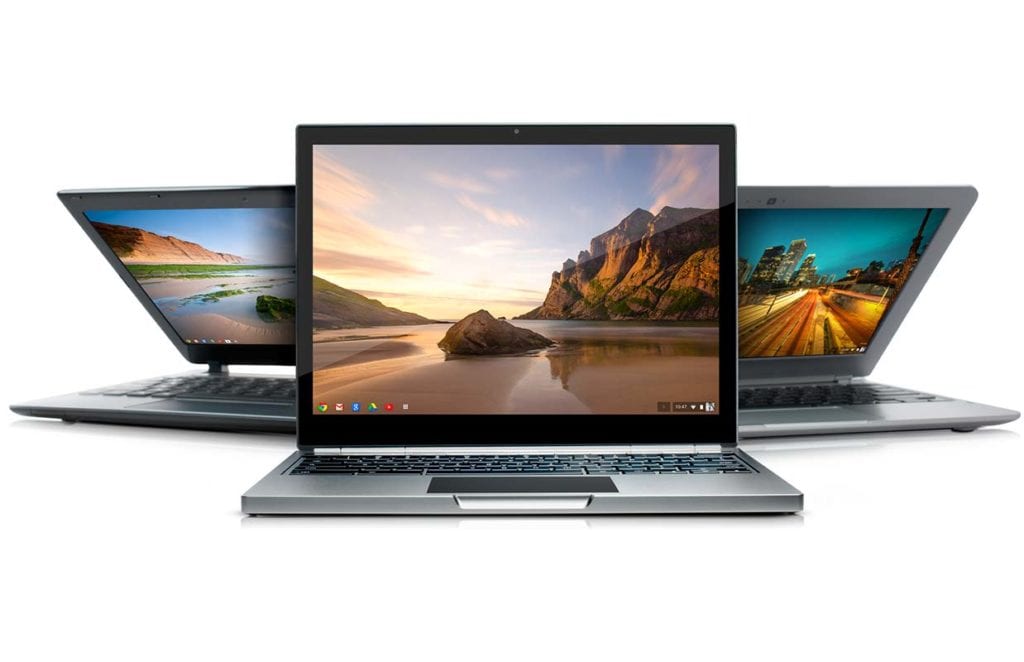
So, you got a new Chromebook. Now what?
No worries, setting up your shiny new Chromebook couldn’t be more simple. Here we will walk you through the steps and have you up and running in a matter of minutes.
What You’ll Need
First, you will need a new Chromebook. If you don’t have one, check out some of Robby’s reviews and find the one that’s right for you. Take your time, I’ll wait. Ok, great.
Next you will need a place to plug in the power supply for your Chromebook. The final tool in the setup process is a wireless network so you can connect to the internet.
The Steps
Here’s the fun part. Pay close attention because setting up your device is so quick and easy you might miss it.
- Plug in your Chromebook to a power outlet with the AC adapter included. (for Chromeboxes attach your mouse, keyboard and monitor)
- Open the lid to your device and press the power button. (on a standard Chrome OS keyboard it is the key in the top right corner)
- Follow the on-screen instructions to select your preferred language, keyboard preferences and wifi connection and click continue.

- Next, accept the Google terms of service. (enabling data reporting to Google is optional but we recommend it as it helps developers make for a better Chrome OS experience and your info is safe and secure)
- Now you can log in to your Chromebook with your Google Account. If you don’t have a Google Account you can set one up here for free.
That’s it! You’re all set to start using your new Chromebook. If you have previously used a Chrome OS device or use the Chrome browser, your personal settings will import to your new device if you have them synced to do so. If you’re new to Chrome OS you can personalize your device by clicking the tray in the bottom right corner and heading to the settings menu.
Important note
If your device came with an older version of ChromeOS there is a known bug that will cause your Chromebook to stick in an endless boot.
It is simple to fix.
Power down completely by holding down the power button for 8-10 seconds. Wait a few seconds after the screen goes black and then Power on. Don’t attempt to log in to your profile. Instead, click “Guest” at the bottom left of the screen.
Then, manually force an update to ChromeOS —
Click on the status area at the lower right of the screen, select the Settings icon (the gear icon) and click the blue “About Chrome OS” link. From there click on the “Check for and apply updates” button. Follow the onscreen directions. When you reboot you should be able to use your own account without the boot loop issue.
Apps
There are tons of great, free apps in the Chrome Web Store and if you’re lucky enough to have a device with access to the Google Play store, app options are endless.
For more information on getting the most out of your Chromebook, check out our tips and tricks section. If you can’t find what you’re looking for drop us a line or a comment below. We’d love to help.
Special thanks to Jim Dantin for the quick-fix for the bootloop issue.

