

Support our independent tech coverage. Chrome Unboxed is written by real people, for real people—not search algorithms. Join Chrome Unboxed Plus for just $2 a month to get an ad-free experience, access to our private Discord, and more. Learn more about membership here.
START FREE TRIAL (MONTHLY)START FREE TRIAL (ANNUAL)
Update: By the time I published this article, Google has pulled the Cross Device Services app from the Google Play Store! It’s likely to make a return, and we’ll let you know if that proves true.
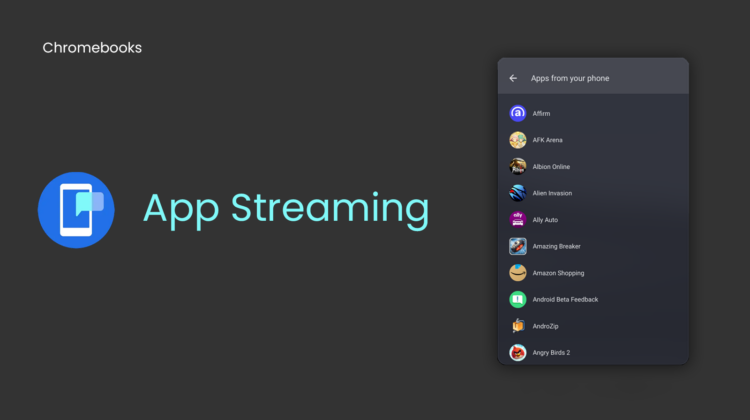
App streaming on Chromebooks (formerly known internally at Google as ‘Eche’), is an exciting new tool that we’ve been waiting a long time for. It allows users to access and use various applications from their Android phone seamlessly by ‘streaming’ them to a window on their Chromebook.
In fact, we covered it yesterday as the feature went live in the Canary channel, and though it won’t be usable for the majority of people for a little while, it’s still incredibly exciting. I’ve spent all day playing with it and trying out different apps, so I’m going to teach you how to set it up, reveal its current limitations, tell you the best use cases for it at this point in time, and then cover a few things we’d like to see from it as it develops further!
How to get App Streaming on your Chromebook
To get started, you’ll first need to go to your phone and install “Google Cross Device Services” from the Play Store. Then, just check the phone hub section of your Chromebook for a setup prompt. So far as I can tell, you won’t need flags to run App Streaming, and I’m running ChromeOS Canary 114.0.5693.0 on my Pixelbook Go.
Here’s exactly how it works
Okay, once you’re set up, apps will open in a quarter-sized window on the right side of your screen. Since it’s streaming them from your phone, these will also open in the ‘recents’ section on your phone! However, Google has built it to where these apps don’t overtake your phone screen, and simply launch in the background when you’re using them on your Chromebook – nice.
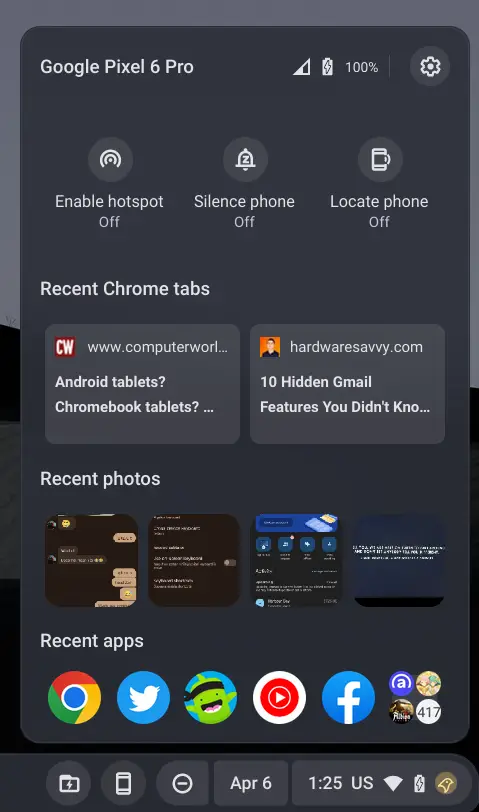
Because of this, you may want to clear out your recents periodically. You’d think that clicking the ‘x’ at the top right of the app streaming window would close the current app on your phone too, but instead, it kills off the entire streaming session and closes all of the apps on your phone, so there doesn’t seem to be per app controls here yet.
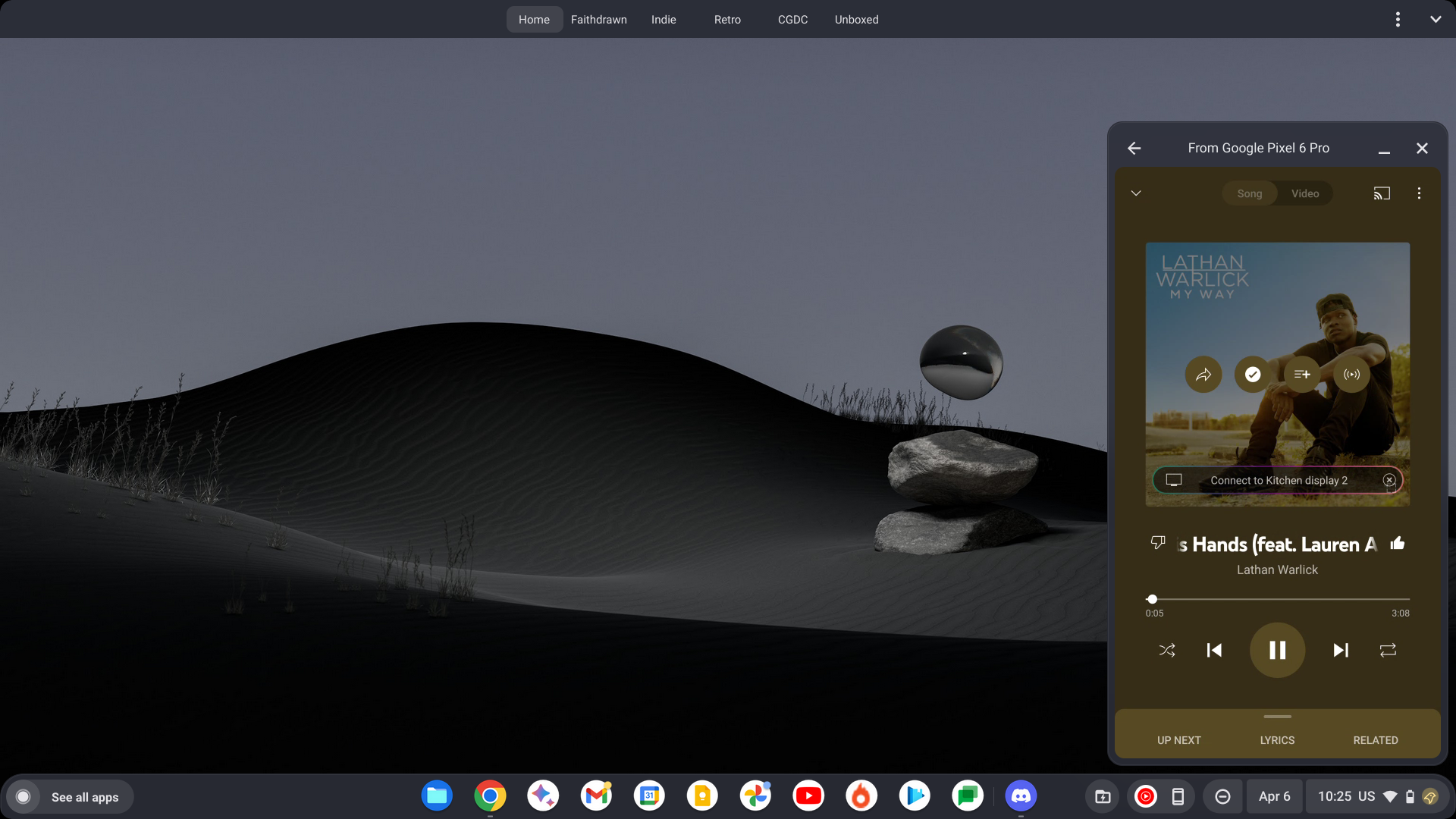
If you were to check your phone during the stream, you’ll also notice that Android prompts you to select a “cross-device keyboard” to be used with Eche. A nice touch is that anything you have running during a stream can be minimized to your Chromebook shelf, and called up again later. This works particularly well for YouTube Music (my favorite app for this so far!)
One thing to note is that it seems you can stream as many apps as you want simultaneously, so long as your phone’s memory can handle the multitasking. Again, and I feel the need to stress this – your phone is doing all of the heavy lifting here! Oh, and clicking the back button at the top-left of the Eche app streaming window allows you to return to another app you previously opened, not to go back to another screen in that particular app. It’s weird but useful.
App Streaming Limitations
While this is all very exciting, there are some limitations to using Eche for app streaming on Chromebooks. Before I cover these, do keep in mind that this is literally the first day it’s available, and it will likely evolve and change over time to overcome some of these problems.
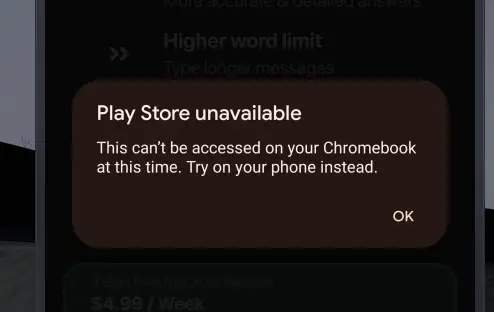
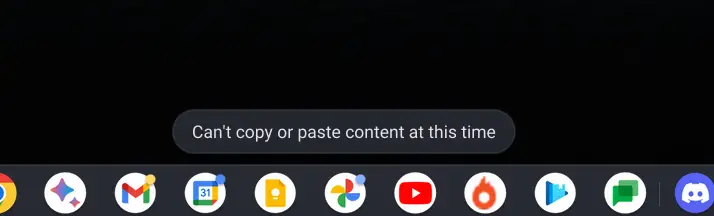
So to start, you can’t access Google Play for in-app purchases or sign into Play Games or other services requiring a ‘Sign in with Google’ option. You also can’t copy and paste from your Chromebook’s clipboard. If you ask me, this is my biggest qualm so far, but it’s understandable. I mean, it is just streaming after all, but if you look at how Chrome Remote Desktop works, you can enable streamed clipboard access and copy and paste from a Windows Desktop to a Chromebook and vice versa, so I imagine this will be worked out before long.
Here’s another annoying but nit-picky observation – app streaming stops entirely when your Chromebook locks after a period of inactivity. Of course it does, right? The reason I’m mentioning it at all is because if you’re streaming YouTube Music like I am and you’re jamming out, and your Chromebook locks, your music gets cut off! It’s a big mood killer. You can set your device to not lock after inactivity, but let’s be honest, that’s not a great privacy practice.
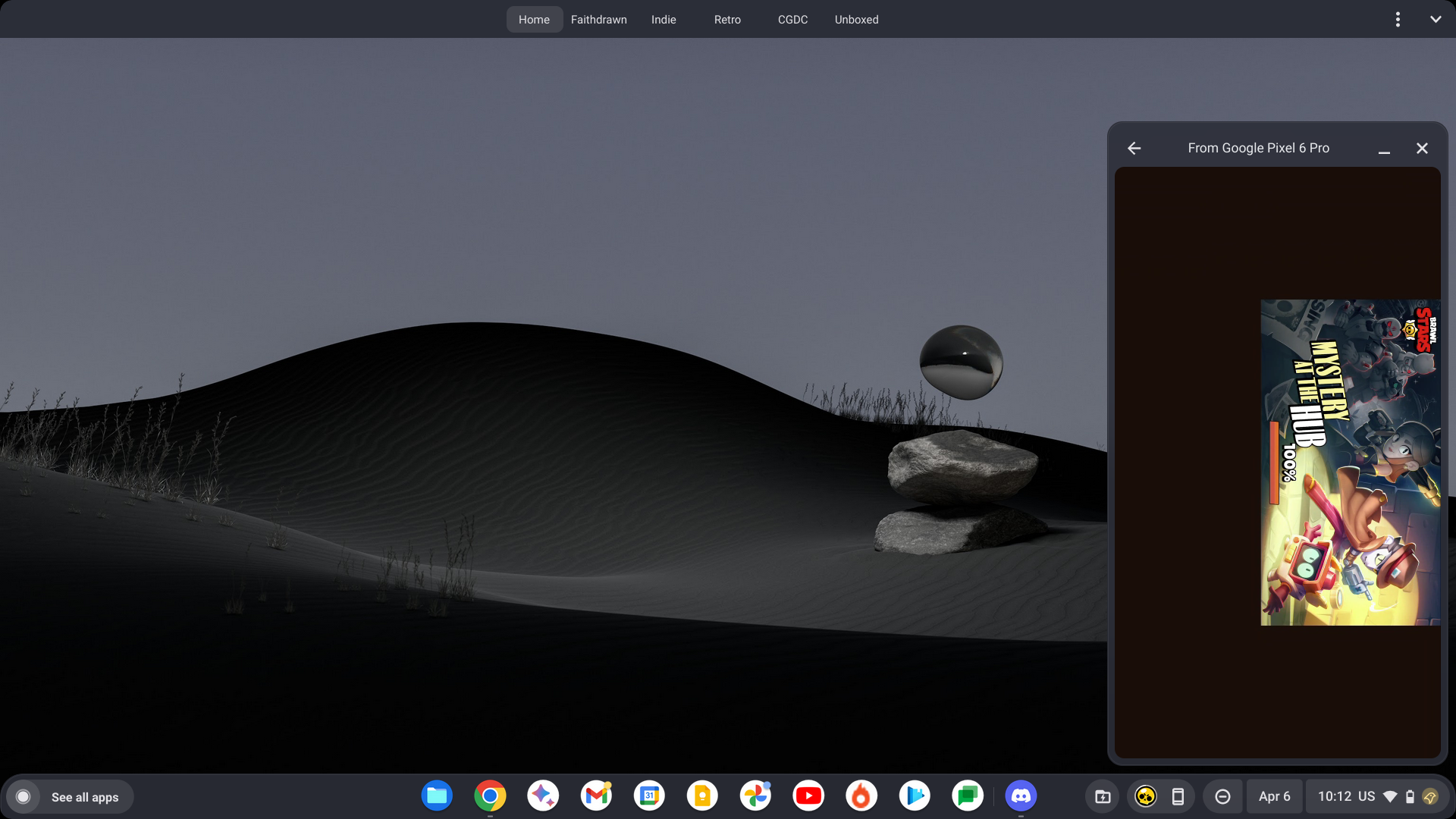
Interestingly, and perhaps most obvious, is that apps that are presented or used in a horizontal layout can not operate properly in Eche. This is because the window is explicitly vertical. Trying to launch Call of Duty Mobile on this thing isn’t going to net you a good KDR. You can see below how the horizontal apps I tried appear as a smaller window in a void of material you colored space without touch functionality. It’s a hot mess right now.
While audio for games and music apps comes through your Chromebook’s speakers during a streaming session, touch and UI feedback sounds still come through your phone. Again, this is yet another instance where it should have been obvious but felt weird to experience. Additionally, during file picking in streamed apps, you can only upload images from your phone’s gallery. This, combined with the lack of Chromebook clipboard support, reveals a significant limitation for cross-device usage. Being that this is literal apps streaming from your phone, I feel the need to repeat a third time that this is how it was designed to work, and while it may not ever change, it would be good for Google to try to bridge these gaps to improve the tool.
The best use cases for app streaming on Chromebooks
Despite its many (many) limitations, there are several use cases where app streaming looks like it will be extremely useful compared to opening apps or web apps on your Chromebook proper. For instance, several of Google’s own services, like YouTube Music, Google Keep, Calendar, News, and Messages are all fantastic apps to have on-the-fly instead of cluttering your shelf with full-fledged windows.
Additionally, vertically presented apps and games like AFK Arena feel really good to use and play on Chromebooks in this way since they aren’t in the way of a Google Doc you’re writing or any other primary task, and can be a fun little side distraction while you work. Just be sure to avoid this if you’re prone to procrastination!
Here’s our Eche wishlist
As stated, Eche (it’s going to be hard to stop calling it that) – I mean App Streaming, has a lot to do to be ready for prime time. Still, there are a few things we’d like to see the development team implement to make the full launch of the feature benefit the core Chromebook user base by the time they get their hands on it. First and foremost, horizontal app streaming windows. Many apps are still not taking the vertical route, and it feels strange to cater to just one orientation.
Additionally, it would be nice to have some form of window scaling so that you don’t have to crane your neck to look at the right side of the screen for everything. I realize this flies in the face of what the app is hoping to achieve by providing you with quick access to apps while aiming users toward the Chromebook installation of that app for the fullscreen experience, but I do believe that this will eventually become something so heavily integrated into ChromeOS that it will be indistinguishable from native apps. Well, that’s my hope, at least!
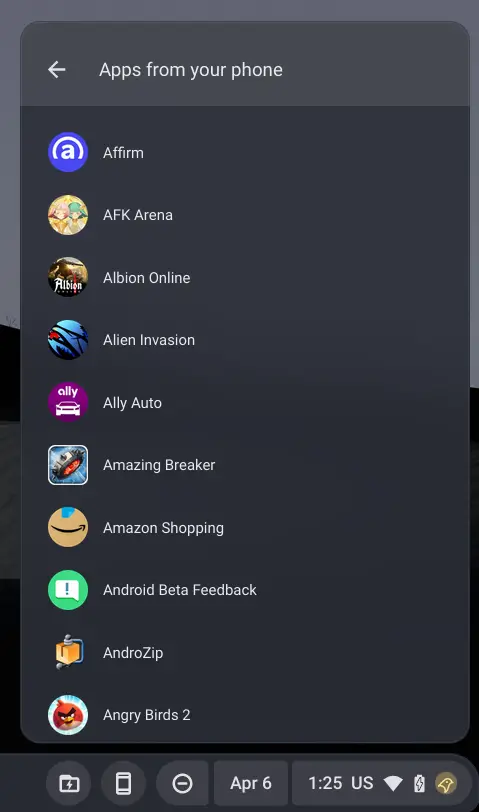
Being that the recents section for app streaming only shows a handful of apps that you’ve recently opened (hence the name), and they cycle out as you open more, it would be great to get some form of ‘app pinning’ tool or perhaps a search bar at the top of the Eche apps window to quickly choose something to launch. Right now, you must scroll through a list of every app installed on your phone to find what you need, and though it’s alphabetized, it’s still a pain.
A useful tool with an exciting future
At the end of the day, Eche’s introduction of app streaming on Chromebooks is an exciting development that we’ve both been covering and waiting eagerly for a few years now. Although it’s just a day old and has some obvious limitations, its potential will likely be revealed with usage over time and further improvements through updates, especially when it rolls out to ChromeOS Stable in the future.
It doesn’t at all make sense to launch or use every app on your phone in this way, but it’s still interesting and useful in enough ways to warrant its existence. If you already have access to it, let us know in the comments if you share our sentiments, or if you are using a specific app we have yet to mention and think it works well in the app streaming window!
SUBSCRIBE TO UPSTREAM
Get Chrome Unboxed delivered straight to your inbox
Upstream is our flagship, curated newsletter with the top stories, most click-worthy deals, giveaways, and trending articles from Chrome Unboxed sent directly to your inbox a few times a week. Join 31,000+ subscribers.

