


Support our independent tech coverage. Chrome Unboxed is written by real people, for real people—not search algorithms. Join Chrome Unboxed Plus for just $2 a month to get an ad-free experience, access to our private Discord, and more. Learn more about membership here.
START FREE TRIAL (MONTHLY)START FREE TRIAL (ANNUAL)
It is no secret or surprise that we are all investing far more time than before in video calls. Whether you use Zoom, Google Meet, Facetime, Google Duo, WhatsApp, Messenger Rooms, or something else, there are constants that exist between every single video chat platform. When it comes down to it, the biggest things we all deal with in any of these communication platforms are video quality, audio quality, and ease of use.
For their credit, most video chat apps have figured out their own barrier to entry issues, making the process of getting into a call easier than its ever been before with and without dedicated accounts. None are perfect, but I do think it is admirable how quickly so many video services have pivoted to help us all stay connected in the midst of the pandemic.
When it comes to video fidelity, things aren’t as simple. Some services work better for certain operating systems (Facetime on iPad, for instance) and some fail miserably when it comes to consistently providing clear, crisp video for multiple users. Real-time video encoding/decoding is already a technical hurdle, no doubt, so the addition of low-bandwith scenarios due to everyone being online far more often only exacerbates the problem. Apart from trying to ween down your internet-dependent devices online during a video chat, there’s not a ton you can do on your Chromebook to make those calls look better.
Audio falls into a similar pitfall and can be hamstrung by the sheer lack of bandwith many times. Up until now, on a Chromebook you basically made due with what you got. It’s a bit better than video since you can at least adjust volume on a system level to maybe help those garbled syllables sound a bit more audible. But when it comes to the other callers hearing you or not hearing you well, there’s really little you can adjust. Until now, that is.
Hidden behind a flag in Chrome OS 81, there is a fantastic setting that I’ve tested and successfully used on a few devices already: microphone gain control. Yep, with this flag enabled, you can open up your system tray (down where the clock is) and you’ll quickly notice the difference where your volume slider is. Gone is the little headphone icon that only appears when you have an accessory plugged in and it is replaced by an always-on caret. Click that caret and you’ll see the same input and output menu that was there prior that allows you to select your input device and output device preferences.

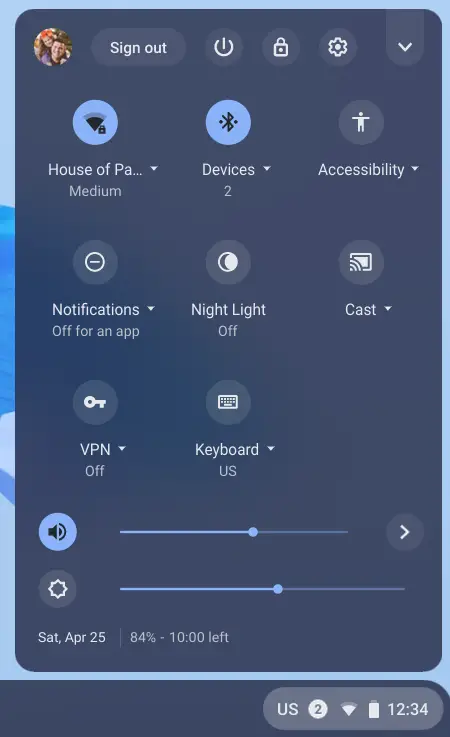
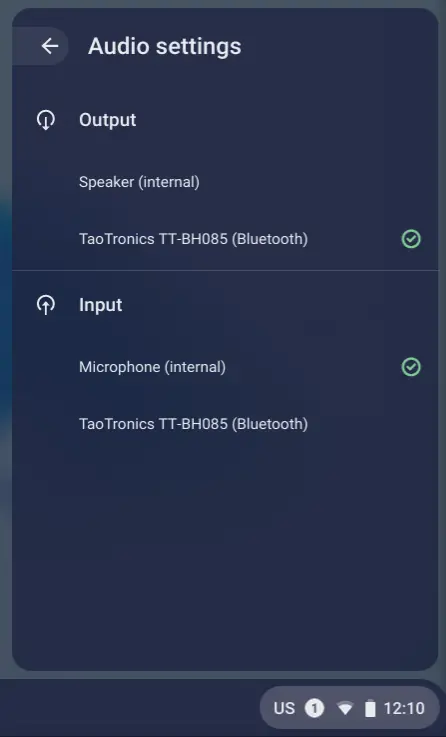
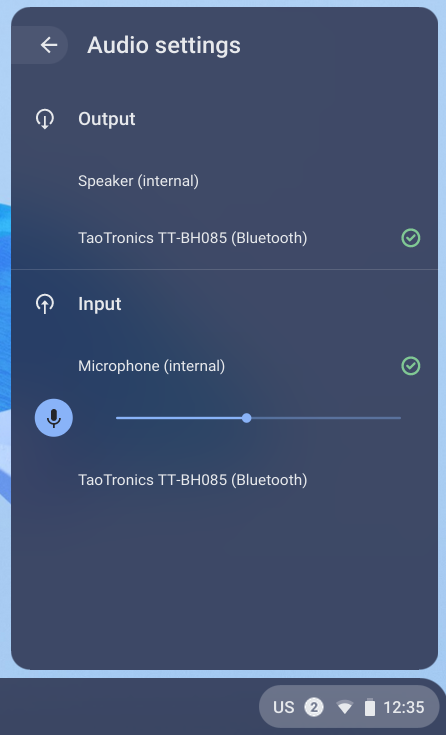
What’s new is the slider for microphone level that wasn’t there prior. This slider looks to be set around 50% to start with, so that’s likely a good baseline to start with. As you would expect, this will control the amount of volume the microphone passes on to whatever application you find yourself in. I’m sure there are other applications where this will be helpful, but the biggest help will be with video calls. For all those times you don’t have headphones handy and your Chromebook speakers keep bleeding into your Chromebook’s built-in mic, crank the mic level down a bit and just speak up more. For those times when you plug in the headphones and people can’t quite hear you. Crank it up a bit.
Be aware that the tests I ran where I turned it up to 100%, there was massive distortion. This is a true gain slider, so maxing it out is likely never going to be the best option. Like I said before, start in the middle and make small adjustments up or down to see if the slight changes help. Additionally, when in a call, you can get to this slider very quickly by hitting either volume key on the keyboard (or volume rocker on the side of your device if you have that) and clicking on the caret next to the main volume slider.

To get this up and running on your Chromebook in Chrome OS 81, simply go to the flag (chrome://flags/#system-tray-mic-gain), enable it, restart, and you’ll have all the options I’ve outlined in this post available to you.
I’m looking forward to leveraging this new, quick feature the next time I’m in a video call and I sincerely hope this helps some of you out there with your video calls as well. Now that we’re all weeks into this pandemic, stress is really starting to mount as we get eager to just get back to normal. Hopefully small tips like this can at least make a small difference in what can be an otherwise stressful activity at times.
Shop All The Latest Chromebook Deals
SUBSCRIBE TO UPSTREAM
Get Chrome Unboxed delivered straight to your inbox
Upstream is our flagship, curated newsletter with the top stories, most click-worthy deals, giveaways, and trending articles from Chrome Unboxed sent directly to your inbox a few times a week. Join 31,000+ subscribers.

