


Support our independent tech coverage. Chrome Unboxed is written by real people, for real people—not search algorithms. Join Chrome Unboxed Plus for just $2 a month to get an ad-free experience, access to our private Discord, and more. Learn more about membership here.
START FREE TRIAL (MONTHLY)START FREE TRIAL (ANNUAL)
Just today, I had an Android app go a bit wonky on me. Google Analytics was open on one of my displays and after moving it to my second screen, it just vanished. It was still open, still running, and still visible in the overview mode, but there was no way for me to actually interact with the app in any way. Blame it on the app or blame it on the new-ish ARCVM container that is delivering Android 11 on this 11th-gen Tiger Lake Chromebook: either way it wasn’t functioning and I really needed it to shut down.
Obviously, one of the easiest ways to close any app on your Chromebook is to simply click the ‘X’ on the top-right part of the window. A second way is to click the ‘X’ on the overview screen. A third way is to right-click on the app’s icon on the shelf and select ‘close’. Apart from those methods, most people simply restart their Chromebook when things go awry with an Android app like this. I know that’s what I’ve done in the past. However, with today’s hiccup, I took a different route to a fix.
Force Stopping Android apps on Chrome OS
Whereas you can quickly get to the app info screen on an Android device by long-pressing the app icon on most phones, the process isn’t quite as clear-cut on Chrome OS. This is mostly due to the fact that the Android framework is an addition to Chrome OS, not a central piece. Google’s made it a bit better over the years, but getting to the app info screen where I could finally force quit Analytics (the app that acted up on me) took a few steps. Here they are.
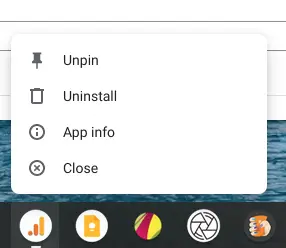
First, right-click on the app icon on the shelf. This will present you with the sub-menu where you can start digging down to the Android app info screen.
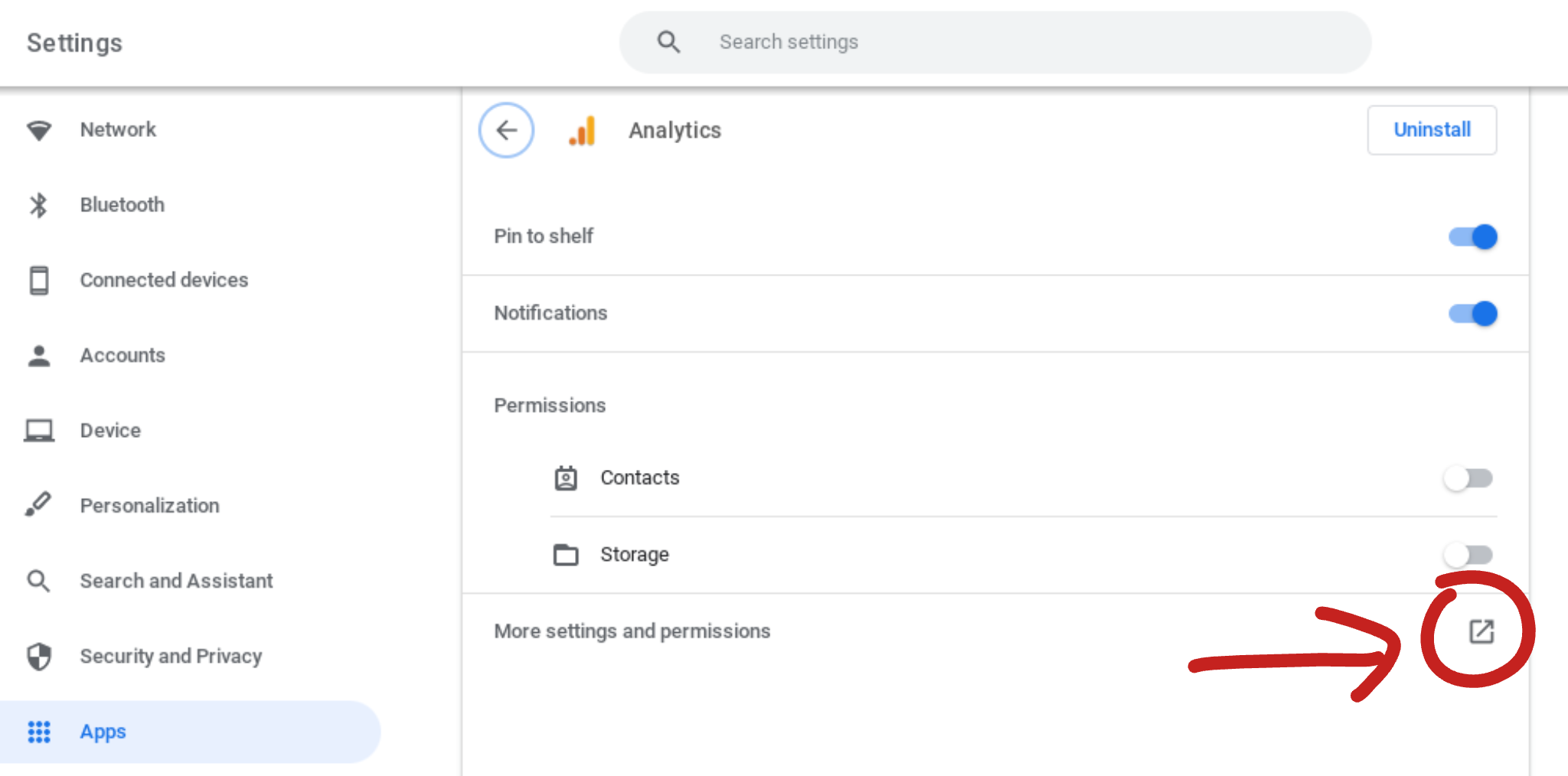
After clicking that app info option, you’ll be first taken to Chrome OS’ app info section in the general settings. While I’d love to see this area have a force stop option, it doesn’t at the moment. For general users, I could see this being the point where they don’t see what they were looking for and simply resign to resetting their Chromebook. However, there’s a not-so-clear spot in this section that will get you to the Android app info screen: the ‘More settings and permissions’ option. Click that.

You’ll then see a window like the one pictured above and that means you’re finally in the Android part of the settings that will allow you to force stop your app in the Android framework. Click this Force Stop button and you’ll finally kill that Android app that is causing issues and you can reopen it again right after. As an added bonus, you can also clear the storage and cache of a given app from this same screen as well if you ever need to do so in the future.
The problem with Android apps
And that’s the nagging problem with Android apps on Chrome OS that will likely never go away. After all, ARCVM is a container running in Chrome OS. Though many Android apps run quite well on Chromebooks, when things go a bit sideways, we have to just deal with the fact that this is an operating system running inside another operating system and, in times like these, that fact becomes very apparent. Luckily, with a bit of know-how and savvy, you can navigate some of those oddities and keep things up and running as you’d expect. Hope this helps!
SUBSCRIBE TO UPSTREAM
Get Chrome Unboxed delivered straight to your inbox
Upstream is our flagship, curated newsletter with the top stories, most click-worthy deals, giveaways, and trending articles from Chrome Unboxed sent directly to your inbox a few times a week. Join 31,000+ subscribers.

