

Support our independent tech coverage. Chrome Unboxed is written by real people, for real people—not search algorithms. Join Chrome Unboxed Plus for just $2 a month to get an ad-free experience, access to our private Discord, and more. Learn more about membership here.
START FREE TRIAL (MONTHLY)START FREE TRIAL (ANNUAL)
We’re just over two weeks out from Super Bowl LVIII, and that means there will be tons of people watching a singular, live event at the same time. Last year, the Super Bowl became the most-watched telecast ever in the history of television programming, pulling in an average of 115 million viewers. I don’t have to tell you that’s A LOT of people all tuning in to the same event across the US and the world all at the same time.
And that means there will be plenty of opportunities for text and voice communications to cause spoilers across the board. You’ve likely been a part of it in the past, having a game spoiled for you by someone who is watching with just a tad less broadcast delay than you. Or maybe you’ve accidentally played the part of the spoiler. Either way, its not fun.
YouTube TV reducing broadcast delay
We’ve talked about the ability for YouTube TV to reduce broadcast delay before. It could cause image issues here and there, but if you really need to see the latest, greatest plays as they are happening, this is a setting you’ll want to adjust for sure. But there’s been a limitation on it prior to now, turning off the broadcast delay reduction after 48 hours; and for an event that you definitely don’t want to be behind on, this limitation could be problematic.
After all, with this being a new feature to think about, how many of us are going to completely forget to switch it on Saturday or Sunday before the game? I know I’m highly likely to forget. But a change is here that makes it so you don’t have to think much about it after reading this post. Set it and don’t worry about forgetting it.
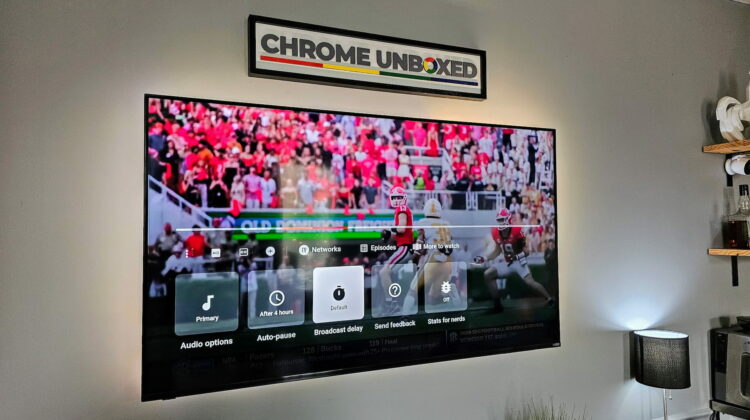
Spotted by CordCuttersNews (via 9to5 Google), it seems Google has flipped the switch to allow for broadcast delay reduction to remain on indefinitely. That means you can go to your YouTube TV device of choice, follow the steps to turn on broadcast delay reduction, and just leave it in place until the big game is done and over with. Here’s how:
- Open the YouTube TV app on your TV or streaming device
- Go to any playback screen on any channel
- Select the 3-dot menu (under the timeline scrubber – see the featured image above)
- Choose Broadcast Delay
- Choose Decreased (or Default to disable it)
While it may be tempting to leave this on even after the Super Bowl, I think I’ll keep mine at default after the game until March Madness starts. You have to remember that reducing broadcast delay means you’ll likely see more artifacting and hiccups in image quality more often. Generally speaking, I’d prefer a smoother watching experience. But for those times when I want to catch the action right as it is happening, I’ll keep this in my back pocket for sure!
SUBSCRIBE TO UPSTREAM
Get Chrome Unboxed delivered straight to your inbox
Upstream is our flagship, curated newsletter with the top stories, most click-worthy deals, giveaways, and trending articles from Chrome Unboxed sent directly to your inbox a few times a week. Join 31,000+ subscribers.

