

Support our independent tech coverage. Chrome Unboxed is written by real people, for real people—not search algorithms. Join Chrome Unboxed Plus for just $2 a month to get an ad-free experience, access to our private Discord, and more. Learn more about membership here.
START FREE TRIAL (MONTHLY)START FREE TRIAL (ANNUAL)
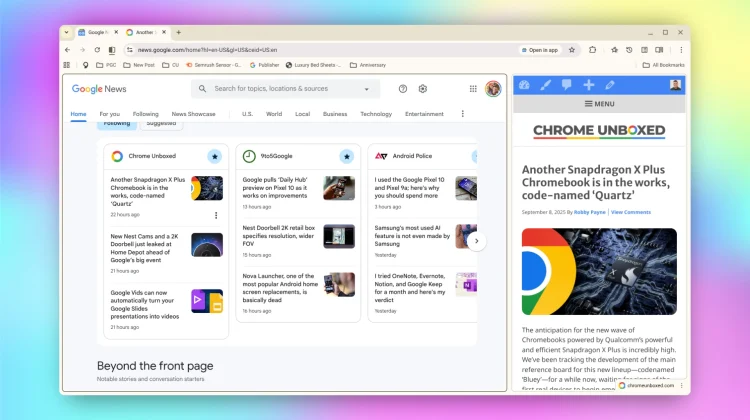
A few months back, we told you about a fantastic new productivity feature in development for Chrome that would allow users to view two separate web pages within a single browser tab. At the time, it was just an early experiment. Today, however, I have some good news for any of you out there interested in taking this new feature for a spin: it’s here, working, and totally usable for anyone willing to flip a quick feature flag.
A powerful new way to multitask in a single tab
The concept is simple but incredibly powerful. Instead of having to open a whole new browser window to view two sites side-by-side, you can now split a single tab into two distinct, resizable sections. The two split tabs are then neatly nested under one main tab in your tab strip, keeping your workspace clean and organized. And this isn’t a half-baked feature; it’s surprisingly robust, already allowing you to:
- Easily resize the split panes
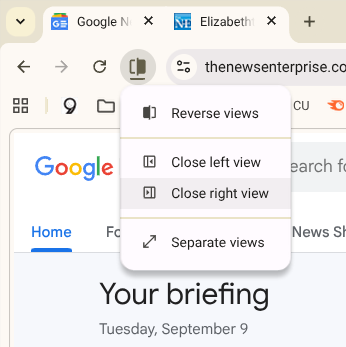
- Swap the left and right tabs
- Open new links from one split tab to the other
- Separate the split tabs back into their own individual tabs

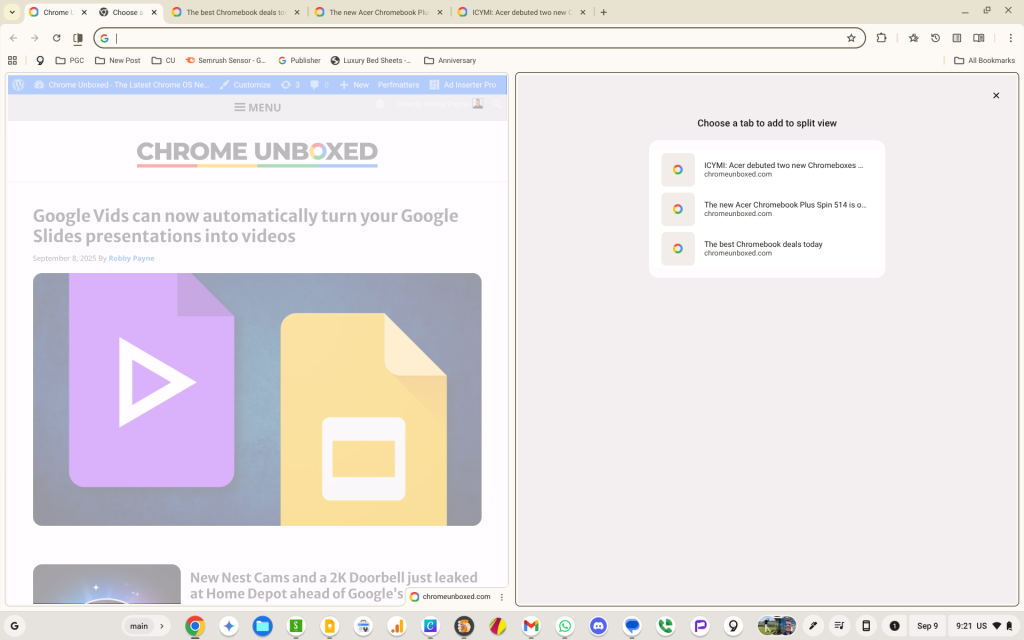
There’s even a handy new menu icon that appears next to the URL bar, giving you quick access to split, close, and swap the views. It all feels incredibly slick and well-implemented.
Perfect for research and comparisons
This is an absolute game-changer for any workflow that requires you to reference one web page while working on another. It’s perfect for comparing product specs, referencing a source document while writing in another tab, or keeping a chat window open next to your main task. It brings a new level of multitasking to the browser without all the clutter of managing multiple, separate windows.
How to try it for yourself
While this feature isn’t enabled by default just yet, it works flawlessly in my testing. If you want to try it for yourself, the process is simple:
- Make sure you are on ChromeOS 139
- Open a new tab and navigate to
chrome://flags - In the search bar, type
#side-by-side - Change the dropdown next to the flag to Enabled
- Click the Restart button at the bottom of the screen.
That’s it! You can now right-click on any tab and select the option to split it with another open tab. It’s a fantastic new feature that I hope will become standard for everyone very soon. But until it is available right out of the box, you can use this flag to go and give it a try!
SUBSCRIBE TO UPSTREAM
Get Chrome Unboxed delivered straight to your inbox
Upstream is our flagship, curated newsletter with the top stories, most click-worthy deals, giveaways, and trending articles from Chrome Unboxed sent directly to your inbox a few times a week. Join 31,000+ subscribers.

