


 I don’t know about you, but I spend a lot of time online. Between getting work done, learning new things, watching videos, engaging in social media or just having fun, I find lots of stuff online I want to share or comment on every day.
Many times, I want to share a website or picture with some text or other doodles on it to make my point. Other times (mainly for work) I need to create a detailed image that visually explains a concept on an existing website.
There are ways to do this, of course, but one of the best experiences I’ve ever had marking up a website was with Microsoft Edge. I don’t care much for Microsoft’s newer browser (surprise, surprise), but I do love their website annotation feature that is included out of the box. With a pen in hand, you hit the button and can mark all over the site as you see fit.
Sure, there are workarounds to accomplish this. I could use my pen tool on my Chromebook to screenshot all the stuff in view on my screen and then choose to annotate it in Keep or Squid. This is OK, but not great. It works in a pinch, but I don’t like annotating an image over being able to scroll up and down on a website while marking it up in real time.
A Pretty Great Solution
What we’re talking about today actually answers the mail for me when we’re talking about marking up a website. The name of the extension is Web Paint, and it is pretty well done, minus one feature I’d really like to see implemented. We’ll cover that in a second.
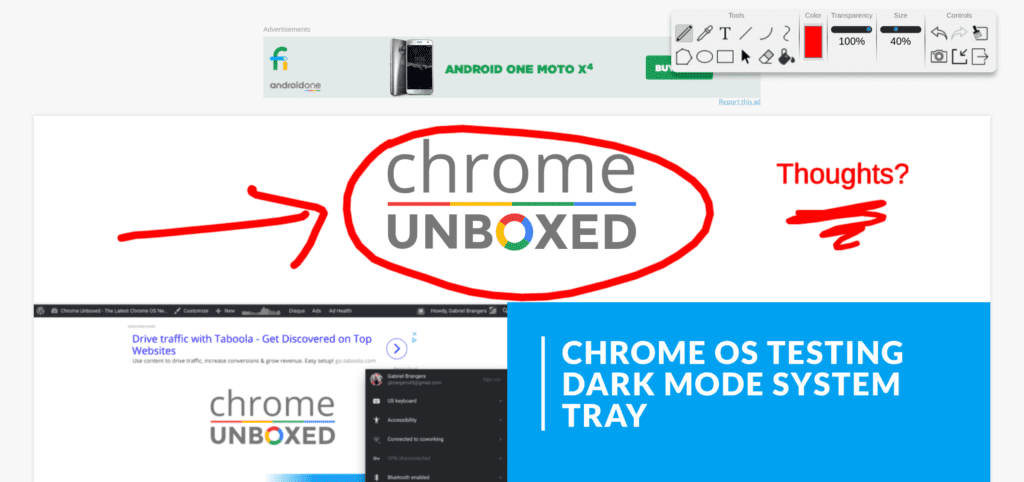
First, I want to talk about all this extension gets right: interface, tools, and lag. Thanks to Tom Mullaney, I just found this app yesterday and have been using it quite a bit since. I tell you that because I feel like I know my way around it quite well and have only been using it for 24 hours. That speaks highly of a good, simple interface. Upon opening up the floating toolbar, it was immediately obvious what each button and slider was for. I was able to mark up a site in no time at all.
Tool selection is also great. You get freehand, line, curve, double-curve, rectangle, ellipse, and polygon tools for drawing. Additionally, there is a dropper for snagging colors, an eraser, and a fill tool. The color picker is simple but effective and can be leveraged to make a highlighter tool with the included size and transparency settings.
For smooth use, there are undo/redo, erase-all, tray hide, and hide-all buttons, too. Lastly, there’s the screenshot button to capture your notes and doodles.
The toolbar is free-floating as well, so you can simply grab it and move it around freely as you see fit. Drawing is a cinch with either your finger or a stylus, and both present nearly-zero pen lag. I’ve used tools similar to this before and the overwhelming presence of lag simply ruins the experience. Web Paint doesn’t suffer from this at all. Inking on the screen is very pleasant.
If you can’t tell, I’m impressed. The last feature (which is brilliant) will lead me into the one thing I still wish they would add: the cursor tool.
It sounds simple and it really is, but it is insanely useful. The cursor tool gives you the ability to use your mouse as you would without the extension open. So, once you’ve marked up a section of the site, you don’t have to hide the toolbar or hide your annotations to navigate up or down the page. Simply select the cursor tool and you can scroll all you wish with your doodles all staying right where you left them. It is simple and works.
However, this led me to think that the extension was tracking my annotations up and down the page for exporting. I made some notes up top and then scrolled down to the bottom of the site and circled a few things, thinking I would be able to send an export of the entire site.
No dice. However, because of the awesomeness of extensions, I was able to find a really, really amazing workaround.
We’ll cover it in detail in a further post, but a quick search in the Web Store led me to an extension called FireShot, and it is really excellent. For our purposes today, let’s just say it makes a full-page screenshot very simple and will grab all your doodles as well. All you need to do is hide your Web Paint tray and click the screenshot button (or use a shortcut that defaults to CTRL+SHIFT+Y). Within seconds, you’ll have a perfectly-stitched screenshot to share as a JPG, PNG, or PDF.
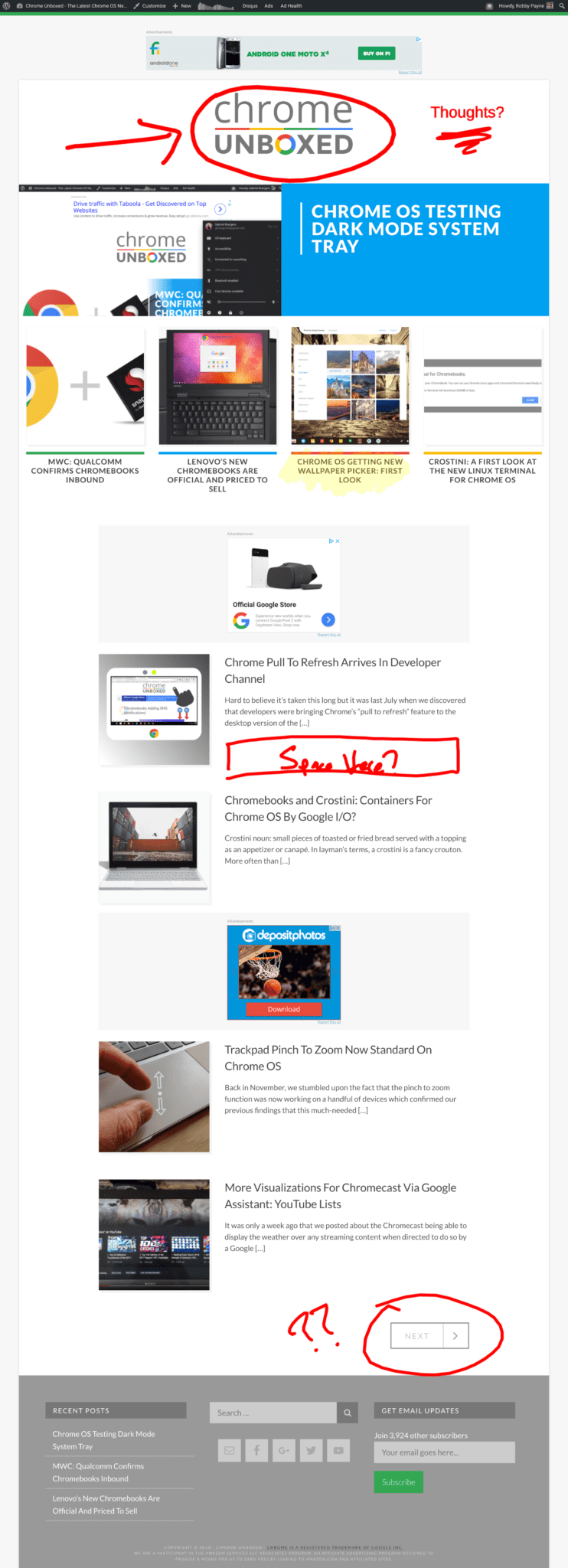
With these two tools together, you’ll be marking up websites with ease. I know they will be very valuable for me moving forward. I hope they are for you, too! Here’s the link to Web Paint and the link to FireShot if you want to give them a try yourself!

