Up next in 10



Sponsored by NordVPN. Try it out and get 75% off a three-year plan for a limited time! Click here: https://chromeunboxed.com/nordvpn
Shop Chromebooks on Amazon: http://bit.ly/chrmbooks
・・・・・・・
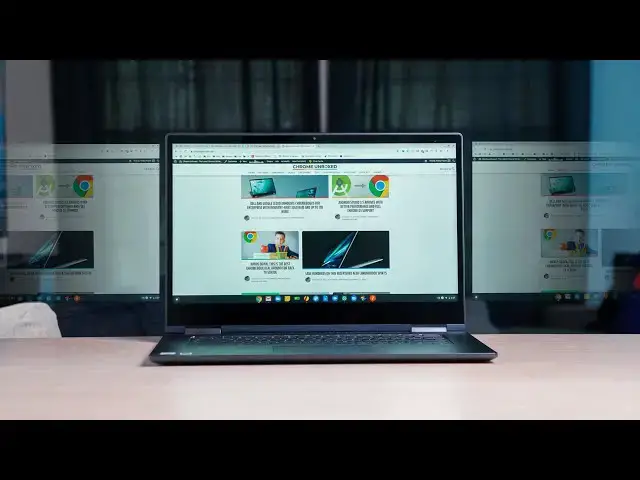
I’ve tracked the development of Virtual Desks on Chrome OS since they were first mentioned back in November of 2018 by Kan Liu, Senior Product Manager for Chrome OS. It took a bit of time for the new feature to begin development, but by February of 2019 we began seeing piece after piece being added to the Virtual Desk feature for Chrome OS and, as of Chrome OS 77 Beta, the entire feature set is available right out of the box and it has completely changed my workflow on a Chromebook.
Read more: https://chromeunboxed.com/
Join our newsletter: http://bit.ly/2WjCDm7
・・・・・・・
Subscribe to the channel: http://bit.ly/2xFuj6L
The Music We Use - PERFECT for YouTube: http://bit.ly/31W6PYP
Become a member of Chrome Unboxed to help us make our channel even better, and for access to exclusive perks: http://bit.ly/CU-join
Follow us:
Show More Show Less View Video Transcript
0:00
I've been experimenting with virtual
0:01
desks on Chrome OS since they first
0:04
showed up and now that they're kind of
0:06
available for the masses behind the flag
0:08
in Chrome OS 76 and expected to be fully
0:10
rolled out in Chrome OS 77 we wanted to
0:13
take just a few minutes to explain what
0:15
they are how they work and why for me
0:17
they've completely changed my workflow
0:27
today's video is brought to you by Nord
0:29
VPN and there the VPN of choice for
0:31
millions of users across the globe
0:32
because they are awesome at securing and
0:35
keeping your data private whenever you
0:37
are at home or out on the go if you'd
0:40
like to learn more about them and about
0:41
their services go to chroma and box comm
0:43
forward slash Nord VPN to learn more
0:46
today so we're going to get into
0:47
basically a tutorial and I'm gonna show
0:49
you kind of how I've moved into using
0:52
virtual desks in my daily routine but a
0:55
bit about them if you're watching this
0:57
and kind of curious as to exactly what
0:59
they are virtual desks basically give
1:01
you multiple desktops in a virtual space
1:04
much like the name would imply in so
1:06
normally with a Chromebook before this
1:09
all came along and if you ignore Mac OS
1:12
and Linux and Windows that already do
1:14
this you basically had one desktop so
1:17
you had your laptop you would open it up
1:18
what's on your screens on your screen so
1:20
the more windows you open up you can
1:22
three finger swipe and kind of see all
1:24
of them in an expose view but it didn't
1:27
help really organize those things it
1:28
always one thing on top and then
1:30
everything else was underneath of it and
1:32
you'd bring one thing to the top and so
1:33
actually multitasking with multiple
1:36
windows got pretty difficult as soon as
1:38
you had multiple things open and it just
1:40
felt cluttered and confined most people
1:42
to get out of that rut would extend the
1:44
monitor to a second display or maybe
1:46
even a third display that way they can
1:48
kind of put things on multiple displays
1:50
and at a glance be able to see what's
1:52
over here and then what's over here
1:54
look at that email make that change that
1:56
kind of stuff well virtual desktops
1:58
gives you the ability to do that with
1:59
just a single screen and just as quick
2:01
as I can dart my eyes over and back and
2:03
see that secondary monitor I can use a
2:06
gesture or a keyboard shortcut and bring
2:08
that second display into view now on my
2:11
single Chromebook so now I've got this
2:13
multiple monitor set up kind of going
2:15
except not having to carry around any
2:18
extra cables or any extra screens and so
2:20
for me as someone who likes to work on
2:22
the go
2:23
learning to leverage this and learning
2:25
to change my behaviors in my work
2:27
patterns so that I can leverage this
2:28
fully on a day to day basis was a huge
2:31
win so I want to show you kind of how
2:32
I've done that and walk you through the
2:34
steps of how you can kind of move around
2:36
and manipulate these virtual desks so
2:38
let's just jump right in
2:39
and talk through a little bit about how
2:41
to add and subtract and move through the
2:43
virtual des and then I'll show you a
2:44
little bit about my setup and how I've
2:46
been leveraging virtual desks on a
2:48
Chromebook
2:48
so first up you see in this this main
2:52
desk here I've got a website and I've
2:53
been working on you can tab move back
2:56
and forth through tabs just like you
2:57
normally would with three fingers
2:59
everything that you would normally do to
3:00
move around a Chromebook it's the exact
3:02
same nothing has changed from that
3:04
perspective except for when I go into
3:05
this overview mode I now see the option
3:07
up here on the right to add a new desk
3:09
I've added all four desks that you can
3:12
right now that's the limit
3:13
hopefully they'll add you know maybe up
3:16
to six or eight desks at some point I
3:17
found four is plenty but that is the
3:19
limit for right now once you've added
3:21
your desk you're free to click that desk
3:23
and you can move right to it and
3:25
additionally you can actually move
3:27
between desk with a four finger swipe
3:28
left or right on the trackpad and that
3:32
allows you to kind of bounce back and
3:34
forth between two open desktops
3:35
similarly with the way that your head
3:37
would move back and forth if you had a
3:38
secondary monitor up here if I have some
3:41
information on this desk or this desktop
3:43
or this screen and I have to look over
3:45
to see what it was I was looking at in
3:46
that email and then look back no
3:48
different four finger swipe and you can
3:50
look right at what you need to look at
3:52
four finger swipe right back and the
3:54
benefit here again is that I'm not
3:55
moving one thing in front of another in
3:57
front of another in front of another and
3:58
rearranging windows I can leave them all
4:00
arranged exactly how they are and just
4:02
four finger swipe look at what I need
4:03
four fingers swipe back and so that's
4:04
kind of where the benefit of these
4:06
virtual desktops come in so let's talk
4:08
through a couple keyboard shortcuts you
4:09
can use shift and search button on your
4:12
keyboard are going to kind of be your
4:14
friends here so if you hold the search
4:15
key if you're on a pixel book or a pixel
4:18
slave it's just going to be the key that
4:19
just has that circle on it over right
4:21
above your left shift button if you hold
4:23
that and hit the bracket left or right
4:24
that are right above your enter keys
4:25
that's going to move you through your
4:27
virtual desks so just two keys and you
4:29
can move around your virtual desk so if
4:31
you're using like a mouse setup and a
4:33
keyboard you do have a quick function
4:35
that you can actually move around if you
4:37
want to add an additional desk so say
4:40
you only have one desk open right now
4:42
you want to add one if you hold shift
4:43
and search and then hit the plus key
4:46
you're gonna get another desk if you
4:48
want to delete the desk that you're on
4:49
right now shift and search and - and it
4:52
will
4:52
rid of it you'll get this nice little
4:53
bump animation in the desc oh go away
4:55
and all your open windows will just
4:57
slide over to the next desk if you don't
4:59
have it you can delete at that time if
5:01
you're on your only desk it'll just kind
5:02
of bump up and down and keep you exactly
5:04
where you are the other beneficial
5:07
keystroke here that you can use is shift
5:10
search and the same brackets that moved
5:12
you around allow you to actually take
5:15
the window that you're focused on and
5:16
slide it off screen so let's let's
5:19
actually see that real quick in action
5:21
let me get to a desk that actually has
5:23
some stuff on it so say I want to take
5:25
this window right here and I'm going to
5:27
move it over one I'm gonna hit shift
5:30
search and the right bracket and you see
5:32
it slide right off screen and it now is
5:34
on my fourth desk and so now if I want
5:37
to move it Mac one of the cooler things
5:39
you can do is actually grab open windows
5:41
and overview pick them up and just drag
5:43
them on to desks and you can see this in
5:45
motion here that's insanely beneficial
5:48
it's the way that I go about actually
5:50
organizing and making my desk setups lay
5:53
out the way that I want them to I just
5:54
open stuff up go into overview at the
5:57
desk and then just kind of drag stuff up
5:58
in here and so you get this nice
6:00
animation whenever you move it between
6:02
it kind of shrinks down and it's quite
6:05
clear exactly what you're doing once
6:07
you've got everything organized go back
6:08
to your desk you're working on and boom
6:10
you're ready to go so real quick this is
6:12
the way that I'm leveraging virtual desk
6:15
right now it doesn't mean this is how
6:16
you have to use them if I have a
6:18
secondary screen up I change this up
6:20
because I got tons more real estate to
6:22
work with but I'm starting to work with
6:24
just one device the Lenovo c6 30 the
6:28
yoga Chromebook has just kind of been my
6:30
go to since virtual desk all the screen
6:33
real estate and virtual desks I just
6:35
don't feel the need for a whole lot of
6:36
other equipment and I like that ability
6:38
to just open up and get going wherever I
6:40
want to go so right now I've got it and
6:43
the first window I kind of keep whatever
6:45
it is I'm working on so if I'm writing
6:46
an article that Windows gonna be here if
6:48
I'm working on a website that website
6:50
you know the backend of WordPress that
6:52
kind of stuff is gonna be on my first
6:53
screen we go to the next one I kind of
6:56
learn to keep this one for email and
6:58
that kind of stuff or maybe if I have an
7:00
email that opens up a Google draw
7:01
or something like that that's what I
7:03
have in here so my email accounts are
7:05
all up here at the top I've got
7:07
everything sorted and I can jump I know
7:09
in my second desk that's where my
7:10
messaging my email kind of stuff is
7:12
going in the third one are my utility so
7:15
I was building a quick little graphic
7:17
for this website I have grabbed it in
7:19
here if I had any other utility open at
7:21
the time like Pixlr or I was editing a
7:24
photo in Lightroom or something like
7:25
that I'm gonna keep those all on my
7:26
third desktop so that's kind of my
7:27
utilitarian desktop and then the fourth
7:30
one I keep for kind of the overflow the
7:32
extra stuff the more personal thing so
7:33
for me that's that's whatsapp or my text
7:37
messaging that's my Google Play Music or
7:40
YouTube music or whatever like that kind
7:42
of media stuff just kind of goes in this
7:44
last one the benefit here is I don't
7:46
always have to four finger swipe around
7:49
to everything so you can see on the
7:50
screen here if I go to you know a
7:53
notification comes up and I have a
7:54
what's that message if I click whatsapp
7:56
in the tray it's automatically gonna
7:57
swipe me right back over to where
7:59
whatsapp is I don't have to go hunting
8:01
around for it so there's some benefit to
8:03
using the tray to navigate there's some
8:04
benefit to using the keyboard shortcuts
8:06
there's some benefit sometimes to going
8:08
over view and swipe to look at my desks
8:10
again and figure out where I was and
8:11
where I need to go the real win here is
8:14
the fact that you have all of those ways
8:16
to move around your virtual desk and
8:18
because you have all of those options
8:19
I've found that utilizing virtual desks
8:22
in this way has alleviated the need for
8:24
me to have a secondary monitor it's
8:26
alleviated the need really for me to
8:28
carry around that USB display that that
8:30
I had been carrying around prior to this
8:32
and I'm learning through just kind of
8:35
changing my behaviors and my habits to
8:37
get everything done on one screen right
8:39
here even though it is a 15.6 inch
8:41
screen it's a much more compact package
8:44
I can carry one Chromebook and feel like
8:46
I can be productive just about anywhere
8:48
but guys that's it for this one if you
8:50
liked it feel free please to give us a
8:52
thumbs up subscribe down below and hit
8:54
that notification bell if you'd like to
8:56
be alerted when we make new videos just
8:58
like this one until next time we'll see
9:01
[Music]
#Computers & Electronics