Up next in 10



Join Chrome Unboxed Plus for access to our private Discord, an ad-free website experience, AMAs, exclusive giveaways, and more! Start your 7-day FREE TRIAL here: https://chromeunboxed.com/join/
Buy the Lenovo Googlebook 15 from Best Buy: https://bestbuycreators.7tiv.net/QYdng9
・・・・・・・
Buy Chrome Unboxed Glowbar merch: https://cottonbureau.com/p/YGGDM3/shirt/glowbar#/23914930/tee-men-premium-heavyweight-black-100percent-cotton-s
・・・・・・・
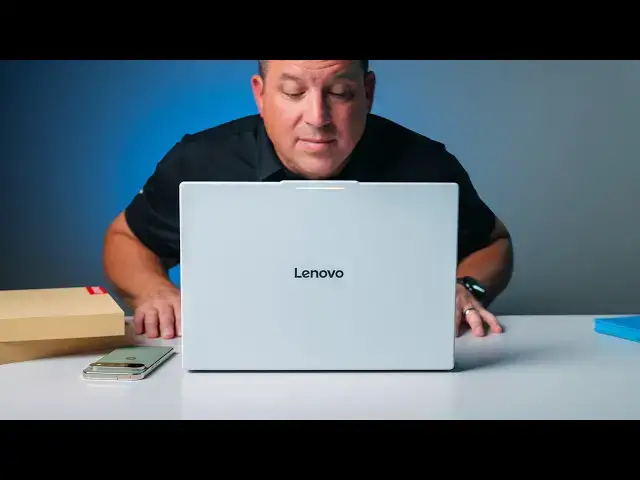
All five Googlebook models have officially arrived in the studio, and to kick this first wave of unboxing videos off, we decided to start with the largest of the batch: the Lenovo Googlebook 15.
While we got a brief, crowded look at these devices during Google's New York City showcase, getting them on the studio desk where we can actually dig into the hardware and explore the brand-new Googlebook OS is a completely different experience. You can watch the entire unboxing video below, but here is a quick breakdown of what makes this 15-inch laptop stand out right out of the box.
Read more: https://chromeunboxed.com/unboxing-the-lenovo-googlebook-15-a-gorgeous-15-inch-debut-for-googles-new-os/
・・・・・・・
👉 Shop the best Chromebook deals today: https://chromeunboxed.com/the-best-chromebook-deals-today-updated/
📧 Subscribe to our Upstream newsletter: https://bit.ly/4jVq0de
☕ Fueled by Fresh Roasted Coffee! Buy the special edition Chrome Unboxed bag here: https://chromeunboxed.com/coffee
Subscribe to the channel: http://bit.ly/2xFuj6L
Follow us: https://x.com/chromeunboxed
https://www.instagram.com/chromeunboxed
https://www.threads.net/@chromeunboxed
https://www.facebook.com/Chromeunboxed
Show More Show Less View Video Transcript
0:00
All right, folks. Google Books are here.
0:02
We have all five models of them here in
0:04
the studio. And I mean, we had to pick
0:07
one to start off with with these
0:09
unboxings. So, it is the largest of the
0:12
batch, the Lenovo Google Book 15. And I
0:14
know you don't want to hear me sit and
0:16
just talk about Google Books. You want
0:18
to see what's inside this box. So, let's
0:20
get to it.
0:22
[music]
0:24
All right. Let's check out what's inside
0:27
here. Now, we we got a little bit of
0:29
hands-on time with all these at the at
0:30
the event. Um, but it was crowded. There
0:33
weren't that many units available, and
0:34
so it was very limited uh the amount of
0:37
things that we could talk about, that we
0:39
could see, that we could shoot. So,
0:40
yeah, this is uh it's a big day. It's a
0:43
big day to get all these devices in. So,
0:45
we've got a cable in here. Looks like
0:47
there's space for what probably would be
0:49
the Lenovo little like Google book AI
0:52
mouse. Um, I was hoping kind of that
0:54
they'd send that to us. I'm sure they
0:55
probably will end up shipping uh bundle
0:58
deals with that uh with that mouse
1:00
included, but we got a 65 watt charger.
1:02
Nice little brick here uh in the
1:04
package. But that's not what you're here
1:06
to see.
1:09
You're here to see this guy.
1:13
It's a nice little box here. Nothing
1:15
over [snorts] the top, but very nice and
1:16
clean.
1:19
And there she is. The one thing I
1:21
remember most about this particular um
1:24
device from the event is the texture on
1:27
it. It was just so buttery smooth. Um
1:30
yeah, so this is just basic paperwork
1:33
stuff. That's it. Pretty simple. Pretty
1:36
simple box here, which I kind of like
1:38
that. Very lowkey, but let's get that
1:41
out of here
1:43
and get into this guy.
1:46
Oh yeah, there we go. And we got that
1:48
nice ripply bottom that we've come to
1:50
know on Lenovo laptops over the last few
1:53
years. Uh glow bar obviously on top.
1:57
Just buttery smooth. This this is
1:59
aluminum I'm pretty sure uh from what
2:01
they said. But man, it's just so smooth
2:04
to the touch. It feels so great. And
2:06
again, it's less than 3 lb. So it just
2:08
feels so nice. Relatively thin for a big
2:11
device. Um
2:14
yeah, that is just really pretty. Again,
2:17
you're This is one of the Intel models,
2:18
so it's a Intel power device, not these
2:20
Snapdragon ones. Um, let me just crack
2:23
the lid here real quick.
2:25
Get that out of here. Um, let me check
2:28
brightness here. How's that look?
2:31
Brightness good there. All right. So,
2:34
um, yeah. Um, decidedly Chromebook uh,
2:38
looking setup screen here, but we'll get
2:39
to that. Um, on the inside, obviously,
2:42
exact same stuff here. So, we're not
2:44
dealing with like, you know, one
2:45
material on the lid, one material on the
2:47
bottom. It's the same material
2:49
throughout this this I don't know. I
2:51
don't know what kind of metal this is or
2:53
how they treat it to feel this way, but
2:55
it feels incredible. It looks great,
2:57
too. Really resist the fingerprints. You
2:59
have a massive haptic trackpad.
3:02
You can hear it making the click sound,
3:04
but it, you know, nothing's moving in
3:05
it, which I love that. Huge upward
3:07
firing speakers. I'm expecting big
3:08
things from uh backlit keyboard across.
3:12
And same same exact keyboard layout. you
3:13
get on all Google books. Very Chrome OS,
3:16
Chromebook like, but there are
3:17
[clears throat] some definite
3:18
differences up here that we'll talk
3:19
about here in just a minute. And then
3:21
around the side, we've got a fullsize
3:23
HDMI slot, USB type-C headphone, uh
3:26
microphone jack there, another USB
3:28
type-C, um a power button actually on
3:31
the side. That's interesting. Uh which
3:33
means the fingerprint scanner up in the
3:35
corner probably doesn't depress. And
3:36
then a USB uh type A port there. Trying
3:40
to see. I'm pretty sure one of these at
3:42
least is Thunderbolt, if not both.
3:44
They're not marked, so I'm not exactly
3:46
sure on that just yet. As is the case
3:48
with all of these Google books, there is
3:51
so much for us to unpack, so much to
3:53
learn, so much to figure out. U so these
3:56
these unboxings are going to be just
3:58
kind of initial reaction to the hardware
3:59
for the most part. We'll talk about some
4:01
of the software stuff, but uh generally
4:03
it's just going to be about the hardware
4:04
here. As with all of the Google books,
4:06
I'm pretty sure you get a one one finger
4:08
lift here. So, great hinge mechanism as
4:10
well. Um, I'll have to get logged in and
4:12
all that kind of stuff in order for uh
4:15
me to show you some of like the better
4:16
together stuff with the phone and all
4:18
that kind of stuff. And yeah, as I
4:19
thought, uh, the fingerprint scanner up
4:21
here in the corner. Uh, it is not an
4:23
actual button. So, you got that power
4:24
button over here. Uh, kind of a weird
4:26
choice there, but hey, whatever. Um, and
4:29
as you can see, the glow bar lights up.
4:31
Um, let's see if it does it. It did it
4:33
at the event. Yeah. So, when you close
4:35
it, you get the nice Google colors for
4:37
just a second and it's going to fade
4:38
out. Um, and then supposedly as you're
4:41
as you charge it, like if it's on, you
4:42
plug it in, you're going to see this as
4:44
a battery indicator, but battery is
4:46
pretty full right now. So, uh, that
4:48
wouldn't do us too much good. So, yeah,
4:50
I need to go through the setup on this.
4:52
And I kind of do want to show this on
4:54
camera as well. Um, so we might switch
4:56
up the shot here. So, um, you all can
4:59
actually see some of the the setup
5:00
process here, cuz this part does
5:02
definitely feel very, you know, Chrome
5:04
OS like, uh, even though I know this is
5:07
Android and there's a bunch of different
5:08
stuff here, uh, versus a Chromebook. Um,
5:11
this part definitely does feel
5:12
Chromebook like. So, uh, let's switch up
5:14
the shot and then you guys can kind of
5:15
watch as I go through some of the setup
5:16
process here. Okay, so trying to film
5:18
the entire out of-box experience was a
5:21
little too much, I think, for this video
5:22
for the purposes of talking about this
5:24
hardware. Um, so we're going to do a
5:27
whole video just about the out- of-box
5:29
experience for Google Book. Uh, and
5:30
we're also going to do like a deeper
5:32
dive into the OS once we kind of figure
5:34
it out. I mean, the truth is these
5:36
devices have just gotten to us and so I
5:39
have so much to learn about this OS. Uh,
5:42
so I just want to show you a couple
5:44
software things today. U, but first, uh,
5:47
back to the hardware. Uh, we do have IR
5:50
sensors in here. So, this has full face
5:52
unlock once you set it up. Uh, I did not
5:54
do that for the purpose of this video,
5:55
but you can just, you know, basically
5:56
open up, it sees your face, boom, device
5:59
is unlocked, uh, with the fingerprint
6:00
scanner up here, too, as a backup uh,
6:02
method for that. But you're met in here
6:04
with an OLED screen, 2880 x, 18800, so a
6:07
little bit higher than um, uh, quad HD.
6:09
It looks just absolutely incredible. A
6:12
little bit of anti-glare coating on
6:13
there. Nice smooth touchscreen. Uh
6:16
because this is Android, like the
6:18
touchscreen like on your desktop uh
6:21
works a little more like it kind of
6:22
would on a tablet. So I mean you can
6:24
swipe up for your app tray, you swipe
6:26
down for your your notifications,
6:28
um you can swipe down from up here and
6:30
see all your quick settings. It's it's
6:32
pretty sweet, actually. And and so far
6:34
like all the animations are just so
6:36
buttery smooth. Uh that's that's the one
6:38
real cool part about this. Um, and so
6:41
I'm very interested to really spend more
6:43
time with this OS and learn all the good
6:45
and probably some of the bad stuff, too.
6:47
Let's just be honest with each other
6:48
here. U, there's probably going to be
6:50
some stuff in here that's a little
6:51
frustrating, a little weird. Um, coming
6:53
from a Chromebook, there's going to be
6:54
all these things I want it to do that it
6:55
may not do the same way or whatever.
6:57
But, um, all that stuff is just part of
7:00
launching a brand new platform. And, and
7:02
part of that means, you know, not being
7:03
able to sit here and talk about the
7:05
hardware without at least mentioning
7:07
some of the software pieces. So, I do
7:08
want to just show you something. Um,
7:11
again, kind of the way that we would we
7:13
would do it um with with Chromebooks. I
7:16
just want to hear these speakers
7:18
>> and into your hands. One lingering
7:20
question has been popping up over and
7:22
over again on social media and comments
7:24
and in our Chromebook.
7:26
>> What does the arrival of Google Book
7:27
mean for Chromebooks? Are they dead? Are
7:30
they another addition to the infamous
7:32
Google? So, let's talk about it.
7:35
[music]
7:39
But before we get into
7:40
>> Yeah, those are real nice. Um I expected
7:42
as much like we could kind of tell at
7:44
the event, but man, those those sound
7:46
really really good. Uh just bouncing
7:47
around a little bit. The haptic trackpad
7:49
feels awesome. It does have a weird u
7:51
almost like a hollow sound to it. Now
7:53
there's nothing moving in it, but just
7:55
I'm going to see if you can catch this.
7:58
Like when you let go of it, like it
8:00
almost it's almost like there's another
8:02
haptic that makes it feel like that, you
8:03
know, it's coming back up. Uh, but you
8:05
know,
8:07
it clicks perfectly anywhere on the
8:09
surface of the trackpad, which is really
8:10
awesome. I love haptic trackpads. Nice
8:12
smooth glass finish. Uh, you know, going
8:15
through the login process, the keyboard
8:17
feels incredible. And I expected this
8:19
with every single Google Book. Like the
8:21
back lit keyboard feels great. The
8:23
haptic trackpad feels great. The
8:25
speakers are great. Up top, we're
8:27
getting a uh 5 megapixel camera. So,
8:30
let's point that at Joe. It's been
8:32
pretty good. We've got a a light right
8:33
there shining right directly into it.
8:35
So, let me turn it off that angle. There
8:37
we go. That really adjusted pretty
8:39
nicely. Um, you know, none of the
8:41
cameras on um on Google book from what I
8:44
can tell or they're mostly 1080p or 5
8:46
megapixel. They're not there to, you
8:48
know, take selfies and and and be
8:50
incredible cameras, which I'm a little
8:52
bummed by, but it's kind of the same
8:54
route Apple's taken over the years.
8:56
Like, the camera works for video calls
8:58
and the stuff you need to do online.
9:00
That's going to be about it. Um, other
9:02
hardware pieces here. Again, infrared uh
9:06
underneath here for your IR sensor for
9:08
your uh face unlock. You do have a
9:11
camera um a camera shield there as well
9:13
that you can shut off uh shut off the
9:15
camera manually if you feel the need to.
9:17
And overall, just a well-built, well put
9:20
together laptop for sure. Uh we're
9:24
expecting somewhere, you know, all day
9:26
battery life is kind of what they're
9:27
what they're saying. Um, again, all this
9:30
stuff has to be tested and and uh so far
9:33
that I can tell, Google Book OS doesn't
9:35
give you like a battery rating. It
9:36
doesn't say like, oh, you got 16 hours
9:38
left or something. It just tells you
9:39
your percentage up there. And so, um,
9:41
I'll have to put that kind of through
9:42
the ringer. But, according to what
9:44
Intel's saying, according to what
9:45
Snapdragon and Qualcomm are saying for
9:47
theirs, I mean, easily all day. So, I'm
9:49
hoping to see somewhere between 8 and 10
9:51
hours of of actual use, like screen on
9:54
using the thing. But, we won't know that
9:56
until we review it. But I did want to
9:57
show you on the software side just a
9:59
couple of the cool things where this
10:01
device works really well with this
10:04
device. All right, so we're going to do
10:05
this real time. I'm going to bring up
10:07
this this. So this little phone icon
10:08
down here is basically your um like
10:11
casting casting app. So let's get
10:13
started.
10:15
We'll scan that.
10:17
We said okay to all those things. So
10:19
once you get everything paired up, um I
10:21
kind of goofed some things up as I was
10:23
messing with it. Um once you have it all
10:25
paired up, it it generally should work
10:27
just out of the box basically. Um once
10:30
it's done, this icon down here at the
10:32
bottom
10:34
basically is showing you the apps on
10:36
your phone. And so say I want to open um
10:40
there we go. Open the Trackman app. So
10:42
it's going to open up and this is
10:44
casting from my phone. So there's no
10:46
need for me to log in or anything like
10:47
that. It isn't um the smoothest like you
10:51
can see the animations are a little
10:52
janky because it literally is casting.
10:53
it's running on my phone and casting it
10:55
up here. But for little situations like
10:57
you've got a Door Dash order, um you
11:00
need u access to some app that's on your
11:02
phone that you don't really want to
11:03
install in your Google book because it
11:05
doesn't even work that well on a larger
11:07
screen. You don't really need to if you
11:08
just need to pop in here and do a couple
11:10
things and exit out. That could be one
11:12
of those things I think that um in my
11:14
head at least when I think through using
11:17
a Google book in your phone, like that
11:19
could be one of the things that could be
11:20
really cool. Um, and and again, you
11:23
know, uh, the next week or two of
11:25
actually using these things will tell
11:27
maybe a different story, but I really do
11:29
feel like that's going to be a really
11:30
handy thing. But more handy, I'm pretty
11:32
sure, is going to be the fact that in
11:34
the files, uh, yeah, I like that in the
11:37
files. Now, you can see my Pixel 11 is
11:39
there, and I have my whole file storage
11:42
from my phone right here. So, if I want
11:44
to drag a photo out of my my recent
11:46
photos, take an image, and then drag
11:48
something in, it's right there. I don't
11:50
have to quick share anything. I don't
11:51
have to drag it. I don't have to email
11:53
it to myself. My whole file browser uh
11:56
for my phone is just available to me
11:58
right there. And then I'm going to try
12:00
this uh real time. Um hopefully this
12:03
works. Uh let's let's open up a Google
12:05
doc. So any any app that basically works
12:07
with this uh continue on functionality
12:10
um should work this way. So let's go in
12:12
here and edit this. Oh yeah, you see it
12:14
right down there. So, say I'm punching
12:16
something into a Google Doc and making
12:18
some quick last second change. When I
12:20
open my Google book, there it sits right
12:22
there. The exact same file in the exact
12:24
same location. Now, granted, this isn't
12:26
a a big file, but you know, a new
12:29
continue on Docs. And so, it's the exact
12:31
same thing I'm using on my phone. Um, so
12:33
that you can imagine in in a handful of
12:35
scenarios where, you know, you're
12:37
working on something on the way in.
12:39
Maybe you take a train or a bus or
12:40
something into work and you're working
12:41
on something. You slide it in your
12:43
pocket. When you get to your Google
12:44
book, that continue on feature lets you
12:46
just pick up and keep moving right with
12:48
what you were doing. So, the last one I
12:50
want to show you of things working
12:52
between your phone and uh the Google
12:54
book is I've got a text from Joe here
12:57
and you see it on my phone as well. And
12:59
so, I'm going to I'm going to just move
13:01
it away on my phone. Just get rid of it.
13:03
And boom, gets rid of it there. Same
13:05
works here, too. So, you can push it off
13:07
here. It's going to get rid of it on
13:08
your phone. So, kind of once you've
13:09
triaged a notification once, you don't
13:11
have to go back and do it again. So,
13:13
that is by far not it when it comes to
13:15
uh when it comes to Google book OS. We
13:17
have a lot to learn, a lot to figure out
13:19
before we make more videos uh about the
13:22
software part of this entire experience.
13:24
What's like Chromebooks, what's not like
13:25
Chromebooks, what's better, what's
13:26
worse, all that kind of stuff. And
13:28
there's obviously going to be a lot of
13:29
stuff changing over the next few weeks,
13:30
too, as updates roll out. Uh but just
13:32
know that you're getting, you know, uh
13:34
full desktop windowing. you're getting,
13:36
you know, um, you know, virtual desk
13:39
support, uh, Chrome browser with
13:41
extensions and all that kind of stuff.
13:42
You're getting, uh, obviously windowed
13:44
apps and all that kind of stuff. And if
13:45
and if I start going down that rabbit
13:47
hole, this is going to be a 30-minute
13:48
video as I start talking about and and
13:50
finding stuff probably on camera while
13:52
I'm trying to show it to you. Uh, but
13:54
having the old desktop with folders and
13:56
icons, it's awesome stuff. And it's it's
13:59
all stuff that we've got to spend some
14:00
time with and figure out all those
14:02
things in order to tell you uh, what's
14:04
good, what's bad. Uh, but I did want to
14:06
run down also, just like every other uh,
14:08
Google book, this thing is packed inside
14:10
with plenty of hardware to get you by.
14:13
Uh, but I wanted to look it up to make
14:14
sure I get it right. It is the Intel
14:16
Core Ultra 5 325 processor. Um, we'll
14:20
have all these uh, memorized shortly
14:22
enough, but 16 gigs of DDR5
14:25
um, uh, 5x RAM, 512 gigs of SSD storage
14:29
inside. So, um, you got plenty of uh,
14:32
plenty of good horsepower under the hood
14:34
here. Wi-Fi 7, Bluetooth 6. Those are
14:36
things I expect, too. Until I test, I
14:38
don't know. But I expect uh like with
14:40
Bluetooth accessories, this should work
14:42
so much better than than Chromebooks
14:44
ever did. We always had all kinds of
14:45
trouble with Bluetooth stuff and
14:46
Chromebooks. Shouldn't be any problem
14:48
here. But, you know, the story really uh
14:51
at this point is gorgeous hardware
14:54
across the board. Any any metric you
14:56
want to look at, this thing is great.
14:57
It's under 3 lb. It's light. It feels
14:59
great. Super rigid in the hand. Uh,
15:01
incredible screen, solid camera, face
15:04
unlock, haptic trackpad, all that good
15:06
stuff. Works so well with an Android
15:08
phone. Technically, will work with an
15:09
iPhone, at least for messaging and
15:11
stuff. And I will say as you're watching
15:13
this, if you're watching this like in
15:14
the first few days we release it. Right
15:16
now, all this better together stuff
15:18
works great with Pixel phones. Uh, it
15:20
needs Android 17 for sure. Uh, but I've
15:23
got an Android 17 Samsung phone uh that
15:25
you've probably seen us do videos with.
15:27
And right now that doesn't work um with
15:29
with Google Books. That should be fixed
15:31
in the next week or so. Uh, as Samsung
15:33
kind of flips the switches on their end
15:35
in 1 UI 9 to make sure that all that
15:37
better together stuff works the way it's
15:39
supposed to. So, any phone with Android
15:41
17 moving forward should have
15:42
accessibility to all the stuff I just
15:44
showed you. It won't just be Pixel
15:46
phones, but for the moment, it seems to
15:48
work best on Pixel devices. But gosh,
15:51
there's so much to learn, so much to
15:54
unpack, so much to figure out. Um, it's
15:57
it's been a little overwhelming to think
15:59
about um as as we've kind of moved into
16:01
this new era of Google Book, but uh
16:04
that's the Lenovo Google Book 15. I
16:07
think it's a gorgeous device. It's the
16:08
only 15-in device in the initial batch
16:11
of Google Books. And uh yeah, that's it
16:14
for this one. If you enjoyed this video,
16:15
give us a thumbs up. Head down there,
16:17
hit that subscribe button, and be sure
16:18
to ring the notification icon as well if
16:20
you'd like to be alerted when we make
16:22
future videos just like this one. Until
16:24
next time, we'll see you.
16:29
[music]
Science