Up next in 10



👀 All our initial unboxing videos focus in on the hardware, but if you want a deeper look at the good and bad of the underlying OS, check out this video: https://youtu.be/fGjL5_v2wZk
Join Chrome Unboxed Plus for access to our private Discord, an ad-free website experience, AMAs, exclusive giveaways, and more! Start your 7-day FREE TRIAL here: https://chromeunboxed.com/join/
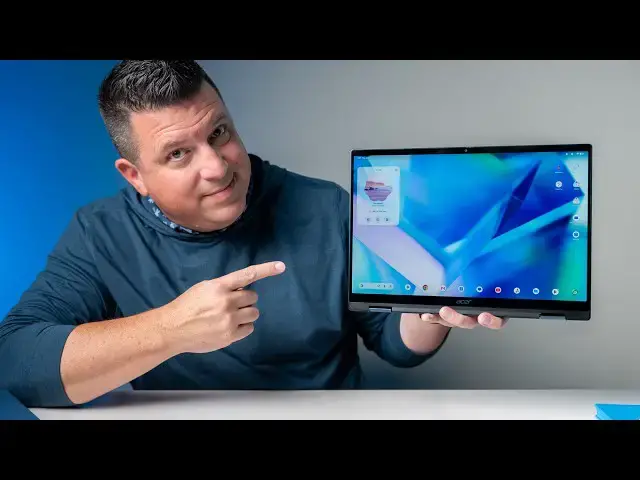
Buy the Acer Googlebook 14 at Best Buy: https://bestbuycreators.7tiv.net/QY9Vvx
Buy Chrome Unboxed Glowbar merch: https://cottonbureau.com/p/YGGDM3/shirt/glowbar#/23914930/tee-men-premium-heavyweight-black-100percent-cotton-s
・・・・・・・
Read more: https://chromeunboxed.com/the-acer-googlebook-14-is-official-the-only-360-convertible-in-the-lineup-starts-at-899/
・・・・・・・
👉 Shop the best Chromebook deals today: https://chromeunboxed.com/the-best-chromebook-deals-today-updated/
📧 Subscribe to our Upstream newsletter: https://bit.ly/4jVq0de
☕ Fueled by Fresh Roasted Coffee! Buy the special edition Chrome Unboxed bag here: https://chromeunboxed.com/coffee
Subscribe to the channel: http://bit.ly/2xFuj6L
Follow us: https://x.com/chromeunboxed
https://www.instagram.com/chromeunboxed
https://www.threads.net/@chromeunboxed
https://www.facebook.com/Chromeunboxed
Show More Show Less View Video Transcript
0:00
On the desk in front of me is Acer's new
0:02
Google Book 14. It's the only
0:04
convertible of the bunch and it is the
0:06
last one of the bunch that we are
0:08
getting out of the box. I'm super
0:10
excited to get my hands on what is also
0:13
the most affordable Google Book in the
0:15
initial launch line. So, enough talk.
0:17
Let's get in the box. So, as I said,
0:20
the most affordable Google Book. I think
0:21
that price might change, but $8.99 is
0:23
where this one starts.
0:25
Um it is one of the Intel variety.
0:28
It is a convertible. Um
0:30
and we did not get to spend too much
0:32
time with this one in New York. Um it's
0:35
fun.
0:36
So, I think I said this in one of the
0:37
other videos, like
0:39
it's really cool that, you know, there's
0:40
the kind of shipping box on the outside,
0:41
but most of the Google Books come in
0:43
like a little more box.
0:46
This is probably the coolest one of the
0:47
bunch.
0:48
Um there's no way I don't know. Can you
0:50
see like the iridescence on that a
0:52
little bit?
0:53
So, it's going through all the different
0:54
rainbow colors. Just a nice little nod
0:56
to the
0:57
to the glow bar there, obviously. Uh
0:59
let's see what kind of charger we get.
1:08
Looking pretty stock here. It's a
1:10
two-piece, so I like to see that. Um I
1:13
would just makes it easier to get it
1:14
plugged in. I know they're not as as
1:16
nice looking as
1:17
um
1:19
It's weird.
1:20
Um as the kind of
1:21
little little, you know, blocks, wall
1:23
wart kind of things, but um yep, pretty
1:26
standard fair here, 65 watt charger. Um
1:30
nothing out of the ordinary there.
1:32
But let's get
1:35
all this box out of the way
1:38
and check this thing out. All right.
1:42
Uh here's the front. Sorry, I had it
1:44
backwards.
1:46
Okay.
1:47
I got to show this. This is the best
1:49
presentation of a Google Book yet. Um
1:52
hopefully you can see the subtle
1:54
lift that the box is almost like lifting
1:56
it up to you. That's very nice. That's a
1:58
nice touch. Well Google Book
2:01
uh in there in the inside. Again, I know
2:04
a box doesn't matter that much. It
2:05
doesn't make that much of a difference.
2:08
Um but I do I I like a nice
2:10
presentation.
2:11
Um this is probably just going to be
2:12
paperwork.
2:18
Well, and
2:19
just rip that hole, right?
2:24
Yeah, nothing surprising in there. Very
2:26
cool box, nice presentation there, Acer.
2:28
Well done.
2:31
[sighs] Here we go. I do remember at the
2:34
event they had a cloth with this one cuz
2:36
it was fingerprinting. Now the HP I
2:38
found was was pretty fingerprinty as
2:40
well. Um let me get this wax paper out
2:42
of here.
2:46
Yep. Yep, it's fingerprinty. So these
2:49
these dark-colored uh Google Books and
2:51
Chromebooks the same. Um you really just
2:53
kind of want to have a a towel around to
2:55
keep them wiped off. They just they tend
2:57
to get a lot of fingerprints on them,
2:58
but man it is just a
3:00
cool-looking exterior shell here. Uh the
3:03
glow bar Let's see if we can get it to
3:04
light up for you.
3:08
It's not going to come on probably till
3:09
I get logged in and everything. I think
3:11
it's slightly glowing there, but you can
3:12
see the glow bar up top like offset.
3:15
That's kind of cool. Um different than
3:17
the center point and just sitting um
3:20
opposite of the Acer logo up top.
3:22
>> Acer Live Talkback is primarily
3:24
>> Hey, that makes me feel like I'm
3:25
unboxing a a Google bar a Chromebook. Uh
3:28
that's fun. Talkback still on here for
3:30
the out of box experience. We'll get to
3:31
that in a second. Uh but let's look
3:33
around the outside here. Obviously,
3:35
we've got the dual hinges here because
3:37
this is a convertible. And as you can
3:39
see um it converts right around into
3:41
tablet mode just like you'd expect. And
3:43
what this feels like immediately my hand
3:45
is a refined, cleaned-up version of uh
3:49
the uh 714s that we've had in the
3:51
Chromebook world for a while. Um it it
3:54
it's sleeker. It feels a little more uh
3:57
well put together. But generally
4:00
speaking, that's what it feels like.
4:01
It's just a sleeker,
4:03
more refined version of of those uh of
4:06
those previous Chromebooks. But man, is
4:08
it picking up the fingerprints. Goodness
4:10
gracious.
4:11
Uh I will say up here uh in the studio,
4:14
it uh there's a standalone AC unit up
4:17
here and it's we're in fall, so it's
4:19
it's like we're in this weird spot where
4:21
there's a little bit of extra humidity
4:22
around, so
4:23
these fingerprints probably look worse
4:25
on camera than they actually will be uh
4:27
in general use, but it's a little moist
4:28
in here for sure. Um but along the
4:31
bottom we've got, you know, your fan
4:32
ports there, fan ports here, and just a
4:34
very Acer aesthetic. Um around the sides
4:38
we've got uh
4:39
two and let me see there, yep, two USB
4:41
Type-C ports here and one over here,
4:45
headphone microphone jack, and that is
4:46
all uh these are Thunderbolt 4
4:49
Thunderbolt 4 ports. Um that's hard to
4:51
say four times fast.
4:53
Um but other than that, I mean, this is
4:55
just a slim 2 and 1/2 lb um version of a
4:58
714 if you felt one of those devices
5:00
before, but even like the lines on the
5:02
edges just feel a little more refined.
5:04
Um so if you've ever picked up one of
5:06
those devices and thought
5:08
it's nice, but like this I feel like
5:10
fixes most of that. Like this is just a
5:12
really um solid feeling
5:15
um one piece crafted, so aluminum
5:17
magnesium alloy. It's a really good
5:19
feeling laptop. Um
5:21
and then let's where are the speakers at
5:23
on this guy? Um hopefully they're upward
5:25
firing then. I don't see them. Yep. So
5:27
we got left and right upward firing
5:29
speakers. And while we're here before I
5:31
get like logged in and everything with
5:32
this um inside uh we're looking at the
5:35
Intel Core Ultra 5 325 processor, 16 GB
5:39
of RAM, 1/2 TB of storage. Uh very
5:42
similar um setup that you see in [music]
5:45
um in in lots of Google Books. Um the
5:48
the display, let me turn down the
5:49
brightness here.
5:50
The display is glossy, so this is not
5:52
one of the ones with anti-glare, uh but
5:54
a very familiar now if you've been kind
5:56
of following along with Google Books, 14
5:58
in, 16 by 10, 2880 by 1800,
6:02
more than Quad HD uh OLED panel, 500
6:06
nits of brightness, and I think a peak
6:08
brightness of like 1,000 nits if it hits
6:10
like HDR content, stuff like that.
6:12
Standard Google Book keyboard with
6:13
backlighting,
6:15
um fingerprint scanner in the power
6:16
button up here, and this one does have a
6:18
standard trackpad. So, um like the Dell,
6:21
it is not a haptic trackpad. It's a
6:23
standard um
6:25
diving board style, but feels really
6:27
good. I'll I'll mess with that a little
6:28
bit more as we're setting it up. Upward
6:30
firing speakers, the whole lot. I mean,
6:32
that's that's kind of the cool part of
6:34
the whole Google Book experience in
6:35
general. It's it's neat that, you know,
6:37
regardless of which form factor you
6:39
choose, which size you choose, which
6:41
which OEM you choose, you're getting all
6:43
of that high-end hardware. So, um let me
6:45
jump in and get everything set up real
6:47
quick, give me a chance to try out the
6:49
keyboard, uh feel that trackpad a little
6:51
bit, and we'll test out the speakers,
6:52
the camera, uh and give you some just
6:54
initial thoughts here, and then we'll
6:56
get out of here.
6:57
All right. So, got through the setup
6:59
process, got hands-on time real quick
7:01
with the keyboard, trackpad, uh checked
7:03
out the camera. So, we're going to talk
7:05
about all those things here in just a
7:06
second, but before we do that, I do want
7:08
to point out the fact that this is an
7:09
unboxing, and just like the unboxings
7:11
that we've done for the past decade with
7:13
Chromebooks, we're talking about
7:14
hardware. We're talking about screens
7:16
and webcams and keyboards and trackpads
7:19
and speakers and processors and RAM.
7:21
Like that's what we're focused on here,
7:23
not really the underlying OS. And so, if
7:26
you want to hear more about where we are
7:28
with with the OS and and what our
7:30
thoughts are on the the difficulties
7:32
that Google Book OS is having right now,
7:34
we have a video about all of that. And
7:36
we will link that that video in the
7:38
description, we'll pin the first comment
7:40
with a link to that video because I
7:41
think it's important um because
7:43
everything's not perfect here, uh far
7:45
from it. There are lots of issues. There
7:47
are things that uh I believe Google will
7:49
fix and are are going to address, and
7:51
they're doing so already. Like in real
7:53
time, it's happening, things are getting
7:54
fixed. And so, it's like this moving
7:56
target. So, by the time you see this
7:58
video, if I were to sit and break down
8:00
all of the the shortcomings of Google
8:02
Book OS, which again we never did when
8:05
it came to Chromebooks. We didn't sit
8:06
and talk about the OS every time we
8:08
looked at a piece of hardware. Uh,
8:10
you know, these these videos would be
8:11
40, 50 minutes long or something like
8:13
that. And so, we just want to talk about
8:15
the hardware for this one. If you want
8:16
to deep dive into what's going on with
8:17
Google Book OS at least, you know, right
8:19
now, um go check out that other video.
8:21
All right, so back to this hardware. Um,
8:24
we'll start up top. I didn't mention
8:26
it's a 5 megapixel camera, uh which I
8:28
love. I know that most video chats are,
8:30
you know,
8:31
you're going back and forth in 1080p and
8:33
that's fine. But, you know, for the
8:34
occasional selfie or something like
8:36
that, I do like 5 megapixels in these
8:38
laptops. It does have a privacy shade up
8:40
top. Um, so you know, you can you can
8:43
make sure that you have that thing
8:44
closed off if you got to get up in a
8:45
meeting or something like that. You just
8:47
want to make sure that you didn't
8:48
accidentally press the button or press
8:50
it twice that, you know, turned off your
8:51
camera. Um, it's nice to have that for
8:54
some uh for some additional privacy.
8:56
But, let me pull it up here for you cuz
8:57
it's it's kind of good um
9:00
just good quality to it. Um,
9:03
so I'm going to I'm actually going to
9:04
grab a photo here.
9:06
So I have Joe put that in there so you
9:07
can kind of see it cuz this is this
9:08
looks really good. Uh, but we'll do this
9:10
the thing we normally do. Point over to
9:11
Joe.
9:13
And whoa, really overexposing there.
9:16
Yeah.
9:17
Joe's in black, so I think it's trying
9:19
to get him, but it's really blowing the
9:20
blowing the picture out there. So but as
9:22
soon as I turn it back to me,
9:25
goes right back to what you saw in that
9:26
picture um that that he put up there. So
9:29
um camera looks I think looks great. Uh,
9:31
looks really really good. Um, and then
9:34
we got to talk about the uh
9:36
Well, let's talk about the screen first
9:37
before we talk about the speakers. Uh,
9:39
the screen looks incredible. It's just
9:41
the case on all the Google Books. They
9:42
all look incredible, super sharp, um 120
9:46
Hz. I don't think I said that earlier.
9:47
So everything's smooth on the screen.
9:49
Uh, the colors look really awesome. Uh,
9:51
the brightness is obviously, you know,
9:53
plenty. But it just it looks great. Uh,
9:56
fantastic panel. OLED always knocks it
9:58
out of the park. It just it it's a
10:00
gorgeous display. But, you really want
10:02
to pair an awesome screen with really
10:03
good speakers if you're going to do any
10:05
kind of like content consumption. And
10:07
Google Books have done a great job of
10:08
that. I mean, all of them have great
10:10
screens and so far all of them have a
10:12
great speakers, like super impressive
10:14
speakers.
10:15
Um, not so much the case with this one.
10:17
So, uh, let me just start this video and
10:20
you can kind of hear what I'm talking
10:21
about.
10:22
Want to see what's inside this box, so
10:24
let's get to it.
10:26
That's full volume and I'm not raising
10:29
my voice at all to talk right over it.
10:31
>> Let's check out what's inside here. Now,
10:32
we we got a little bit of hands-on time
10:34
with all the
10:34
>> So like no low end, kind of muddled in
10:37
the middle. Um, just a little
10:39
disappointing to be honest with you. Um,
10:42
I thought, I mean, it says DTS up here.
10:45
I don't I guess that means nothing
10:46
anymore. Uh, these speakers just don't
10:48
sound great. Um,
10:50
and on a $900 laptop I think they
10:52
should. So that's a little bit of a
10:54
bummer. Um,
10:56
and not not really expected to be honest
10:58
with you. I just I didn't I didn't see
10:59
that coming. But moving down the
11:01
chassis, we've got um pretty good
11:03
keyboard for for Acer's. Like Acer's
11:06
never made keyboards that I'm like, oh
11:07
man, I just love typing on this, but
11:08
this one feels really good.
11:11
All right folks, the Google books
11:13
relatively quiet. Um, and the key travel
11:16
feels good. I wouldn't say it's like
11:17
exceptional as a keyboard, but a solid
11:19
keyboard. It's backlit, of course, with
11:21
multiple stages of brightness. And the
11:23
trackpad feels really smooth and nice.
11:25
Again, it is a it it's a real trackpad
11:27
like a physical one uh that that has
11:29
kind of the diving board mechanism here,
11:32
but it's seated in here really nicely.
11:35
The click is quiet and kind of sure and
11:38
yeah, no no issues whatsoever there. So
11:41
all the input methods here uh feel feel
11:43
pretty good. And again, inside we've got
11:45
the Core uh Ultra 5 325 from Intel. So
11:49
not going to really run into any
11:50
performance issues. Um, you know, it's
11:54
that that's something that across all
11:56
Google books like it would be a
11:57
redundancy talking reviewing them to
11:59
talk about speed. Like they're all super
12:01
fast. Um, they never really hiccup or
12:04
have any issue doing anything that I try
12:06
to do on any of them. They're all
12:08
they're all nice and fast. Um, there are
12:10
reports out there of some of the Intel
12:11
devices having some issues with like a
12:13
couple percent of all of the apps in the
12:16
Play Store. So if they haven't been
12:18
optimized for Intel, perhaps they could
12:21
have some issues there. I've not run
12:22
into that. I'm not seeing that
12:24
specifically like with apps that I've
12:25
tried that just don't work because it's
12:27
Intel.
12:28
But in general, just know that that's
12:30
the case with these Intel devices.
12:32
They're not going to get the battery
12:33
life that the the Snapdragons are going
12:35
to get, but these have Thunderbolt ports
12:36
on them. So there's
12:37
there's handoffs, tradeoffs between the
12:39
two.
12:40
But from every other Chromebook I've
12:43
used with this Intel setup inside, super
12:45
fast.
12:46
And at least a full day's battery.
12:48
You're not going to get probably
12:49
multiple days, but at least a full day's
12:50
battery. But as this is the only
12:52
Chromebook that converts, we obviously
12:54
got to talk about that. Now Acer has
12:55
been doing convertible laptops for a
12:57
long time, so the hinge feels really
12:58
good. So even though it's a convertible,
13:00
you still get a one-finger lift. Kudos
13:02
to them for that. It does a little bit
13:04
of a lift off of the desk, so you get a
13:06
little bit more of a fan
13:08
room for fans to do their job underneath
13:10
there. So
13:11
impressive hinge, feels really good. And
13:13
then obviously as you go to convert it,
13:16
converts like you think into, you know,
13:18
all the different modes. You can do, you
13:20
know, your tent mode, your your stand
13:21
mode here like this. This is kind of my
13:24
preferred way to to do any kind of
13:25
tablety type stuff is to kind of lean it
13:28
in in this way.
13:30
What I will say is that there's a
13:31
strange thing and we saw this in New
13:33
York and I thought maybe it was a
13:35
software hiccup, but for right now this
13:37
is what it is and I don't really get it.
13:41
Down below
13:43
the
13:44
your your dock down here turns to
13:47
whatever this is.
13:48
I don't know what this is. This looks
13:50
terrible.
13:53
I'm not sure what's going on here. And
13:54
it's even more confusing the fact that
13:56
Android should be awesome on tablets.
13:58
Like I figured when we went to tablet
13:59
mode it would look like a Pixel tablet
14:01
exactly.
14:02
This does not.
14:04
Now obviously with all of your
14:06
notifications and stuff lined up this
14:08
way, this makes a lot of sense in tablet
14:10
mode. This this feels really nice.
14:12
You know, you've got your home screens
14:14
and stuff. So if you open up,
14:17
open up an app, you've got all your
14:18
gesture support.
14:19
>> Hey, rerouting work call to kitchen.
14:21
>> I just can't get away from
14:23
get away from YouTube.
14:25
And so like all your your gesture
14:27
navigation works the way you'd expect it
14:28
to. And then now we get this pill-shaped
14:31
bar down here.
14:33
And if I swipe up here, actually
14:36
I swipe up back on it.
14:40
Like that, that's built into Android 17.
14:43
That's the that's what I would expect,
14:44
you know, for there to be on the bottom
14:46
bar. And and you know, it just hides
14:47
when I'm in a full screen app. I just
14:51
I don't know what that is.
14:53
And if I remember correctly from the
14:55
event
14:56
yeah, home screen doesn't won't rotate
14:58
to this. Now, if I have an app open, it
15:01
rotates to that.
15:03
And again, my gestures work, but you can
15:04
see everything rotates back to
15:06
horizontal. So clearly
15:08
there's a lot of work that needs to be
15:10
done on tablet mode for Google Book OS.
15:12
And
15:13
frankly, that's just a bit of a bummer.
15:15
And so of all the things I thought
15:17
Google Books were going to like struggle
15:18
with or have issues with out of the
15:20
gate,
15:21
tablet mode was definitely not one of
15:23
them. I just honestly I thought it was
15:24
like a layup. I thought that was the
15:26
easiest part of this whole thing is like
15:28
to make the tablet mode work because
15:29
you've already done it. It's already
15:31
there.
15:31
And so like have this just go into
15:33
tablet mode. So like the weird bottom
15:35
bar and
15:37
not being able to rotate it like the
15:39
home screens
15:40
is it's a little weird. Now, generally
15:42
speaking, people are probably going to
15:43
use their tablets
15:45
or tablet mode kind of in this, you
15:47
know, in this orientation. And so
15:50
if that's the case, you're probably not
15:51
going to really get to notice too much.
15:53
Not going to notice too much issue here.
15:54
But it's still like it it this should be
15:56
fixed. Like this shouldn't be a thing I
15:57
got to think about. If I want to pick
15:58
this thing up and hold it in portrait
15:59
mode, it should be able to get around
16:01
the the interface in portrait mode, no
16:03
problem. Again, this is Android we're
16:04
talking about. I don't I don't really
16:07
understand
16:09
what happened in the transition here.
16:10
And so hopefully this is something they
16:11
get cleaned up. Clearly this is
16:13
something they need to get fixed before
16:15
a device like the Duet M, which we've
16:17
been tracking for a while, the
16:18
detachable from Lenovo, that could be
16:20
like the absolute flagship for Google
16:23
Book. Uh it cannot come out until this
16:25
is fixed. Like you can't have a tablet
16:27
that that behaves this way. Um that
16:29
would just be super weird. Um so
16:31
hopefully this is something that Google
16:32
gets fixed like ASAP. But until then,
16:35
it's not like you can't use it like a
16:37
tablet. So I mean
16:39
I was just messing with this. So if you
16:41
click the little, you know, thing up
16:42
here, it's just like it's on your phone.
16:44
And say we want to go split screen, and
16:46
I want to do this one, you got split
16:48
screen.
16:49
But
16:50
what you can't do
16:52
is Uh let me open up just open the Files
16:55
app.
16:57
If I go to the overview,
16:59
I can't long press it and
17:01
move it anywhere. Like I can do that on
17:03
a Chromebook. Like I can do that I'm
17:05
pretty sure on Android tablets. Just
17:06
drag it over and drag this over and
17:08
boom, you got Let's see if I can drag it
17:10
from the
17:11
bar here.
17:13
Nope. So all these little things that in
17:16
the process of making it into a quasi
17:18
desktop setup, we've kind of lost some
17:20
of the tablet functionality and that's
17:24
that's a little frustrating. But
17:25
overall, I know most people use
17:27
convertibles.
17:28
Uh they flip it into tablet mode from
17:30
time to time. And in general, you're
17:32
probably not using it that often as a
17:34
tablet. And again, if you flip it around
17:36
and use it in landscape mode, for the
17:37
most part, you're going to be able to do
17:38
kind of one page apps easily. And Google
17:41
I don't think there's even an option.
17:42
Google has to fix this ASAP before some
17:46
of these detachables come out. They're
17:47
on the horizon. They're coming. Other
17:49
convertibles are likely coming. They
17:50
just got to They got to clean this part
17:51
of it up. But other than those things,
17:53
everything else about this device, well
17:55
minus the speakers, is is pretty top
17:57
notch. I mean if you've had an Acer 714
18:00
or you just really want a convertible
18:02
Google Book or you just really want the
18:04
most uh inexpensive Google Book, this
18:07
fits all those bills and man, it just it
18:09
feels great in the hand. It's 2 and 1/2
18:11
lb, so it's super portable.
18:13
Um it is the nicest Acer Google
18:17
run laptop that I've ever I've ever
18:19
used, uh ever had in my hand. Um, I'm
18:22
sure they've got some other Windows
18:23
laptops that are are a little bit nicer,
18:25
but, um, yeah, I'm I'm impressed with
18:28
the build quality. Um, the screen is
18:30
gorgeous. The feel of it's nice. Um, and
18:34
the price is better than than the rest
18:36
of the Google books, but you know, the
18:37
speakers and that tablet mode's a little
18:39
weird right now, and obviously we'll be
18:41
keeping our eyes on that and how those
18:43
changes come about. Um, and and you can
18:45
look forward to our coverage with Google
18:47
books being about that kind of stuff,
18:48
like when Google Book OS updates, like
18:50
what did they change? What did they fix?
18:52
How are they catching up, uh, to produce
18:54
an OS that's, uh, worthy of this
18:57
hardware? And Google's got a lot of work
18:59
to do on that front for sure, uh, but
19:01
we're seeing it day after day. We're
19:03
seeing that stuff happen. So we're
19:04
excited about that. We're excited to
19:05
talk to you all about that stuff as it
19:07
happens. So if you haven't yet, be sure
19:10
to subscribe to the channel and, uh, uh,
19:12
make sure and ring the notification icon
19:14
down there as well if you'd like to be
19:15
alerted when we make future videos like
19:17
this one and and give us a like while
19:18
you're down there too, but
19:19
for now, that's it for this one. We'll
19:21
see you.
19:25
>> [music]
Science