Up next in 10

Install Apps on Your Chromebook With Ubuntu Linux
Jun 7, 2016


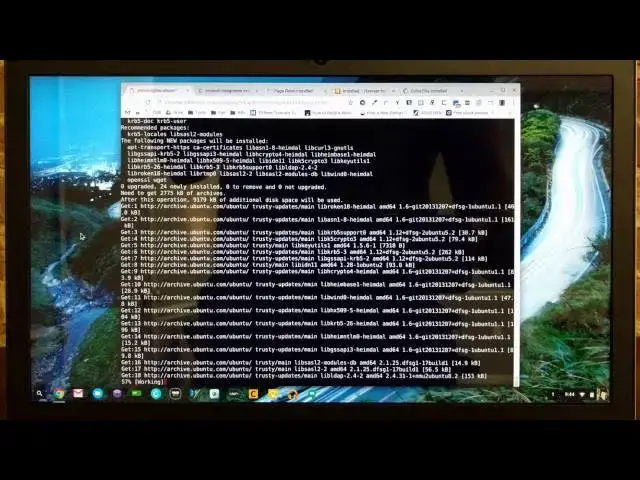
In this revised video, we take you from start to finish installing Ubuntu Linux on your Chrome OS device. This will work for all Chrome OS devices, including Chromebooks, Chromeboxes, and Chromebases. Follow the link below to the site for a full write up containing all the resources and links you will need to get this up and running on your own Chrome OS device!
http://chromeunboxed.com/install-native-apps-on-your-chromebook-with-ubuntu-linux
Show More Show Less View Video Transcript
0:01
hey folks Robbie Payne with chrome unbox coming at you today with a full guide on how to install Ubuntu Linux on your
0:07
Chromebook we have here with us the HB Chromebook 13 uh it's newly here in the office um as part of the review process
0:15
we're going to get um auntu installed on it and I wanted to kind of share that process with you we have an older video
0:21
on the channel that covers most of this stuff and while it still technically works there's a few missing pieces to
0:27
that uh whole puzzle and so wanted to kind of update that video give a a fresh new perspective especially on a brand
0:32
new Chromebook um so that you guys can kind of see this thing from start to finish every piece that you need to get it running and and how to install a few
0:40
apps once you get uh Ubuntu running in whatever kind of environment that you like it so I'm going to try to cover
0:46
everything that I've figured out and kind of discovered with this process thus far and so it can kind of get you started in a spot where you can get it
0:53
installed on your own Chromebook and get some of the apps going um on your device that that could possibly help fill some
0:59
of that protoc it hole especially until uh Android apps show up so over the next few months Um this can this can help uh
1:06
you make the most out of your Chromebook and so um we're going to talk through pretty much everything I can think of
1:12
when it comes to installing utu on a Chromebook um so without any further Ado let's get
1:18
[Music]
1:25
started all right guys so here we are at the lock screen um you don't have to be logged in or anything but the first
1:31
thing we need to do is we need to get this device into developer mode so I'm going to show you how to do that um
1:36
pretty quickly and um we're going to have a lot of cutaways back and forth um
1:42
with this video because there's things that take some time so um so the first part is I'm going to tilt this up just
1:48
so you can see so you've got the escape the refresh and power now and some
1:54
devices power key is going to be along the side that kind of thing so we're going to hold the escape in the back or
1:59
in the refresh key and just touch power and you'll see immediately that the device
2:06
will uh reboot and it says please insert
2:12
recovery don't freak out just hit controll and D together turn OS
2:17
verification off press enter that's exactly what we want to do so we're going to hit enter
2:30
and this is what we want each time you boot up you're going to see this screen you can again control D to skip
2:40
this and here you go up at the top it says uh starting in 30 seconds your system transitioning to developer mode
2:48
uh local data will be cleared so again be sure that you have everything cleared off of here anything local stored you
2:55
want to make sure and have it either backed up to an SD card or backed up to Google Drive this should take I don't
3:01
know somewhere between 5 and 10 minutes slower machines can take a little bit longer so we're going to cut away and
3:07
we'll be back with the next part all right guys we're back and as soon as you get done with that step it's going to reboot if you leave your device sitting
3:14
still for a little bit you're going to hear it beep in a second this is again the same screen that you'll just hit controll D to bypass and move
3:22
on I'm going to let it sit here for a second so you can kind of hear that beep so again if you hear this don't freak
3:27
out and each machine has a little different sound to it it'll move on by itself in a second I'm going to go ahead
3:32
and hit control D and move us beyond that so now you're going to boot back up
3:40
um basically to stock so um the way it looked when it came out of the box if you're doing this immediately then it's
3:46
going to look the exact same as it did just a minute ago let's make sure we're focused in
3:55
and this on the network
4:07
so it's completely up to you at this point if you want to walk yourself through and get everything signed in
4:13
then that's
4:22
fine faster your machine is obviously the faster a lot of this stuff goes cuz now it's going to want to sync up
4:29
everything that you do um all your bookmarks all that kind of stuff all your apps and that's fine
4:37
um while it's doing so the next thing you're going to do is open up Chrome and you're going to Google um
4:46
install Crouton you can just Google Crouton as well if you want to um but
4:53
we're looking for this one right here so the GitHub Oh see it's going to jump around on me a little bit uh
5:00
um so we're going to install this and if you scroll down um to the
5:07
usage section there's a short link here and that's going to get you the latest
5:13
version of Crouton and it's going to put it in your downloads folder which is exactly where you want to go just save that it's a
5:19
very tiny file and then you can close your your browser again all right so here's the first step
5:28
you're going to hit control alt and T together okay that's going to bring up
5:35
um your cros and your Chrome OS developer shell so the first thing you're going to type and again um all
5:41
this stuff is going to be typed up fully on the website going type
5:47
shell and we're going to type pseudo sh tillate forward slash and as
5:56
your stuff's installing it's just going to keep doing this um just fair warning
6:01
downloads Crouton and now we need to talk about targets and releases so there's multiple
6:08
releases um at any point I'm not going to tell you exactly what's available uh right now because at any point that can
6:15
change um the releases can change the desktop environments can change all your
6:21
targets they'll add more some of them won't be available anymore so um you really need to read through uh that page
6:28
where you got to download that GitHub has a lot of information about the releases and about the targets but a
6:34
quick note on them so release is the version of ubun Linux that we're talking
6:39
about installing the latest completely stable Channel whatever version of
6:44
Ubuntu is 1404 which is referred to as truste that's the one I usually go with
6:50
uh I think if you don't specify it's going to install 12.04 um and so there's a 13 as well 14
6:58
and there's actually 15 and 16 now but I don't know that those are classified as stable yet again if you're watching the
7:03
6 months from now that could be different so I advise you to read if you're not sure um go with trusty it
7:09
works quite well so um we're going to do- R which is the release so we're
7:15
going with trusty want spell that right and then- T so these are targets the
7:20
targets are the things the installa bles that you're going to add um for me personally I do four every time that I
7:27
do this install um your desktop environment again those can be many different things you have xfce
7:34
you have gnome you have Unity um which is the basic kind of the packaged uh
7:40
Ubuntu desktop environment um you have KDE um I think that Cinnamon's not
7:48
supported in this anymore I I don't remember all of them again uh and they change so but some of the ones that are
7:54
always there uh unity xfce and gnome have hung around for a long time KD has
7:59
as well um I go with xfce just because it's the it's one of the simplest
8:05
graphical interfaces and honestly I just want the interface to get out of the way because I'm doing this so that I can have a few different uh applications
8:12
running so without further further Ado xfce I want that I want uh zwe which XI
8:21
wi um and we're putting a comma between each one of these um Z is the um it does
8:27
a few things one it lets you copy and paste between desktops um so from your Chrome OS to your Linux uh Ubuntu
8:35
desktop um but it all also enables um you to actually run Crouton in a window
8:42
and we'll talk about that in just a second but there's an extension that you'll get you can see in mine it is right there with the
8:48
c uh it's an extension you get from the web store and it combined with zwi um
8:55
while I actually launch iunu just in a window right in Chrome OS so you never actually have to leave leave the chromos
9:01
environment xorg is another one I put in there because I'm going to show you after this how you can choose so you can
9:07
either choose to run uh Ubuntu in a parallel environment so kind of side by side where you can switch right back and
9:13
forth alive between the two environments um or you can do Z where it's in a window the advantage to going with xorg
9:21
is that in xorg when you're running it parallel uh Ubuntu then has access to your GPU so any graphic heavy things run
9:29
a lot better if you do them in xorg and I'll show you when you launch it how to choose between the two um and then lastly I'll go ahead and
9:36
throw Chrome on here um that way it just installs Chrome I don't have to go find it
9:42
um you can also do uh touch and spelled exactly like you know if you just do comma touch no point doing it on here
9:49
there's no touchcreen and even on ones with touch screens for me I don't put it on there um I've heard of a few people
9:56
having issues I think when they're using uh um Crouton in a in a window where if
10:02
they have the touch installed like it's bringing up the keyboard all the time and all this kind of stuff so I honestly
10:08
don't do it cuz if you bring it up in a window obviously the touch input works cuz in a window it's technically using
10:13
Chrome OS as input methods so touch would work if you ran it in a window if you run it in parallels you're not going
10:19
to get a touchscreen input um so that's kind of on you to decide and to steal a little language from the GitHub uh
10:26
crouts which is the kind of the install that you're doing each time they're cheap you know they don't take up a lot
10:31
of room so you could technically do multiple uh crouts if you wanted to one with touch one without and you you can
10:37
name them and all that stuff and again if you want to get any more into all this kind of stuff you can really read
10:42
and figure this stuff out I'm trying to get everybody on a on a spot where they can get started and get working uh from
10:48
this so xfc Z xorg Chrome and we're going to hit enter you're going to see a
10:53
little bit of stuff go here and then it's just going to start going and again
10:59
there there's a few factors here that will um change how quickly this happens
11:04
um for some people it's going to go really quick their machines are going to be faster your internet connection matters but it also matters on kind of
11:11
how the um how the archives are are pulling and and getting data and stuff and so um some days it takes forever
11:18
some days it takes 5 to 10 minutes so either way uh we're going to cut away and we'll come
11:24
back and I wanted to do one quick note while this is still going um you can kind of see the
11:31
um the installs still going you're going to see these these things unpacking and installing over the the course of the
11:38
few minutes that you're going um I wanted to point out one thing there are times and this is kind of a know issue
11:44
um where all your input me methods will cease to work um and we'll check to see
11:50
our Mouse is still working there are times where that will stop um and so your keyboard touch screens mice truck
11:58
pads all that stuff will stop working um don't freak out if that happens nothing's broken let the install finish
12:04
um and that I try to leave this window open and not do anything else while it's
12:09
going for that reason uh because you want to be able to see when it's done if for whatever reason it freezes up and
12:15
you can't do anything at the end um because at the end of this it's going to say specify username and a password for
12:21
um for this install um don't freak out turn the Chromebook off turn it back
12:27
on um you'll you'll get all booted up you'll open your shell window again and
12:34
um you'll simply do the start command which we're going to talk about here in just a minute anyway and when you do
12:39
that it's going to say hey we noticed it's not quite finished installing you want to finish you hit yes it'll finish
12:45
up and it'll be fine so I just wanted to let you guys know that that happens from time to time it's not a huge deal just
12:50
turn it off try to start your um install of auntu up and it will notice that it's
12:56
not completed so we're going to cut away again as this finishes up and move on from there all right guys um we got
13:05
finished and just as I had said you can see the mouse I'm moving on the track bet here isn't moving none of my input
13:12
keys are working um and so like I said it's no big deal the end at the bottom there you see specify username um can't
13:19
obviously do that I'm just going to hold power down until we fully turn
13:25
off how's it going and we'll see this boot screen again
13:35
um we're going to control d right through that you'll get used to that if you're going to hang out with Crouton on
13:42
your device cuz every time you boot you see that but everything boots up just as fast as it normally would so it's not a
13:48
huge deal so we're going to logged in and you
13:55
know everything works the way youd expect it to um you're not going to see anything so before we jump into
14:01
finishing the install um let's jump over to the web
14:08
store excuse me and we're going to do
14:13
[Music] Crouton and a
14:23
window should be an extension okay let me figure out what it's called here
14:29
Crouton integration I'm
14:41
sorry well that is really
14:48
interesting let's just search Crouton and see what we find I haven't had to look for this extension in some time I'm
14:55
wondering if maybe you can't get it there so let's Google it till we'll find this thing
15:10
together so it's taking me back to the GitHub and if I click here and for some
15:17
reason the search just wasn't finding it so uh if you do a little bit of Googling just like pretty much anything else you
15:22
could find it and mine's already added but you would add it to Chrome and then that's it you don't have to do anything else with it um so we'll make sure we
15:29
have that anyway so now to finish this install again we're going to do contrl alt T
15:36
it's going to bring up our shell type shell and we're going to do Pudo and
15:42
this is the command to start xfce so um pseudo start
15:49
xfce4 um if you installed Unity it would be pseudo start Unity um if you did
15:54
gnome it'd be pseudo start gnome um and so on so forth um you have to put the four at the end
16:01
of xfce um so when I hit this it's going to say hey um we notice that it's not fully
16:06
set up would you like to finish absolutely that would so we hit yes and this won't take
16:11
long at all CU it technically is done but it's checking to make sure everything's there in your install um while it's
16:19
doing this I'm not going to cut away cuz this is pretty short uh there is a command um and you can find it again in
16:25
the GitHub there's a lot of stuff in there obviously that that helps you out um there's a command that you can run
16:31
like when when Chrome uh OS updates you do need to update your cruit and so um
16:37
you need to have that Crouton file that we downloaded from the beginning you need to have it downloaded in your
16:44
downloads folder and then you run that same command pseudo sh till downlo
16:50
Crouton the same exact thing except instead of doing targets and release you're going to type um um
17:00
Dash I'm getting ready to tell it you I'm trying to remember what it is um I
17:05
just go here while this is going we'll look it up real
17:13
fast plus this will help you find it if you need to look for it so if you scroll down just a little bit um you're going
17:20
to see really quickly a new version of Creon came out mine is Obsolete and sad um so right here pseudo sh downloads
17:29
Crouton dasu sorry dasu which is update dasn is specifying the and you don't
17:34
obviously don't type crout name the name of your cruit unless you specified it in the install uh will be the release so
17:41
like if I want to update the cruit that I've just installed on this video I would do this this command here so sudo
17:47
sh downloads Crouton --n and I would type trusty because the release that I
17:53
installed as trusty now had I could have named it so in the in the install I could have in a dashn and named it
18:00
whatever I wanted to I could have named it HP whatever it doesn't matter but I normally only do one one cruit so I
18:07
don't really take time to name them okay so we're back here specify username I'm just going to do Robbie and I'm not
18:12
going to tell you what my password is you got to try it again and then boom
18:18
and since I told it to start now see these things down here it says airor don't freak out about that especially
18:24
the first time it is going to take a few seconds for that extension to go and then boom this looks like we've got it
18:29
running parallel um if you're doing xfce I usually just do default config and then just change from there
18:36
um for me I don't like the panel down here so I go to panel preferences and panel two I'm just going
18:43
to hit minus remove um I also go to desktop settings and get
18:52
rid of all these extra folders that are hanging out here so icons I don't want that and I don't want
18:59
removable drives out here and then we do if you can't tell I've done this on a
19:04
lot of Chromebooks um your applications menu is kind of hanging out up here one thing you need to know we're going to
19:09
talk through here in just a second is your your terminal um you can do a lot of stuff through there and I'm going to show you how to do it either here so
19:16
there's there's a nice terminal that you can work in right in your Ubuntu um and again if we hit the um the
19:24
full screen button it'll give us our menu our title bar up here and we can just minimize that guy and at this point
19:31
you can close this window and it's always every time you close this window no matter what you've done it's going to ask you are you sure you want to leave
19:36
it's fine it's no big deal um and I'm trying to cram everything I've learned
19:41
about um doing this in into this video so it's forgive me if it's kind of all
19:47
over the place um so there's a terminal here we're going to install some stuff cuz the first time I did this I was like
19:54
okay I got Ubuntu running how do I actually install the things I want um there's a way to do that I'm going to
19:59
show you a couple of the things I need to install I end up having to use multiple variations we're going to talk
20:04
through each of those um but additionally if you do that control alt T again get here you type shell again if
20:12
you do pseudo enter D cruit oops help if I could
20:20
type this is this is the exact same as being in your BTU install and being here so
20:29
a lot of times what I'll do is as soon as I get done with the install if my keyboard and stuff doesn't stop working
20:34
I'll just enter the cruit right here and I'll start doing all my commands um for today we're not going to do that but
20:40
just so you know that's that is available and there are some additional things I'm going to leave links um in
20:47
the article to a couple articles that are really well written um for Pixel
20:52
users if you're doing this on a 2015 Chromebook Pixel it's just a kind of quick side note the trackpad is a little
20:58
weird uh in the now you're not going to notice it if you're doing zwe so if you're doing it in a window here you're
21:04
not really going to notice that much um you will notice it if you jump over to
21:09
um the parallel version so if you do an xorg launch of that cruit um you're
21:14
going to notice um some trackpad weirdness and so there's a a person who put uh some commands up now this is this
21:21
is more advanced stuff so we going to kind of make you research and do your homework and try that yourself um if you
21:29
want to do that but I'm going to leave a link to his Google+ post that says hey it's um handful of commands you're going
21:36
to run in terminal and then some editing of a text file that can get a little bit hairy from time to time if you're not
21:42
really precise with it um but if any of you guys try that and need some help as
21:47
much as I can I'll help you but and then I'll I'll link to another one that uh helps you edit text with VI which is
21:53
kind of confusing uh but you you can edit text in your uh terminal um but you
21:59
need to know the commands and how to how to get around it so anyway I'll leave links to all that kind of stuff in the
22:04
write up we're not going to cover that here in the video so um so in our terminal um there's a few things I want
22:10
to do um so one is in order to install PPA um which are kind of repositories
22:17
outside the main uh Ubuntu Linux repositories um that have tons and tons
22:23
of extra additional things so for for me one of those is inkscape um if I go to install in inkscape I'm going to get
22:30
version 0 but there is a 0.91 which has a lot more features and is is much
22:35
better but I can't get that unless I add the inkscape repository so I need to do that so that's that's for me primarily
22:42
that's the reason I have this installed is for inkscape so I'm going to show you how to do a few things in here so once
22:49
you open this terminal up um we're going to do uh apt get so that that is kind of how
22:56
you get applications and if you look for stuff online and the it's available this
23:01
way it'll say here here's the app get command run this and it's going to install whatever you need um I've got to
23:07
get software properties oops oops it's hard to type
23:13
here common uh in order to get those ppas installed I have to get software properties common uh installed in here
23:20
so again all this is going to be uh written out so pseudo apt-get software properties common it's going to ask me
23:26
for my password
23:35
type something wrong here oh install sorry
23:46
install Okay most of these don't take very long so I'm not going to cut away when I
23:52
install inkscape I might but we'll see um so yes I do want to install that and
23:58
this is just some some basic software stuff that allows me in my terminal to to get some things so now I want to add
24:05
the inkscape uh PPA so pseudo add
24:13
app repository
24:18
Escape oh
24:25
whoops so it's just basically saying hey go get this reposit and add this to the things I can I can update from it's
24:31
going to say sure you want to do this add it now I need
24:36
to apt get update and this is just going to update my available repositories
24:42
basically saying okay we're going to update make sure we have the newest latest greatest version of all these
24:47
things um to choose from so now that I've added that repository when I go to
24:52
install inkscape now I'm going to get the latest version versus the one that's in the main Repository so now we're
24:58
going to do pseudo oops app get
25:04
install Escape
25:10
yes so this will take just a minute um so this will get inkscape installed for me that's kind of how you would go
25:16
through adding a repository that doesn't exist already uh let me show you what it looks like if you're just installing
25:22
something that uh already exists in the repository so filezilla is something I use from time to time FTP client so we
25:28
just simply do pseudo um apt get
25:34
install then type the name vile Zilla
25:42
oops and this one's relatively small yes we want to
25:48
continue and so this doesn't take too long so there's adding a repository using the existing repositories and then
25:55
so that's all there and I'm going to get uh apt get install this is the other way
26:03
software Center so this is the uo software Center more like your traditional App Store kind of uh it also
26:12
acts as a really good installer and so if um for instance if if you find an
26:18
application you want to install and they say hey we have a new Bo installer um you can download that installer file and
26:23
when you double click it in this environment it will open up software Center to kind of uh do that in install for you um there's a program I use
26:31
called uh in sync I in Sy YNC um and it is basically a Google
26:38
Drive client for uh Ubuntu and so what I'll normally do is install it on this
26:44
side so that I can sync up whatever couple folders that I'm I'm currently working out of um and um and so uh that
26:52
allows me to Just Bounce files back and forth now obviously both installs share the downloads folder um so you can can
26:58
move files kind of between uh Ubuntu and Chrome OS desktop at will with that but
27:04
that gets a little uh cumbersome if you're dealing with quite a few files um if you're moving stuff uh back up into
27:10
Google Drive cuz I try to store everything in Google Drive so this allows you to kind of keep uh keep that going so uh we'll cut away here cuz this
27:17
one does take just a few minutes all right so that one's all finished up we can kind of close out of the terminal
27:23
here and it's under our applications I think it's under system now yep so software centers
27:32
there and you can see this is a little more friendly way to install things and if you can find what you need in this
27:38
and install it that way hey go for it um so K font is the other one I was telling you about
27:44
um it's a font viewer SL installer um I haven't found a better way to do it
27:53
um in the environment I'm sure there's a way through terminal to install fonts or some way to do it um I've looked it up
28:00
and not wanted to spend too much time because this works really well uh this program actually takes a little while to
28:06
install for whatever reason um but that's basically it once it's installed you can view your progress up here um
28:13
you can see the installed things that you have um so now in her Graphics you should see inkscape yeah so I can go in
28:20
there and so most of the things you can remove some things that you added you can remove um and I just hit close um if
28:28
you do that don't freak out you're still running if you look at your extension up
28:34
here you see there's an instance of trusty running if I click it boom we're back in So clicking that X doesn't
28:41
actually stop the instance running so I need to let that
28:50
finish um but I could show you this while that's running so that's that's zwe running right so let's go open a
28:57
shell up again real fast and we're going to type shell oops shell so if I want to run another
29:04
instance for instance of U zwi so we're going to do pseudo
29:11
um Dash on it's hard to type around this
29:17
camera Dash capital x um and then choose which one you want
29:22
so I want zwe and then xfc
29:29
four oops sorry Start C4 so that's going to say that I
29:35
want to start it uh in a
29:40
window I'm sorry I typed that backwards pseudo start xfc
29:46
4 uh Dash X and then Define which
29:53
exorder you want to do so Z we hit that it's going to Lo open another one
29:58
um I don't recommend this especially if you're using any syncing software
30:04
um and anytime you want to close out one of your installs you just click up in the corner and click log out don't
30:10
restart log out and it'll get you out of that particular
30:15
one it might take just a minute to do
30:22
that and we'll leave this one let's see how our
30:28
almost done with this K font okay and it's finished it looks
30:33
like so now we can log out of this one as well um like I said I try not to run too
30:40
many instances uh over top of one another I try to exit out of them keeps things running cleaner so now if I want
30:47
to run it side by side we're going to do shell same thing pseudo start xfc
30:53
4- capital x and I'm going to do xorg so this is actually going to run it parallel you'll see the whole screen go
31:00
and then you're going to launch now again the first time you do this we're launching in Native
31:06
resolution oh that's interesting my mouse isn't working let's see if my keyboard is keyboard's working okay H so
31:15
there could be some issues uh possibly with um these new chips or
31:22
nope okay so the trackpad is not working great um
31:28
so if you have the hp13 I remember there being an issue like this on the old hp14 so it has to
31:36
do with the type of driver type of touchpad so a very light touch with your fingertip doesn't work but if you lay
31:42
your finger flat it it actually tracks um there likely will be um someone who
31:51
will come along and give you uh update on um on trackpad if I find one uh one
31:58
that works I obviously will add that now if you had a USB mouse plugged in here or something like that you wouldn't have
32:04
any issues but uh for some reason whatever drivers run this trackpad um
32:09
it's not liking them and so a lot of times this stuff gets patched um in an update to the to your Crouton so um in a
32:18
few weeks when Chrome OS updates and you update your Crouton uh your crout um you
32:24
might actually see it work uh but again you can go in here
32:29
um and we can go adjust display settings and fix that for me I work
32:35
99.9% of the time in ziwe and so most of these things don't bother me and so on a
32:42
device device per device basis sometimes you're going to run into some issues with
32:48
um trackpads and stuff not working like I said there's some finicky things the trackpad on the pixel as well and so um
32:56
luckily developers will come along usually and help you and fix those kind of things um so something to keep in
33:02
mind if you're on the hp13 and you're getting ready to run Linux um that uh
33:07
that fix needs to be found so anybody in the comments if you find that uh feel free to post a link to the uh to the
33:14
stuff that needs to be done to fix that um likely like I said that that fix will come along and as it does if it does
33:21
I'll update the post on the website and I'll also update um this video as well
33:26
but it's first time I've actually seen that in a long long time um where the trackpad just doesn't work the way it's
33:32
supposed to uh even with the pixel the fix on that is not some huge fix it just the the trackpad would jump around from
33:39
time to time um but that's pretty much it guys um so again Control Alt T gets
33:45
you in Shell you choose with a-x zwe or- X xorg to choose which environment you
33:51
want to run into um you've got all the stuff you need now um to go through and
33:56
install Ubuntu on any device uh keep in mind some of the Arm based Chromebooks
34:02
um this works I think for all of them as far as getting Ubuntu going um but um
34:08
you may run into issue from time to time as far as some of your apps and programs that you want to install in Ubuntu
34:15
working with arm because they're just not compiled to work with that processor so um pretty much with all your Intel
34:20
devices you're fine um but arm devices can be can be a little uh cumbersome
34:26
when it comes to installing apps so uh again uh hit up the comments um
34:31
especially on the web page I think it'd be a better spot for us to converse about questions or comments that you
34:37
have again if anybody jumps on that uh fix for the trackpad on the hp13 U leave
34:42
that down there and and hopefully if You' come across this video and you have this device um eventually we'll have that answer for you um but for like I
34:49
said the vast majority of devices I have not seen that issue um for for quite some time so hope you enjoyed this
34:55
updated installing Ubuntu on a Chromebook video um if you like the
35:01
video please give it a thumbs up uh subscribe down below um there's always
35:06
tons and tons more uh Chrome OS and chrome related stuff coming to the channel so I hope to see you around
35:12
again soon thanks for watching see you [Music]