0:00
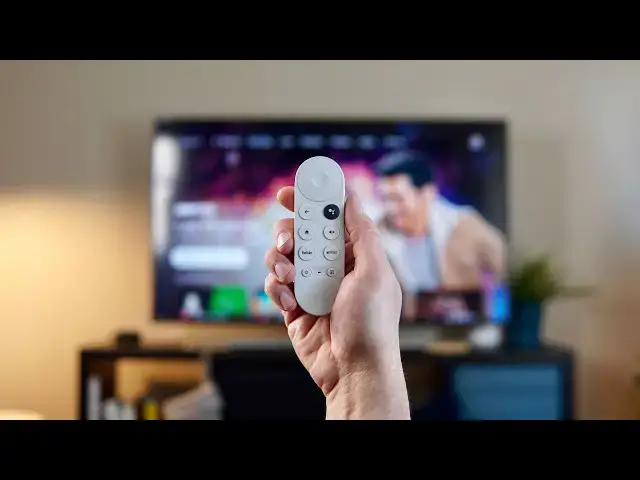
if you have the new chromecast with
0:01
google tv there's a good chance you're
0:04
all the use out of this little remote
0:06
because it can actually be the only
0:07
remote you need in your living room
0:09
as long as you have it set up the right
0:11
way and whether it's you get a new tv or
0:14
you accidentally deleted it out of your
0:17
you just skipped this during the setup
0:18
process you may be missing out on a key
0:20
function that this remote can serve by
0:22
being able to control the volume and the
0:24
input and the power on your tv
0:25
so in any of those cases let's go
0:27
through the steps to show you how to get
0:45
okay so the first step is you're gonna
0:47
need to get to your settings menu so if
0:49
up there you can get all the way to the
0:51
right where your avatar is
0:52
click on settings and then we're gonna
0:54
go all the way down to remotes and
0:57
the very bottom of this one we're going
0:58
to go to setup remote buttons
1:01
and then we're going to add a device
1:02
here now you'll see a couple controls
1:04
down here at the bottom with cec
1:06
you can use that if your tv supports cec
1:09
you'll have to go through some setup
1:10
pieces on your television but because
1:13
this has an ir blaster we highly
1:15
recommend going with this route instead
1:17
you can also do av receivers and sound
1:19
bars but for today we're dealing with
1:22
it's going to ask you what your brand of
1:24
television is and obviously you can
1:25
scroll this it's got your more popular
1:28
but over here on the left you can
1:30
actually go in alphabetical order and
1:34
for us samsung's right here at the top
1:36
we're going to click on samsung
1:37
and this is really straightforward at
1:39
this point you're going to set up the
1:40
remote to control your device
1:42
so we're going to start with volume we
1:43
click into volume and we don't hear
1:49
now we do so we're going to point the
1:53
and make sure that the volume works
1:56
did it work yes so we click that boom
1:59
now we're going to go to power so we're
2:03
and again it's going to ask you to press
2:04
this power button once wait 8 seconds
2:06
and then press it again
2:08
okay we've waited our eight seconds hit
2:11
the power button again
2:13
and this bottom portion will go away
2:14
here this is just a samsung tv thing
2:17
but we know that our power has worked
2:19
now because we've powered off we've
2:22
and did the power button work we're
2:25
and we'll get another check mark and
2:26
finally let's set up the input we're
2:28
going to do that the same way basically
2:29
is the power button worked
2:31
so it's going to tell you press the
2:32
input button to switch through your
2:35
and we got to make sure it works so
2:36
we're going to go over to hdmi one real
2:40
and that's a different chromecast and
2:42
then we'll go back to hdmi too
2:46
and we're good to go did the input work
2:49
boom just like that you have three
2:51
checks now your controller has the
2:53
ability not to just get you around the
2:56
you can turn your television on you can
2:59
you can change your inputs and you turn
3:01
the tv back off whenever you're finished
3:03
up and what i've found is that by using
3:07
i rarely if ever have to pick up another
3:10
to do all the things i want to do when i
3:12
want to sit down and watch television so
3:14
it's a great thing to have around your
3:18
and if you again if you missed setting
3:19
this up when you first set it up your
3:22
you know go back through and take a few
3:23
minutes set this up it's gonna save you
3:25
a lot of time and a lot of hassle in the
3:26
future but guys that's it for this one
3:28
if you enjoyed this video give us a
3:30
thumbs up go down there and hit that
3:32
button and make sure and ring the
3:33
notification icon as well if you'd like
3:35
to be alerted when we make future videos
3:37
until next time we'll see you