Up next in 10



Sponsored by NordVPN. Buy NordVPN’s 3-year deal at 70% off, get an extra plan on top! Click here: https://chromeunboxed.com/nordvpn
Shop Best Chromebooks of 2019: https://chrmshop.com/
・・・・・・・
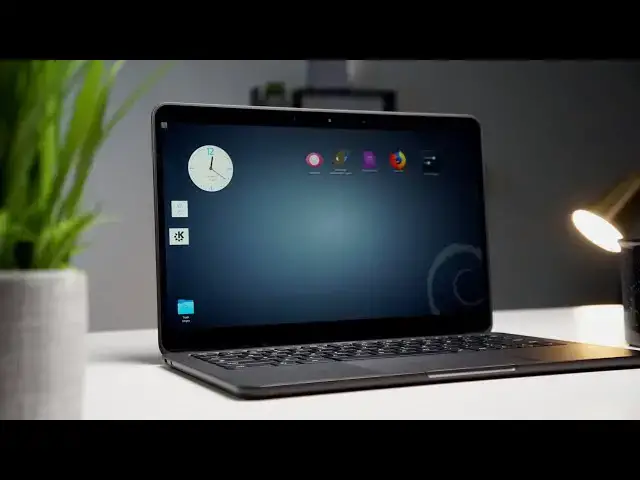
In the midst of conversations about Linux on Chrome OS, the subject of a full desktop environment came up and that's exactly what we're diving into today. While you can install Linux apps to your heart's content from the terminal and those apps will have their own GUI (graphical user interface), a lot of users still want to have an actual desktop with shortcuts, widgets and what have you. Personally, I've grown to love the fact that Chrome OS doesn't even have the ability to have a cluttered desktop but I also know that many users have long asked for the ability to add widgets to the desktop and that's fine but I don't particularly believe it's on the roadmap. Linux users who make the switch to Chrome OS may want a desktop environment simply for the familiarity and that's totally understandable. Therefore, I set out to see if it would be feasible to put and actual Linux desktop on a Chromebook. Here's what I came up with.
Install KDE: sudo apt-get install task-kde-desktop
Launch: starteKDE
Set up your Chromebook for Linux apps: https://chromeunboxed.com/the-command-line-getting-started-with-linux-apps-on-your-chromebook/
Read more: https://chromeunboxed.com/installing-a-linux-desktop-on-your-chromebook
Join our newsletter: http://bit.ly/2WjCDm7
・・・・・・・
Show More Show Less View Video Transcript
0:00
hey guys Gabriel with Grohmann box and
0:02
today we're talking Linux apps I've got
0:04
my Linux hat on it's the same as my
0:06
Chrome OS hat it's just turned around
0:07
backwards but we've been diving on into
0:09
Linux on Chrome OS a lot lately and when
0:11
we do stuff like that we get a lot of
0:13
questions so we started a new series
0:15
called the command line you can check it
0:16
out
0:17
the first post went out earlier this
0:19
week and all we're gonna do is explore
0:21
stuff that you can do on your Chromebook
0:23
with Linux in case you aren't aware
0:25
Linux is now supported on Chrome West
0:28
for a lot of devices you can install it
0:30
directly from the settings menu and it
0:32
lets you install Linux apps and use them
0:34
alongside Chrome OS it's a really
0:37
awesome feature and it's really helpful
0:39
for a lot of people who have been
0:40
looking to bridge the gap between
0:41
Windows Mac and Chrome OS so today we're
0:45
gonna go kind of off into the weeds
0:47
because we've been getting a lot of
0:48
comments about having a desktop now if
0:51
you've ever used a Chromebook with the
0:53
old crouton environment you can actually
0:55
install a desktop on Chrome OS because
0:58
your sideloading a different Linux
1:01
distribution alongside from West with
1:04
the gnu/linux that's built into Chrome
1:06
OS you don't get a desktop environment
1:08
you have to install your apps and then
1:10
your apps have their own interface but
1:12
somebody said that crouton was actually
1:14
better than crostini because of the
1:16
desktop while I don't necessarily agree
1:18
with that I had to find out if you could
1:20
do it so today we're gonna take a look
1:22
at how to install a full Linux desktop
1:25
with icons widgets clocks everything you
1:28
can think of on a Chromebook in stable
1:31
not in dev mode and see if it works
1:36
[Music]
1:40
but before we do this video is brought
1:43
to you by Nord VPN it's the VPN of
1:45
choice for users around the world and it
1:47
works across platforms desktop mobile
1:49
and yes Chrome OS we recommend it and we
1:53
love it if you want to learn more head
1:55
over to Chrome on box.com forward slash
1:57
Nord VPN today as we mentioned Chrome OS
2:01
now supports Linux apps you can access
2:04
in the settings menu turn on Linux and
2:06
then you still have to kind of know your
2:08
way around the terminal to install
2:10
applications if you want to learn more
2:12
about that our command line article that
2:14
we launched last week gives you the
2:15
basic how-to of installing Linux on your
2:18
Chromebook
2:18
and where to start for installing
2:20
applications if you're interested in the
2:23
desktop and you just want to have a
2:24
desktop environment because honestly
2:26
that's something a lot of Chrome OS
2:28
users have wanted please understand this
2:30
is not a Chrome OS desktop Linux is
2:33
going to run as a window on top of
2:36
Chrome OS just like Chrome does just
2:38
like any other application does but if
2:40
you want it it's there and you can have
2:42
it and honestly it looks pretty cool
2:45
because you've never seen a Chromebook
2:48
with desktop icons and all these things
2:51
on it and that's exactly what we've done
2:54
it can be a little bit buggy because
2:56
you're running an environment on top of
2:58
an environment in a container and all
2:59
that stuff but we just wanted to try it
3:01
out to see if it worked and it did so
3:04
there are a few little housekeeping
3:06
things that have to do before you get
3:08
started again the command line article
3:09
has those things in it but to install
3:12
KDE desktop which is a desktop
3:15
environment you literally just have to
3:18
drop a couple commands into the terminal
3:20
and wait it takes about 45 minutes to
3:22
install but once it's installed you can
3:25
launch it and you will have a full
3:27
customizable desktop that you can use
3:29
however you want there's even an app
3:31
store where you can download apps as
3:33
opposed to using the command line and
3:34
for some users that might be really
3:36
appealing will include all the links in
3:38
the video description of how to do this
3:40
what commands to use and they'll be in
3:42
the article as well again it's not
3:45
difficult it just takes a little bit of
3:46
time but before we go in don't get
3:49
intimidated Linux runs in a container on
3:52
Chrome OS it's enabled through the
3:54
settings menu if you feel like
3:56
something's broken or if your
3:57
Chromebooks a little buggy or sluggish
3:59
after you do this all you have to do is
4:01
turtle and it's off and it will
4:03
literally delete everything that you
4:04
installed via Linux and you can start
4:07
over from scratch
4:07
alright so in case you haven't got a
4:10
setup already head to chromevox check
4:12
out the command line and see how to get
4:14
Linux installed and ready on your device
4:16
once you've done that there's one other
4:17
thing you're going to want to do before
4:19
you install KDE now KDE is not a Linux
4:22
distribution it is a interface it used
4:25
to stand for cool desktop environment
4:28
and essentially it's just a skin for
4:30
Linux so it works with a couple
4:33
different distributions so just think
4:34
about your mobile phone most mobile
4:36
manufacturers have their own look for
4:39
Android you've got Samsung oneplus as
4:41
oxygen OS it's just a skin to give you a
4:44
graphic user interface or GUI for your
4:47
operating system before you do this you
4:50
will want to change your Linux password
4:52
because if you don't there might be a
4:54
point in time where KTU will prompt you
4:56
for that password and I'ma be honest I
4:58
don't know what the default Linux
5:00
password is for Linux on Chrome OS I've
5:03
tried to figure it out but it's easy to
5:05
change so you're just going to open your
5:06
terminal up it'll be in your launcher
5:08
and then from there you're going to type
5:11
sudo space PA SS WD space root it's
5:17
going to prompt you to change your UNIX
5:19
password you're going to type it in and
5:21
hit enter you're going to type it in and
5:22
hit enter again you're not going to see
5:24
it so if you type it in incorrectly the
5:26
second time it'll just prompt you to
5:28
type it in again that reset your
5:30
password so now anytime from here on out
5:32
if KDE asks you for a password or if the
5:35
screen times out and it goes to the lock
5:36
screen just type in that password and
5:39
you should be good to go now that's done
5:42
you're going to install the KDE desktop
5:44
I've done this four or five different
5:47
ways because there are different
5:48
methods and different dependencies and
5:50
there's different things that you can
5:52
install along with it add-ons this is
5:54
the cleanest smoothest way I've done it
5:57
so far so this is the way we're gonna go
5:58
you're gonna go back to your terminal
6:00
and you're gonna type sudo apt-get
6:03
install tasks
6:05
- KDE - desktop hit enter and then sit
6:10
back order pizza go get some coffee do
6:13
whatever this will take about 45 minutes
6:15
or so depending on your device I've done
6:17
it on my chrome box I've done it on the
6:19
pixel book go I five and it took a good
6:21
45 minutes to install once it is
6:24
installed I ran into an issue one time
6:28
where it wasn't recognizing the display
6:29
now that's not the display on my
6:31
computer that's the display that Lennox
6:33
uses to display everything it has
6:36
something to do with X servers and all
6:37
that anyway you are gonna drop another
6:40
command in there and it's just gonna add
6:42
a line of code to Linux and then it
6:44
should work from there on out it's in
6:45
the description as well and in the
6:47
article if you don't get that error
6:48
don't worry about it you're good to go
6:50
once the installation is complete you'll
6:52
go back to your prompt on the terminal
6:54
and you're going to type start KDE it's
6:58
that simple no spaces no anything and
7:00
what you do it's going to launch a clean
7:02
empty KDE desktop now remember this
7:06
functions just like a window on Chrome
7:09
OS you can three finger swipe and you're
7:11
gonna see your Linux desktop your
7:13
windows everything else that's running
7:15
your terminal don't close your terminal
7:17
because of KDE running and you close the
7:19
terminal it's going to shut KDE down but
7:22
once you've started KDE you'll see that
7:26
it is just pretty much a blank slate
7:28
just desktop there's a menu at the top
7:32
left but if you right-click on the
7:34
desktop you'll get all of the features
7:36
you would on a Linux machine or a
7:39
Windows machine for that matter you can
7:41
add widgets you can customize your
7:43
desktop with different applications you
7:45
can drag app icons and shortcuts on
7:47
there you can put a trash can I've got a
7:50
big clock on line
7:51
and it's fully functional and it works
7:54
really well there is a small package
7:56
store where you can download some
7:58
different applications but the cool part
8:00
about KDE on Chrome OS is if you install
8:03
any applications from the command line
8:05
just installing them via the terminal
8:08
they will show up in KDE when you launch
8:11
KDE one other cool thing since this
8:14
desktop environment is technically
8:15
running in a window you can add it to
8:18
one of your Chrome OS virtual desktops
8:20
so you just swipe up create a new desk
8:23
and then drop it into that new desk so
8:25
now your Linux environment is separated
8:28
by itself and if you enable the new
8:30
gestures flag you can swipe back and
8:33
forth between those desktops using a
8:34
four finger swipe left and right so you
8:36
can keep your Linux environment isolated
8:39
by itself so it'll have even more real
8:42
Linux desktop feel to it so yeah that's
8:44
pretty cool right so there you go we've
8:46
installed a full Linux desktop
8:48
environment on the Chromebook again I
8:50
wouldn't use this on the regular but I
8:52
know there are a lot of people that one
8:54
like having a full Linux desktop and two
8:57
people have clamored for widgets and
8:59
desktop icons on Chrome OS for how long
9:02
now ten years eight years how old are
9:03
from West has been around so if you
9:05
really want to do it you can we'll
9:08
continue to test different as it
9:09
interfaces xfce was my go-to when I used
9:12
crouton on my old Chromebooks I've tried
9:14
installing it it didn't work great it
9:18
was really buggy in it crashed a lot but
9:19
I'd say as crostini involves they'll be
9:22
more and more desktop environments that
9:24
we can use and we'll keep trying them
9:26
out so that's the whole purpose of this
9:28
series and we'd love to hear from you
9:30
guys I already got an email this morning
9:32
from someone in India who's trying to
9:34
install a Linux app and they're having
9:36
some issues it's throwing some airs for
9:38
them and we want to figure out along the
9:41
way with you guys what works and what
9:43
doesn't so if there's something you'd
9:44
like to try on a Chromebook but you're
9:46
kind of scared or you don't know your
9:47
way around the terminal or you just
9:49
rather see me do it than you drop me a
9:52
line shoot me an email drop a comment
9:54
hit us up on Twitter because we'd love
9:55
to hear from you and I'd love
9:56
to try it out this is exciting to me
9:58
it's really cool stuff and I love doing
10:01
it so that's it until next time guys I
10:04
hope you liked this one don't forget to
10:06
hit that subscribe button and a
10:08
notification bell so you'll get an alert
10:09
every time we put one of these new
10:11
videos out because there's going to be
10:12
more and more and don't forget to check
10:14
out the command line it's going to be a
10:15
weekly maybe twice a week article and/or
10:19
video just about Linux on Chrome OS so
10:22
there you go until next time we'll see
10:25
you
10:26
[Music]
10:31
you
#Programming
#Open Source