Up next in 10

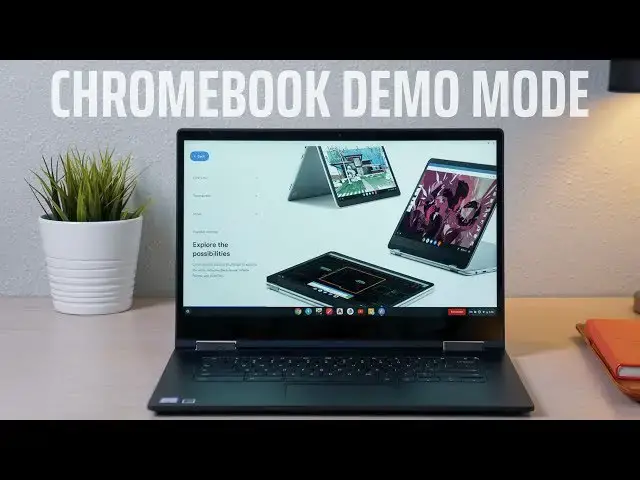
How To Enable Demo Mode On Chromebooks
Jul 2, 2019


Sponsored by Wordpress.com. Build your website on the world's most powerful platform. Get started here: http://chromeunboxed.com/wordpress
Shop Chromebooks: https://fave.co/2OuedYL
・・・・・・・
If you've ever walked down the Chromebook aisle at your local BB or Walmart, you may have noticed that the devices were running in what is called "demo mode." Well, I was curious to find out how to set up Demo Mode and realized that there isn't a lot of info out there about the subject. So, I decided to make a quick how-to.
Check it out!!
Read more: https://chromeunboxed.com/
Join our newsletter: http://bit.ly/2WjCDm7
・・・・・・・
Subscribe to the channel: http://bit.ly/2xFuj6L
Shop Chromebooks: https://fave.co/2OuedYL
The Music We Use - http://bit.ly/31W6PYP
Show More Show Less View Video Transcript
0:00
hey guys Gabriel with chrome unbox
0:01
coming at you today with a quick how-to
0:03
I've always wanted to know how to put a
0:05
Chromebook into demo mode if you don't
0:06
know what that is when you go to Walmart
0:08
BestBuy wherever and you see a
0:09
Chromebook setup it's usually in demo
0:11
mode you can play around with it do a
0:13
few things browse the web but it's
0:15
locked down and I thought maybe somebody
0:17
else wanted to know too so today we're
0:19
going to learn how
0:21
[Music]
0:27
the first this video is brought to you
0:29
by wordpress.com whether you're a
0:32
blogger or a big business WordPress has
0:34
all the tools you'll need to build a
0:35
beautiful responsive SEO rich site to
0:39
learn more head over to chroma and
0:40
voxcom
0:41
forward slash wordpress alright so here
0:44
we go guys like I said this is just
0:46
something I was curious about and who
0:48
knows maybe you own a small electronic
0:49
store or you're an administrator at a
0:51
school or something and you just want to
0:53
have some devices set up running but not
0:55
necessarily logged into a personal or
0:57
managed account anyway it's this very
1:00
simple just a little bit time-consuming
1:02
but before we go in just a little caveat
1:05
this will power wash your device so if
1:06
you have any local data store do you
1:08
need to upload it to the cloud or dump
1:10
it onto a drive because it's gonna be
1:12
gone when we're done so to take it into
1:14
demo mode we're gonna start by power
1:16
washing and you're just gonna go to your
1:19
settings to the bottom advanced all the
1:22
way to the bottom and power wash alright
1:25
so here we are guys freshly power wash
1:27
this is what you get out of the box when
1:29
it's new this device is already up to
1:30
date if you haven't done that before you
1:32
power wash you might want to update your
1:33
device anyways don't hit anything here
1:36
if you hit lets go it's gonna ask you to
1:38
login if you log in then you're gonna
1:40
start this whole process over again so
1:42
from the welcome screen you're gonna
1:44
press ctrl Alt + D enable demo mode are
1:48
you sure yes I'm sure we're making a
1:50
video here so you're gonna select your
1:52
preferences language keyboard country
1:54
click OK then you're gonna connect to
1:56
whatever Wi-Fi you're gonna be using all
1:59
right so now you've connected to your
2:00
network and you're gonna see the normal
2:02
Chrome OS Terms & Conditions accept and
2:04
continue Google Play apps and services
2:06
you can go ahead and hit more here it's
2:08
going to give a demo of the Google Play
2:11
services and apps you're not actually
2:12
gonna be able to install apps on here
2:14
but it gives you that demo so I think
2:16
this one actually is gonna run a nice
2:17
little demo of asphalt 8 you'll get to
2:19
see here in a minute
2:20
so now it's checking for updates and
2:22
you'll see starting demo mode depending
2:24
on your device this could take up to two
2:26
minutes but its usual
2:27
pretty quick and here in just a second
2:29
will be fired up and ready to go so here
2:31
we go that's the demo session login
2:33
screen and it's gonna go right into the
2:35
demo once this comes up you'll be able
2:40
to access Chrome so you can actually
2:42
navigate the web and stuff but there's
2:43
gonna be some stuff running in the
2:44
background that's just kind of how to
2:46
navigate around a Chromebook again I'm
2:49
not sure what your use case could be if
2:50
you if you are small maybe mom and pops
2:52
electronics store and you don't have
2:54
access to some of the resources that
2:55
best buys and Walmart's have or maybe
2:58
you're an administrator at a school
3:00
that's getting ready to roll out
3:02
Chromebooks for the first time and you
3:04
you want to set up some displays for for
3:06
teachers and parents to see what the
3:08
students are going to be working on this
3:10
is a really neat way to do it so you can
3:12
navigate around some things that'll show
3:14
you around your device nice shot as a
3:16
pixel book there but you can go to
3:19
Chrome and they even have some Android
3:22
app demos here so these aren't actually
3:24
full installations they're just little
3:29
apps that you can run demos on and so
3:33
that's it this will just continue to
3:34
roll run in a loop you can't log out of
3:37
it so you don't have to worry about
3:38
somebody else getting on the device and
3:40
logging in and that's it so to reverse
3:44
the process you can't power wash this
3:47
device from the settings menu because
3:49
it's in demo mode so you actually have
3:51
to do a hard power wash so you're going
3:55
to power it down and then press and hold
4:00
the escape and the Refresh key and press
4:04
the power button I'll keep holding those
4:06
keys until the power comes back on
4:07
you're gonna see insert recovery USB
4:09
stick don't where you haven't broken
4:11
anything just press ctrl D it's going to
4:14
ask you to turn the OS verification off
4:16
so go ahead and hit enter there but
4:19
instead of actually transitioning into
4:21
developer mode once it gets to this
4:23
screen just press space to enable and
4:25
enter now it's going to wipe the device
4:28
and it's going to return to stable clean
4:32
wash straight from the factory so it
4:34
wasn't actually in developer mode but it
4:36
says it's returning to verified mode
4:37
because that's the option that we
4:39
selected and then it's going to reboot
4:41
and once it reboots Chrome and a nice
4:44
freshly power-washed ready to login
4:47
device not manage no demo mode or
4:49
anything so there you go
4:51
like I said I'm not sure what you would
4:52
use it for for me I was just curious and
4:54
I wanted to know how and there's not a
4:56
lot of information around the web on how
4:58
to use this anyways I hope this helped
5:00
and maybe you want to take around with
5:02
this yourself
5:03
anyways till next time hey check us out
5:06
on the web chromevox comm click the like
5:09
and the subscribe button below and we'll
5:11
see you next time
5:12
[Music]
#Computers & Electronics
#Software