Up next in 10



Join our Patreon community for access to our private Discord, an ad-free website experience, and more! Start your free trial here ➡️ https://www.patreon.com/chromeunboxed
・・・・・・・
💲Shop Today's Best Chromebook Deals: https://chromeunboxed.com/the-best-chromebook-deals-today-updated/
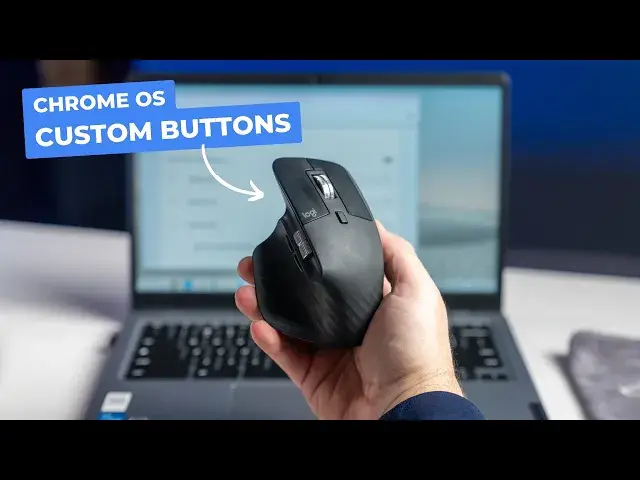
For years at this point, peripherals and accessories have "just worked" on Chromebooks. And while that's not changing anytime soon, Google is close to releasing a new feature that takes this "just works" mentality to the next level, specifically for your 3rd-party mouse. Whether its a gaming mouse, a Bluetooth mouse or one that connects via USB dongle (like a Logitech device), no specialized software is needed to change what all the buttons on your mouse actually do.
📰 Read more: https://chromeunboxed.com/how-to-customize-your-mouse-buttons-on-a-chromebook-video/
📧 Join our newsletter: http://bit.ly/2WjCDm7
・・・・・・・
☕ Fueled by Fresh Roasted Coffee! Buy the special edition Chrome Unboxed bag here: https://chromeunboxed.com/coffee
Subscribe to the channel: http://bit.ly/2xFuj6L
Follow us: https://www.instagram.com/chromeunboxed
Show More Show Less View Video Transcript
0:00
If you have a Chromebook, there's a good chance that somewhere around your house or your office
0:04
you have a mouse like this or something like this. And, you know, with Chromebooks working with just about any peripheral out there
0:12
you can plug it in and make it work and figure out what the buttons do. But there's a new setting coming that's already made its way down to the beta channel of ChromeOS
0:20
N120 right now that allows you to write in ChromeOS with no additional software needed
0:26
to actually customize the buttons on your mouse. and I'd like to show it to you
0:35
So the way this all works is actually dead simple. Let me show it to you real quick
0:39
I'll grab one of the mice that I have here or the track pad. It doesn't really matter
0:43
They're all connected. And I used a couple different mice, mice, mouses
0:47
Mainly because I wanted to show you, you know, it works with, you know, wireless kind of normal mice
0:53
but it also works with, you know, wired. This is a gaming mouse, but, you know, it's pretty standard USB wired mouse
0:58
And when you plug those in, you know, they work. Like out of the box, they've always worked
1:04
But this new setting kind of gives you the ability to really take control of what these peripherals do
1:10
Because, you know, Logitech has some software for Chromebooks, but it's mainly just to get them paired up
1:15
You don't have all the full control to really set what you want the buttons to do. So now Google's kind of going in and just letting ChromeOS do that for you
1:22
So once you open your settings here, we're going to go to device, or connected devices, I'm sorry, to mouse
1:27
You can see already since these two are connected, you see this E-Signal USB gaming mouse
1:32
and you see the Logitech MX Master 3, which is this mouse here. And now that we're in beta, and we have a flag turned on, I'm going to show you that flag here
1:40
In just a second, you can see customize mouse buttons is a thing here
1:45
So before we actually go into messing with those, let me show you the flag real quick
1:50
It's pretty simple to get to. I've got some windows open just so I can show you some things here in a minute
1:54
But if you go to Chrome colon forward slash, forward slash flags, that is what it is for now
2:00
You may be watching this at a time in the next few months where they have split Chrome the browser from Chrome the OS And at that point for something like this you would need to go to OS colon forward slash forward slash flags But for the time being unless you have turned on lacrosse Chrome forward slash forward slash flags works And you can see right here at the top that the
2:20
flag I have turned on. The only one I've got turned on right now is enable peripheral customization
2:25
It does exactly what you would think it does, let you change those buttons. So if you enable that
2:30
just like here, so if I hit enable, you see the restart button come up at the top or at the bottom
2:35
I'm sorry. You click that restart button. Chrome restarts real quick and then you'd be up and running
2:40
Once you are at that point, we'll go back to our settings here. And let me show you first
2:46
We'll do the Logitech. So I'm going to scroll down here and go to customize buttons
2:50
And there's nothing there, right? Nothing to choose from. So it's like, well, what do you do
2:55
Click additional buttons. You literally just click the buttons on the mouse and they'll start showing up
3:00
So I'm going to do, I don't really want to mess with left and right click. Those are pretty primary
3:04
Those are set. you know, I don't use the middle click on my scroll wheel too often, so I'm going to click it
3:08
Boom, shows up. This mouse particularly has two little buttons here and here that I'm going to use
3:16
So I'm going to click both of those. So now they're there. And it does have this button down here at the bottom, but it doesn't seem like that one wants to register
3:25
So I don't know if that's a Logitech, like a firmware thing with Logitech. Maybe they don't have that as a mappable button
3:30
Additionally, like there's a button up here that changes your scroll wheel from a clickie to a smooth
3:35
Like that one's not going to be mappable either because that is firmware based for this mouse
3:40
So now I'm going to go in here and say, okay, middle button. I like the idea of, let's do an overview
3:46
So I'm going to do overview for that one. Button one, I think. So if I click the button again, you can see where it highlights the one I'm clicking
3:52
So I know what I'm doing here. Button one, I'm going to make that dictation
3:59
And then button two, let's do a new magnifier. Why not? Okay, so I'm gonna minimize this
4:06
So now we're gonna go to overview, so I'm gonna click the middle of the mouse button here
4:10
Boom, overview. So if I'm scrolling, scrolling, scrolling, boom, I need to go here, scroll and scrolling
4:15
scroll and overview again that really really really handy And it one of those things like with a normal mouse that irks me a little bit when I using a mouse Because when I using my trackpad I always have access to overview really quickly
4:28
Don't have it on mice anymore. Or didn't used to. Not a problem anymore
4:32
I can just map it to one of my buttons that I don't use that often. And I've got overview settled and fixed up
4:38
Button one, I think, did I set that to dictation? Yes. So let me go into, I'll just click right here
4:46
Is this dictation working? Look there. It works. And dictation on Chromebooks, if you didn't know, has gotten really, really good
4:54
It actually shows you a preview of the text. And when you stop talking, it pops it in there
4:57
It does all your punctuation. Period. I wanted to see if this works
5:04
Exclamation point. Boom. Really cool. Really easy way to just voice to text anywhere you want to on your Chromebook
5:14
And now you can map it right there to your mouse. I'm forgetting. Oh, I did magnifier. So boom, full screen magnifier, yes, I want to do that
5:20
And you can see my magnifier's on, magnifier's off. So if you like magnifying things, whatever
5:26
On this other mouse, I just wanted to show you it's literally the exact same thing. Nothing's different here with the settings
5:32
Again, we're going to go to connected devices. We're going to go to mouse, and then I'm going to scroll down here to the e-signal
5:39
whatever this thing's called. And I've clicked these buttons prior. There's no way to delete them once you've done this, I guess, other than a power wash
5:46
and as you can see if I unhook this mouse, it goes away, obviously
5:51
But I'm going to plug it right back in. It's going to see it. And my customized buttons stay
5:58
So you don't have to worry about like this being a one-time thing. And so let's set, I'm going to show you, since we showed you all the other stuff already
6:04
key combination for this one. So now this makes this kind of limitless. Like there's, what, 15 things in that list that you can choose from there
6:11
But now you can do a key combination. So what's a key combo
6:15
I do all the time. So we'll do the search or everything button and V. So I'm going to hit those
6:23
I going to save that one there So that button one Button two I do control shift R all the time It kind of basically you reloading a web page without without leveraging cache Oops not what I wanted to do I just reloaded that
6:40
There we go. Boom, boom, boom. Save. Okay. Now let's try these
6:45
So first button is multipaste. So I probably need to copy some stuff, right
6:51
So we'll copy that, copy that, copy that, and copy this. and I'm going to go here, multipaste
7:00
Oh, no, that's button one. Sorry, got them backwards. So I set button two
7:04
So anywhere, like, I use multipaste all the time. So I'm like, maybe I'm going to map it to this
7:08
Maybe I'm going to go to buy a mouse with like eight buttons on it. That's what I might be heading to do
7:12
So, yeah, multi-paste works right there. And then let me open up
7:18
Here we go, Chromeboxed. And so we're scrolling. I want to refresh the page with no cache
7:23
Hit my button. Boom. Page refreshes, no cash. And you can see all those images have
7:28
to load back in again. My point is, if there's any keyboard combination, anything that you would do
7:33
with a keyboard combination, it could be the desk switching button, whatever. I mean, there's all
7:37
kinds of things. Like, you can set these forward back buttons to be flying you through desks if you want to. I mean, the possibilities feel almost limitless with this. And so this is a really
7:45
awesome feature. It's a really cool thing for you to be able to do without having to go download
7:49
software. I don't know who makes this mouse. All key makes this mouse. I don't want to go find
7:55
their server and our server to go find their website and find their software and then install their
8:00
drivers i don't have to do any of those things i can plug this thing into my chrome book i can tell
8:04
it what what i want these keys to do and be off and running and that is a really awesome thing that
8:10
hopefully uh hopefully won't be behind a flag in 120 it might still be behind the flag there but
8:14
hopefully it'll just be part of the OS uh in the coming you know one or two versions of chrome OS
8:21
but guys that's it for this one if you like this video give us thumbs up head down there hit that subscribe button and be sure to ring the
8:28
notification icon as well if you'd like to be alerted when we make future videos just like this one until next time we'll see you
#Consumer Electronics
#Software
#Other