Up next in 10



Join our Patreon community for access to our private Discord, an ad-free website experience, and more! Start your free trial here ➡️ https://www.patreon.com/chromeunboxed
・・・・・・・
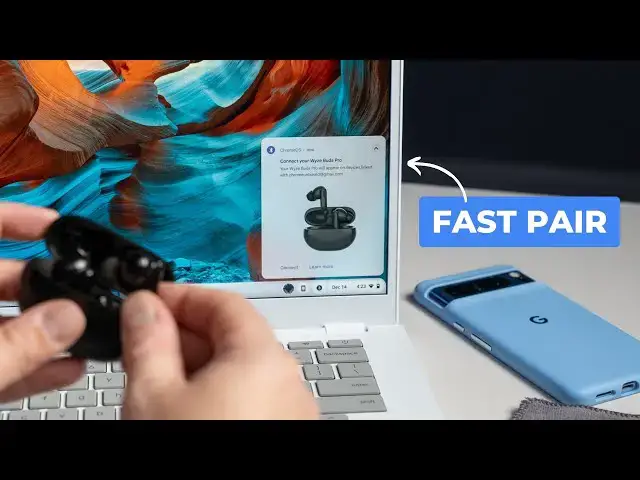
With all the drama and instability surrounding the roll-out of ChromeOS 119, it was bound to happen that we'd miss a few details here and there. I said as much when we covered some of the new stuff in the 119 update, and it turns out I was right. In the midst of new features and fixes, Google snuck in an addition to an existing feature that I've been waiting on for quite some time: account-level connected devices via Fast Pair.
💲Shop Today's Best Chromebook Deals: https://chromeunboxed.com/the-best-chromebook-deals-today-updated/
📰 Read more: https://chromeunboxed.com/chromebook-chromeos-account-based-fast-pair/
📧 Join our newsletter: http://bit.ly/2WjCDm7
・・・・・・・
☕ Fueled by Fresh Roasted Coffee! Buy the special edition Chrome Unboxed bag here: https://chromeunboxed.com/coffee
Subscribe to the channel: http://bit.ly/2xFuj6L
Follow us: https://www.instagram.com/chromeunboxed
Show More Show Less View Video Transcript
0:00
Fast pair has been a thing on Chromebooks for, I don't know, it feels like 18 months or something
0:05
maybe even longer than that now. But it's never quite worked the way that I wanted it to work, which is to say, if I pair
0:11
something like these, the WiseBuds Pro to say, I don't know, like a pixel phone, I expect
0:17
that this device now just is magically paired to my Chromebook because I'm signed into the same account
0:22
And that just never been the case. But sneakily, Google has gone with ChromeOS 119 and made that
0:29
a reality and I want to show it to you. So it's funny, you know, I was looking for Bluetooth pairing for something completely different
0:41
We're doing some stuff with game controllers and G-Force Now and all that kind of stuff
0:46
And so I was going to pair controller. And I went into, it was actually on a Chromebook on Beta 120 and went to my Bluetooth settings
0:55
and I went to actually look at the full settings to see
1:00
I was trying to make sure that my controller wasn't paired to this. I was trying to pair it to the television, whatever
1:05
And I get to my Bluetooth settings here, and I notice this is a little bit different
1:12
There's a section right here, devices save to your account. Now, I saw this in beta, and my first thought was
1:16
oh, this is something they're adding to beta 120. I just didn't know it was coming
1:20
I immediately opened up another Chromebook that's unstable, got it updated and checked
1:25
and this is here in stable. So it's there in ChromeOS 119. Google spent so much time, I feel like
1:32
talking about FASPair being on Chromebooks. To their defense, FastPair's been there
1:38
So like if I open this up, I'm not gonna do it yet. These are not paired with this Chromebook
1:42
I actually just power wash this Chromebook for this video to kind of show this to you but these are not paired with this Chromebook And what you going to see when I open it up is like a toast is going to come on the
1:53
screen and say, hey, do you want to pair these up? And that's kind of been the fast pair thing. And that's
1:58
part of fast pair. Like it means, obviously, you can pair them up quickly. Instead of having to hold this
2:03
and go to my Bluetooth and search for devices and pick the device and do all that kind of stuff, fast pair brings a toast notification in there. I want to click connect and it just kind of gets
2:11
gets to the point pretty quickly. And so that part of FastPair has been
2:15
I'm going to say PassFair, I know it a few times here. But FastPair has been on Chromebooks in that capacity for a little while
2:23
And that's fine. You know, that's a cool thing. I appreciate that
2:27
But the most intriguing part of FastPair to me is being able to be like
2:32
okay, I'm going to pair these with my phone. And then when I log into this Chromebook, which again, I did all this
2:37
I'm hoping it all works. I did all this for this video
2:41
I'm hoping that I should open this up and it knows, hey, that these have been paired to your Google account before
2:48
Now let's just pair them up on here and get them connected, really. It's less of a pairing process
2:53
And so I saw this new section, all that lead up. I saw this new section here
2:57
So I'm going to click in here. Devices paired to your account. I clicked in there. My old pixel watch that I don't have anymore
3:03
I gave it to my son was in here as well, but I took it out
3:07
And these two things popped up. Robbie's Wise Buds Pro and the Pixel Buds Pro
3:13
And so I was like, huh, look at this. Like, I think this is what I've been wanting
3:17
Like, this is exactly what I was expecting. You can click this three-dot menu and you can remove it from your account if you want
3:24
I'm not going to do that because that's kind of counterintuitive to what we're trying to accomplish here
3:28
But those things are there. And so I was like, huh, well, let's just see how this works
3:32
And so I going to just open these up hopefully Boom So there your fast pair Now connect your Wise Buds Pro Obviously these I just showed you
3:42
And it says right there, they will appear on devices linked with Robbie.n.n
3:46
com, which is my standard Gmail account. They're connecting. Again, I've not had to go to technically
3:54
I showed you all the Bluetooth stuff, but I don't have it open. I didn't have to go through any of the Bluetooth prompts
3:59
I flipped these open. It pops up there. I click Connect. Boom, they're connected
4:04
Now I'm gonna make sure, if I don't drop them, I'll make sure they're connected here
4:08
Let me, let me, just open a video. That'd be the quickest way
4:14
Yep, audio's coming through, no problem. And what I wanna check, and I'm doing this live
4:20
I didn't even try this yet. I'm gonna go to my Bluetooth settings on my pixel. I've not paired these with the pixel
4:27
I'm just curious. So I'm gonna close them up again. I'm gonna turn Bluetooth off
4:32
the Chromebook. And let's give this thing a fighting chance here. Turn it off here so it's disconnected
4:38
See what happens if I open them up now in my pixel. Boom. Wise Bud's Pro
4:44
Hopefully I didn't blow the shot out. I'm throwing a curveball at Joe here
4:49
And we are connecting. What I really love is it's the same graphic
4:54
It looks the same as it did on the Chromebook. I love that continuity. That's awesome
4:58
And boom, just like that. Connected. There's nothing really for me to show
5:02
So you can see up there showing my battery percentage. And then here's what I also want to check
5:08
So I'm going to turn Bluetooth back on on my Chromebook. So we're connected on the on the pixel right now
5:16
I'm just going to put one of these bad boys in. And I'm going to connect. I'm just going to click it over here
5:20
I'm just going to see what happens. I don even know what going to happen here Yeah it not going to like that So PixelBuds Pro for instance have multipoint connection so I can just bounce back and forth I don know that these support that
5:32
So I'm going to go in here and let's just disconnect. There we go. Don't want to forget. I'm just
5:39
going to disconnect. And then we'll click Wise Buds Pro over here. Boom. Immediately. WiseBud's Pro
5:45
are connected. My case is about dead. So I was running into a few issues with some pairing, obviously
5:51
charge your case up before you go to bear. But it connected on there
5:55
We'll close it up. And the case, like I said, is about to die
6:00
So perhaps if I pull them out of the case, it jumped on there
6:05
So we're going to disconnect here. And we're going to click back over here again just to try this
6:10
Boom. Immediately connected. And that's the beauty of fast pair. I should be able to, now if I get multi-point working
6:17
like with the PixelBuds Pro or something, it's much cooler to be able to just jump back and forth
6:21
without having to do that. But for devices that don't support that and still support FastPair
6:25
you can click, you can just basically disconnect from this one, and then click Connect and be on a different device over here
6:33
But really what I wanted to show you is the fact that these devices now
6:36
fast pair devices, are linked at an account level. So you can go into your Chromebook
6:41
and you can go into that Bluetooth setting and you can see that it's connected and the minute you open it up near that Chromebook
6:47
you're just going to be able to click connect and boom, be up and running with your FastPair Blue
6:51
Bluetooth wireless device. My guys, and that's it for this one. Hope you enjoyed this video. If you did, give us a thumbs up, head down there, hit that subscribe button
6:57
and be sure to ring the notification icon as well. If you'd like to be alerted when we make future videos just like this one
7:02
Until next time, we'll see you
#Consumer Electronics
#Consumer Electronics
#Mobile & Wireless