Up next in 10



Sponsored by NordVPN. Buy a 3-year deal at 70% off, get an extra plan on top! Click here: https://chromeunboxed.com/nordvpn
・・・・・・・
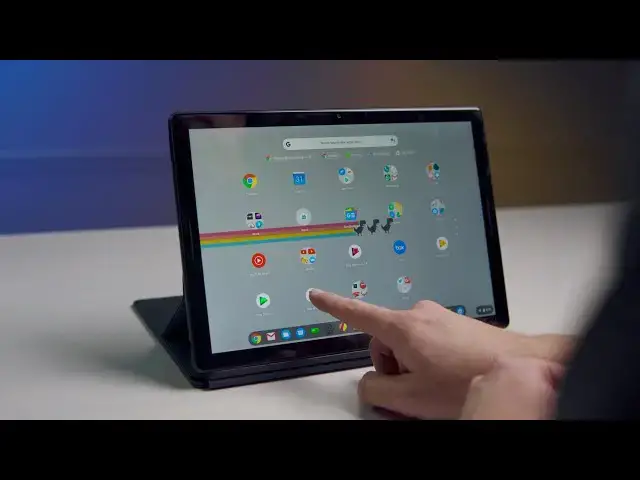
This last week has been crazy for a variety of reasons, but one of the contributing factors for us here at Chrome Unboxed was the slew of new stuff that we stumbled across in Chrome OS 82. Hopping over to the Developer Channel is a normal thing for us around the office, and this particular trip was more fruitful than most.
Chrome OS 82 is a release packed with all sorts of new user amenities and UI elements that put Chrome OS more on par with existing devices and operating systems. With these new features in place, new users will feel much more at home cracking open their new Chromebook for the first time. Due for release in the first week of May, this coincides directly with the release schedule of Lenovo's new tablet, and I'm excited to show you all the stuff we're expecting in Chrome OS 82.
Read more: https://chromeunboxed.com/chrome-os-82-new-features-tablets/
Join our newsletter: http://bit.ly/2WjCDm7
・・・・・・・
Shop Best Chromebooks of 2019: https://chrmshop.com/
Subscribe to the channel: http://bit.ly/2xFuj6L
The Music We Use - PERFECT for YouTube: http://bit.ly/31W6PYP
Show More Show Less View Video Transcript
0:00
it's been quite some time since we made
0:01
a video like this one where we talk
0:03
about upcoming features that are all
0:04
coming in what looks to be one update
0:06
specifically it was all the way back to
0:08
Chrome OS 70 and that particular version
0:11
of the OS was being prepped for this
0:14
device the pixel slate and while that
0:17
they didn't really come off that well
0:19
and it was kind of rocky and there were
0:21
all kinds of software problems it felt
0:22
rushed and like they put everything
0:24
together real quick right at the end
0:25
right before this device came out but
0:27
the stuff we're going to show you today
0:28
is a bunch of stuff that's actually been
0:30
in the works for quite a few months now
0:33
and still won't be coming out till early
0:35
May so we want to go through and show
0:37
you both on tablet and in desktop mode
0:39
how Chrome OS is looking to change with
0:42
version 82 come early May today's video
0:52
is brought to you by Nord VPN and there
0:54
the VPN of choice for millions of
0:55
consumers because they're awesome at
0:57
what they do that is keeping your
0:58
browsing safe and secure whether you're
1:00
at home or out and about at a coffee
1:02
shop if you'd like to learn more about
1:03
them and their service head over to
1:05
Chrome inbox comm forward slash Nord VPN
1:07
and you can learn more and get started
1:09
today before we get started though I do
1:11
want to preface all of this by saying
1:14
not everything we talk about today is
1:16
ironclad gonna show up in 82 it probably
1:19
will and it all is tracking that way
1:20
that we would see it happen in early May
1:22
but some things get pushed back and
1:24
things don't work out from time to time
1:26
it's also to say that just because we're
1:28
only going to talk about a handful of
1:29
things and these things that we know are
1:31
happening and we can see them and play
1:32
with them and show you them it doesn't
1:34
mean that these are the only things that
1:35
are gonna be happening with Chrome OS 82
1:37
it just means these are the ones that we
1:38
can get our hands on that we have found
1:40
so far so there's likely going to be
1:41
more features that'll be rolling out so
1:43
enough of that let's dig in and show you
1:46
some of the new stuff okay so full
1:48
disclosure we're going to start with the
1:50
out of box experience and we wanted to
1:52
do this with the slate because there are
1:55
quite a few changes with the tablet
1:57
version of the OtterBox experience
1:58
starting with this whole thing here
2:00
introducing a new way to navigate with
2:02
gestures there's nothing here that works
2:03
or does anything hopefully get started
2:06
what it's going to do something but
2:08
again I've not gone through the entire
2:09
thing with the tablet mode we did all of
2:11
this with
2:12
pixal but go so let's see what happens
2:15
okay yeah it's gonna show some gestures
2:16
which is cool so flick up is it gonna
2:19
have me do it no say like the pixel
2:22
phones for instance make you actually do
2:25
this stuff in order to kind of graduate
2:27
to the next thing so yeah swipe up and
2:30
hold so this is already getting into
2:32
some of the stuff that we're going to
2:33
talk about with multitasking in the way
2:35
that stuff has changed in tablet mode
2:36
and then go back it's gonna be dragged
2:38
in from the left cool yeah that's a fun
2:42
little thing so pass that initial set up
2:44
with the gestures and that kind of walk
2:46
through you're met with the basic how to
2:48
get the most out of your Chromebook and
2:49
this this stuff hasn't changed a whole
2:51
lot however we have seen on a handful of
2:53
devices like the pixel book go there's a
2:55
whole new reworking of this out of box
2:57
experience you can read about it over on
2:59
the website I'm sure they will navigate
3:00
that over to here but on the pixel book
3:03
go obviously you didn't get the tablet
3:05
feature walkthrough so I'm sure they're
3:06
in the process of merging those two
3:08
things together it's basically this
3:10
information but it's presented in kind
3:12
of a card format where you can actually
3:13
click those cards and kind of go through
3:16
the task and say yeah I've done it it's
3:17
not done yet it is definitely not
3:19
finished but it looks like it's on its
3:21
way to Chrome OS 82 but while we're
3:24
talking about those multitasking
3:25
features if I swipe up and hold boom
3:28
I've got multitasking going from here I
3:31
can drag we can resize well if the app
3:36
supports it yep so that one does and
3:38
then we can swipe up to go back to
3:41
multitasking swipe up to go home while
3:44
you're in a particular app a small swipe
3:46
up kind of gives you your tray here and
3:48
again swipe up hole goes to multitasking
3:51
and we can jump in and out of different
3:53
apps that way and go back home so
3:55
they've completely overhauled this and
3:57
you'll also notice that when we have the
3:59
window fully open the back button the
4:02
home button are gone so they expect you
4:04
if you go so say we go here and you want
4:06
to go back there's no back button
4:08
anymore I mean it's still there in the
4:09
browser but inside of an app or anything
4:11
like that
4:11
expecting you to use this kind of swipe
4:13
in gesture to go back and they're
4:16
expecting you to use these swipe up
4:17
gestures to multitask while you're in
4:20
tablet mode and we've talked about those
4:21
in a video before will link that
4:23
description below where we go a little
4:24
bit more into
4:25
into some of these things but just know
4:27
that the overall tablet navigation UI is
4:30
completely changed for Chrome OS a/b to
4:33
another change that's on the way in a v2
4:36
is the way that tabs are handled in
4:38
Google Chrome so your actual browser as
4:41
you can tell there's no tab strip up
4:43
here that we normally would have on the
4:44
desktop and it's nice because it makes
4:46
the tablet feel a little more spacious
4:48
and right up to the top the cool thing
4:50
is whenever you go to your tap switcher
4:52
it's all going to be up here now so if
4:53
you open up say let's see if we can open
4:57
this in a new tab then we'll see that
5:00
over here and click there you can just
5:03
pull this down now which is really nice
5:05
that's just a really cool feeling thing
5:06
swipe that down and jump over to that
5:09
next tab you can long press these guys
5:11
and rearrange them and you can swipe
5:13
them up to get rid of them and close
5:15
them down so very cool new thing going
5:17
on with tab strips and then additionally
5:19
out of the box we've talked about this
5:21
before but it is just shown up in 82 so
5:24
we're assuming it's gonna make its way
5:25
around an 81 or 82 as well is this new
5:28
extensions manager so the extension menu
5:31
that you see up here this little puzzle
5:32
piece it's been around and different
5:35
flags and all that kind of stuff for a
5:36
while but what it does basically is it
5:38
hides all your extensions kind of in one
5:40
place so that it doesn't take up all
5:42
this real estate up here but if you want
5:44
some of those up there for OneTouch
5:45
access you just click the little pin and
5:48
boom they just show up up there unclick
5:50
the pin and then they're gone and you
5:52
actually can get your basic stuff that
5:54
you would normally would get by
5:55
right-clicking it by hitting that three
5:56
dot menu if you want to remove it or you
5:59
want to pin in or you want to manage
6:00
that extension the normal stuff you
6:02
would get from a right-click is right
6:03
there in the three dot menu so you've
6:05
kind of got this nice little quick way
6:07
that you can deal with your extensions
6:08
right up there in chrome and again we've
6:10
seen this before
6:11
but it looks like it's going to show up
6:12
out of the box in Chrome OS 82 another
6:16
app that's getting a huge overhaul here
6:18
is the file size so when we go into the
6:19
files app now if you recall the files
6:22
I've had a huge blue bar at the top and
6:24
then a lighter blue bar and meet that
6:26
gray background over here and we've seen
6:28
that completely now replaced with just
6:30
this whitewashed a very modern material
6:35
design 2.0 kind of looks
6:37
icons are all changed out all of the
6:40
highlights are all kind of pill shaped
6:43
again everything is just whitewashed
6:45
and there's no different functionality
6:47
here so everything's in the same place
6:49
we can sort over here we can choose
6:51
thumbnail or list view as well you know
6:53
you've got these nice pill-shaped
6:54
highlights on each piece but overall
6:57
this thing isn't doing anything
6:58
different there's no different
6:59
functionality here it's just we're
7:01
getting a full overhaul of the files app
7:04
it looks great it feels like it fits in
7:06
you know if I go to my settings like
7:09
this looks like it goes together now so
7:11
the settings look very much like that's
7:14
actually you know what let's use some
7:15
multitasking here the settings in the
7:17
files app actually kind of look like
7:19
they belong together now I mean the
7:20
icons line up the fonts line up the
7:22
colors of the fonts line up the the
7:24
whiteness of everything on the screen
7:26
lines up with Google's current way of
7:28
building and making things and so it's a
7:31
welcome addition it's a it's a welcome
7:33
change because when it comes to
7:35
operating systems you're really talking
7:37
about your notifications and your
7:39
settings and this this settings your
7:41
files and that's really about it when it
7:44
comes down to it as far as the parts of
7:46
the OS that all need to kind of feel
7:47
cohesive and so the files app has long
7:50
needed an overhaul looks like it's going
7:52
to get it in 82
7:53
finally and briefly we want to talk
7:56
about one small change that I feel like
7:58
makes a big difference especially for
8:00
new users and it's the way that the
8:02
uninstalled dialog works whenever you go
8:04
to take a nap off of your Chromebook and
8:06
this is important because Chromebooks
8:07
can install apps from all kinds of
8:09
places so we have Android apps we have
8:11
pwace we have web apps you have Linux
8:13
apps and because of this we get a
8:14
different dialogue whenever we go to
8:16
uninstall an app so if you uninstall a
8:18
web app it's gonna ask you if you want
8:20
to remove this from Chrome for people
8:22
who have been around Chrome OS for a
8:23
long time we realize that's taking it
8:25
off of the device but for new users
8:27
they're looking for uninstall language
8:30
and maybe seeing that's going to be
8:31
confusing so what Google's done is just
8:33
made this uninstall across the board so
8:35
whether I choose an Android app and long
8:38
press it uninstall or I do a web app
8:40
uninstall and the language is the same
8:43
uninstall Google News and here if I
8:47
click uninstall uninstall play books
8:50
you get the same message the same kind
8:51
of holistic thing that's the same way of
8:54
going about deleting apps and again it's
8:56
about taking these steps to make the
8:58
experience better for new users so that
9:00
the entire thing even though we're
9:02
pulling apps and stuff from all these
9:03
different places the entire thing feels
9:05
more cohesive and more straightforward
9:07
and one last thing before you go if you
9:09
haven't already make sure and either
9:11
you're head over to the website or go
9:13
down to click the link in the
9:14
description and enter are on the run to
9:16
100k giveaway we are still going to be
9:19
giving away a pixel for at ninety five
9:20
thousand subscribers and an ACS
9:23
Chromebook flipsie for thirty four at
9:25
100,000 subscribers if you've already
9:27
entered this you are still eligible to
9:29
win those prizes but we can't give them
9:31
away until we hit ninety five and a
9:32
hundred thousand subscribers
9:34
respectively so make sure you're sharing
9:35
this stuff out share with your friends
9:37
share with your family share it on
9:38
social media so that we can hit those
9:40
goals and give those prizes away but
9:42
that's been it for this one guys if you
9:44
liked it go down and hit the subscribe
9:45
button make sure and hit the like button
9:47
and hit the notification bell as well if
9:49
you'd like to be alerted when we make
9:50
future videos just like this one till
9:52
next time we'll see you
9:54
[Music]
#Consumer Electronics
#Operating Systems
#Technology News