


Support our independent tech coverage. Chrome Unboxed is written by real people, for real people—not search algorithms. Join Chrome Unboxed Plus for just $2 a month to get an ad-free experience, access to our private Discord, and more. Learn more about membership here.
START FREE TRIAL (MONTHLY)START FREE TRIAL (ANNUAL)
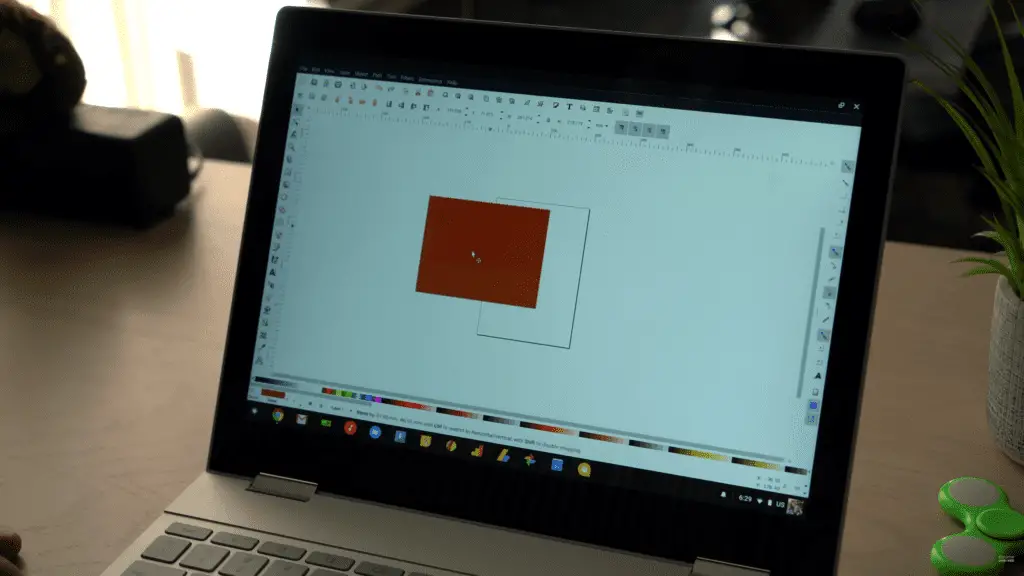 We’ve been talking about Chromebooks, Linux, containers, and running all of them together for quite some time. The dream? A simple, user-facing solution for running native Linux apps in Chrome OS. After all, Chrome OS is basically just a customized distro of Linux, so all of this isn’t that much of a stretch. For some of the gaps still present with Chrome OS, this solution could be a fantastic workaround to help more people make the transition to full time work with Chromebooks.
Today, what we want to show is a real, working example of where we are in this whole process. It isn’t finished and it isn’t exactly usable right now, but the apps you can install function fully and look pretty good.
With that said, let’s talk about the caveats. First, there is no file management. When you save a file, you save it to the container you are running the app in. While in that container, you can’t share it or use it anywhere else. Obviously, this will need to be changed before any of this is actually usable.
As it stands right now, if I work on a graphic file in Inkscape, once I save it, I can’t actually do anything with it. Even though it would be saved for the next time I open up Inkscape, a graphic file that can’t be saved anywhere else isn’t of much use.
Second, it doesn’t seem the GPU is engaged yet. I ran a relatively simple game called Open Arena that should run just fine and it struggled greatly. Framerates, at best, topped out at 5 FPS. While it was unplayable, it was cool to see it actually work.
Those things aside, as long as you install the needed dependencies for each app, it seems you can install most anything that you can get up and running in a standard Linux terminal.
So, without further ado, let’s talk about how to actually do this if you have a Pixelbook.
How To Do It
Thanks to a post over at the Crostini subreddit, there’s a link out to a GIT containing the easy instructions on getting all this up and running. Let’s look at that real quick.
- Move your Chromebook to the Developer channel. (Dev mode is fine, but not necessary)
- Launch a CROSH session (CTRL + ALT + T)
- Create a Crostini VM (enter:
vmc start devand a new shell will open after a few seconds) - Launch a container (enter:
run_container.sh --container_name=stretch --user= --shelland replace with whatever you like, leaving out the <> before and after.)
Once you’ve done that, you’ll have a container ready for whatever you would like to try running. For Inkscape, there were some dependencies that were needed after I attempted apt-get install Inkscape, so I searched around for what dependencies I needed to get install and, after doing so, I was able to get Inkscape up and running. There’s really no way for me to lay out all those possibilities here, so you’ll have to roll up your sleeves and do some Googling if you want to install something that is missing dependencies.
It should go without saying that if you don’t know what you are doing in a Linux terminal, this isn’t the place to learn that. I have a limited knowledge myself and won’t have a ton of info for you if you have questions. That being said, I’m happy to help as much as possible, but if you know nothing about getting around in a terminal, you should check out the Crouton tutorial and digest all the commands there as they mostly work here as well.
It isn’t yet clear exactly how Google is going to package this whole thing, but it all seems to be coming to a head just weeks ahead of I/O 2018, so we’re really hoping to get some answers there. My hope is Google chooses to package individual Linux apps into extensions for everyday users to install straight from the Web Store. That would give general users access to things they wouldn’t normally be able to use while leaving the terminal open to developers to leverage as they saw fit.
Hopefully we’ll know more about all of this soon, but for now, we’re just seeing the pieces come together for the Pixelbook that we correctly predicted before the Pixelbook even began shipping.
SOURCE: Reddit

