


Support our independent tech coverage. Chrome Unboxed is written by real people, for real people—not search algorithms. Join Chrome Unboxed Plus for just $2 a month to get an ad-free experience, access to our private Discord, and more. Learn more about membership here.
START FREE TRIAL (MONTHLY)START FREE TRIAL (ANNUAL)
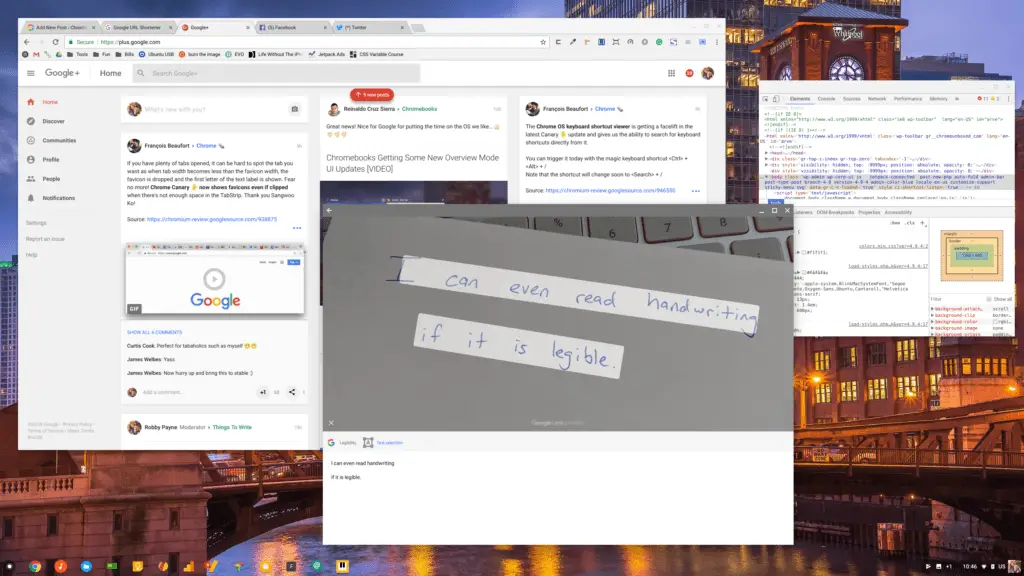 Google has, in various ways through the years, attempted to allow users to pull text from images. Be it Google Drive, Google Docs, Translate or some other service, there have been some pretty solid tries to convert images to text by Google.
To this point, none of them have been viable, useful tools for actually doing this on a regular basis. Why would you want this, anyway?
For me, it comes down to clients. Many people don’t consider the action of making printed words into digital words much of a big deal. I’ve had clients hand me brochures and/or printed materials to use for their website build. Though loaded with great content, many times that handoff means hours of transcription for me. I don’t mind typing. I really don’t. But transcribing stuff that was clearly typed in a digital format at one point feels like drudgery.
Luckily, there is now a standard, highly-visible way to take text off of a printed piece of media, and it resides right in Google Photos.
We wrote earlier today about Google Photos bringing the power of Google Lens to Chromebooks. With this simple tool, you can now snag text right from just about anything. As long as you have a photo of it, you can select the text in the photo and Google Lens will then give you a text field that can be copied and pasted wherever you like.
It can even snag handwritten text if it is neat enough!
Think about this: you could take a pic of a business card and easily copy all the text from the photo, grab a quick pic of your handwritten notes, or simply copy/paste a few paragraphs from some promotional material for a blog post. The ability of this app will only continue to grow, so the possibilities will grow right alongside it.
For me, the ability to snag some text from a printed piece is clearly the win here. As I said earlier in the article, this happens more often than I care to admit, so knowing I have a simple, effective workaround is a breath of fresh air.
How To Do It
Getting this working is insanely simple. Open your Google Photos app which will have all your latest photos in it. Click the photo you want to snag text from and then click the Google Lens icon at the bottom. After the app does its magic, you’ll have some options. Right beneath the photo, there will be different searches and related materials. All the way to the right will be a text selection option. Hit that button.
You’ll now have a text box below that will show what Lens was able to understand. Click in that box and choose what parts you’d like to copy and then past that text wherever you’d like to edit or share it.
It is that easy.
If this is half as helpful for you as it is for me, I’ll have done my civic duty for the day. I hope you all find interesting uses and beneficial ways for this feature to help you out in the future!

