

Support our independent tech coverage. Chrome Unboxed is written by real people, for real people—not search algorithms. Join Chrome Unboxed Plus for just $2 a month to get an ad-free experience, access to our private Discord, and more. Learn more about membership here.
START FREE TRIAL (MONTHLY)START FREE TRIAL (ANNUAL)
A feature we’ve been expecting for quite some time has arrived in the latest December Pixel Feature Drop. Along with the revved-up GPU that makes the Tensor SoC a bit better at gaming, this new feature set brought the long-awaited phone-as-webcam feature to Pixel phones as well. And even though we’ve all known this was on the way (thanks to Android Beta), it’s awesome to see it land on Pixel phones in the latest stable build of Android.
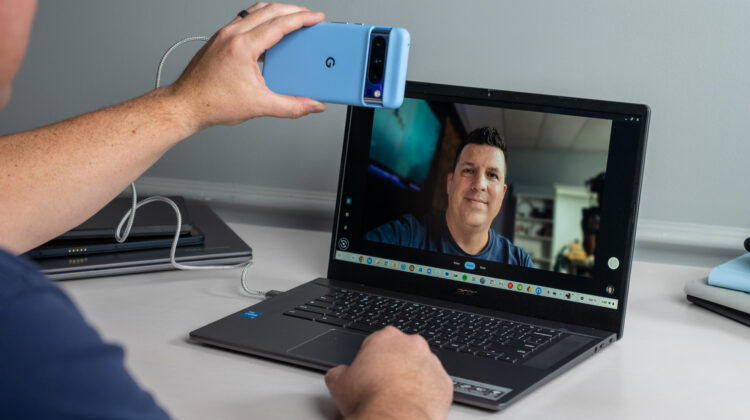
Once I had it up and running, I had my Pixel 8 Pro plugged into the Acer Chromebook Plus 515 via USB cable and had the Pixel 8 Pro as an option when switching through cameras in the ChromeOS camera app. Apart from needing some sort of stand or holder for the phone, this setup was as simple as can be, and even though Chromebook Plus has made strides with video calls on Chromebooks, I can see using this method down the road when I’m in a challenging lighting situation.
Chromebook Plus features with the Pixel Camera
Additionally, I’m still able to leverage all the on-device magic Chromebook Plus is so good at when connected to the Pixel’s camera. I can add in a bit of background blur and correct the lighting for a really nice look, even though things are still capped at 1080p in the ChromeOS webcam. Take a look at the resulting image.

How to make your Pixel your Chromebook’s webcam
To get this up and running for yourself, make sure you are on the latest version of Android for your Pixel. The update screen should show that you are on the December build, and after you’ve arrived at that point, you then need to find a USB cable. If you have a USB 3.0, that would be preferable, but I’m unsure what the requirements actually are at this point.
Once you plug you Pixel into your Chromebook, a notification will show up on the phone that lets you choose what you want to do with your new connection. Click that notification and on the next screen, you should see an option to utilize your connection as a webcam. Select this option and you will then see a notification telling you that your phone is now being used as a webcam.

Clicking this new notification will allow you to do a bit of configuration on your phone to choose what signal you’d like sent to the Chromebook. From this screen, you can choose your focal length and whether you’d rather use the front or back cameras. Once you’ve done that, simply open your Chromebook’s camera app and change the input with the button in the bottom corner.

That’s it! Again, you’ll want a stand or something if you are planning on using this long-term, but the real news here is that using your phone as a webcam in more challenging lighting situations is here and working quite well. And the absence of any pairing or wireless setup means that if you have a USB cable and know these few steps, you can take advantage of this the next time you need it with general ease.
SUBSCRIBE TO UPSTREAM
Get Chrome Unboxed delivered straight to your inbox
Upstream is our flagship, curated newsletter with the top stories, most click-worthy deals, giveaways, and trending articles from Chrome Unboxed sent directly to your inbox a few times a week. Join 31,000+ subscribers.

