


Support our independent tech coverage. Chrome Unboxed is written by real people, for real people—not search algorithms. Join Chrome Unboxed Plus for just $2 a month to get an ad-free experience, access to our private Discord, and more. Learn more about membership here.
START FREE TRIAL (MONTHLY)START FREE TRIAL (ANNUAL)
When I first started using Chromebooks after years of working on macOS, there was one part of my workflow that was missing: the ability to log into multiple Chrome browsers with separate Google accounts. On macOS, this allowed me to keep things like bookmarks, saved passwords, payment methods, and extensions separate and distinct for my work and personal accounts. But I have found a workaround that I’ve been using for some time now that allows me to easily switch between signed-in users with a simple keyboard shortcut on my Chromebook.
One quick note before we get into the setup. This workflow is not the same as simply adding an account to your existing user in the My Accounts section of the Chrome OS settings menu, which just allows you to use those added accounts with websites and Android apps. Adding an additional account with this method will indeed allow you to do things like have separate Gmail inboxes open in two windows, but other settings like bookmarks and saved passwords are all still tied to your main, primary account. Switching between signed-in users creates a siloed experience that is more similar to logging out and then logging back into your Chromebook with another user account.
With that clarification out of the way, the first step is to sign in both users on your Chromebook that you want to simultaneously access. Click your settings menu in the bottom right of your screen and then click on your account avatar. This will show you the users that are currently signed into the Chromebook and if you haven’t added new users yet, you will see only your main user listed. To add the new user, select Sign in another user… and sign into the secondary account. At this point, each user is running simultaneously on the Chromebook.
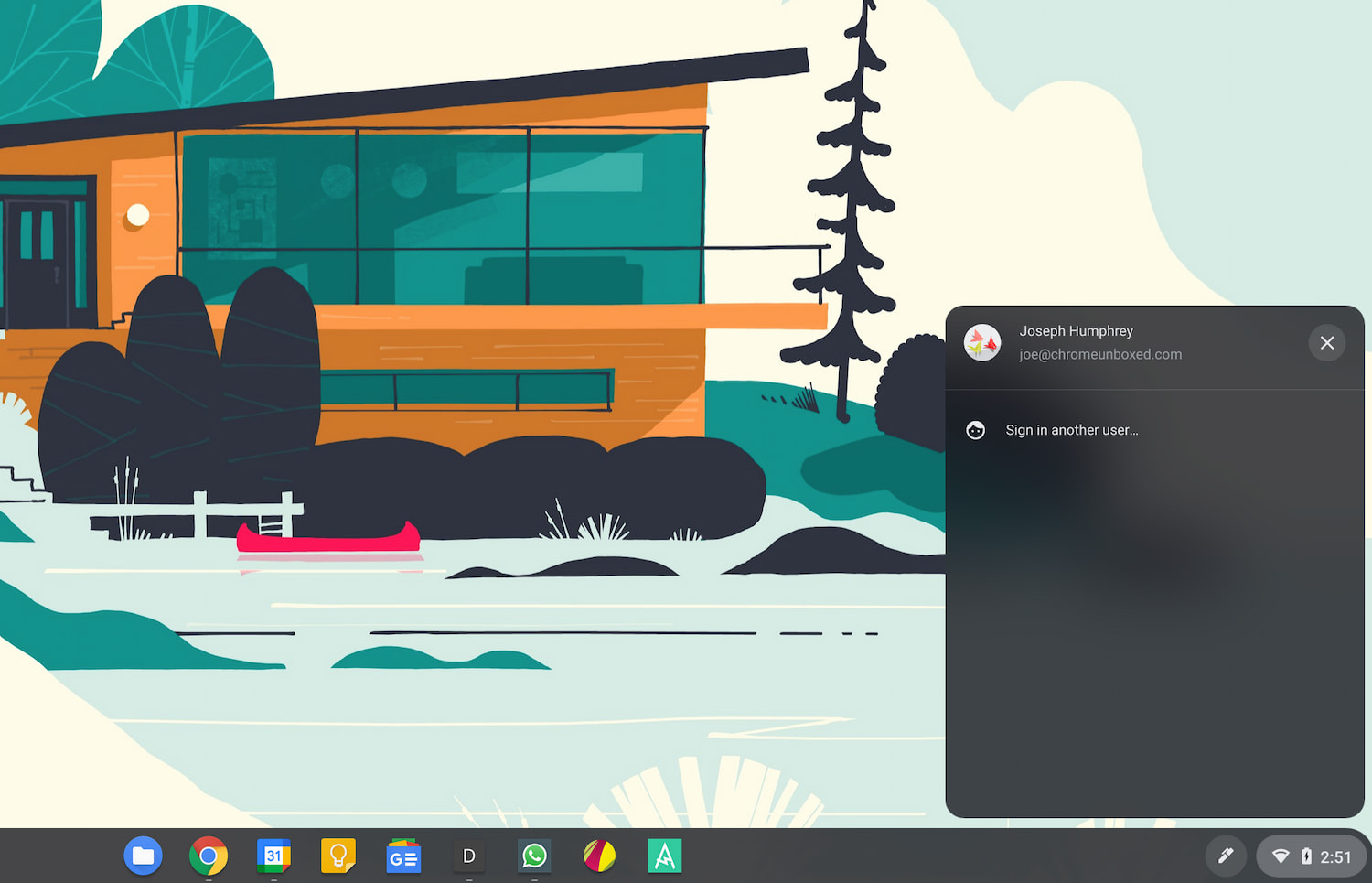
Keep in mind that each user operates independently from the other on the Chromebook, so you can’t share documents or downloads natively between the users. It is possible to create a shared “Downloads” folder between both accounts and then set that folder as the download location in your settings. Robby has a tutorial on this process that you can check out here.
Once you’ve all of that set up, use Alt + Ctrl + > or Alt + Ctrl + < to quickly switch between accounts. Alternatively, you can click your account avatar in the settings menu and then click the other account to switch over. And just like that, you can now seamlessly switch between users without having to logout.
I know this solution is not exactly the same as what I had grown accustomed to on macOS or what you’d find on Windows with Chrome, but I have found it to be sufficient and has made the transition to Chrome OS a little easier for me personally. So the next time you want to quickly jump over to another account, I hope this workflow and the keyboard shortcut will come in handy for you.
SUBSCRIBE TO UPSTREAM
Get Chrome Unboxed delivered straight to your inbox
Upstream is our flagship, curated newsletter with the top stories, most click-worthy deals, giveaways, and trending articles from Chrome Unboxed sent directly to your inbox a few times a week. Join 31,000+ subscribers.

