
• Skip to main content
  • Skip to primary sidebar
  • Deals
  • Features
  • Guides
  • Chromebooks
  • Videos
  • Podcast
  • More +
    • Reviews
    • Unboxing
    • Upcoming Devices
    • Chromebook Plus
    • Chrome
    • ChromeOS
    • Chrome OS Flex
  • Search
  • Sign Up
  • Log In
Chrome Unboxed – The Latest Chrome OS News

Chrome Unboxed - The Latest Chrome OS News

A Space for All Things Chrome, Google, and More!

  • Deals
  • Features
  • Guides
  • Chromebooks
  • Videos
  • Podcast
  • More +
    • Reviews
    • Unboxing
    • Upcoming Devices
    • Chromebook Plus
    • Chrome
    • ChromeOS
    • Chrome OS Flex
  • Search
  • Sign Up
  • Log In

How to set the default payment card on your Pixel Watch

February 9, 2023 By Robby Payne View Comments

Support our independent tech coverage. Chrome Unboxed is written by real people, for real people—not search algorithms. Join Chrome Unboxed Plus for just $2 a month to get an ad-free experience, access to our private Discord, and more. Learn more about membership here.
START FREE TRIAL (MONTHLY)START FREE TRIAL (ANNUAL)

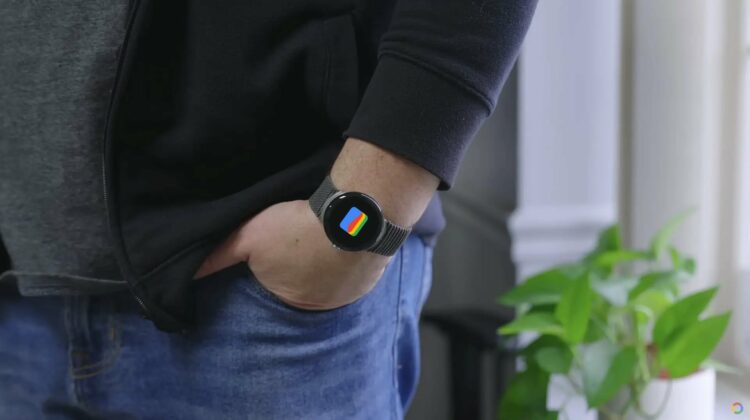
Just the other day, I was in a situation where the simplest way to pay for my meal was with my Pixel Watch. I don’t often use my watch to pay, so I was already a bit self-concious when I was prepping to approach the payment terminal. Once I was ready, I double-clicked the digital crown and was set to pay when I realized my company card was showing. I quickly swiped through the options available, made it to my personal bank debit card and completed the payment.

Afterwards, I quickly realized that if I want to use this payment method most often, it would make a lot of sense to take the time to set it as a default. It was at that precise moment that I realized I wasn’t exactly sure how to go about doing that. So, I fiddled around a bit with my watch, figured it out, and thought it would be something worth sharing with our readers as well.

Xremove ads

Set your Pixel Watch default payment via the Watch app

The first option is to go to your phone and use the Watch app to set your default payment method. Simply open the app, head to Google > Google Wallet > Your preferred card. Once you’ve selected the card you’d like to set up as your default (this assumes you’ve already added at least one card via Google Wallet prior to this step), click on the make default for contactless and off you go. The next time you go to pay on your Pixel Watch, the card you just selected will come up first and automatically.

Set your Pixel Watch default payment on the watch itself

The second (and simplest) option is to set the default on your watch. In the moment from my story above, I didn’t readily understand this to be an option and it wasn’t exactly clear how to do it. Turns out, this is quite simple and only requires a few steps.

Featured Videos

Xremove ads

Simply double click the digital crown, scroll to the card you’d like as your default, touch that card on the screen, scroll down, and select Make default from the options. You’ll see a small toast notification pop up and after this, the button will change from Make default to Default card and will have a blue background.

It’s that simple! Either of these methods will get you to where you need to be and will make your watch payments far simpler moving forward. I now have my bank card set up as primary and can simply double-click my digital crown, touch my watch to the payment terminal, and be on my way. Sometimes it’s the little things, but having this set up and ready makes me feel far less anxious about the slightly-awkward maneuver needed to get your watch on the terminal.

SUBSCRIBE TO UPSTREAM

Get Chrome Unboxed delivered straight to your inbox

Upstream is our flagship, curated newsletter with the top stories, most click-worthy deals, giveaways, and trending articles from Chrome Unboxed sent directly to your inbox a few times a week. Join 31,000+ subscribers.

Xremove ads
SUBSCRIBE HERE!

Filed Under: Guides and How-To's

About Robby Payne

As the founder of Chrome Unboxed, Robby has been reviewing Chromebooks for over a decade. His passion for ChromeOS and the devices it runs on drives his relentless pursuit to find the best Chromebooks, best services, and best tips for those looking to adopt ChromeOS and those who've already made the switch.

Primary Sidebar

Xremove ads

Deals

Massive Deal Alert: The Acer Chromebook Plus Spin 714 just hit an all-time low $499

By Robby Payne
April 1, 2026

The best Chromebook deals today

By Robby Payne
March 30, 2026

The Acer Chromebook Plus Spin 714 hits a new all-time low at $270 off

By Robby Payne
March 25, 2026

You can score $40 off Google’s battery-powered Nest Doorbell right now

By Joseph Humphrey
March 20, 2026

The touchscreen Lenovo Chromebook Slim 3 is a steal at under $200

By Robby Payne
March 16, 2026

More Deals

Xremove ads

Reviews

Acer Chromebook Plus Spin 514 Review: Kompanio Ultra power in a convertible

By Robby Payne
December 24, 2025

My review after 6 weeks with the Lenovo Chromebook Plus 14 [VIDEO]

By Robby Payne
August 11, 2025

One week with the best small Android tablet you can buy, and I’m sold

By Robby Payne
May 9, 2025

Best Chromebooks of 2024 [VIDEO]

By Robby Payne
November 28, 2024

Samsung Galaxy Chromebook Plus Review: Samsung is back! [VIDEO]

By Robby Payne
October 28, 2024

More Reviews

Xremove ads

Guides

This Chromebook trackpad shortcut is definitely not new, but is blowing my mind

By Robby Payne
March 11, 2024

How to reduce broadcast delay on YouTube TV to stop live spoilers

By Robby Payne
December 8, 2023

Windows PC keyboard and Chromebook

How to use a Windows keyboard with a Chromebook

By Joseph Humphrey
December 8, 2023

How reset and revert your Chromebook to the previous version of Chrome OS

By Robby Payne
November 29, 2023

My Chromebook Plus features disappeared: here’s how I fixed it

By Robby Payne
November 24, 2023

More Guides

TWITTER · FACEBOOK · INSTAGRAM · YOUTUBE · EMAIL · ABOUT

Copyright © 2026 · Chrome Unboxed · Chrome is a registered trademark of Google Inc.
We are participants in various affiliate advertising programs designed to provide a means for us to earn fees by linking to affiliated sites.

PRIVACY POLICY