

Support our independent tech coverage. Chrome Unboxed is written by real people, for real people—not search algorithms. Join Chrome Unboxed Plus for just $2 a month to get an ad-free experience, access to our private Discord, and more. Learn more about membership here.
START FREE TRIAL (MONTHLY)START FREE TRIAL (ANNUAL)
In preparation for a post I’m working on, I really needed a device that meets a few, specific parameters. First, I needed it to at least be a convertible, and second, I needed it to have the new 12th-gen Intel Core i3-N305. Unfortunately, I don’t think that Chromebook exists just yet, and even if it does, I don’t have one around.
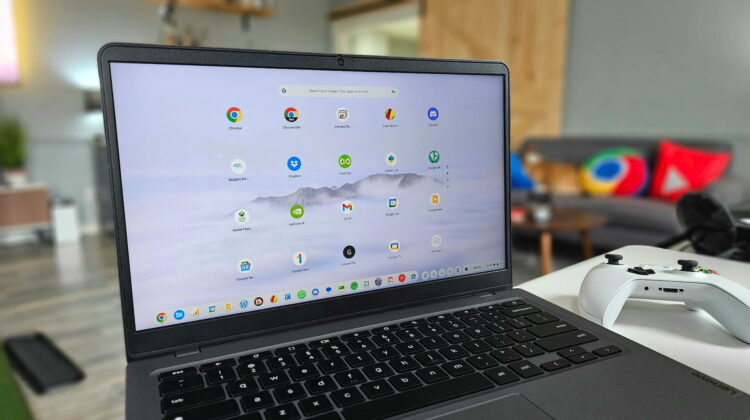
What I do have is an Intel Core i3-N305-powered clamshell Chromebook Plus with a touch screen, and that gets me close. You’ll see the post later (it’s about testing an experience of a Chromebook Plus tablet we may one day have), but I figured there was probably a way to force even clamshell-only devices into tablet mode with a little trickery. And there absolutely is.
Forcing tablet mode on a clamshell Chromebook
It only takes a few steps (I found them over on Reddit) and you can easily force your clamshell device into tablet mode with just a quick keyboard shortcut. This requires the enabling of one experimental flag, found here: chrome://flags/#ash-debug-shortcuts. After enabling it and performing the restart by pushing the big blue button at the bottom of the screen, you can simply press CTRL-ALT-SHIFT-T and just like that, you’ll be in tablet mode.

Once you’ve forced tablet mode, the UI will still accept keyboard and mouse input even though that’s not how it works on a convertible or tablet. On those devices, the minute a keyboard or mouse is detected, the UI switches back to the desktop layout. When you are finished with whatever you are testing, the CTRL-ALT-SHIFT-T shortcut will get back to the desktop UI.
This trick allows users to test things in tablet mode on their devices without needing to buy a separate Chromebook for it. Want to know how a particular Android game runs on a Chromebook tablet or convertible? Try it out first! And, more importantly for my uses, this gave me the ability to really test out the tablet UI on a Chromebook that meets the bare minimum spec requirement for Chromebook Plus to see what it will be like when/if we finally get Chromebook tablets that get included in the Chromebook Plus family.
Hopefully this little trick comes in handy for you at some point in your Chromebook journey. While it isn’t exactly something I’m going to use on a daily basis, it’s a nice trick to have in the back pocket for a rainy day when it is needed.
SUBSCRIBE TO UPSTREAM
Get Chrome Unboxed delivered straight to your inbox
Upstream is our flagship, curated newsletter with the top stories, most click-worthy deals, giveaways, and trending articles from Chrome Unboxed sent directly to your inbox a few times a week. Join 31,000+ subscribers.

