


Support our independent tech coverage. Chrome Unboxed is written by real people, for real people—not search algorithms. Join Chrome Unboxed Plus for just $2 a month to get an ad-free experience, access to our private Discord, and more. Learn more about membership here.
START FREE TRIAL (MONTHLY)START FREE TRIAL (ANNUAL)
With the explosion of the work from home and remote learning movements, many have been forced to learn much more about computing and network setups than we ever would have liked. As millions of users adopt Chrome OS as their new operating system – whether by choice or not – the question may arise from time to time “What is my Chromebook’s IP address?” Perhaps you have a device for work and your network administrator has asked you for your MAC address in order to give your device access to a private network.
Whatever the reason, your Chromebook does have an IP address and a MAC address, and finding them is as easy as 1,2,3. We’ll cover a couple of methods to help you retrieve these identifying numbers but first, let’s go over exactly what they are and how your device uses them.
What is an IP address?
IP, or Internet Protocol addresses like 192.168.1.1 are unique identifiers assigned to connected devices. Depending on the device and the network provider, the numbers can be static or dynamic. The unique number is what identifies your devices and their respective connections to the internet or internal networks. There are two types of IP addresses. The most common is IPV4 which is a 32-bit identifier that usually appears in the form of four sets of numbers separated by decimals. If you’ve ever set up a network printer, you’ll likely recognize an IPV4 address. It looks like this: 192.168.1.1.
The newer IPV6 consists of a 128-bit IP address and was created in response to the growing number of IoT and connected devices around the world. As there is only a finite amount of IPV4 addresses available, IPV6 has expanded rapidly over the past few years. Because these numbers are unique to location and ISP, your IP address at home will not be the same as the IP address at your office, the local coffee shop, or anywhere else.
What is a MAC address?
MAC, or Media Access Contol is a unique identifier assigned to each individual device’s Network Interface Card that is connected to a given network. This number is generally static on a Chromebook but devices such as Android phones, Windows laptops, and others have the ability to randomize this address for a higher level of security. If you work on a secured network and the admin has MAC filtering setup, you will need to provide your MAC address in order to be granted permission to use the network.
Finding your Chromebook’s IP address
There are a few different ways to find your Chromebook’s IP and MAC addresses. We’ll cover IP addresses first and then, I’ll show you two ways to find your MAC address. The first method for finding your IP address requires no more than a quick walk through your Chrome OS settings menu. To get started, click anywhere in your system tray at the bottom-right of your Chromebook.
Step 1. Click the system tray at the bottom-right and click the gear icon to open the Chrome OS settings menu.

Step 2. In the settings menu, click the Network tab and click on the wireless or wired network to which your Chromebook is currently connected.
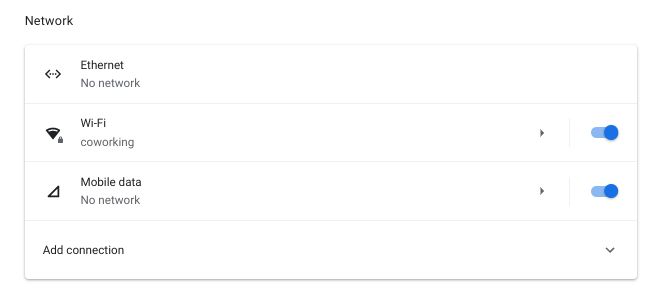
Step 3. Scroll down and you will see your IP Address. In this menu, you can set your IP to manual if you need to make custom configurations. By default, this is done automatically.

The browser method
An alternative and honestly quicker way to find your IP address is to head straight to the Chrome browser. You can access a plethora of system information from your Chromebook by heading to chrome://system in your browser. This extensive list will show you hardware information, device board name, network configurations, and a whole lot more but for us, it’s a perfect way to identify our IP address.
Step 1. Go to chrome://system in your Chrome browser.
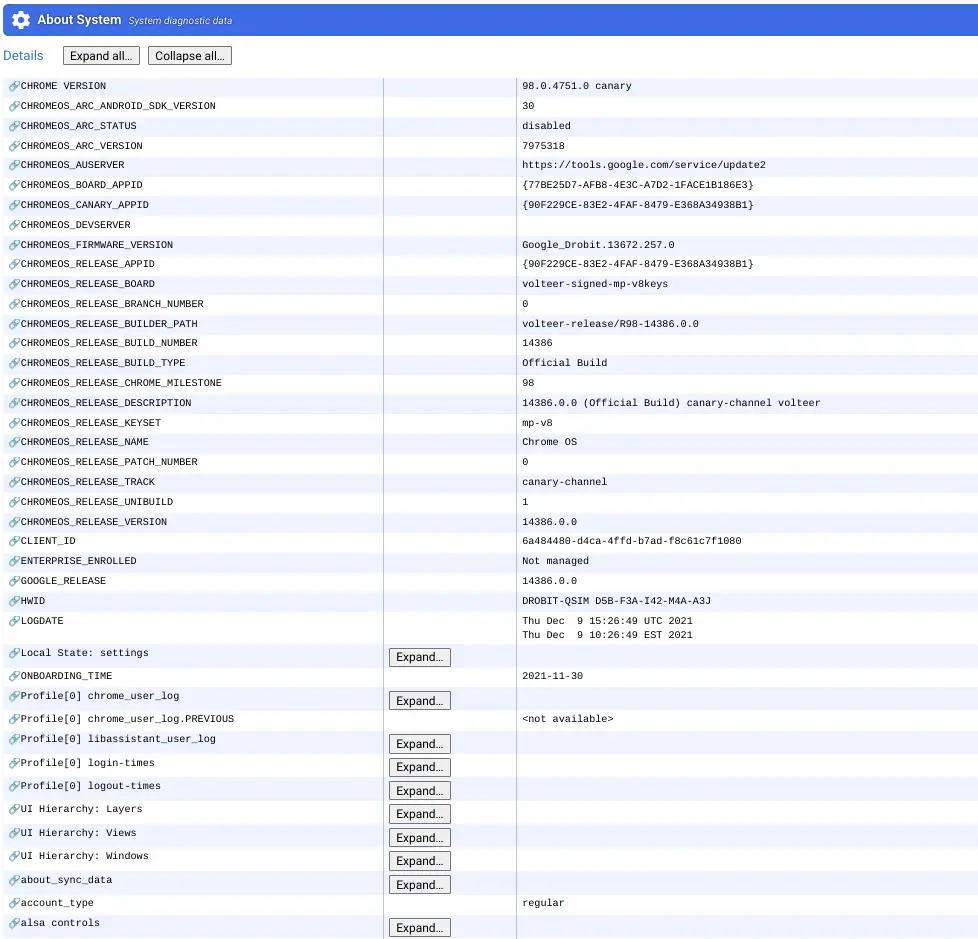
This is going to bring up a daunting list of stuff that may look completely foreign to you. Don’t worry. We can find what we need in a jiffy.
Step 2. Press Ctrl+f and search for ifconfig in the search box.

Step 3. Click the “expand” box next to ifconfig and locate your IP address.

The IP address will be in the last group under wlan0. It is the first number after the inet line. This is your IPV4 address. Your IPV6 address, if available, is listed after the inet6 label.
Your Chromebook MAC address
To find your Chromebook MAC address, we will use the same methods as above. The first method takes us back to the Chrome OS settings menu. Follow the steps above to navigate to your network settings for the connected network. Under the network settings, click the network tab. Scroll to the bottom of that tab and you will find your MAC address.
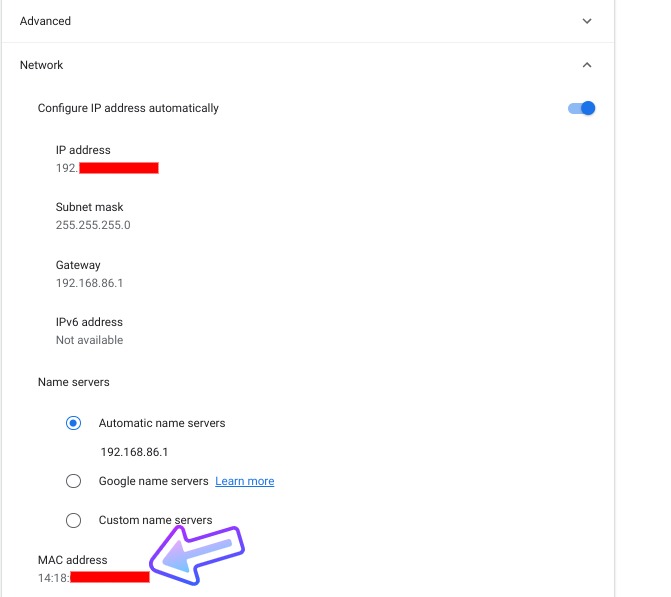
The alternate method is to head back to the Chrome browser and point your URL bar to chrome://system. Using the same steps from above, locate the ifconfig tab and click expand. At the bottom of this tab, we can find the device’s MAC address.

The MAC address is the string of numbers located after the “ether” label. This will be static for now but in the future, Google may be adding the ability to randomize this number for better security.
I hope this little guide helps you feel more comfortable finding your way around your Chromebook. Stay tuned for more how-tos just like this to help you get the most out of your Chrome OS device and other connected devices. Is there something you’ve been trying to figure out about your Chromebook? Drop a comment below or shoot us an email. We’d be happy to help and maybe your question could help us make more guides like this.
SUBSCRIBE TO UPSTREAM
Get Chrome Unboxed delivered straight to your inbox
Upstream is our flagship, curated newsletter with the top stories, most click-worthy deals, giveaways, and trending articles from Chrome Unboxed sent directly to your inbox a few times a week. Join 31,000+ subscribers.

