

Support our independent tech coverage. Chrome Unboxed is written by real people, for real people—not search algorithms. Join Chrome Unboxed Plus for just $2 a month to get an ad-free experience, access to our private Discord, and more. Learn more about membership here.
START FREE TRIAL (MONTHLY)START FREE TRIAL (ANNUAL)
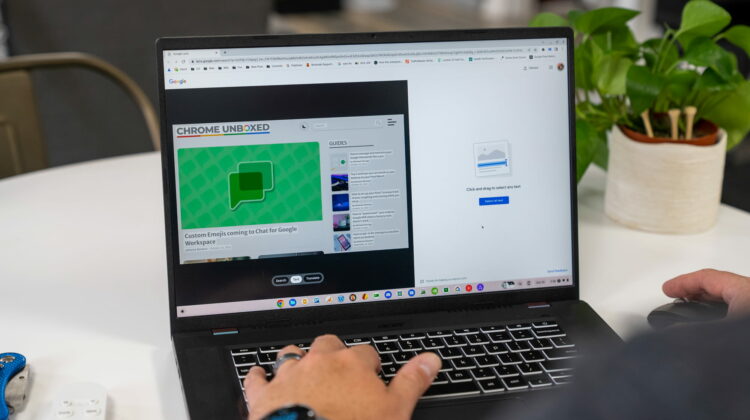
One of the coolest technologies released over the past few years has been the ability to scrape text off of images with Google Lens. It’s been around for a bit, and though its become pretty commonplace to be able to pull off a trick like this on your phone, its only recently become a feature baked right into the stable version of Chrome and ChromeOS.
We covered the way this works in a post from a few months ago, but now that this feature is in the Stable Channel of ChromeOS (and the Chrome browser for Windows and MacOS, too), we thought it would be a good time to make sure everyone knows about this really awesome tool and how to use it.
How to activate Google Lens
First up, you need to activate Google Lens. To do this, either right click on an image anywhere in your browser (2-finger click from the trackpad) OR right click anywhere on the page. If you right-click on an individual image, you will get the option to Search image with Google Lens. If you click on a non-image portion of the window, you’ll choose Search images with Google Lens.
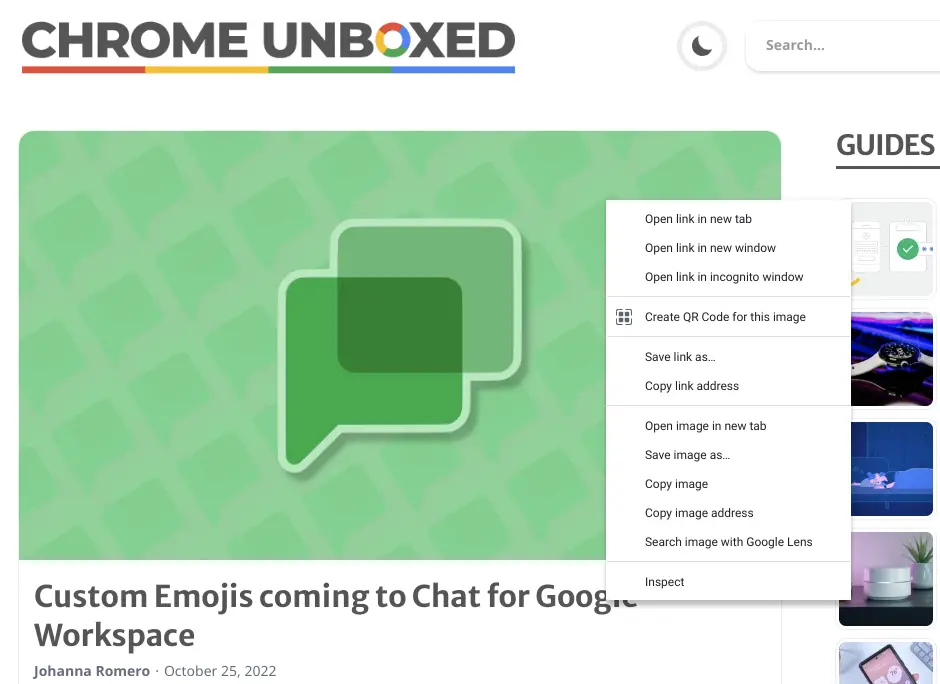
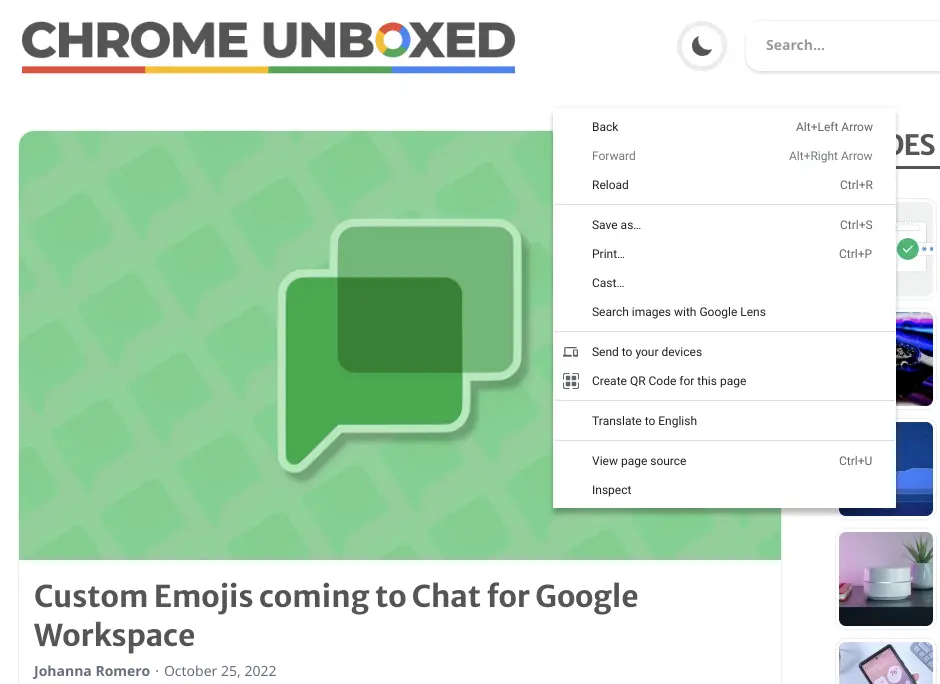
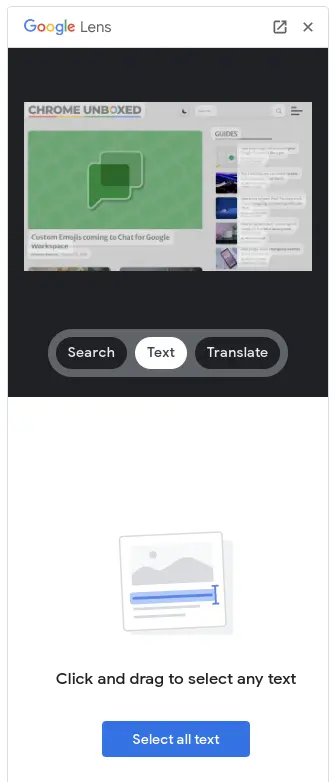
If you choose to select the image itself and choose Search images with Google Lens, the new Side Panel will activate with a full-blown Google Lens experience inside. This includes the ability to crop in on your image, choose to search the web for it, scrape text, or translate the text in the image.
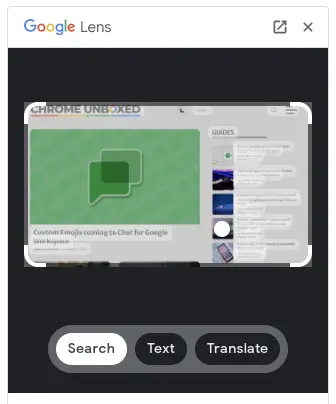
The same goes for selecting Search images with Google Lens as well, but the way you get your image is a bit different. When you don’t select the image to search specifically, you get the option to drag a crop box around the content you’d like to search. This will come in handy if for some reason you can’t get the image you want to actually select.
How to capture the text from an image
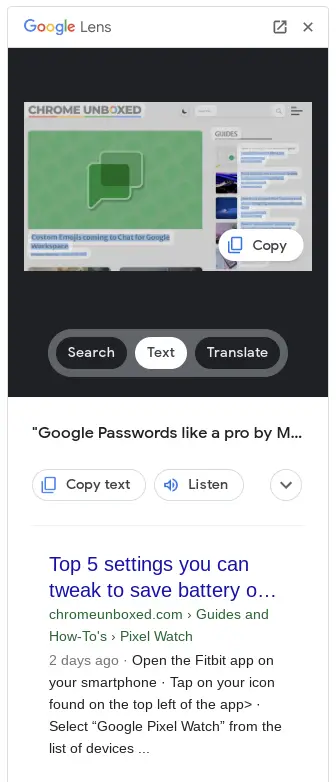
This part is equally simple. Once you have your image or selection of a site captured, you have the option to click on the Text button under it and after a few seconds, Google Lens will allow you to copy one section at a time or the entire text content of the image. If you don’t select any text, you’ll have the option to select all the text available in the image.
Getting a better look at your image
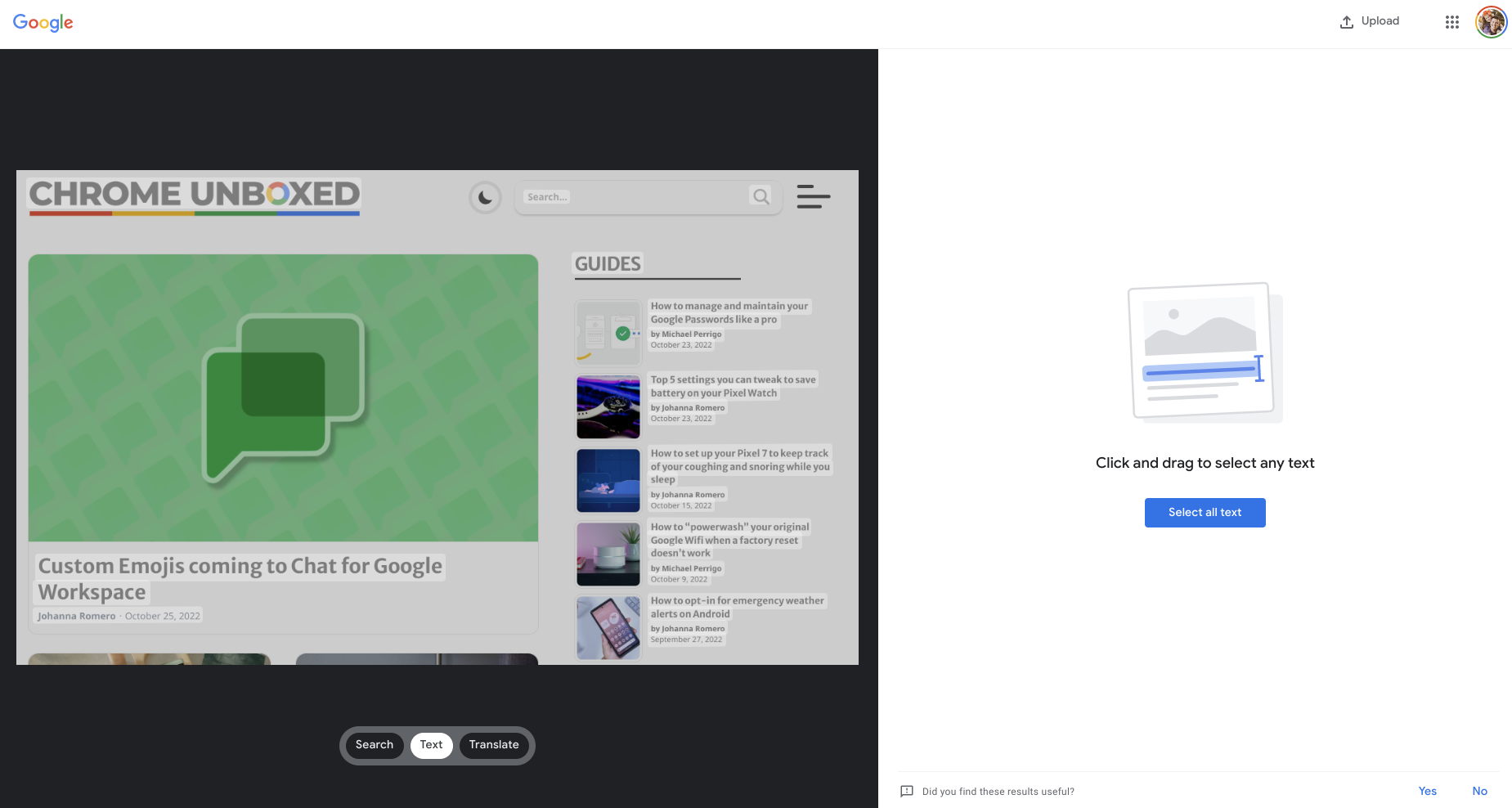
For those times you need to only pull a bit of text here and there from an image, I’d recommend clicking the pop-out button next to the X up at the top of the Side Panel. This will pop the entire Google Lens interface out from the Side Panel and into a full-sized tab. This obviously expands your small image in the Side Panel to take up half of your window and makes selecting smaller text elements far simpler.
Copy and Paste away
Either way you view and select your text, click the Copy button to copy that selected text and you can then paste it into any available text field you choose. If you are grabbing quite a bit of content or even just a few sentences, I’d recommend Google Keep or Google Docs to use as a landing spot for your snagged content. Go to either one and hit CTRL+V (or SEARCH+V) to drop your scraped text into a spot where it can be edited and formatted to your preference.
And that’s it! You now know how to quickly grab text right off of an image without needing an extension or app at all. Google has built a great tool with Google Lens, and the more it grows, the more useful it becomes. We sincerely hope this little tidbit comes in handy for you down the road!
SUBSCRIBE TO UPSTREAM
Get Chrome Unboxed delivered straight to your inbox
Upstream is our flagship, curated newsletter with the top stories, most click-worthy deals, giveaways, and trending articles from Chrome Unboxed sent directly to your inbox a few times a week. Join 31,000+ subscribers.

