


Support our independent tech coverage. Chrome Unboxed is written by real people, for real people—not search algorithms. Join Chrome Unboxed Plus for just $2 a month to get an ad-free experience, access to our private Discord, and more. Learn more about membership here.
START FREE TRIAL (MONTHLY)START FREE TRIAL (ANNUAL)
I’ll have to admit, this one took me a bit by surprise. I have no idea how long this feature has actually been around, but in just a few minutes of using it, I’m already in love. Thanks to a quick how-to article by Chrome Story, I may have just enabled a feature that will allow me to write articles even faster than before and, if you are interested, could help you out a bit, too.
Auto-correct for your physical keyboard
In a world where we all type on screens for a vast majority of the day, auto-correct has become something I simply expect to happen as I mash my fat thumbs my phone’s tiny buttons. After all, the most common thing is to miss key presses on these smaller keyboards we keep in our pockets, so having auto-correct always at the ready to clean up the mess only makes sense.
But what about on a full-sized physical keyboard? If you are a fantastic typist, I suppose auto correct isn’t a great idea. But for those of us who are pretty fast and in the process of moving quickly make mistakes, I have to admit that auto-correct taking care of business even as I’m typing this post is pretty fantastic. I don’t make loads of typing errors, but they happen; and as I’m working on this post right now, there’s less work I’ll have to do at the end of writing it than what I’m used to. And I like that.
How to enable auto-correct on your Chromebook
If you want to give this a go, the setup is as simple as it gets and you can be up and running with your own, personal typing safety net in just a few steps. First, open your settings and head to Advanced > Languages and inputs.
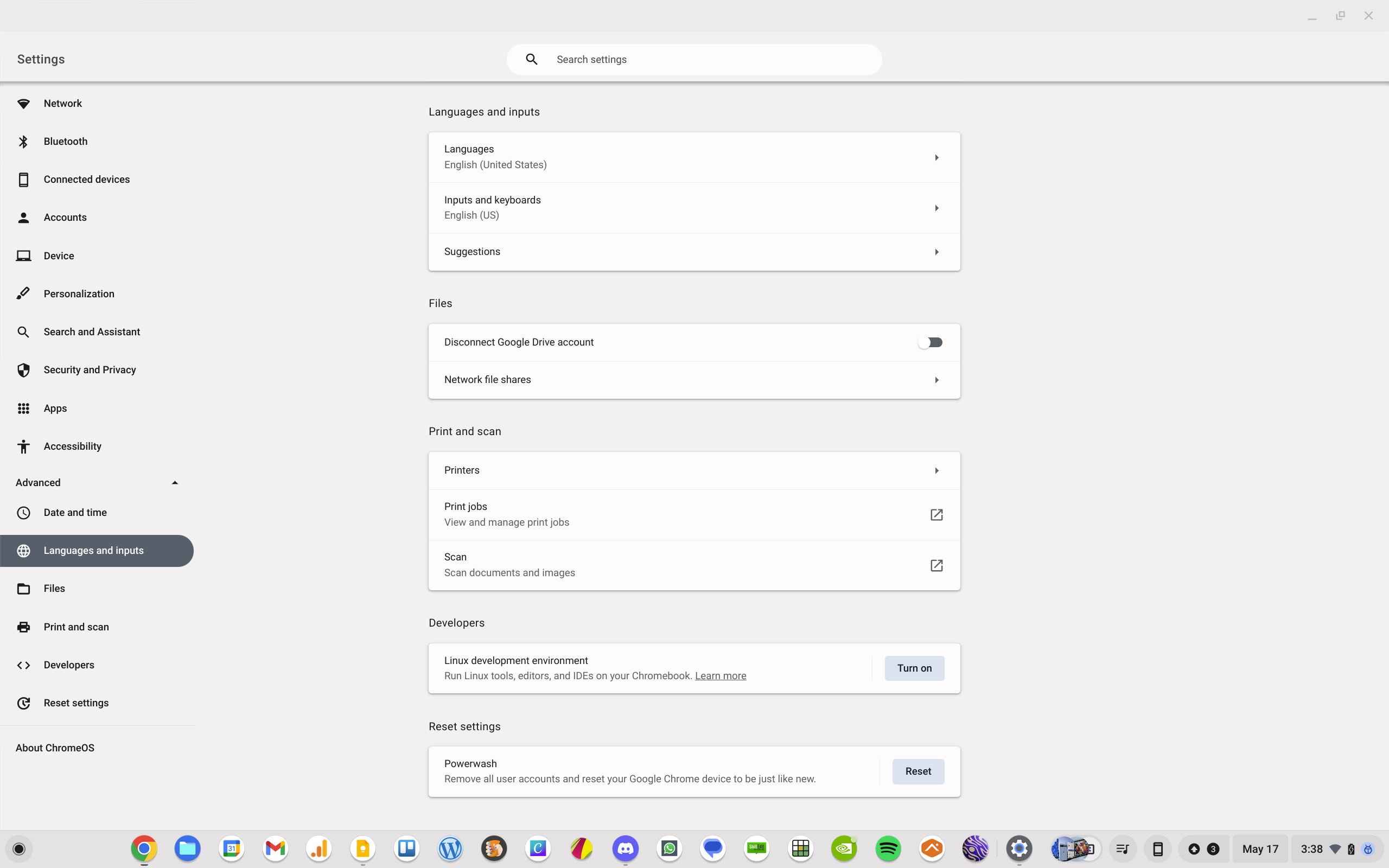
Next, click into the setting for Inputs and keyboards and you should see your language as one of the input methods listed. I’m not sure how many languages are supported, but you won’t know if yours is or not until you give it a try.
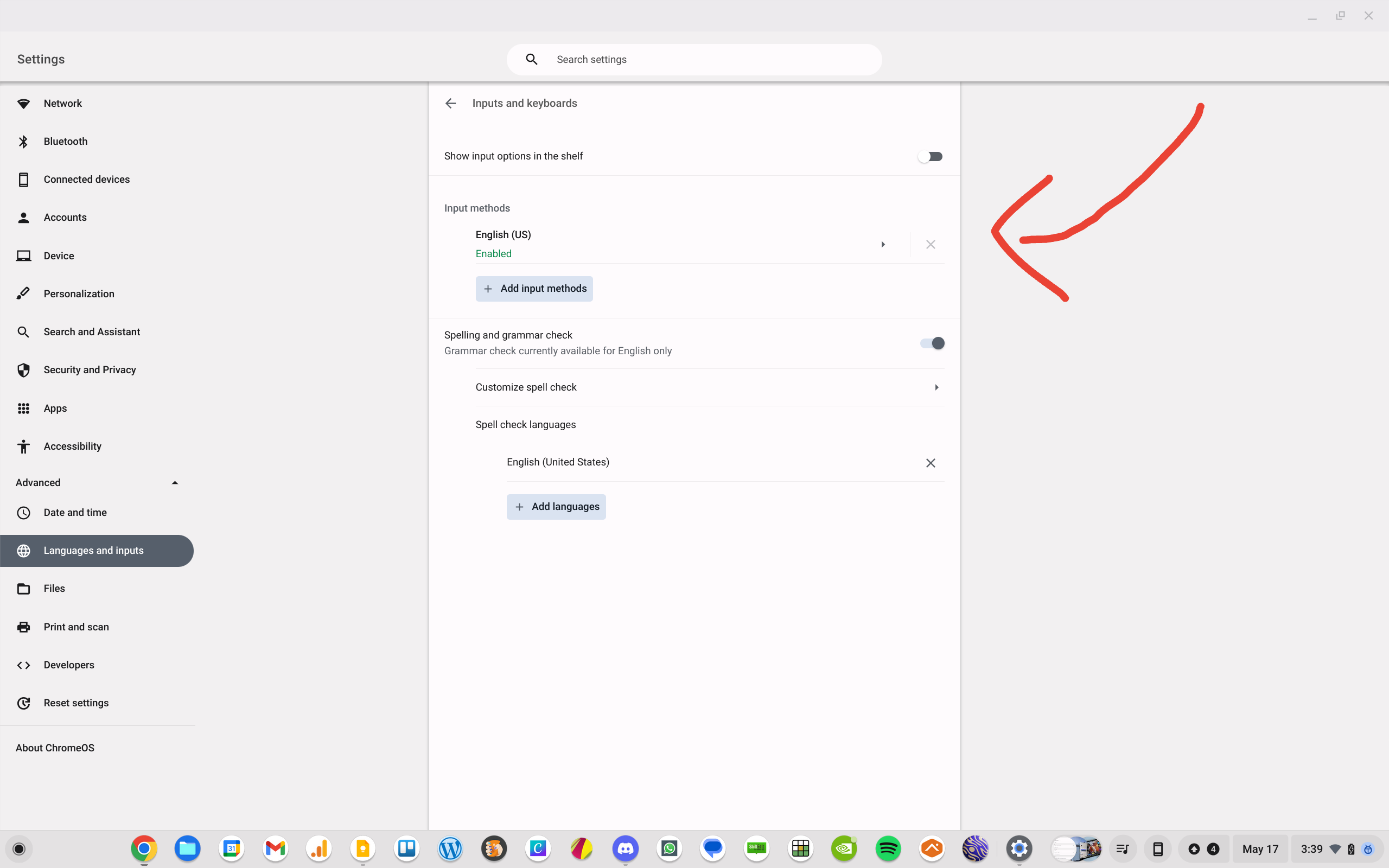
Once you’ve selected your language, you’ll now have some options for both the physical and virtual keyboards. The only option for the physical keyboard is to turn on/off auto-correction, and this is the part where you’ll want to click that slider and enable it. No restarts are needed and no additional steps are required: it’ll just start working.

And so far, I love this. If at any point the auto-correct gets in your way or becomes a hindrance, you can just follow these steps to go back and turn it off. One other thing, for a few seconds after you actually see a word auto-corrected, you’ll have the option to click on that now-underlined word and choose to undo what was just fixed. So far, I’ve only needed to do that once, but I’m sure there will be corrections that simply miss the mark. Good luck with this new feature, and I hope that it helps you as much as I think it is going to help me!
SUBSCRIBE TO UPSTREAM
Get Chrome Unboxed delivered straight to your inbox
Upstream is our flagship, curated newsletter with the top stories, most click-worthy deals, giveaways, and trending articles from Chrome Unboxed sent directly to your inbox a few times a week. Join 31,000+ subscribers.

