

Support our independent tech coverage. Chrome Unboxed is written by real people, for real people—not search algorithms. Join Chrome Unboxed Plus for just $2 a month to get an ad-free experience, access to our private Discord, and more. Learn more about membership here.
START FREE TRIAL (MONTHLY)START FREE TRIAL (ANNUAL)
Shortcuts are the best thing ever when it comes to creating your own personalized workflow that increases productivity. Whether it’s keyboard shortcuts, trackpad gestures, or what have you, every user has their own way of navigating their PCs, and doing so in the Chrome browser is no exception.
For quickly navigating to a specific URL, the Bookmarks bar is likely the most common method of saving and organizing websites but there’s a little-known method that can save make it even easier. If you’re like us, you visit a number of websites regularly and those sites and specific URLs simply pop up as suggestions when you start typing an address in the Omnibox. For example, when I type the letters “chr” in my URL bar, I know that one of the suggestions will be the login page for Chrome Unboxed. The problem is, I still have to click that suggestion or arrow down to it and hit enter. Not a big deal, I know but if I’m going to do that, I might as well have it saved in my Bookmarks. Believe me – that’s the last thing I need on my already cluttered browser. That’s an entirely different article for another time.
If you’d like to trim a few seconds here and there off of your workday, you can actually create customized shortcuts for any website address you want. It doesn’t require any extensions, flags, or any other tricks. This handy little feat can be achieved by heading to the Search Engine setting of your Chrome browser. By default, Google is the stock search engine for Chrome and Chrome OS but you can set any number of defaults if you so choose. Without fiddling with your default search engine, you can still add a custom shortcut in this particular settings menu and when you type that shortcut in your browser and hit enter, you’re on your way to your desired website.
Here’s how it works
You can go to the Chrome settings and look for “search engine” and click manage search engines or you can quickly navigate directly there with this link. chrome://settings/searchEngines At the top, you will see the default search engines. Below that, you should see “other search engines.” There will likely be some already save there as Chrome will add them automatically when you search some sites. To create a custom shortcut, we need only to add a new search engine with your desired shortcut. For demonstration purposes, I am going to create a shortcut to Chrome Unboxed.
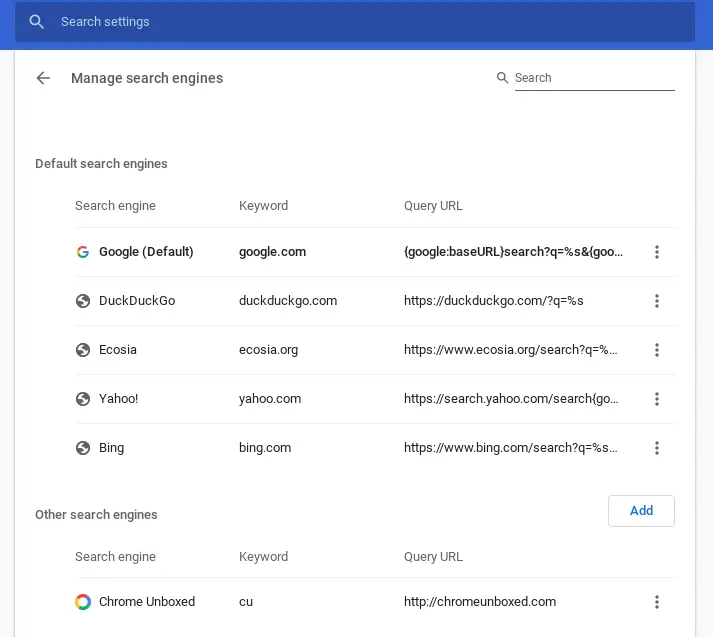
To get started, click the “Add” button above the other search engines section. You will be greeted with three empty fields. The search engine name can be anything you want. This is what will pop up when you type your shortcut so you want it to be something that you will quickly recognize. The “keyword” is the shortcut you want to use to invoke the URL. I used “CU” for my example. Last, type the URL exactly as it is from the website you want to save. Now, click “Add” and you’re all set. Open a new window and type the shortcut keyword and you should see that your saved site is the first at the top of the suggestion list. When I want to go to Chrome Unboxed, I just type “cu” and hit enter. No tabbing, no arrowing down, and no need to move my hand to the mouse or trackpad. It may seem like an elementary tool but over the course of a workday, this little trick could save you some time and hassle when if you frequent numerous sites a day. Hope that helps someone. Stay tuned for more tips and tricks.
SUBSCRIBE TO UPSTREAM
Get Chrome Unboxed delivered straight to your inbox
Upstream is our flagship, curated newsletter with the top stories, most click-worthy deals, giveaways, and trending articles from Chrome Unboxed sent directly to your inbox a few times a week. Join 31,000+ subscribers.

