
Support our independent tech coverage. Chrome Unboxed is written by real people, for real people—not search algorithms. Join Chrome Unboxed Plus for just $2 a month to get an ad-free experience, access to our private Discord, and more. Learn more about membership here.
START FREE TRIAL (MONTHLY)START FREE TRIAL (ANNUAL)
One of my favorite parts of being a Chromebook nerd is the fact that we can move through all the release channels of ChromeOS with ease, powerwash and start over in mere minutes. And that’s precisely what I’m planning on doing this morning to maybe get a glimpse of what’s coming in ChromeOS 126 that is actually due to start rolling out in the Stable Channel today.
While it isn’t showing up just yet, there’s a good chance it will later today, and I’m a bit curious to see what the ChromeOS team has for us with this latest update. My bet is on small improvements versus sweeping changes like we saw in ChromeOS 125. Let’s face it: with 4-week update cycles, you can’t get large changes every single time the OS updates.
You can do this with ease, too
I’m actually writing this real-time as my Chromebook updates in the background. So, it may end up that there’s nothing new I can find in Beta 126 to talk to you about. But what I’m really more interested in for this post is conveying the ease of channel-jumping to you on your own Chromebook. Especially so with Beta, moving through the channels is pretty simple and straightforward. And because of the nature of the Chromebook Powerwash, you don’t really have to sweat moving around a bit if you choose.
Just be sure to back up your local files somewhere. You can put them on a thumb drive or sync them up with Google Drive: just make sure you save them before you get into all this. Moving up channels (from Stable to Beta, for instance) won’t force you to wipe your device. Moving back (from Beta to Stable) will require a full factory reset, so again, this isn’t scary stuff, but you need to keep your locally-stored files backed up.
How to change channels on your Chromebook
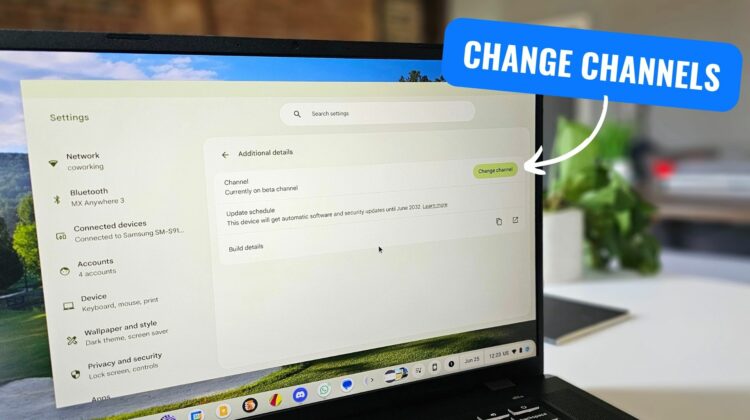
As I said, this is all quite simple. Just head to Settings > About ChromeOS > Additional Details > Change channel and you can pick either Stable, Beta or Developer channel. For today, I just want to see where ChromeOS 126 is and what’s available. While not always a 1-for-1 similarity to what this version of ChromeOS will look like once it rolls down to the Stable Channel, we can get a feel for the next version simply by jumping to the Beta before it hits.
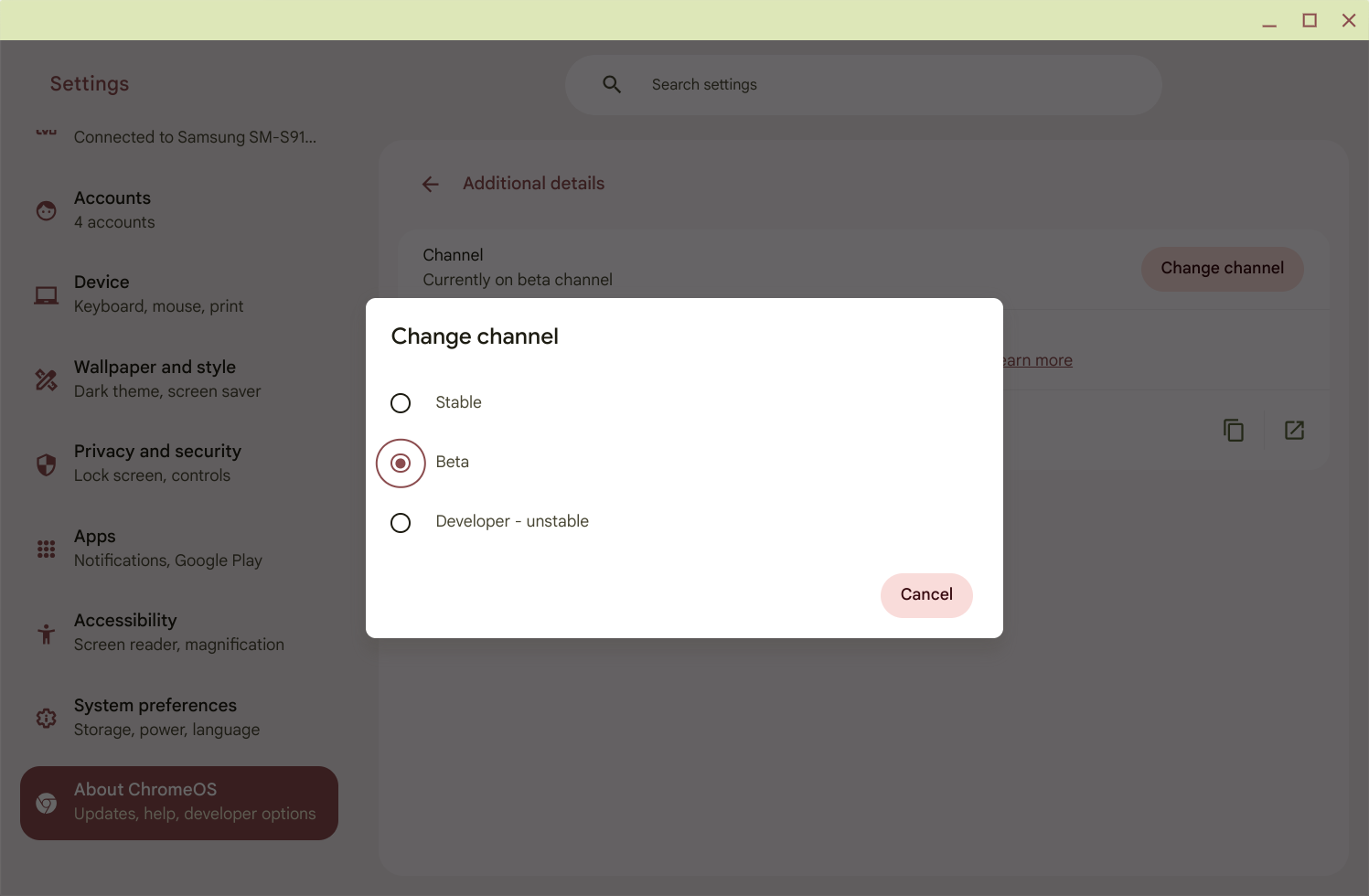
Once you choose your channel, you can go back one screen and you should see your Chromebook downloading and installing the new version. Once completed, you’ll get a notification that an update is ready for you. Click that restart button and you’ll be off to a new version of the OS in a matter of seconds. And that’s what I’m about to do right now to start exploring a bit.
What I found in ChromeOS 126
Again, I wanted to write this post in real-time, and in doing so, I’ve come up a bit empty-handed. I dug around ChromeOS 126 Beta for about 30 minutes and can’t find anything new just yet. As I predicted, M126 may be a very conservative update that brings some bug fixes and security updates and little else.
On the other hand, as I said above, there are times when features are held for Stable Channel reveals, so there’s still a chance that ChromeOS 126 could have some surprise features I’m simply not seeing in the Beta Channel at the moment.
The big takeaway here is remembering that – as a Chromebook user – you have the ability to easily move through development channels without much effort or worry. I’m going to hop over to the Developer Channel just to take a quick look around and then I’ll be back on the Stable Channel before I eat lunch. Though my explorations were a bit of a miss today, I’m hopeful that you can at least give this a try for yourself the next time you are a bit curious about what may be on the way from the ChromeOS team in the next update.
SUBSCRIBE TO UPSTREAM
Get Chrome Unboxed delivered straight to your inbox
Upstream is our flagship, curated newsletter with the top stories, most click-worthy deals, giveaways, and trending articles from Chrome Unboxed sent directly to your inbox a few times a week. Join 31,000+ subscribers.

